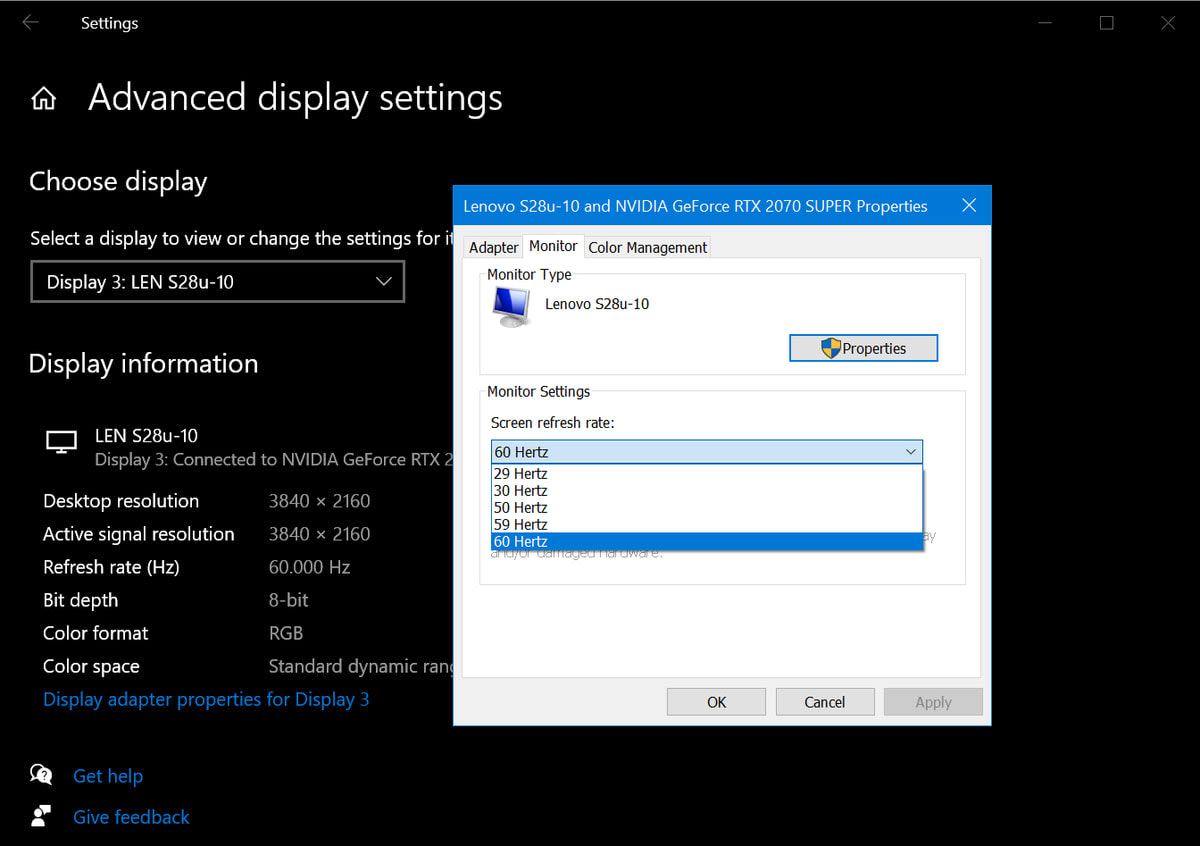
Windows does not automatically use your monitor's highest refresh rate — it picks a safe mode, sets 60Hz, and never mentions it again. That single behaviour accounts for most "my 144Hz monitor feels no different" complaints, and it is fixed in two clicks once you know where the setting lives.
The rest of the cases come down to bandwidth. A refresh rate is not a monitor property alone — it is a negotiation between the panel, the cable, the port version, and the GPU driver, and the weakest link silently sets the ceiling. If the 144Hz option is missing from the dropdown entirely, the problem is physical, not a setting.
Note
Key Takeaways
- Windows defaults new displays to 60Hz and does not prompt you to change it.
- If 144Hz appears in the dropdown, it is a two-click fix. If it does not appear, it is a cable, port, or driver limit.
- HDMI 1.4 cannot carry 1440p at 144Hz. DisplayPort is the reliable default for high-refresh gaming.
- Plugging into the motherboard's video output instead of the graphics card is a common and invisible cause.
- Windows feature updates frequently reset the refresh rate back to 60Hz.
- The dropdown says what Windows requested, not what the panel is doing — verify separately.
Start Here: The Two-Click Check
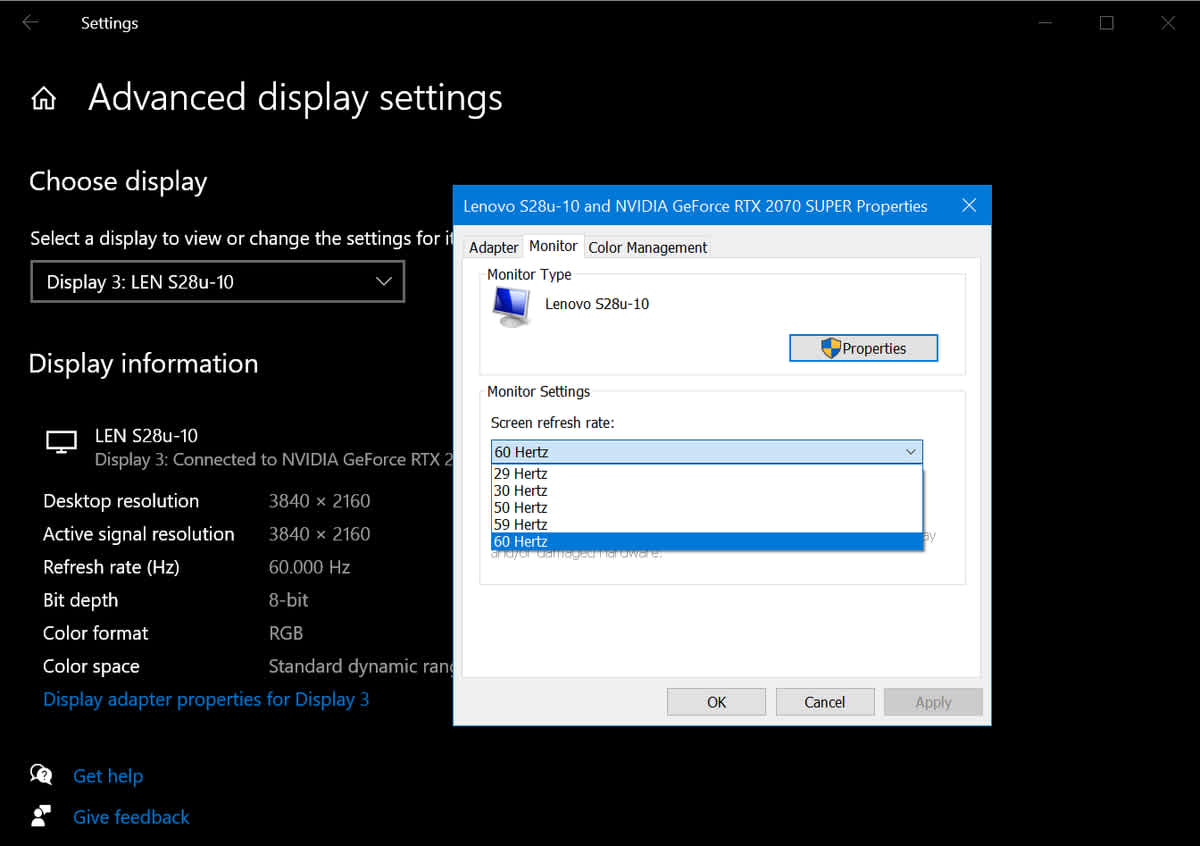
Open Settings → System → Display → Advanced display. Select the monitor from the dropdown at the top, then look at Choose a refresh rate.
If 144Hz, 165Hz, or 240Hz is listed, select it. Windows applies it immediately and asks you to confirm you can still see the screen. That is the whole fix for the majority of cases, and it is worth doing before you touch anything else.
If the highest option available is 60Hz, stop changing settings. The signal path is bandwidth-limited or the driver has not exposed the higher modes, and no amount of clicking in this menu will create an option that the hardware is not offering.
Tip
Check this setting again after every major Windows feature update. Updates routinely reset displays to 60Hz, and because the desktop looks completely normal at 60Hz, people often play for weeks before noticing.
Verify What the Panel Is Actually Doing
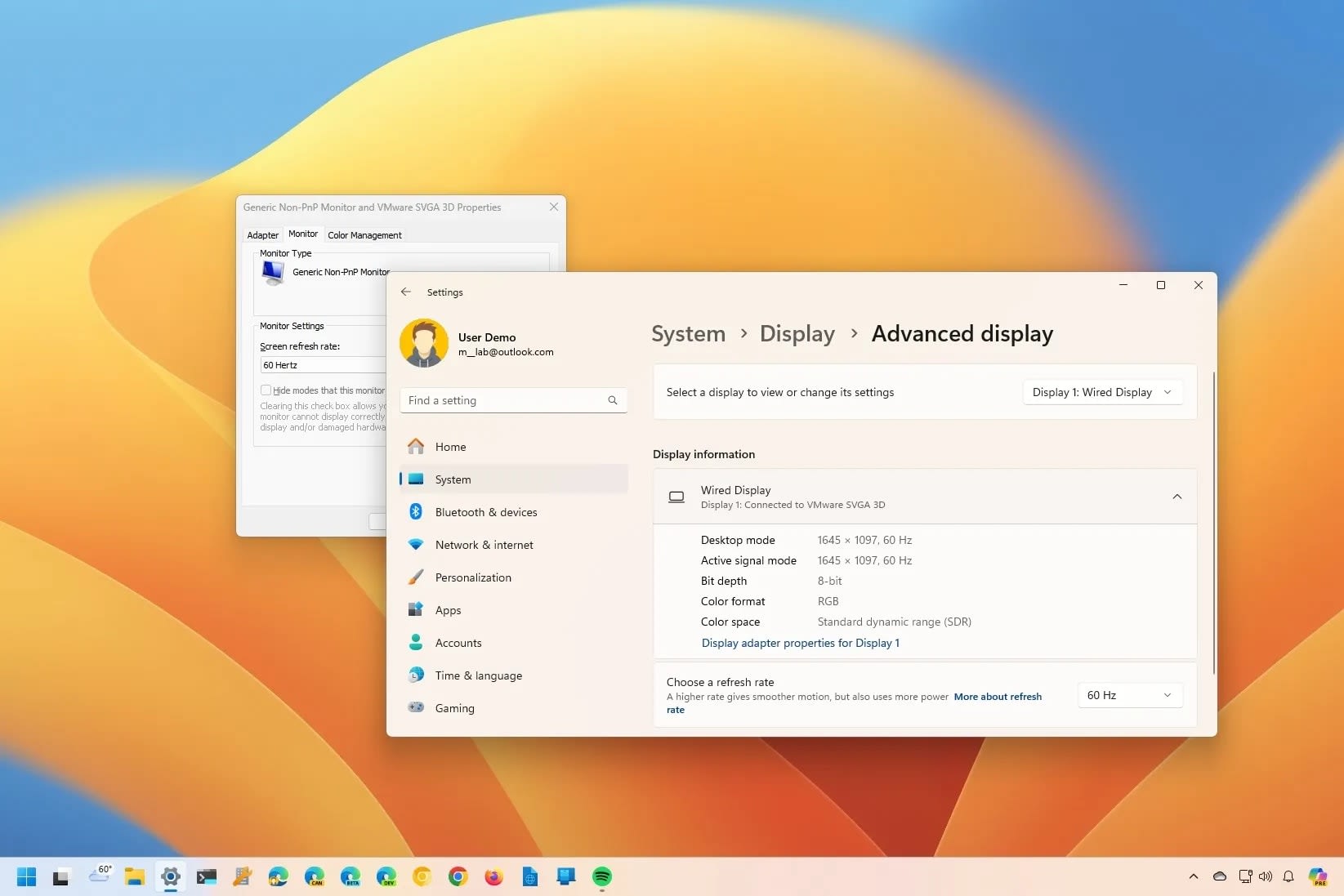
The Windows dropdown reports the mode Windows asked for. It is not a measurement, and the two can disagree — particularly after a cable change or a driver reinstall.
Two independent checks are worth running. Most gaming monitors display the current input signal in their own on-screen display, usually under an "Information" or "Signal" menu, and that reading comes from the panel itself rather than from Windows. The second check is the UFO test at testufo.com, which measures frames actually delivered to the display in your browser.
If Windows claims 144Hz and the monitor's own menu says 60Hz, believe the monitor. That mismatch almost always means the cable is negotiating a lower link rate than the port supports.
This distinction matters for the same reason average FPS is a poor way to judge smoothness — the number on the label is not the number being delivered. Our guide to what 1% lows measure covers the same problem on the frame rate side.
Cause 1: The Cable and the Port Cannot Carry It
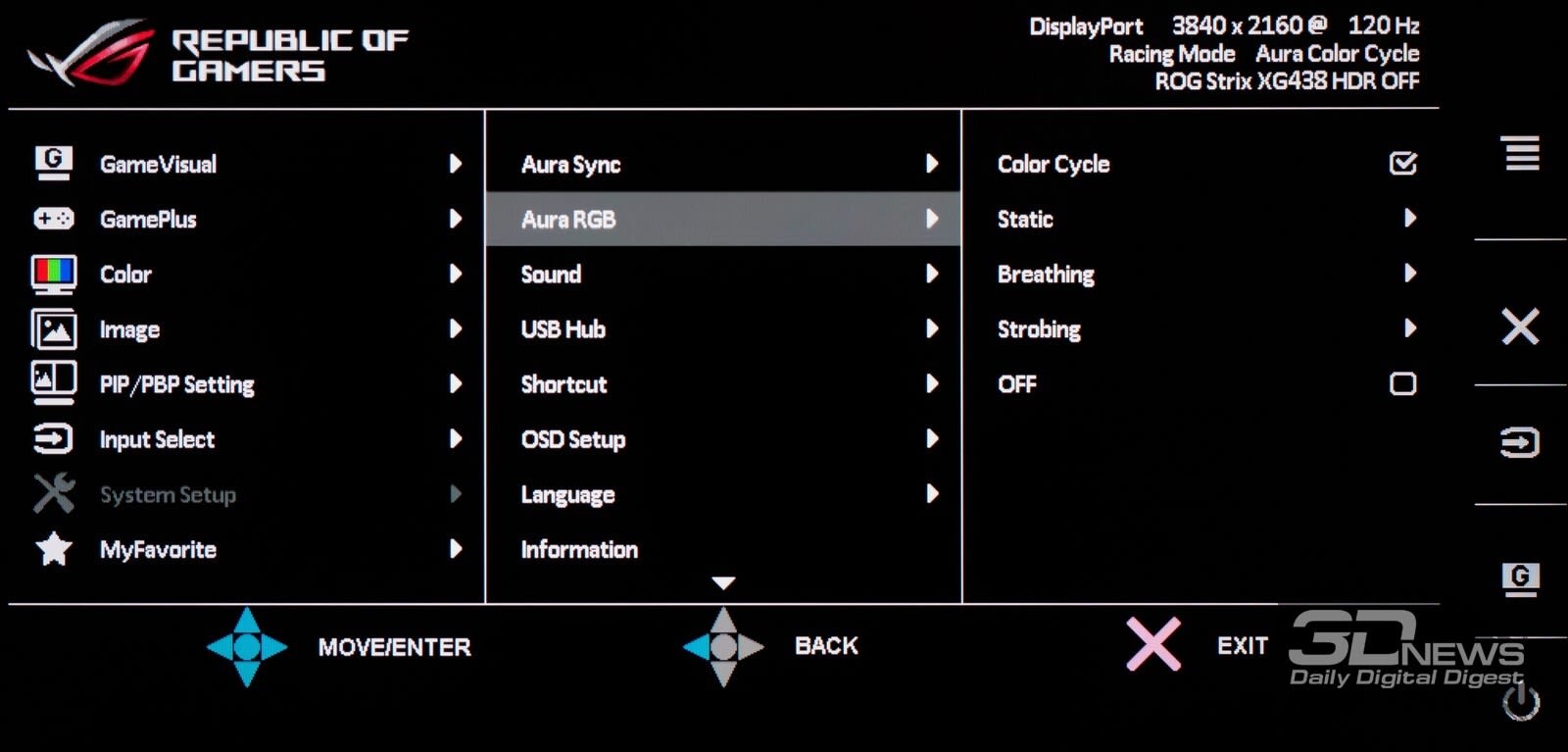
This is the most common physical cause, and the one people are most confident is not their problem. A cable that works perfectly at 1440p 60Hz can be entirely incapable of 1440p 144Hz — it will simply fall back rather than fail visibly.
The bandwidth requirement scales with resolution, refresh rate, and colour depth together:
| # | Connection | Raw bandwidth | Comfortably drives |
|---|---|---|---|
| 1 | HDMI 1.4 | 10.2 Gbit/s | 1080p 144Hz, 1440p 60Hz |
| 2 | HDMI 2.0 | 18 Gbit/s | 1440p 144Hz, 4K 60Hz |
| 3 | HDMI 2.1 | 48 Gbit/s | 4K 144Hz |
| 4 | DisplayPort 1.2 | 21.6 Gbit/s | 1440p 144Hz, 1080p 240Hz |
| 5 | DisplayPort 1.4 | 32.4 Gbit/s | 1440p 240Hz, 4K 120Hz via DSC |
| 6 | DisplayPort 2.1 | up to 80 Gbit/s | 4K 240Hz and beyond |
Row 1 is where most of these complaints originate. HDMI 1.4 handles 1080p at 144Hz on many monitors but cannot reach 1440p at 144Hz, so a 1440p panel on an old HDMI cable lands on 60Hz and stays there.
Two practical rules follow. Use DisplayPort for a PC gaming monitor unless you have a specific reason not to — it has carried 1440p 144Hz since DP 1.2 in 2010, which makes almost any DisplayPort cable you own sufficient. And if you must use HDMI, the port version on both ends matters more than the cable's marketing.
That second point is worth care, because HDMI cable labelling is close to meaningless. Our guide to spotting a fake HDMI 2.1 cable covers why "HDMI 2.1 cable" is not a real certification and what the actual one looks like. For choosing between the two standards outright, DisplayPort 1.4 versus HDMI 2.1 covers which to use per setup, and DisplayPort 2.1 versus HDMI 2.1 covers the current high-end.
Cause 2: You Are Plugged Into the Motherboard
Desktop cases make this easy to get wrong. The motherboard's video outputs sit directly above the graphics card's outputs on the back panel, and a cable in the wrong one still produces a perfectly normal picture.
When the display is driven by the CPU's integrated graphics instead of the graphics card, you lose the card's higher output capability and often its higher refresh modes, and your games run on the iGPU as well. The symptom set is distinctive: 60Hz ceiling, weak frame rates, and a graphics card that appears idle.
Look at the back of the machine. The graphics card's ports are in a horizontal cluster lower down, usually rotated relative to the motherboard's I/O panel. Moving the cable there fixes both problems at once.
If your frame rate is also poor and you suspect this is what happened, our guide to games running on integrated graphics instead of your GPU covers how to confirm which processor is actually rendering.
Cause 3: The Monitor's Own Overclock Toggle
A number of gaming monitors ship with their highest refresh rate disabled by default. The panel is rated for 165Hz or 180Hz, but out of the box it advertises a lower mode until you enable the higher one in the monitor's menu.
The toggle is usually labelled Overclock, OC, High Refresh Rate, or Performance Mode, and it lives in the monitor's on-screen display rather than anywhere in Windows. Enabling it typically requires the monitor to re-handshake, so the screen blanks for a few seconds.
This is worth checking specifically when the dropdown offers 144Hz but not the 165Hz you paid for. It is also worth checking on any monitor connected over DisplayPort where the numbers do not match the spec sheet.
Cause 4: Windows Reset It
Windows resets refresh rates more often than it should. Feature updates, driver reinstalls, and switching a laptop to a battery-saver power profile can all quietly drop a display back to 60Hz.
Windows 11 adds a second mechanism worth knowing about. Dynamic Refresh Rate lowers the refresh rate automatically when the system decides you do not need it, which is a battery feature on laptops and an occasional source of confusion on desktops. If the rate seems to change on its own, this is the first thing to look at.
There is no permanent fix for the reset behaviour beyond re-checking the setting after updates. Making it a habit costs ten seconds.
Cause 5: The Driver Has Not Exposed the Modes
If Windows shows only 60Hz but the monitor and cable are both clearly capable, the graphics driver is the remaining suspect.
Both vendors expose refresh rate independently of Windows. On NVIDIA, NVIDIA Control Panel → Change resolution lists refresh rates per display, and a custom resolution can be defined there if the standard mode list is incomplete. On AMD, the equivalent lives in AMD Software → Display.
If neither offers the rate, a clean driver reinstall is the next step — an upgrade that carried forward a broken display database will keep producing the same truncated mode list. Failing that, the monitor's EDID may not be reporting its capabilities correctly, which a firmware update from the manufacturer sometimes resolves.
Cause 6: You Are Trading Refresh for Resolution or Colour
At 4K, and on high-refresh HDR panels, bandwidth becomes tight enough that the display negotiates a compromise rather than refusing outright. The result is a link that works but is not doing what you assumed.
The common trades are colour depth and chroma. A connection that cannot carry 4K 144Hz at full 10-bit RGB may deliver it at 8-bit, or at reduced chroma subsampling such as 4:2:2, or refuse the mode entirely and drop to 60Hz. Display Stream Compression exists to solve this and is genuinely visually lossless in practice, but it has to be supported on both ends.
If your monitor supports DSC, make sure it is enabled in the monitor's menu. If it does not, and you are at 4K, choosing between full colour depth at a lower refresh rate and a higher refresh rate at reduced colour is a real decision rather than a fault.
The Diagnostic Order
Work down this list and stop when the rate changes:
| # | Check | Time |
|---|---|---|
| 1 | Windows advanced display refresh rate | 10 sec |
| 2 | Confirm the cable is in the graphics card | 10 sec |
| 3 | Monitor OSD overclock or high-refresh toggle | 1 min |
| 4 | Swap to a DisplayPort cable | 2 min |
| 5 | Check the rate in the monitor's own OSD | 1 min |
| 6 | NVIDIA or AMD control panel resolution page | 2 min |
| 7 | Clean GPU driver reinstall | 15 min |
Rows 1 and 2 resolve the clear majority. Row 4 is the single highest-value physical change, because a DisplayPort cable removes the entire HDMI version question from the equation in one step.
What Fixing This Does Not Fix
Getting to 144Hz changes how many frames reach your eyes. It does not change several things people expect it to.
Ghosting and smearing are panel response characteristics, not refresh rate. If motion looks blurry or leaves trails at 144Hz, that is overdrive tuning — covered in monitor overdrive and ghosting and in GtG versus MPRT response times.
Stutter is frame delivery, not refresh rate. A game running at 45 FPS on a 144Hz panel still stutters — see how to fix stuttering in PC games.
Tearing gets more frequent at higher refresh rates without variable refresh configured properly, which is its own topic covered in G-Sync, V-Sync and frame cap settings.
Second-monitor frame pacing can get worse once your primary is at 144Hz and your secondary is still at 60Hz, because that specific pair composes badly — see why a second monitor costs you FPS.
Frequently Asked Questions
Why does Windows default to 60Hz instead of my monitor's maximum?
Because 60Hz is the mode Windows can be confident every display and signal path supports. Rather than risk a black screen on an unknown configuration, it selects a safe default and leaves the higher modes available but unselected. It does not prompt you, so the setting stays at 60Hz until you change it manually.
Can HDMI do 144Hz?
It depends entirely on the version. HDMI 1.4 manages 1080p at 144Hz on many monitors but cannot reach 1440p at that rate. HDMI 2.0 handles 1440p 144Hz, and HDMI 2.1 handles 4K 144Hz. Both ends of the link and the cable all have to support the version you need, which is why DisplayPort is the simpler choice for a desktop gaming monitor.
Why is 144Hz missing from the Windows dropdown entirely?
Because the mode is not being offered to Windows at all. That points to a bandwidth limit in the cable or port, a display connected to the motherboard rather than the graphics card, a refresh rate toggle still disabled in the monitor's menu, or a graphics driver that has not exposed the full mode list. Adding the option is a hardware or driver fix, not a Windows setting.
Does a higher refresh rate reduce input lag?
Yes, modestly and independently of frame rate. A 144Hz display presents a new image every 6.94ms against 16.67ms at 60Hz, so a finished frame waits less time to appear. The effect is real but smaller than the difference a higher frame rate makes, and it does nothing about lag introduced elsewhere in the chain.
My monitor says 144Hz but games still feel like 60.
Check your actual frame rate before assuming the display is at fault. A 144Hz panel showing a game running at 60 FPS looks like 60 FPS. If the frame rate is genuinely high and motion still feels wrong, the likely causes are a variable refresh configuration problem or panel response time rather than refresh rate.
Does the refresh rate reset after Windows updates?
Frequently, yes. Feature updates and graphics driver reinstalls both commonly return displays to 60Hz, and Windows gives no notification when it happens. Re-checking the advanced display setting after any large update is the only reliable defence.
The Bottom Line
Check the Windows setting first. Settings → System → Display → Advanced display, pick the highest rate offered, and a large share of these cases end there — because Windows never selected it for you in the first place.
If the rate you want is not in the list, stop adjusting software. The list reflects what the hardware is offering, and the fastest way to change it is a DisplayPort cable plugged into the graphics card, followed by the monitor's own overclock toggle. Then verify the result in the monitor's own menu rather than in Windows, because the only number that counts is the one the panel reports.
Sources
- Microsoft Support, Change the refresh rate on your monitor in Windows, retrieved 2026-08-13, https://support.microsoft.com/en-us/windows/hardware/display-graphics/change-the-refresh-rate-on-your-monitor-in-windows
- VESA, DisplayPort, retrieved 2026-08-13, https://www.vesa.org/featured-technologies/mainstream-displays/displayport/
- HDMI Licensing Administrator, HDMI 2.1 Specification, retrieved 2026-08-13, https://www.hdmi.org/spec/hdmi2_1
- Blur Busters, UFO Test: Frame Rate and Refresh Rate Measurement, retrieved 2026-08-13, https://www.testufo.com/
- Microsoft Learn, Monitor stuck on 60Hz, retrieved 2026-08-13, https://learn.microsoft.com/en-us/answers/questions/4017559/monitor-stuck-on-60hz