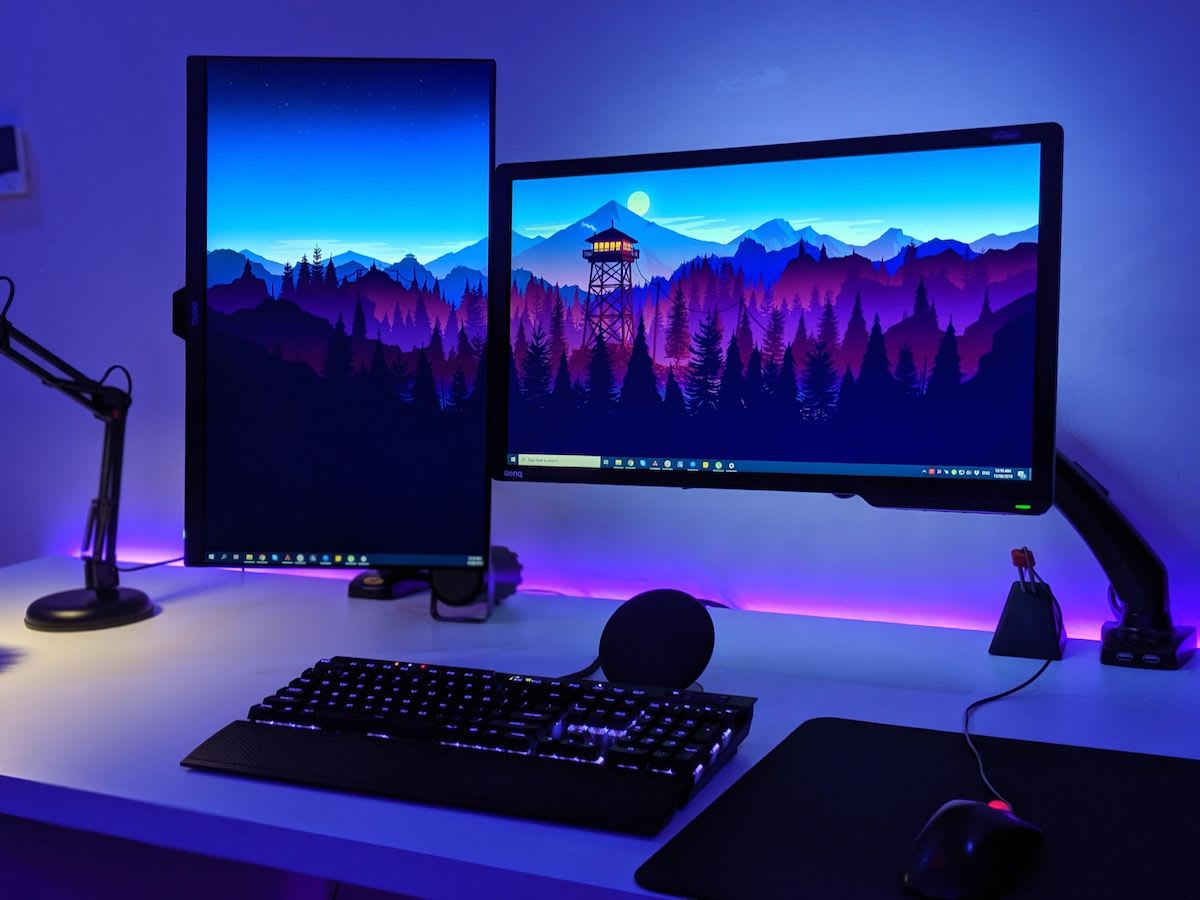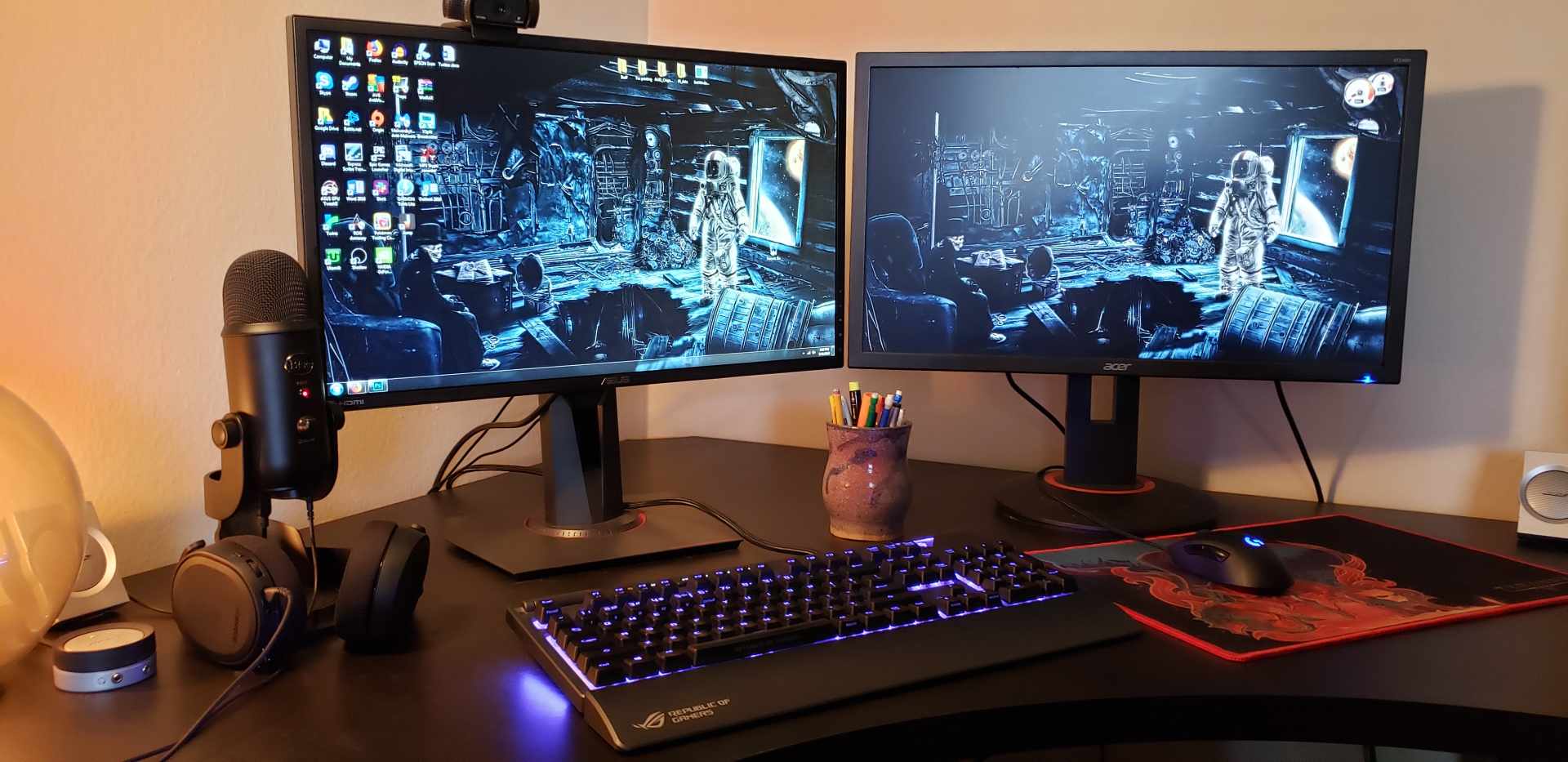
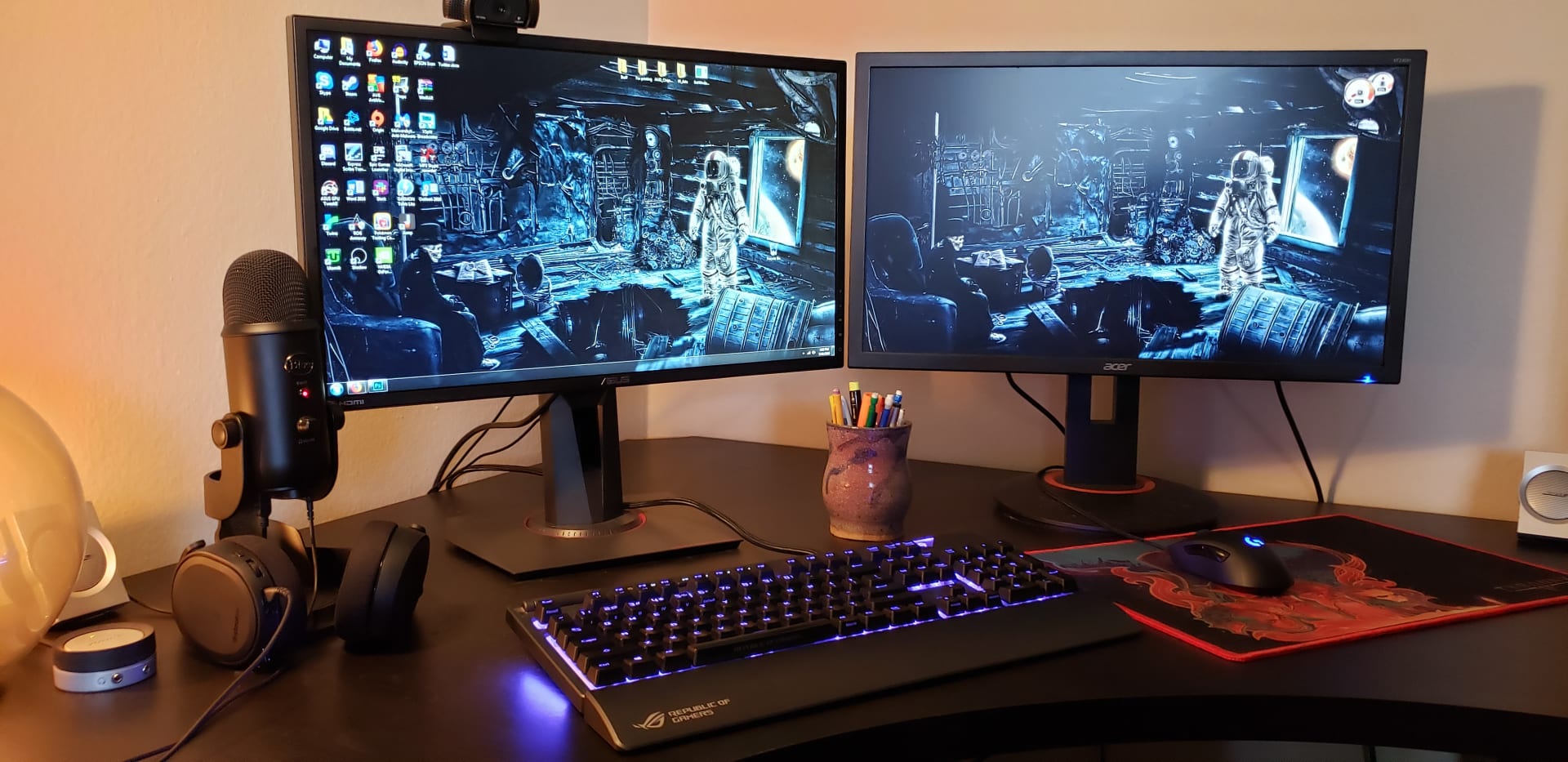
A second monitor costs you frames mainly when its refresh rate does not divide cleanly into your primary display's. A 144Hz gaming monitor paired with a 60Hz secondary forces Windows to compose two timings that never line up, and the cost lands on frame pacing rather than raw throughput — which is why the problem feels like stutter even when your FPS counter looks fine.
The good news is that this is usually a settings problem, not a hardware limitation. Matching or cleanly dividing your refresh rates resolves most cases outright, and the remaining ones come down to what is actually rendering on that second screen.
Note
Key Takeaways
- The trigger is mismatched refresh rates, not the presence of a second monitor by itself.
- Windows composes both displays through the Desktop Window Manager; incompatible timings force compromises that show up as stutter.
- Clean multiples work. 144Hz + 72Hz is fine. 144Hz + 60Hz is the classic problem pair.
- A video or animation playing on the second screen is far more expensive than a static window.
- Mismatched displays also pin the GPU memory clock high at idle, raising temperatures and fan noise.
Why Mismatched Refresh Rates Cause Stutter
Windows composes your desktop through the Desktop Window Manager, which has to present finished frames to every connected display on that display's own schedule. When both displays run at the same rate, one composition cadence serves both. When they do not, DWM has to reconcile two schedules that never align.
A 144Hz display refreshes every 6.94ms. A 60Hz display refreshes every 16.67ms. Those intervals share no useful common rhythm — the beat pattern drifts continuously. Something has to give, and what gives is the consistency of frame delivery to your gaming monitor.
Modern Windows 11 handles this far better than Windows 10 did. Independent flip and the multi-plane overlay path let the GPU present different planes on independent schedules rather than forcing everything through one global composition rate. That is why this problem is less catastrophic than it was a few years ago, and also why it still appears — those paths do not engage in every configuration, and multi-monitor setups with VRR and HDR in the mix are exactly where they are most likely to fall back to slower paths.

Tip
If your FPS counter barely moves but the game feels worse with the second monitor connected, you are looking at a frame pacing problem rather than a throughput problem. Average FPS is the wrong metric to diagnose this — record 1% lows with and without the second display instead.
That distinction matters enough to measure properly. Our guide to what 1% lows are and why average FPS lies covers the tools that capture per-frame timings, and it is the only way to confirm whether a second monitor is actually costing you anything.
The Fixes, Ranked
Match or Cleanly Divide Refresh Rates
The highest-value fix by a wide margin. Set both to the same rate, or make the secondary a clean divisor — 144Hz with 72Hz, 240Hz with 120Hz, 120Hz with 60Hz.
Cap Your Frame Rate
Cap slightly below the primary monitor's refresh rate — 141 FPS on a 144Hz panel. This stops the GPU from fighting the composition schedule.
Use Exclusive Fullscreen
Where the game offers it, exclusive fullscreen bypasses desktop composition for the primary display entirely. Borderless windowed does not.
Move the Secondary to the iGPU
If your CPU has integrated graphics, connecting the second monitor to the motherboard output takes it off your GPU's composition path completely.
Work down that list in order and stop when the problem goes away. The first card resolves the majority of cases on its own.
Setting Refresh Rates in Windows
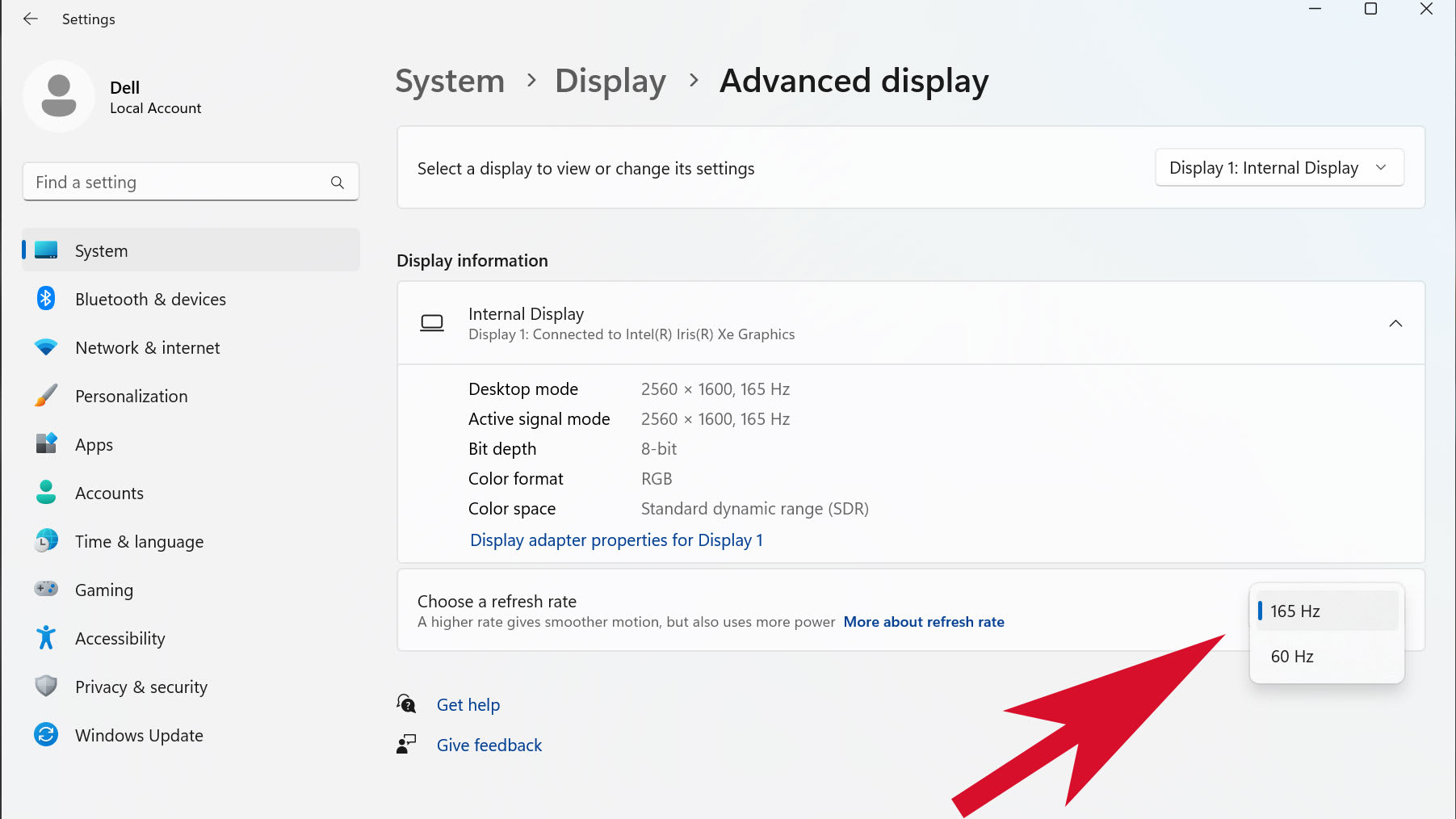
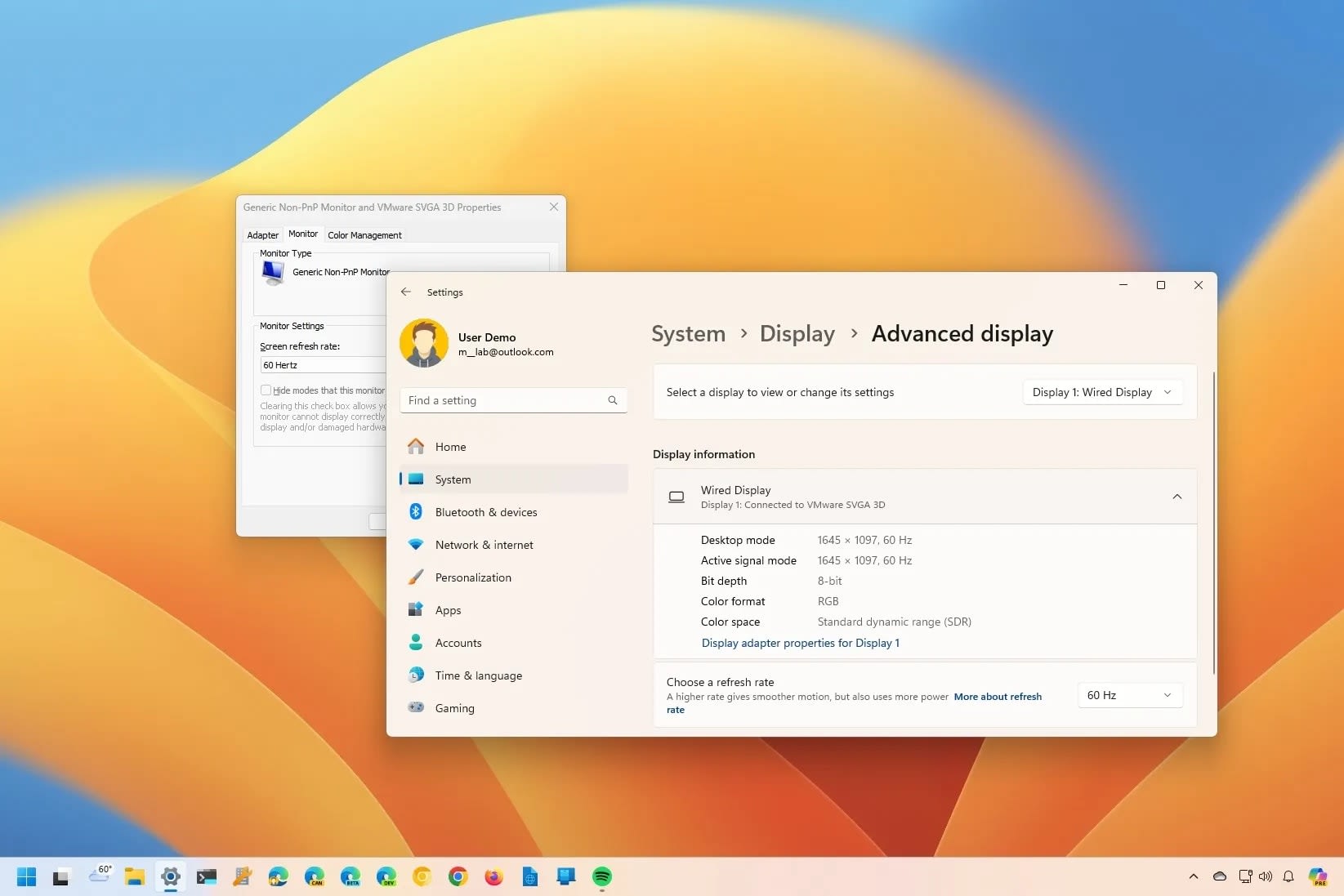
Open Settings → System → Display → Advanced display, select each monitor from the dropdown, and set its refresh rate. Check both — Windows sometimes silently drops a display to 60Hz after a driver update or a cable change, and a monitor you believe is running at 144Hz may not be.

| # | Primary | Secondary | Verdict |
|---|---|---|---|
| 1 | 144Hz | 144Hz | Ideal — one cadence serves both |
| 2 | 144Hz | 72Hz | Fine — clean 2:1 divisor |
| 3 | 240Hz | 120Hz | Fine — clean 2:1 divisor |
| 4 | 144Hz | 60Hz | The classic problem pair |
| 5 | 165Hz | 60Hz | Problem pair, no clean relationship |
| 6 | 240Hz | 144Hz | Usually fine on Windows 11, test it |
Row 4 and row 5 are where almost all complaints originate. If your secondary panel supports 72Hz or 75Hz, moving it there frequently fixes the problem in one step — and dropping a 144Hz primary to 120Hz to pair cleanly with a 60Hz secondary is often a better trade than it sounds.
What Is On the Second Screen Matters Enormously
A second monitor showing a static Discord window costs almost nothing. A second monitor playing video costs a great deal, and this is where most of the remaining performance loss lives.
| # | Content on secondary | Relative cost | Why |
|---|---|---|---|
| 1 | Static window, no animation | Negligible | Nothing to recompose |
| 2 | Chat client with activity | Low | Occasional small redraws |
| 3 | Browser with animated ads | Moderate | Continuous compositing work |
| 4 | YouTube or streaming video | High | Decode plus continuous composition |
| 5 | Second game or emulator | Very high | Full render pipeline competing directly |
| 6 | Streaming or capture software | Very high | Encode load on the same GPU |
Row 4 is the most common real-world cause of "my FPS tanks when I have a second monitor." It is not the monitor — it is the video. Pausing a background video and watching your frame rate recover is a five-second test worth running before you change any settings at all.
The Idle Power Side Effect
Mismatched displays cause a second, quieter problem that is worth knowing about even if your frames are fine.
With two displays running incompatible timings, the GPU frequently cannot drop its memory clock to the low-power idle state. It holds a high memory clock permanently, which raises idle power draw, idle temperature, and fan speed. Users see this as a card that idles 15-20°C warmer than expected with two monitors connected than with one.
Matching refresh rates usually resolves this at the same time as the stutter, which is a pleasant side effect of the same fix. If your system is running noticeably hotter than it should under load rather than at idle, though, that is a different problem — and if it is shutting down outright, our guide to why a PC shuts down while gaming is the right starting point.
When It Is Not the Second Monitor
Before rearranging your desk, rule out the causes that a second display merely makes more visible:
Shader compilation. Stutter in new areas that improves as you replay them is compilation, not composition. Our guide to whether you should clear your shader cache covers why the standard advice here is usually backwards, and fixing stuttering in PC games covers the full set of causes.
VRAM exhaustion. A second display consumes framebuffer memory. On an 8GB card already close to its limit, adding a 4K secondary can push it over — see how much VRAM you need for gaming.
Cable or port limits. A display running below its rated refresh rate because of an inadequate cable creates the exact mismatch this article is about, without you realising the setting was ever wrong. Our HDMI versus DisplayPort comparison covers what each connection can actually carry.
OLED VRR flicker. If the artefact is a brightness wobble rather than a stutter, and your primary is an OLED, that is a separate phenomenon entirely — covered in VRR flicker on OLED monitors.
Frequently Asked Questions
Does a second monitor reduce FPS?
Only slightly by itself. The measurable losses come from mismatched refresh rates forcing awkward desktop composition, and from what is actually rendering on the second screen. A static window on a refresh-rate-matched second display costs almost nothing; a 60Hz secondary playing YouTube next to a 144Hz primary can cost a great deal.
Why does my FPS drop only when a video plays on my second monitor?
Because video decode plus continuous recomposition is genuinely expensive, and it competes with your game for both GPU time and the composition pipeline. This is the single most common cause of dual-monitor frame drops. Pause the video and watch your frame rate recover — it is a faster diagnosis than changing any setting.
Should both monitors have the same refresh rate?
Ideally yes, but a clean divisor works just as well. 144Hz with 72Hz, 240Hz with 120Hz, and 120Hz with 60Hz all compose cleanly. The combinations that cause trouble are ones with no simple relationship, such as 144Hz with 60Hz or 165Hz with 60Hz.
Does connecting the second monitor to integrated graphics help?
It can help significantly, because it removes the second display from your dedicated GPU's composition path entirely. The trade-off is that windows dragged between monitors may briefly stutter, and some capture or overlay software behaves inconsistently across two GPUs. It is worth trying if refresh rate matching alone did not solve the problem.
Why does my GPU run hotter with two monitors connected?
Mismatched display timings often prevent the GPU from dropping its memory clock to the low-power idle state, so it holds a high clock permanently. That raises idle power draw, temperature, and fan speed — commonly 15-20°C warmer at idle than with a single display. Matching the refresh rates usually resolves this alongside the stutter.
The Bottom Line
Start with refresh rates. Match them, or make one a clean multiple of the other, and check in Windows that both displays are genuinely running at the rate you think they are. That single change resolves the majority of dual-monitor frame pacing complaints.
If it persists, look at what is on the second screen before you look at anything else — a paused video is a faster fix than a registry edit. And measure the result in 1% lows rather than average FPS, because a second monitor rarely lowers your throughput. It damages the evenness of frame delivery, and that is a number the FPS counter in the corner will never show you.
Setup photography and software screenshots courtesy of the respective manufacturers and publications, used for editorial coverage.
Sources
- Microsoft Learn, Multiplane overlay support, retrieved 2026-07-28, https://learn.microsoft.com/en-us/windows-hardware/drivers/display/multiplane-overlay-support
- NVIDIA, What is Multi-Plane Overlay (MPO) in Windows 11, retrieved 2026-07-28, https://nvidia.custhelp.com/app/answers/detail/a_id/5157/~/what-is-multi-plane-overlay-%28mpo%29-in-windows-11
- Windows Digitals, Game Stuttering and Lag on Dual Monitor (Fix), retrieved 2026-07-28, https://www.windowsdigitals.com/game-stuttering-lag-dual-monitor/
- Refresh Rate Test, Do Secondary Monitors Lower Your Main Screen's Refresh Rate?, retrieved 2026-07-28, https://refreshratetest.online/articles/secondary-monitors-impact-main-screen-refresh-rate
- AMD Community, Severe FPS drops and stuttering when plugging second monitor in, retrieved 2026-07-28, https://community.amd.com/t5/pc-graphics/severe-fps-drops-and-stuttering-when-plugging-second-monitor-in/td-p/553162