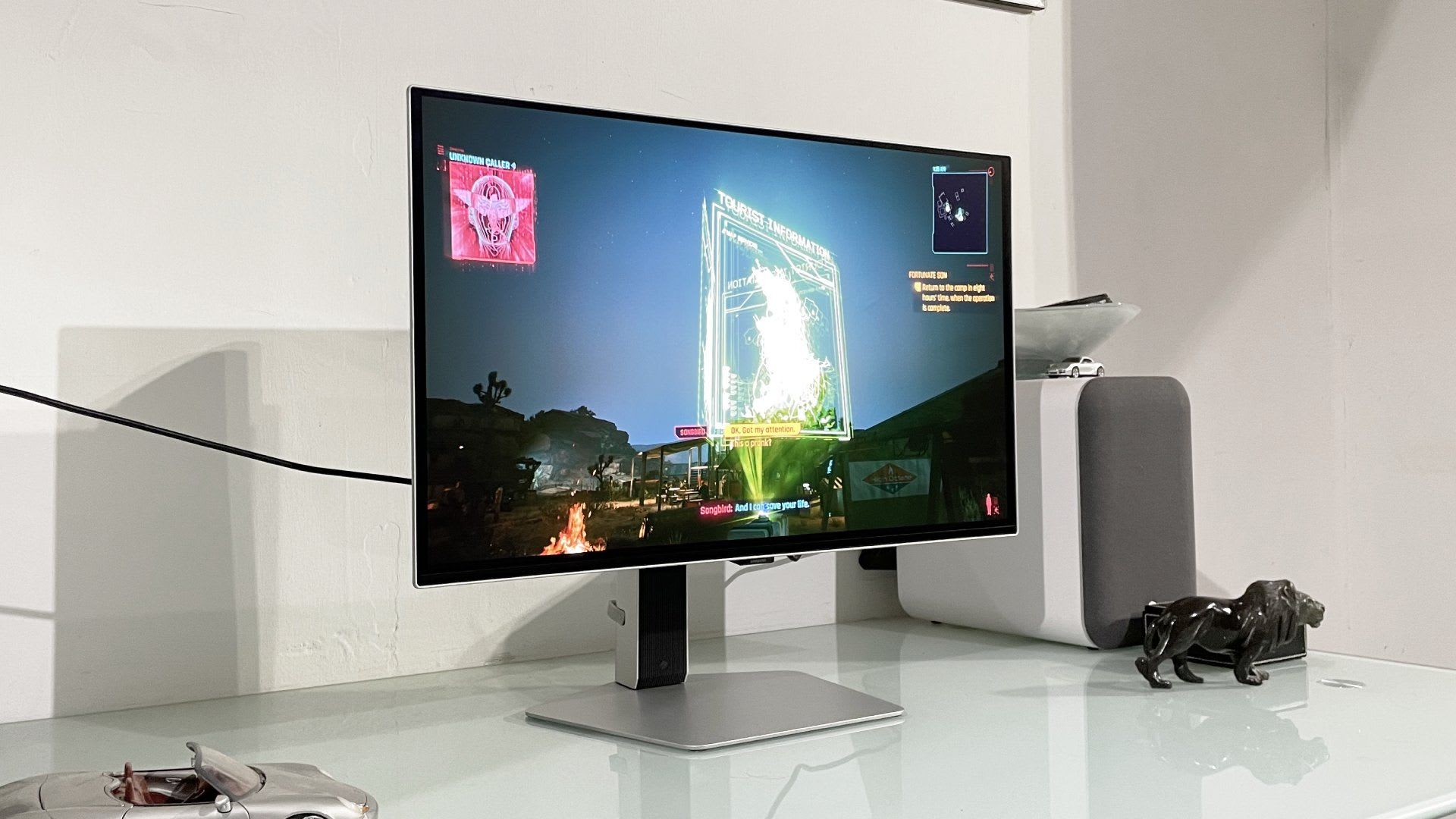
VRR flicker is a brightness wobble that appears on OLED monitors when your frame rate swings, and it is a gamma problem rather than a fault. OLED panels have their gamma response calibrated at a single refresh rate — usually the panel's native maximum. Variable refresh rate deliberately moves away from that rate, and every step away from it pushes the panel further from its calibrated gamma curve.
The result is that identical pixels get drawn at slightly different brightness levels from frame to frame. In bright scenes you will never see it. In dark scenes, loading screens, and menus it can be impossible to unsee. No monitor on the market is fully immune, and there is no driver update coming that will fix it outright — but a handful of settings reduce it dramatically.
Note
Key Takeaways
- VRR flicker is caused by gamma being calibrated for one refresh rate while VRR constantly changes that rate.
- It is worst in near-black content, because a small brightness step between RGB 5 and RGB 16 is far more visible than the same step between RGB 200 and 205.
- TFTCentral measured an 11-point RGB shift on a 480Hz WOLED panel across a 480Hz-to-10Hz swing.
- WOLED and QD-OLED misbehave differently — WOLED drifts smoothly with frame rate, QD-OLED spikes at unpredictable points.
- The single most effective fix is a frame rate cap that keeps your frame times consistent, not disabling VRR.
What Is Actually Happening Inside the Panel
Every display has a gamma curve: the mapping from the signal value of a pixel to the light it actually emits. On an OLED that curve is tuned during manufacturing, and it is tuned at one refresh rate.
VRR exists to make the refresh rate follow your frame rate. That is exactly what you want for tearing and judder, and it is exactly what breaks the assumption gamma calibration was built on. As TFTCentral puts it, deviating from the native refresh rate "causes deviation from the optimal gamma response, leading to overcharging and misfiring of the OLED subpixels."
Each subpixel is driven by a charge held for the duration of a frame. Stretch that frame from 4ms to 20ms because your frame rate dropped, and the charge behaves differently over the longer hold. The pixel emits a slightly different amount of light than it would have at the calibrated rate — and your eye reads a run of those slightly-different frames as flicker.

Why Dark Scenes Are So Much Worse
This is the part that explains why the problem feels inconsistent, and it is not about the panel at all — it is about human vision.
Perceived brightness is non-linear. A shift of five RGB steps between RGB 200 and RGB 205 is essentially invisible. The same five-step shift between RGB 5 and RGB 10 is a doubling of emitted light, and it reads as an obvious pulse.
TFTCentral's measurements make the scale concrete. Across a full 480Hz-to-10Hz refresh swing:
| # | Panel | Type | Test point | Measured shift |
|---|---|---|---|---|
| 1 | Asus PG27AQDP (480Hz) | WOLED | RGB 5 | Shifted to RGB 16 |
| 2 | Dell AW3225QF (240Hz) | QD-OLED | RGB 150 | 10.5-point change |
| 3 | MSI MPG 322URX (240Hz) | QD-OLED | RGB 10 | 6.0-point change |
Row 1 is the worst case precisely because it starts near black. An 11-point move from RGB 5 is a large proportional change in light output. Row 2 is a numerically similar shift at RGB 150 and would be nearly invisible in practice.
This is why the flicker shows up in caves, night scenes, and loading screens while a bright outdoor level looks perfect.

WOLED and QD-OLED Fail Differently
Both panel technologies flicker, but they do not flicker in the same way, and that changes which fix helps you.
WOLED gamma is tied fairly directly to frame rate. As your frame rate changes, the gamma shift follows it smoothly. The practical effect is that WOLED flicker feels like a gradual brightness drift during frame rate ramps.
QD-OLED gamma spikes at seemingly random frame rate points, with the spike frequency increasing at lower refresh rates. That is a harder problem, because a stable-looking frame rate can still cross a bad point. It also means QD-OLED benefits more from keeping the frame rate high in absolute terms, not merely consistent.

Warning
Do not treat VRR flicker as a defective unit. Every current OLED gaming monitor exhibits it to some degree, and RTINGS found the issue across six popular gaming OLEDs in its own testing. Returning a monitor for VRR flicker will almost always get you a replacement that does the same thing.
How to Actually Reduce It
These are ordered by how much they help relative to what they cost you.
Cap Your Frame Rate
The highest-value fix. Set a cap you can hold in the heaviest scene of the game, not your average. A locked 110 FPS flickers far less than a 90-140 FPS range.
Enable the Monitor's Anti-Flicker Mode
Recent ASUS, MSI, and LG panels ship one. It narrows the usable VRR range so the refresh rate cannot swing as far. ASUS claims up to 20% less perceived flicker on its 2.0 implementation.
Stay Above the LFC Boundary
Low Framerate Compensation doubles frames below the VRR floor. Crossing that boundary repeatedly is a worst case — keep your floor comfortably above it.
Turn Off VRR Entirely
Guaranteed to work, at the cost of tearing and judder. Reasonable for slower single-player games on a high-refresh panel.
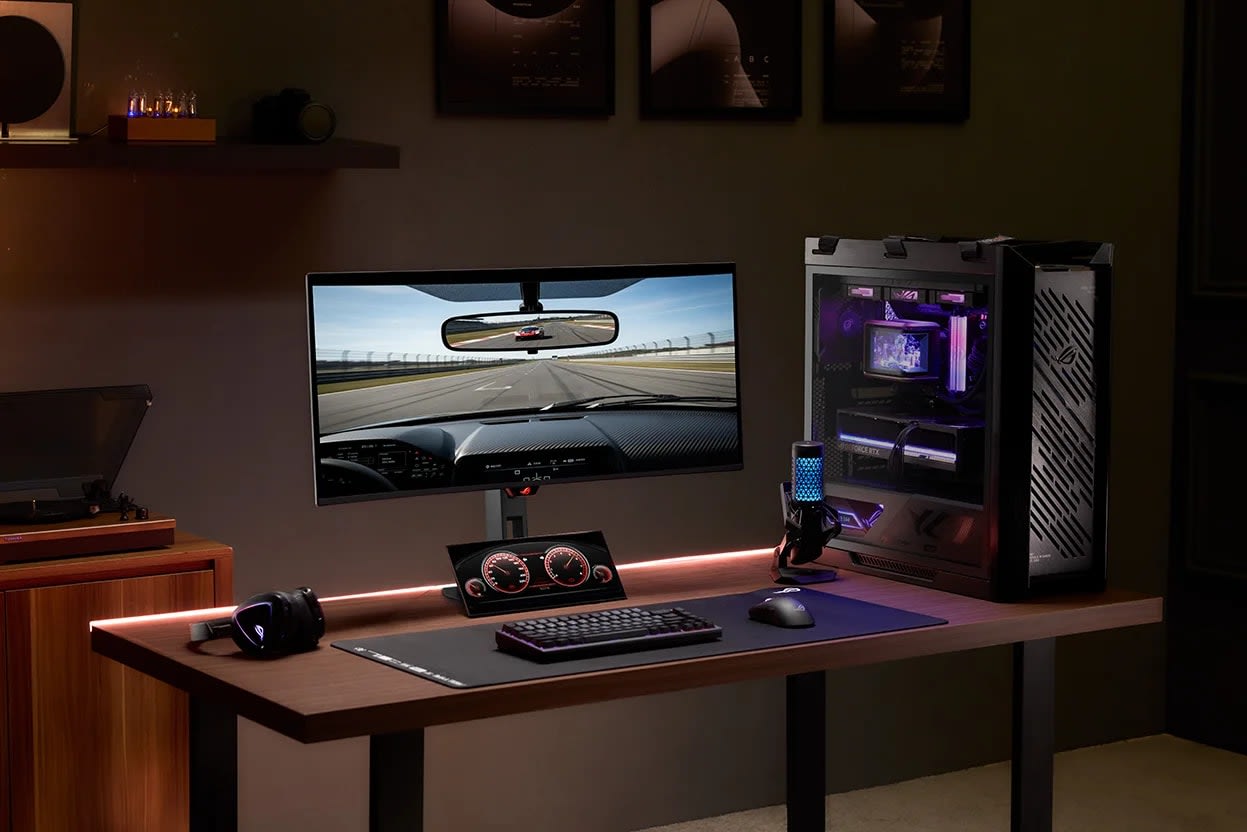
The frame rate cap is doing the real work in almost every case, and it is worth being precise about how to set it. Do not cap at your average frame rate — cap at your worst sustained frame rate. The goal is a number the GPU can hold flat, because it is the variation that produces flicker, not the rate itself.
That makes 1% lows the metric to tune against rather than average FPS. Our guide to what 1% lows are and why average FPS lies explains how to measure the number you actually want here, and fixing stuttering in PC games covers the shader-compilation and background-process causes of the sudden frame rate collapses that trigger the worst flicker episodes.
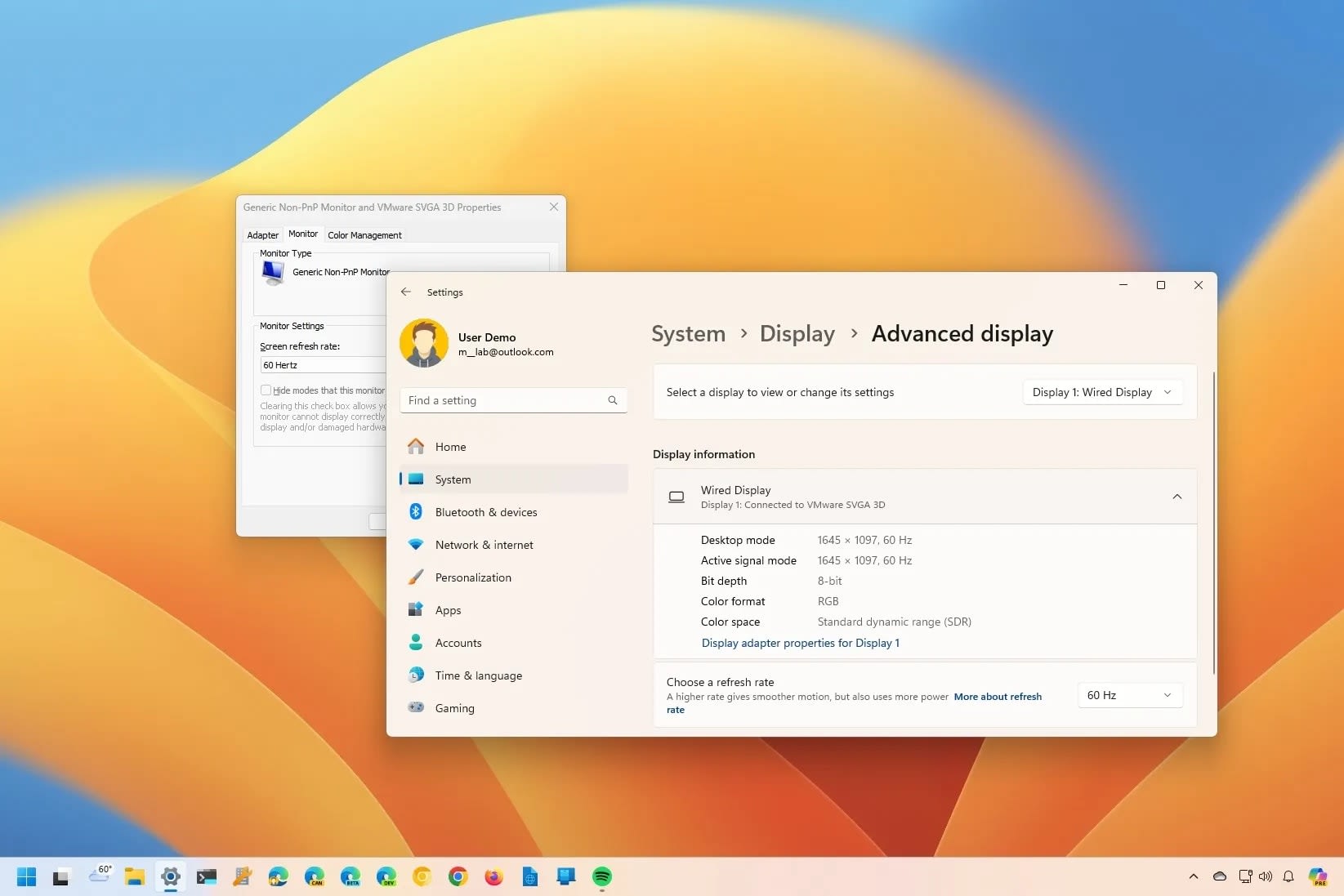
The Settings Checklist
| # | Setting | Where | Effect |
|---|---|---|---|
| 1 | Frame rate cap at worst-case FPS | Driver or in-game limiter | Largest single improvement |
| 2 | Anti-flicker / uniform brightness | Monitor OSD | Narrows VRR range, moderate gain |
| 3 | V-Sync on with the cap | Driver control panel | Smooths frame delivery further |
| 4 | Raise in-game brightness slightly | Game settings | Moves dark content off the worst part of the curve |
| 5 | XMP / EXPO enabled | BIOS | Fewer CPU-side frame time spikes |
| 6 | VRR off | Driver or OSD | Eliminates it, reintroduces tearing |
Row 4 is an underrated one. Because the problem is concentrated in near-black content, nudging black level or in-game gamma up a notch moves the affected pixels into a region where the same absolute shift is proportionally much smaller.
Does This Affect LCD Monitors?
Far less. VRR brightness flicker exists on some VA panels — VA is the LCD type most prone to it — but IPS panels are largely unaffected, and no LCD technology shows it as strongly as OLED does. The physics differ: an LCD's backlight brightness is independent of how long a frame is held, whereas an OLED subpixel is the light source.
If you are still choosing a panel and flicker sensitivity is a real concern for you, that is a genuine argument for IPS over OLED, alongside the usual burn-in and brightness trade-offs. It is also worth confirming your cable and port can carry the refresh rate and VRR you are paying for — our HDMI versus DisplayPort comparison covers which connection supports what.
When Flicker Is Not VRR Flicker
Two other things get misdiagnosed as VRR flicker regularly:
Brief full-screen blackouts of one to three seconds, with audio continuing, are a link renegotiation — the display losing and re-establishing sync when the game changes mode. That is a cable, port, or refresh-rate stability issue, not gamma.
Flicker that only appears with a second display connected is a compositing problem, not a panel problem. Mixed refresh rates across two monitors cause their own distinct set of artefacts, which we cover in why your second monitor kills your FPS.
If the picture looks washed out rather than flickering, that is a colour pipeline issue instead — see fixing HDR that looks washed out in Windows 11.
Frequently Asked Questions
Is VRR flicker damaging my OLED monitor?
No. VRR flicker is a gamma tracking artefact, not electrical stress, and it does not accelerate burn-in or shorten panel life. The subpixels are being driven within their normal range — they are simply being driven at a refresh rate their gamma curve was not calibrated for. It is a visual annoyance with no hardware consequence.
Why does VRR flicker only show up in dark scenes?
Because perceived brightness is non-linear. A shift of a few RGB steps near black is a large proportional change in emitted light, while the identical shift in a bright scene is imperceptible. TFTCentral measured a shift from RGB 5 to RGB 16 on one 480Hz panel — an enormous relative change at that light level, and one that would be invisible around RGB 200.
Will capping my frame rate really stop VRR flicker?
It reduces it substantially, and it is the most effective user-side fix available. The flicker is driven by refresh rate changes, so a frame rate that stays flat keeps the refresh rate flat. Cap at the frame rate you can hold in the game's heaviest scene rather than your average, because a cap you frequently drop below does not help.
Do WOLED and QD-OLED flicker the same amount?
They flicker differently rather than equally. WOLED gamma follows frame rate smoothly, so flicker appears as gradual brightness drift during frame rate ramps. QD-OLED gamma spikes at unpredictable frame rate points, with spikes becoming more frequent at lower refresh rates, which makes it harder to avoid with a frame cap alone.
Should I just turn VRR off?
It is a legitimate choice for slower single-player games, especially if your GPU comfortably exceeds the monitor's refresh rate anyway. You trade flicker for tearing and judder. For competitive or fast-paced games most players prefer keeping VRR on and using a frame rate cap, since consistent frame delivery matters more there than dark-scene uniformity.
The Bottom Line
VRR flicker is an inherent consequence of running a panel at refresh rates its gamma was not calibrated for, and every OLED gaming monitor currently sold does it. The fix is not a firmware update — it is making your frame rate boring.
Set a cap you can hold under load, turn on your monitor's anti-flicker mode if it has one, keep your frame rate floor well above the LFC boundary, and the problem largely recedes into dark scenes you rarely notice. Chasing the highest possible average frame rate is precisely the wrong instinct here: consistency is the setting that matters, and that has been true of frame delivery long before OLED made it visible.
Monitor photography courtesy of the respective manufacturers, used for editorial coverage.
Sources
- TFTCentral, Exploring and Testing OLED VRR Flicker, retrieved 2026-07-28, https://tftcentral.co.uk/articles/exploring-and-testing-oled-vrr-flicker
- RTINGS.com, VRR Flicker Problem In Monitors: Six Popular Gaming OLEDs All Have This Issue, retrieved 2026-07-28, https://www.rtings.com/monitor/learn/research/vrr-flicker
- ASUS ROG, OLED flicker: what it is, what you can do about it, and how ROG leads the fight against it, retrieved 2026-07-28, https://rog.asus.com/articles/gaming-monitors/oled-flicker-what-it-is-what-you-can-do-about-it-and-how-rog-leads-the-fight-against-it/
- Display Ninja, What Is VRR Brightness Flickering And Can You Fix It?, retrieved 2026-07-28, https://www.displayninja.com/what-is-vrr-brightness-flickering/
- XDA Developers, VRR flicker is the monitor problem nobody warns you about, retrieved 2026-07-28, https://www.xda-developers.com/vrr-flicker-is-the-monitor-problem-nobody-warns-you-about/