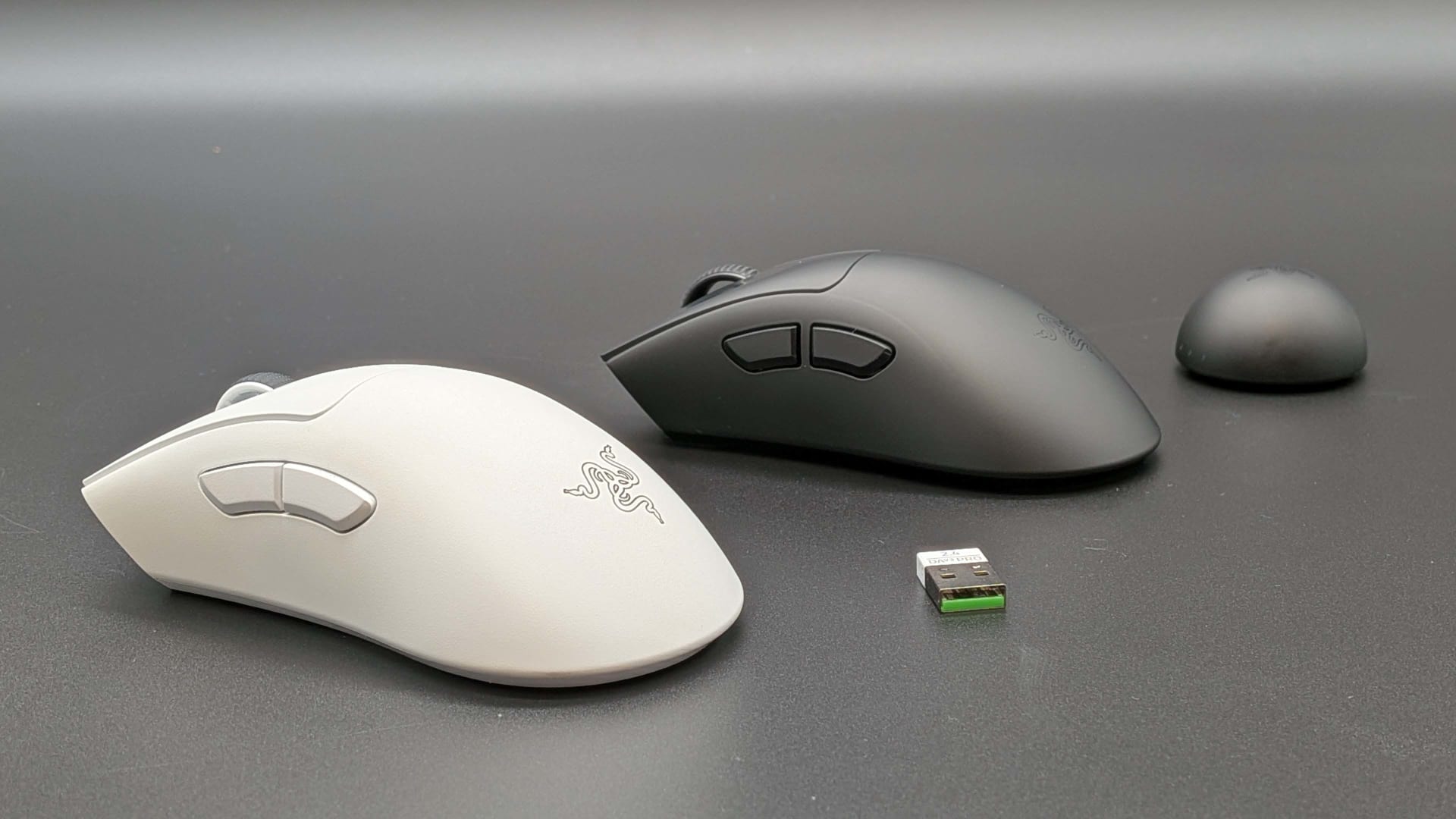
8000Hz polling reports your mouse position every 0.125ms instead of every 1ms, and it costs roughly 1-3% additional CPU usage on modern hardware. That trade is worth taking on a 360Hz or faster display with a current CPU. On a 144Hz panel or an older processor it is a cost with no perceptible return, and on a CPU-bound system it can measurably lower your frame rate.
The marketing frames this as eight times faster. What actually changes is how stale your cursor position is when a frame is drawn — and whether that staleness was ever your limiting factor depends almost entirely on how many frames per second you are drawing in the first place.
Note
Key Takeaways
- Polling rate is how often the mouse reports, not how often the sensor reads. 1000Hz reports every 1ms; 8000Hz every 0.125ms.
- The real-world latency difference between 1000Hz and 8000Hz is about 0.875ms.
- It costs roughly 1-3% extra CPU on modern chips, because the CPU handles 8,000 USB interrupts per second instead of 1,000.
- The benefit scales with refresh rate. At 360Hz+ it is measurable; at 144Hz it sits below perception.
- On older CPUs (Ryzen 3000 / Intel 9th gen era) high polling can cause micro-stutters rather than help.
What Polling Rate Actually Measures
A gaming mouse does two separate things at two separate speeds, and conflating them is the source of most confusion.
The sensor reads surface movement, typically many thousands of times per second. The USB report rate — the polling rate — is how often the mouse packages up its accumulated position and hands it to the PC. Polling rate is the second number. Raising it does not make the sensor see more; it makes the PC ask more often.
| # | Polling rate | Report interval | Staleness at worst |
|---|---|---|---|
| 1 | 125Hz | 8ms | 8ms |
| 2 | 500Hz | 2ms | 2ms |
| 3 | 1000Hz | 1ms | 1ms |
| 4 | 4000Hz | 0.25ms | 0.25ms |
| 5 | 8000Hz | 0.125ms | 0.125ms |
The jump from row 1 to row 3 is enormous and everyone can feel it. The jump from row 3 to row 5 is 0.875ms, and that is the entire argument.

The Case For 8000Hz: Frame Freshness
The best argument for high polling is not raw latency — it is that each rendered frame gets less stale position data.
At 360Hz, a frame is presented every 2.78ms. With a 1000Hz mouse, the position used to render that frame can be up to 1ms old, roughly a third of a frame interval. At 8000Hz that staleness falls to 0.125ms, about a twentieth of the interval. That is close to a tenfold improvement in how current your aim data is per frame.
Now run the same maths at 144Hz. A frame arrives every 6.94ms. A 1ms staleness is already a small fraction of that interval, and shrinking it to 0.125ms changes a number that was not the bottleneck. The benefit of high polling scales with refresh rate, which is why competitive players on 360Hz and 480Hz panels report a real difference and players on 144Hz mostly do not.
Tip
A useful rule: high polling is worth investigating once your frame rate, not just your refresh rate, is consistently above roughly 240 FPS. If your GPU is delivering 120 FPS on a 360Hz monitor, the frames are the stale part — the mouse is not.
The Cost: Interrupts, Not Just Percent
This is the part the spec sheets skip. Every USB report generates an interrupt that the CPU must service, which means stopping what it was doing, handling the packet, and resuming. At 8000Hz that happens 8,000 times per second, per device.
Razer puts the additional CPU usage at approximately 1-3% on modern hardware. That figure is accurate and also slightly misleading, because average CPU utilisation is the wrong metric for interrupt load. What matters is whether those interrupts land during the moments your game is already CPU-bound.

The failure mode is not "my average FPS dropped 3%". It is worse frame pacing — occasional frames that take longer than their neighbours because the render thread was interrupted at the wrong moment. That is precisely the signature that average FPS conceals and percentile metrics expose, which is why our guide to what 1% lows are and why average FPS lies is the right tool for evaluating this change.
Warning
If enabling 8000Hz made your game feel worse, do not assume you imagined it. On CPU-bound titles and older platforms, the interrupt overhead can degrade frame consistency more than the extra reports improve responsiveness. Measure 1% lows before and after rather than trusting the average.
Who Should Turn It On
Turn It On
360Hz+ display, a current-generation CPU, sustained frame rates above 240 FPS, and a competitive FPS as your main game. This is the configuration high polling was designed for.
Try 2000-4000Hz
240Hz display with a strong CPU. Most of the latency benefit, roughly half the interrupt load. This is the best default for the majority of enthusiast systems.
Stay at 1000Hz
144Hz or 165Hz display, or any system where the CPU is the bottleneck in your main game. You lose nothing perceptible and keep the headroom.
Definitely Stay at 1000Hz
Ryzen 3000 or Intel 9th gen and older. The interrupt overhead on these platforms can produce micro-stutter that outweighs any latency gain.
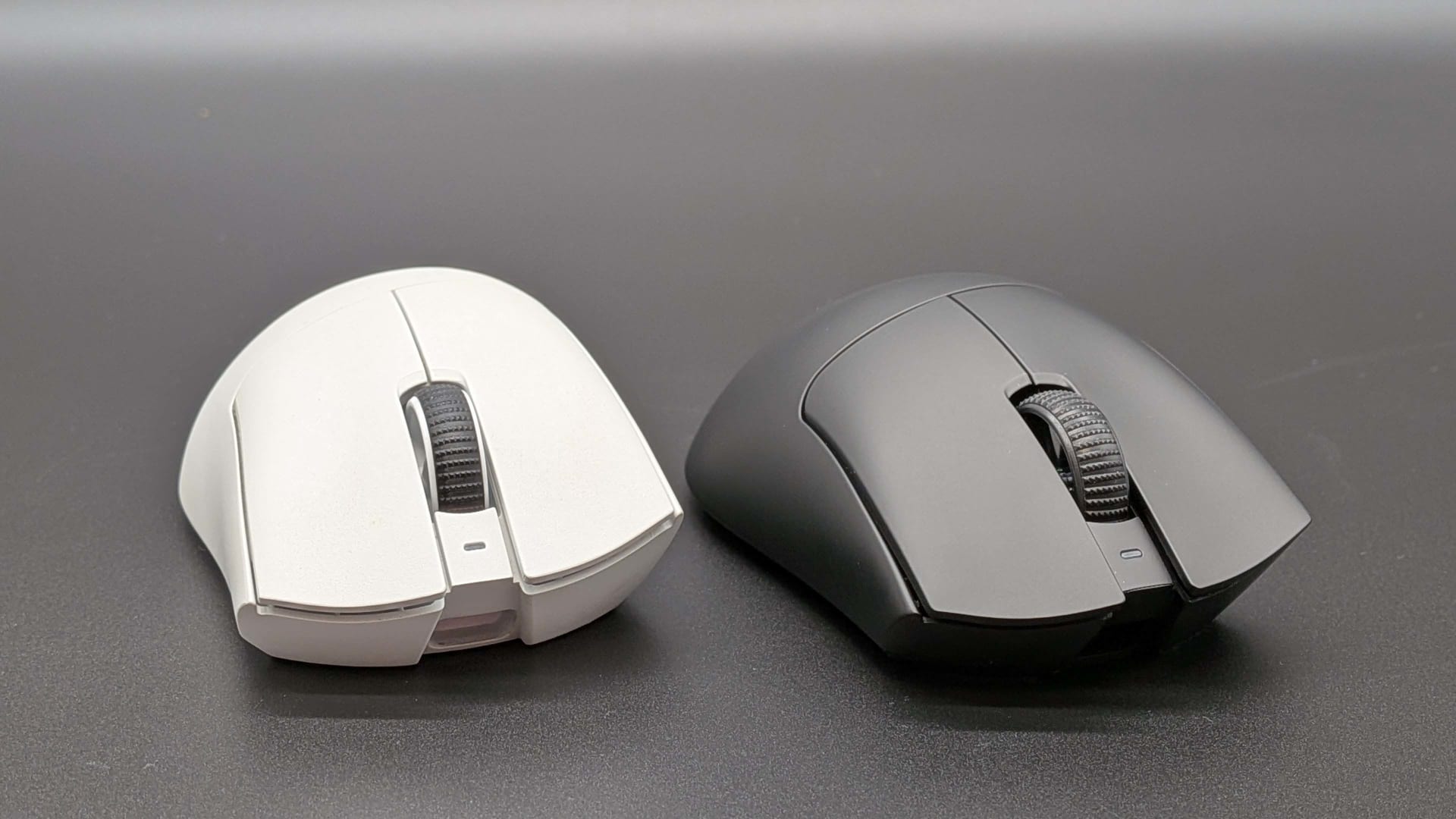
Notice that the deciding variable is your CPU and frame rate, not your mouse. A 240 FPS system on a mid-range CPU has less to gain than a 400 FPS system on a current one, regardless of which mouse is plugged in. If you are unsure where your CPU sits, our comparison of whether a Ryzen 5 can be faster than a Ryzen 7 covers why core count is a poor proxy for gaming performance.
Wireless, Dongles, and the Practical Catches
High polling over wireless has requirements that trip people up:
The dongle must be plugged directly into the PC. A hub, a monitor's USB passthrough, or a front-panel extension will frequently fail to sustain 8000Hz and silently drop to a lower effective rate.
It needs its own USB controller where possible. Sharing a controller with other high-bandwidth devices raises the chance of contention.
Battery life falls substantially. Transmitting eight times as often costs power, and the drop is far larger than the modest CPU figure suggests.
Not every game benefits equally. Titles with an internal input polling cap or heavy engine-side input smoothing will not expose the difference no matter what the mouse is doing.

How to Test It Properly on Your Own System
Do not trust the feel. Input responsiveness is exactly the sort of thing expectation shapes.
| # | Step | Why |
|---|---|---|
| 1 | Pick one repeatable 60-second benchmark scene | Removes run-to-run variance |
| 2 | Record average and 1% lows at 1000Hz | Establishes the baseline that matters |
| 3 | Change only the polling rate, nothing else | One variable per test |
| 4 | Re-record the identical run at 8000Hz | Same scene, same settings |
| 5 | Compare 1% lows first, average second | Interrupt overhead shows in percentiles |
| 6 | Repeat once to confirm the direction of the change | Guards against a one-off outlier |
If the 1% lows are unchanged or better, keep 8000Hz. If they drop while the average stays flat, that is the interrupt overhead showing up exactly where theory predicts, and you should step down to 2000Hz or 4000Hz.
For the tooling to capture those numbers, and for the background processes and shader compilation that will otherwise contaminate your comparison, see how to fix stuttering in PC games. Run your comparison after the game's shader cache is warm, or you will measure compilation rather than polling.
Does This Apply to Keyboards and Controllers?
The same physics applies, with much weaker justification.
Keyboards send far less data than mice — a keypress is a discrete event, not a continuous stream of position deltas. High keyboard polling reduces the worst-case delay before a keypress is registered, but the gains are smaller and the interrupt cost is similar. Most players see no benefit past 1000Hz.
Controllers are increasingly advertised with 8000Hz support, often alongside high-end stick sensors. The reasoning is the same as for mice, and so is the caveat — our comparison of TMR versus Hall effect joysticks covers why sensor precision and report rate are separate improvements that are frequently marketed as one.
If you are running high polling on several peripherals at once, the interrupt loads add. That is worth remembering before enabling it everywhere out of completeness — and it is a reason to check whether your keyboard's gaming mode is doing anything useful for you either.
Frequently Asked Questions
Does 8000Hz polling actually reduce input lag?
Yes, by about 0.875ms compared with 1000Hz — the difference between a 1ms and a 0.125ms report interval. Whether that is meaningful depends on your frame rate. At 360 FPS a frame arrives every 2.78ms, so 1ms of staleness is a significant fraction of a frame; at 144 FPS a frame arrives every 6.94ms and 1ms is already negligible.
How much CPU does 8000Hz polling use?
Razer cites approximately 1-3% additional CPU usage on modern hardware. The more useful way to think about it is interrupts: the CPU services 8,000 USB interrupts per second instead of 1,000. On current CPUs that is absorbed easily, but on CPU-bound games it can worsen frame pacing even while average utilisation looks fine.
Will 8000Hz polling lower my FPS?
It can, on older CPUs or in games where the CPU is already the bottleneck. The effect usually shows as degraded 1% lows rather than a lower average, because the problem is occasional interrupted frames rather than a uniform slowdown. Benchmark the same scene at both rates and compare percentile numbers before deciding.
Is 8000Hz worth it on a 144Hz monitor?
Generally no. At 144Hz a frame is drawn every 6.94ms, so reducing input staleness from 1ms to 0.125ms changes something that was never limiting your experience. Stay at 1000Hz and keep the CPU headroom. High polling starts to make sense at 240Hz and becomes genuinely defensible at 360Hz and above.
Does 8000Hz drain wireless mouse battery faster?
Significantly, yes. Transmitting eight times as often costs proportionally more radio power, and the battery-life reduction is far larger than the small CPU overhead figure would suggest. Many players who want high polling for competitive play run the mouse wired or use 2000-4000Hz as a compromise.
The Bottom Line
8000Hz is a real improvement to a number that is only sometimes your bottleneck. If you are drawing more than 240 frames per second on a current CPU and a 360Hz-plus panel, turn it on. Everyone else is buying a 0.875ms improvement with CPU time they may need more.
The best default for most enthusiast systems is 2000Hz or 4000Hz: most of the latency benefit at half the interrupt load. And whichever you choose, verify it the same way you should verify any performance setting — by comparing 1% lows on a repeatable run, because this is exactly the kind of change that improves one number while quietly damaging another.
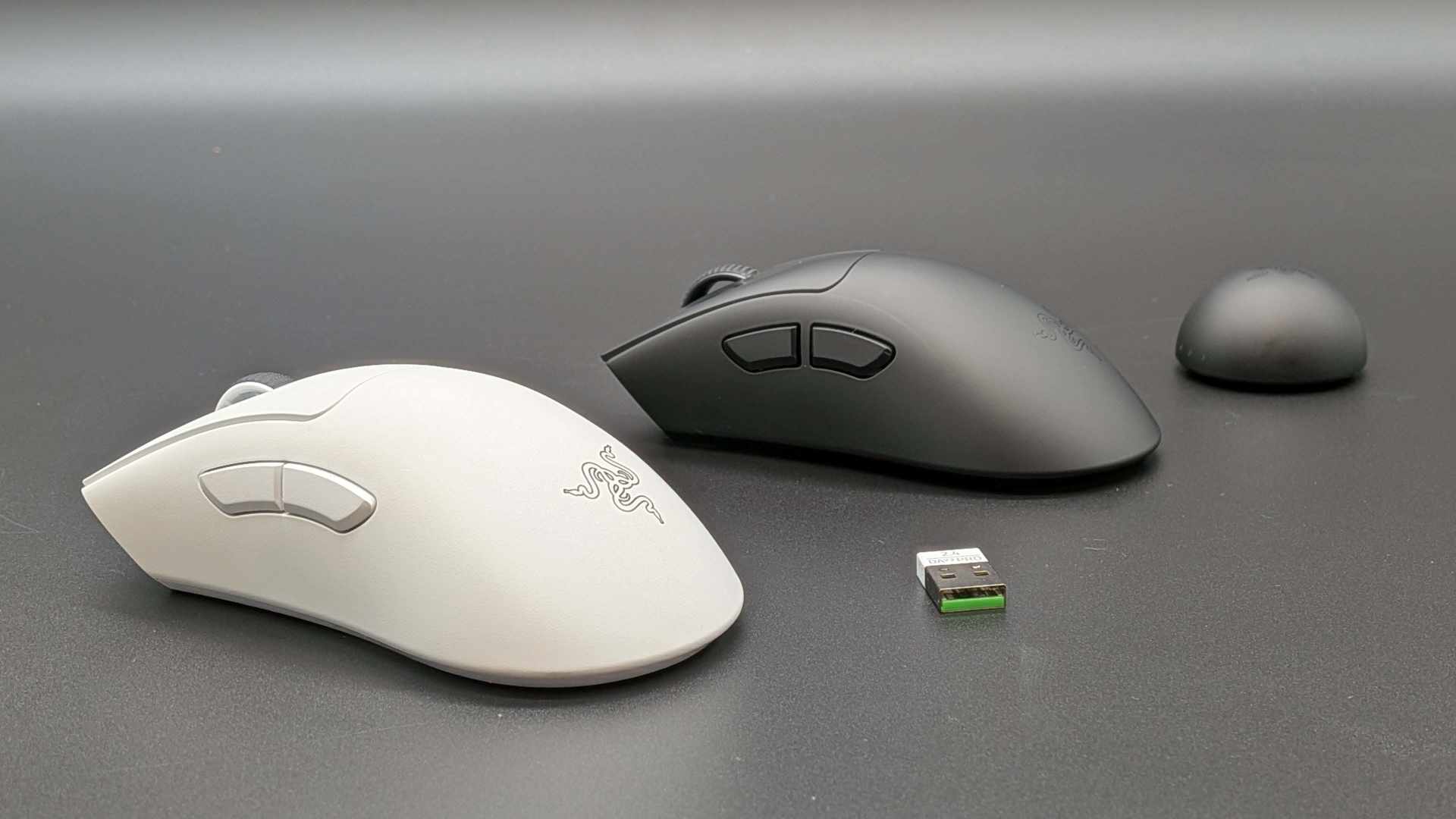
Peripheral photography courtesy of the respective manufacturers, used for editorial coverage.
Sources
- Razer, Razer HyperPolling Wireless Gaming Technology, retrieved 2026-07-28, https://www.razer.com/technology/razer-hyperpolling
- Corsair, Higher polling rates for keyboards and mice, retrieved 2026-07-28, https://help.corsair.com/hc/en-us/articles/4405984374157-Higher-polling-rates-for-keyboards-and-mice
- Tech4Gamers, 1000Hz vs 8000Hz Mouse Polling: The Real Competitive Edge, retrieved 2026-07-28, https://tech4gamers.com/1000hz-vs-8000hz/
- Attack Shark, 8K Mouse Polling: CPU Overhead & Frame Rate Impact, retrieved 2026-07-28, https://attackshark.com/blogs/knowledges/8k-mouse-polling-cpu-overhead-frame-rate-benchmark
- Business Wire, Razer Introduces HyperPolling Technology to Power the World's Fastest Gaming Mouse, retrieved 2026-07-28, https://www.businesswire.com/news/home/20210128005186/en/Razer-Introduces-Hyperpolling-Technology-to-Power-the-Worlds-Fastest-Gaming-Mouse