Most PC game stuttering is shader compilation stutter — brief freezes of 50 to 500 milliseconds the first time your GPU encounters a new visual effect, and it is worst in DirectX 12 and Vulkan titles where pipeline state objects must be compiled on first use. Raising your shader cache size and letting precompilation finish resolves it in roughly 60-70% of cases.
Quick answer: Open the Nvidia Control Panel (or AMD Adrenalin), set Shader Cache Size to 100GB or Unlimited, update your GPU driver, and let any in-game "compiling shaders" step run to completion before playing. Those three steps fix most stutter.
The reason this guide exists is that "stuttering" gets used for four different problems with four different fixes. Diagnosing which one you have takes two minutes and saves you from applying the wrong remedy.
Note
Key Takeaways
- Shader compilation stutter causes 50-500ms freezes, mostly in DX12 and Vulkan games.
- Nvidia drivers default to a 10GB shader cache, AMD to 8GB — both fill up and start evicting old shaders.
- Raising cache size, updating drivers cleanly, and letting precompilation finish fixes 60-70% of cases.
- Do not routinely delete your shader cache. Deleting it guarantees the stutter returns on the next launch.
- Microsoft's Advanced Shader Delivery (AgilitySDK 1.619) ships precompiled per-GPU shaders and is the long-term fix.
What Is Shader Compilation Stutter?
Shader compilation stutter happens when your GPU compiles shader programs during gameplay rather than ahead of time, freezing the frame for 50-500ms while it works. It is most severe in DirectX 12 and Vulkan, where pipeline state objects (PSOs) must be compiled the first time each one is used.
Older APIs like DirectX 11 handled much of this in the driver, which is why a 2015 game rarely stutters this way and a 2025 one does. The industry traded driver-side magic for explicit control, and shipped the cost to players.
The tell is that it happens once per effect. Round a corner into a new area, see a hitch, walk back and forth through the same spot — if it is smooth the second time, that was shader compilation.
First: Diagnose Which Stutter You Have
Four causes, four different fixes. Applying the wrong one wastes an afternoon.
| # | Symptom | Likely Cause | Fix Section |
|---|---|---|---|
| 1 | Hitch once per new effect, smooth on repeat | Shader compilation | Fixes 1-3 |
| 2 | Hitch when crossing into new areas, repeats every time | Asset streaming / storage | Fix 5 |
| 3 | Gradual stutter that worsens over a session | VRAM exhaustion | Fix 6 |
| 4 | Constant micro-stutter regardless of location | CPU bottleneck or background process | Fixes 7-8 |
Tip
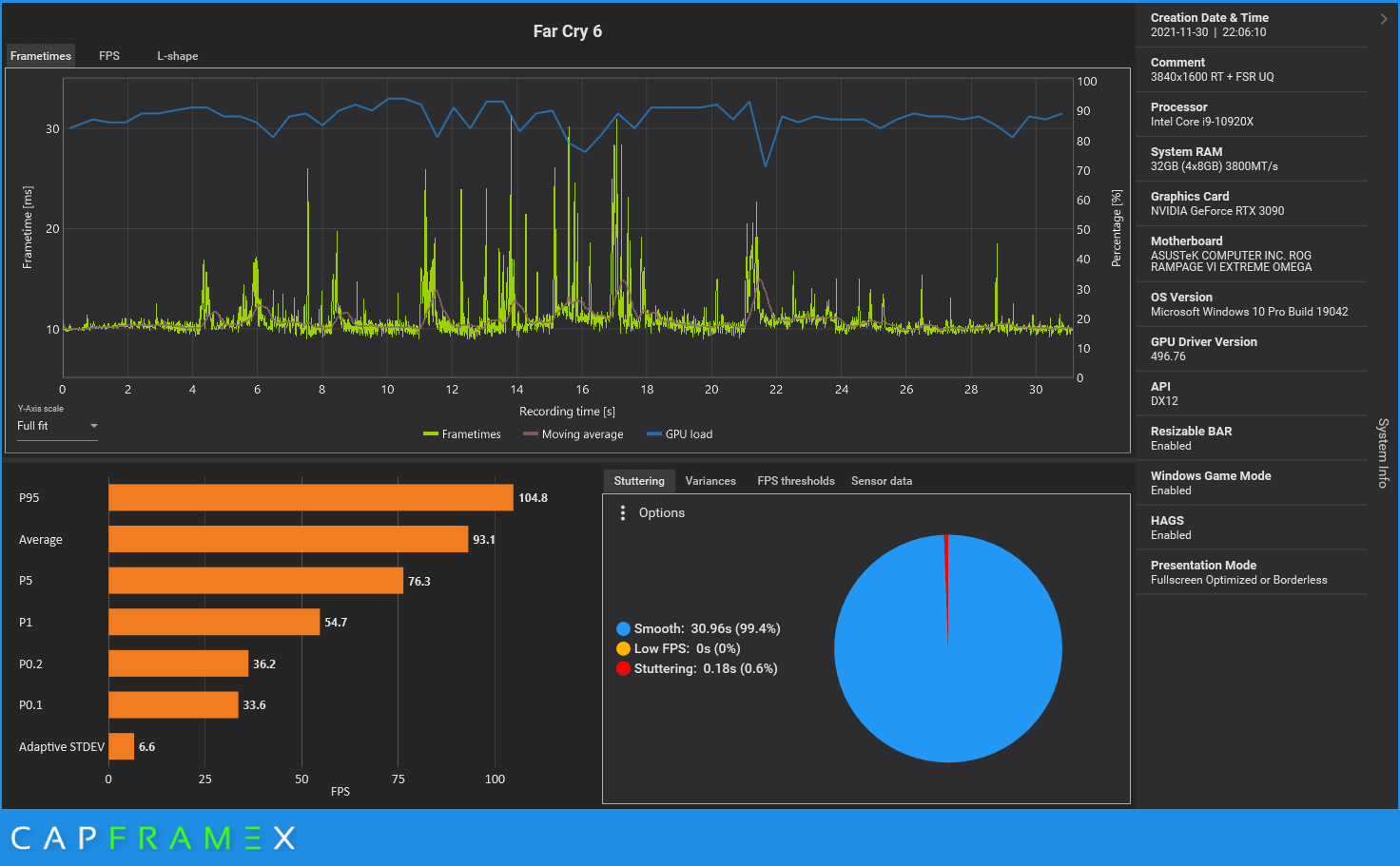
The fastest diagnostic: capture frame times with CapFrameX or PresentMon rather than watching an FPS counter. An average FPS number hides stutter completely — a game averaging 120 FPS with 400ms spikes reads as excellent and feels terrible. You are looking for the shape of the frame-time line, not its height.
Fix 1: Raise Your Shader Cache Size
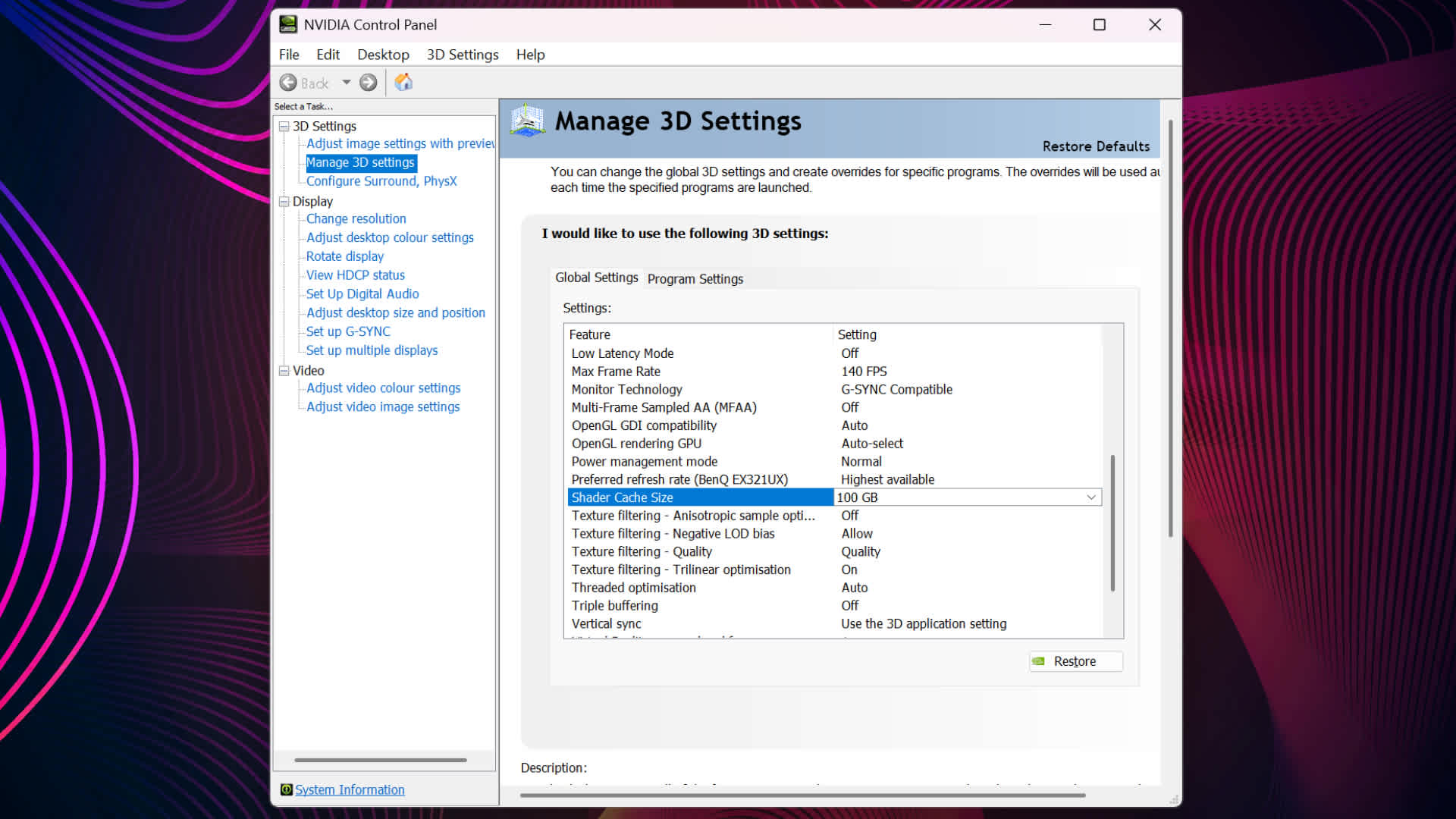
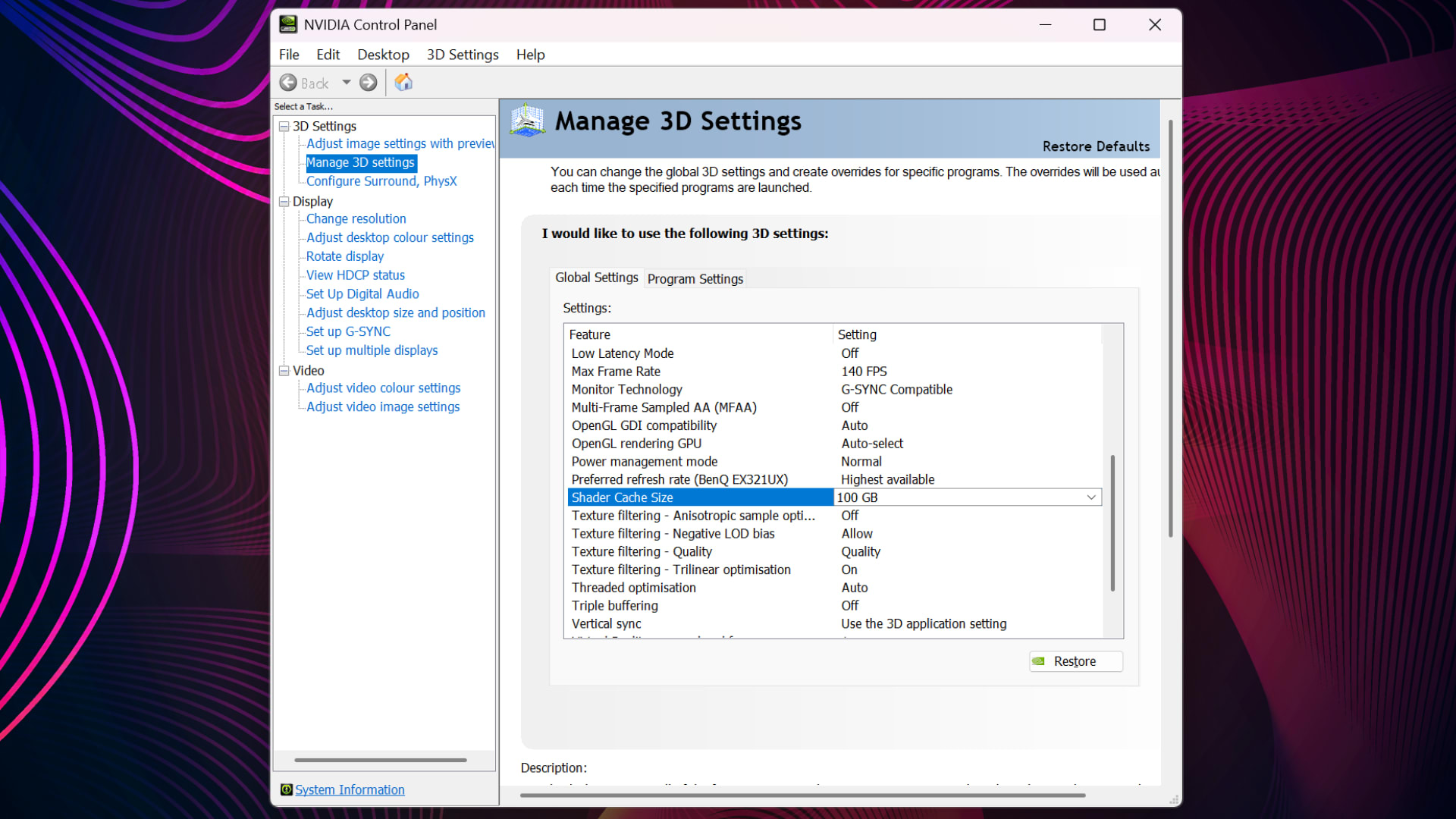
This is the highest-value single change and most people never touch it. Nvidia drivers default to 10GB of shader cache; AMD defaults to 8GB. If you play a lot of different games, that fills up — and when it does, the driver evicts old shaders to make room, so games you played last month stutter again next time.
On Nvidia:
- Open the Nvidia Control Panel.
- Go to Manage 3D Settings → Global Settings.
- Find Shader Cache Size.
- Set it to 100GB or Unlimited.
- Apply and restart any running games.
On AMD:
- Open AMD Software: Adrenalin Edition.
- Go to Gaming → Graphics → Advanced.
- Locate the shader cache setting and set it to AMD Optimized or unlimited.
- Apply.

Warning
Do not routinely delete your shader cache. It circulates as generic advice and it is actively counterproductive — deleting the cache guarantees every shader recompiles on the next launch, which is exactly the stutter you are trying to eliminate. Clear it only when troubleshooting a specific corruption problem, such as visual artefacts or crashes after a driver update.
Fix 2: Let Precompilation Actually Finish
Many modern games run a shader precompilation step on first launch or after a driver update. Skipping it, or alt-tabbing away and starting the game while it runs in the background, moves that work into your gameplay.
Steam handles a chunk of this automatically. Under Settings → Downloads → Shader Pre-Caching, Steam downloads precompiled shaders for your specific GPU where developers have supplied them, and processes Vulkan shaders in the background.
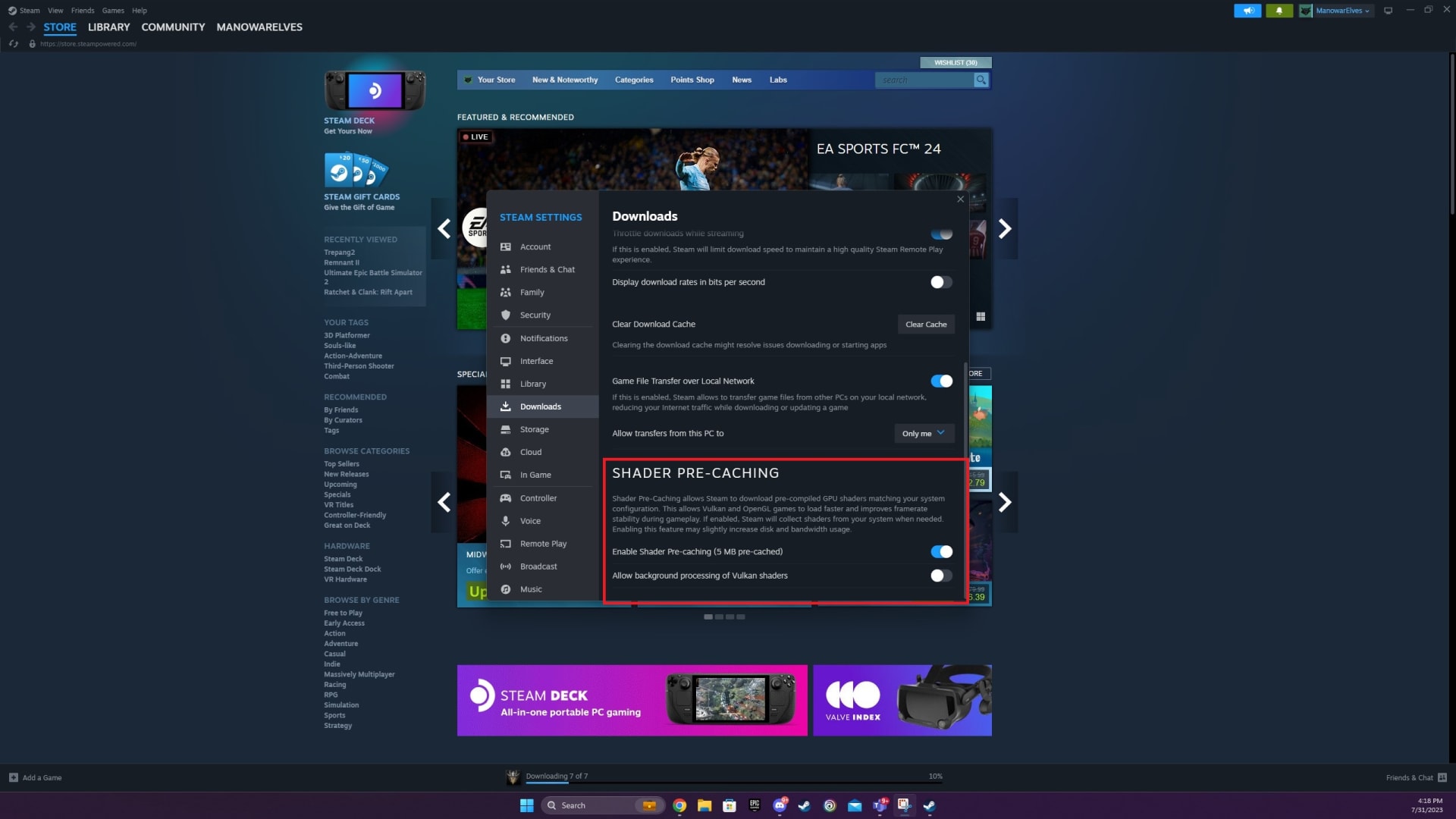
Leave it enabled. The disk space it consumes is far cheaper than the stutter it prevents.
Fix 3: Update Drivers Properly
"Update your drivers" is unhelpfully vague. The version that matters is a clean install.
Use DDU for Problem Cases
Display Driver Uninstaller in Safe Mode removes leftover registry entries and stale caches that a normal in-place update leaves behind.
Expect One Bad Run After
A clean install wipes your shader cache too, so the first session in each game will stutter while it rebuilds. That is expected — judge the result on the second run.
Newest Is Not Always Best
If stutter appeared immediately after a driver update, roll back one version before assuming the game is at fault.
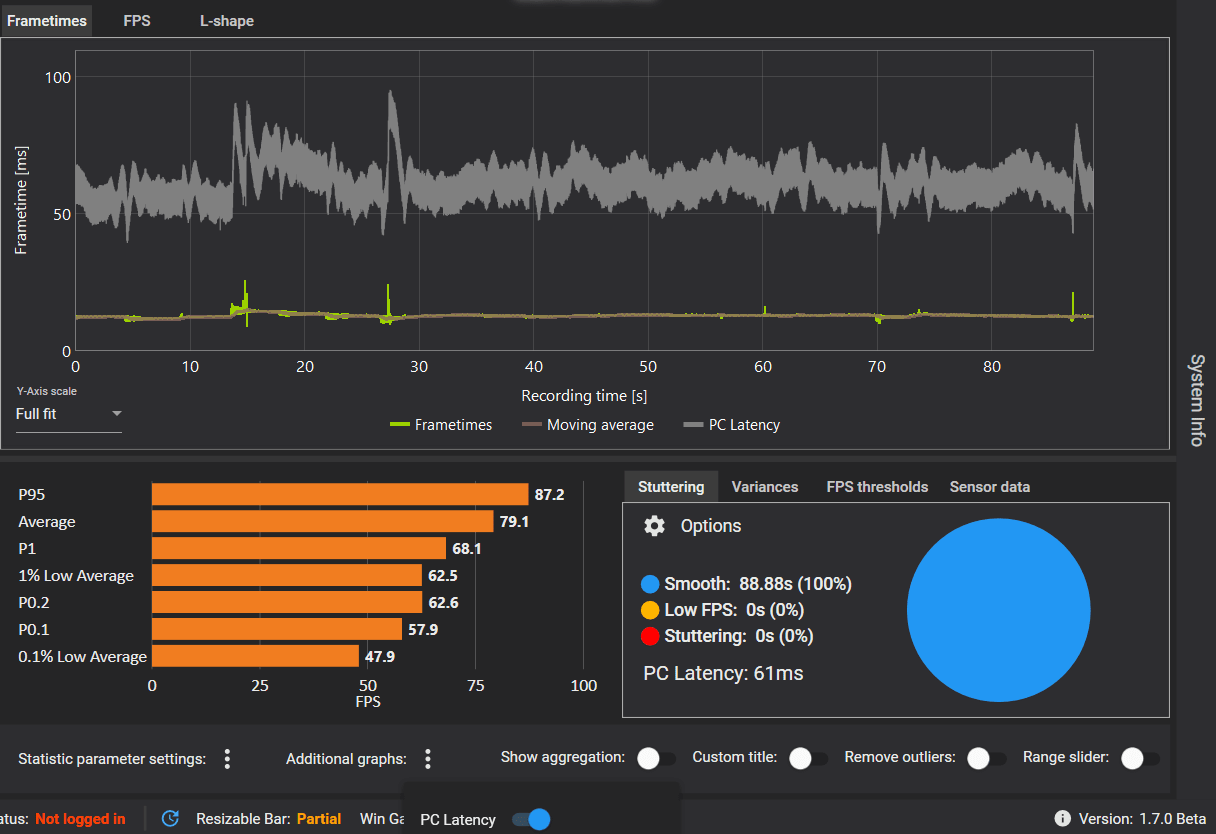
That second point catches people out constantly. Testing a fix on the same run that cleared your cache tells you nothing. Always evaluate on the second launch.
Fix 4: Patch the Game
Shader stutter is frequently a shipping bug, not a hardware problem. Several high-profile 2024-2026 titles launched with broken PSO precaching and fixed it in a patch weeks later.
Before you rebuild your system, check the game's patch notes and its community discussions. If everyone with your GPU has the same hitch in the same location, no amount of driver tuning will fix it.
Fix 5: Rule Out Storage and Asset Streaming
If the hitch repeats every single time you cross the same threshold — not just the first time — that is asset streaming, not shader compilation.
A slow drive is the usual culprit. Modern open-world games stream assets continuously, and a SATA SSD or a mechanical drive cannot keep up with what an NVMe-targeted engine expects. Move the game to your fastest drive and retest.
If you are specifying a new machine rather than troubleshooting an old one, a 1TB PCIe 4.0 NVMe is the baseline our 1440p build guide treats as non-negotiable for exactly this reason.
Fix 6: Check Whether You Are Out of VRAM
Stutter that worsens over a session, or that appears only after you raise texture quality, is usually VRAM exhaustion rather than shader compilation.
The test takes 30 seconds: drop texture quality by one notch. If the stutter disappears while your average frame rate stays roughly flat, you were VRAM-limited. Our guide to how much VRAM you need for gaming explains why an 8GB card can post perfectly good average frame rates while stuttering badly at 1440p.
If that turns out to be your problem, no software fix will solve it — the answer is a card with a larger frame buffer, and our best budget GPU comparison covers which 16GB options make sense at current prices.
Fix 7: Cap Your Frame Rate
Counter-intuitive but effective. An uncapped frame rate lets the GPU run at 100% utilisation, which leaves no headroom for background work like shader compilation and asset decompression — so every one of those tasks becomes a visible hitch.
Capping a few frames below your monitor's refresh rate, using the driver-level limiter rather than in-game V-Sync, keeps GPU utilisation just under saturation and smooths frame delivery noticeably.
Fix 8: Clear Out Background Interference
The unglamorous checklist, in rough order of how often it turns out to be the answer:
- Overlays. Discord, Steam, GeForce Experience, RGB software and streaming overlays all hook the render pipeline. Disable them one at a time.
- Real-time antivirus scanning of your game directory. Add an exclusion for the install folder.
- Windows Game Mode and hardware-accelerated GPU scheduling. Try each toggled the opposite way; results vary by system.
- Browser tabs. A modern browser with 40 tabs is a genuine competitor for memory bandwidth.
- Windows power plan. Balanced can down-clock the CPU mid-frame on some systems.
Warning
Change one thing at a time and retest. The reason stutter troubleshooting has a reputation for being folklore is that people apply eight changes at once, see improvement, and then recommend all eight forever. Most of those eight did nothing.
What Is Coming: Advanced Shader Delivery
Microsoft is shipping Advanced Shader Delivery via AgilitySDK 1.619, which delivers precompiled shaders tailored to your specific GPU rather than compiling them on your machine at runtime. It targets both stutter and load times.
This is the real fix. Everything above is mitigation for an architectural problem that the platform is finally addressing — but it requires developer adoption, so expect it to arrive title by title rather than as a Windows update that fixes your library overnight.
Frequently Asked Questions
Why do my PC games stutter even with high FPS?
Because average frame rate and frame consistency are different measurements. A game averaging 120 FPS can still deliver individual frames that take 400ms, and those spikes are what you perceive as stutter. Use a frame-time capture tool like CapFrameX or PresentMon rather than an FPS counter to see the problem.
Should I delete my shader cache to fix stuttering?
No, not as routine maintenance. Deleting the cache forces every shader to recompile on your next launch, which recreates exactly the stutter you are trying to remove. Clear it only when troubleshooting a specific corruption issue such as visual artefacts or crashes following a driver update.
What shader cache size should I set?
Set it to 100GB or Unlimited. Nvidia defaults to 10GB and AMD to 8GB, and if you play a varied library that fills up — at which point the driver starts evicting older games' shaders, so they stutter again the next time you launch them. Disk space is cheap; recompilation is not.
Does more RAM fix game stuttering?
Only if you are actually short of it. Stuttering caused by shader compilation, VRAM exhaustion, or slow storage will not improve with more system RAM. Check Task Manager during a session: if memory usage is comfortably below capacity, RAM is not your bottleneck.
Is shader stutter a hardware problem?
Usually not. It is a consequence of how DirectX 12 and Vulkan hand shader compilation to the application rather than the driver, combined with games that do not precompile properly. A faster GPU compiles shaders quicker but does not eliminate the hitch. Microsoft's Advanced Shader Delivery is the platform-level fix.
The Short Version
Do these three things first: set shader cache to 100GB or unlimited, let precompilation finish before you play, and test on the second launch, not the first. That covers most cases.
If stutter persists, diagnose before you tinker. Capture frame times, check whether the hitch repeats in the same spot, and try one texture-quality notch down to rule out VRAM. Almost every "nothing worked" story is really a story about applying shader fixes to a VRAM problem.
For more system-level tuning, our guides on disabling gaming mode on your keyboard and getting a mini PC online reliably cover the peripheral and networking side of the same troubleshooting mindset. If the stutter is accompanied by audio that crackles or pops under load, the two usually share a cause — our guide to game audio crackling while gaming covers measuring the driver responsible.
When the stutter is periodic and comes with crackling audio, the cause is usually a driver holding the CPU too long rather than frame delivery — our guide to reading LatencyMon results and fixing DPC latency covers how to identify the driver responsible.
Screenshots courtesy of Nvidia, Valve, CapFrameX and the respective software vendors, used for editorial coverage.
Sources
- SmoothFPS, Fix Shader Compilation Stutter on PC — Clear Cache, Pre-Compile & More (2026), retrieved 2026-07-26, https://smoothfps.com/guides/shader-stutter
- RigPulse, Shader Compilation Stutter: What Actually Works in 2026, retrieved 2026-07-26, https://rigpulse.ai/blog/shader-compilation-stutter-2026
- TweakTown, Microsoft plans to fix shader-related stutters and long load times for PC gamers, retrieved 2026-07-26, https://www.tweaktown.com/news/110474/microsoft-plans-to-fix-shader-related-stutters-and-long-load-times-for-pc-gamers/index.html
- PC Game Check, How to Fix Stuttering and Frame Drops in PC Games (2026), retrieved 2026-07-26, https://pcgamecheck.com/blog/how-to-fix-stuttering-frame-drops-2026
- Bottleneck Calculator, Shader Compilation: Why Games Stutter Forever & How to Fix It, retrieved 2026-07-26, https://bottleneckcalculator.us.com/knowledge-base/gaming-performance/shader-compilation/