Discord sitting idle in the background costs you almost nothing. Discord with the in-game overlay active costs a few percent. Discord screen sharing at 1080p60 while you play is a different question entirely. Lumping all three together as "does Discord lower FPS" is why the advice online contradicts itself so consistently.
There is also a widely repeated fix that makes things worse. Turning off hardware acceleration is the first suggestion in most threads, and for most people it moves the cost from the GPU — which had capacity — onto the CPU, which frequently did not.
Note
Key Takeaways
- Idle Discord costs a negligible amount of frame rate. It is not why your game runs badly.
- The in-game overlay injects into the render pipeline and typically costs a small single-digit percentage, occasionally more in DX12 and Vulkan titles.
- Screen sharing is the expensive one, and the cost scales sharply with resolution and frame rate.
- Do not disable hardware acceleration by default. It usually shifts load onto a more contended resource.
- On 8GB graphics cards, Discord's video memory footprint is a real consideration alongside a browser.
- Krisp noise suppression is a CPU cost, and it is on by default.
Three Different Questions
Separate these before troubleshooting anything, because the answers differ by an order of magnitude.
Discord open in the background. Voice connected, window minimised, no overlay. The cost here is small — some memory, a small amount of CPU for audio, and a modest video memory footprint for the client's rendering surface. On any reasonable system this is not measurable against normal run-to-run variance.
Discord with the overlay enabled. The overlay works by injecting into the game's rendering pipeline so it can draw on top. That injection has a real cost, and it is the one most people are actually experiencing.
Discord screen sharing or streaming. Now you are encoding video in real time while rendering a game. This is a genuinely demanding second workload, and it is where the large numbers come from.

Most arguments about Discord's performance impact are two people describing different ones of these three.
| Scenario | Realistic frame rate cost | Worth changing? |
|---|---|---|
| Idle in background, voice only | Negligible | No |
| In-game overlay enabled | Low single-digit percent | Yes, in competitive titles |
| Overlay stacked with 2–3 others | Noticeable, often hitching | Yes, disable the ones unused |
| Screen sharing 720p30 | Small | No |
| Screen sharing 1080p60 | Substantial | Yes, drop to 1080p30 |
| Krisp noise suppression on | CPU only, small | Yes, if CPU-limited |
The Overlay Is the Usual Culprit
Overlays of every kind — Discord, Steam, the GPU vendor's, recording software — attach themselves to the game's graphics API so they can draw over the frame. That requires hooking into the presentation path, and every hook adds work per frame.
The typical measured cost is in the low single digits as a percentage of frame rate. That is small enough to ignore on its own, and it is not always what people report, because two things make it worse:
Multiple overlays stack. Discord plus Steam plus a vendor overlay plus recording software is four separate injections into the same pipeline. Individually harmless; collectively noticeable. Auto-clipping apps such as Medal and Outplayed run alongside the game too, and our guide to AI auto-clipping tools covers what each one costs in frames and disk space.
Modern APIs are less tolerant. DirectX 12 and Vulkan give the application more direct control over the presentation path, and overlay injection into them is more intrusive than it was under DirectX 11. Occasional compatibility problems in specific titles produce hitching well beyond a few percent, and in rare cases crashes.
Tip
Disable the overlay per game rather than globally. Discord's settings let you toggle it for individual titles under Game Overlay, so you can keep it where you use it and remove it from the competitive shooter where every frame counts. Blanket-disabling loses functionality you may want.
If your game hitches rather than running uniformly slower, overlays are a reasonable early suspect — but they are one of several, and the systematic order of investigation is in how to fix stuttering in PC games.
Why Disabling Hardware Acceleration Usually Backfires
This is the advice that circulates most and holds up least.
Discord is an Electron application, meaning it renders its interface much as a browser would. With hardware acceleration enabled, that rendering runs on the GPU. Turn it off and the same work moves to the CPU.
For gaming, that is usually the wrong direction. Most games are more sensitive to CPU contention than to a small amount of extra GPU compositing work, particularly at 1080p and 1440p where the CPU is often the limiting factor. Moving Discord's interface rendering onto the processor puts it in direct competition with the game's simulation and draw call submission — and the symptom is frame time spikes rather than a lower average, which is exactly the pattern 1% lows reveal and averages hide.
There are two situations where disabling it is correct:
You are hard GPU-limited with a saturated card. At 4K with maximum settings, GPU time is the constraint and you have CPU headroom to spare. Here the trade goes the other way.
You are short on video memory. Hardware-accelerated Electron apps hold a video memory allocation. On an 8GB card running a demanding title, Discord plus a browser plus the game can push you over the edge — and VRAM overflow is far more damaging than either cost, for the reasons covered in how much VRAM you need.
Test it rather than assuming. Toggle it, play the same section twice, and watch frame times rather than the average.
Screen Sharing Is the Expensive One
720p at 30 FPS
Cheap. Fine on nearly any system while gaming, and adequate for showing someone what you are doing.
1080p at 30 FPS
Modest cost. A reasonable default for most people who share regularly.
1080p at 60 FPS
The setting people pick and then wonder about. Real, measurable impact, especially where capture cannot use a dedicated encoder.
1440p or 4K at 60 FPS
Expensive. You are encoding a high-resolution video stream in real time alongside rendering the game.
Camera On
Additional encoding work on a second stream, plus the capture pipeline.
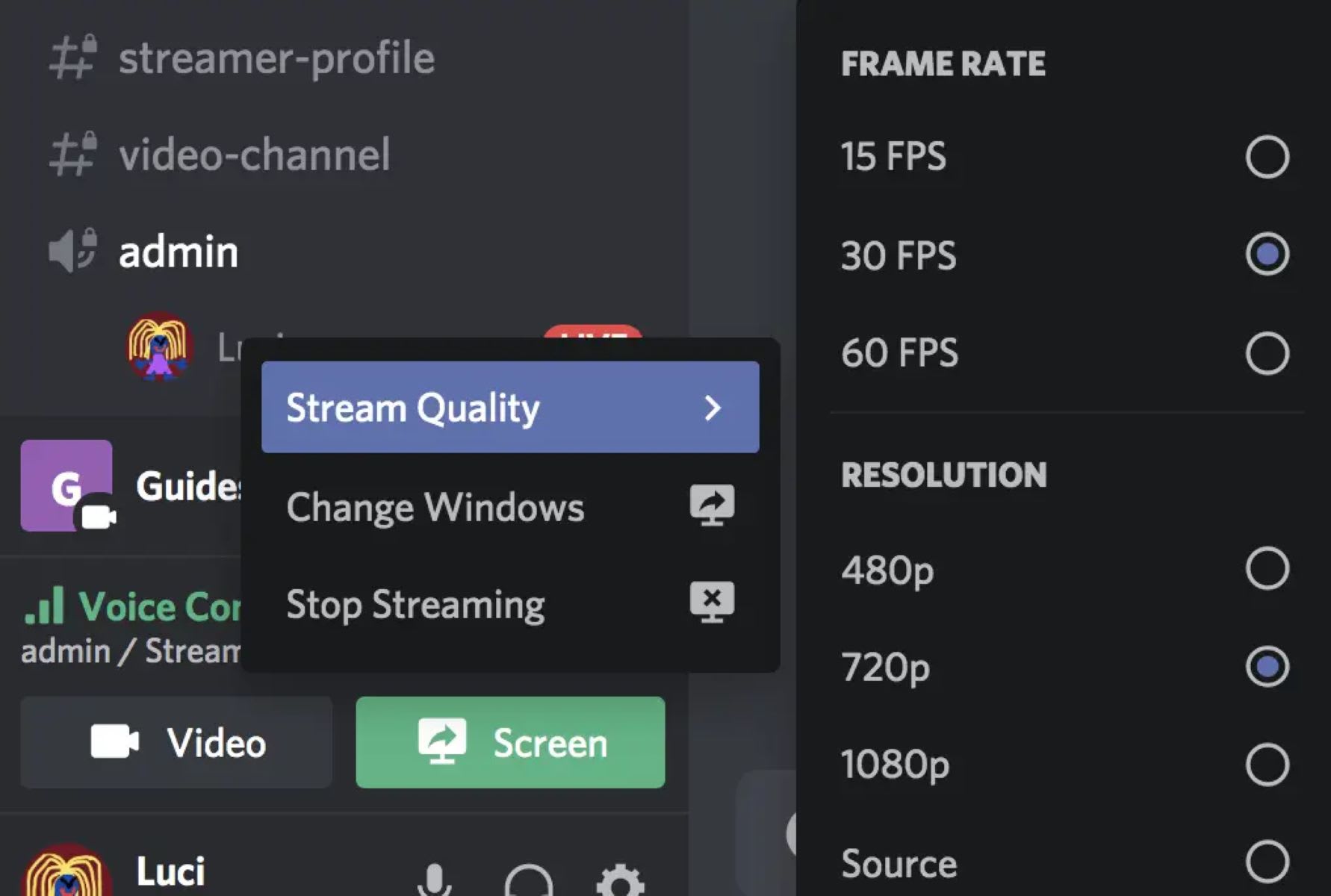
Where a dedicated hardware encoder handles the work, the cost is much lower, because encoding runs on separate silicon rather than the GPU's shader cores. Where it falls back to software or to the GPU's general resources, the cost climbs quickly.
The practical rule: if you are sharing casually, 720p30 or 1080p30 is invisible. If you are trying to hold a competitive frame rate, do not share at 1080p60. And if streaming is a regular activity rather than an occasional one, a capture setup that uses the dedicated encoder path is worth configuring properly.
The Settings Worth Changing
In order of how much they matter.
Overlay, per game. Settings → Game Overlay. Leave it on where you use it, off in anything where frames matter. This is the highest-value single change.
Hardware acceleration — test, do not assume. Settings → Advanced. Leave it on unless you are GPU-limited or short on VRAM. If you turn it off, verify it actually helped rather than trusting the forum post.
Krisp noise suppression. Settings → Voice & Video. It runs continuously on the CPU while your microphone is active. If you already have a decent microphone in a quiet room, turning it off returns that headroom. Most people leave it on without ever needing it.

Reduce motion / disable animations. Settings → Accessibility. Cuts the client's own rendering work. Small, but free.
Close it when you are not using it. Obvious, and worth saying because Discord launches on startup by default and many people never actually close it. If you are playing solo, quit it entirely.
Streamer mode and quality settings. Drop share quality before you drop game settings. It is almost always the better trade.
What Discord Is Not Responsible For
A meaningful share of "Discord is killing my FPS" reports turn out to be something else entirely, and the symptom pattern is the giveaway.
Second-monitor overhead. Discord usually lives on a second display, and second displays cost frames for reasons that have nothing to do with what is on them. If your frame rate dropped when you added a monitor rather than when you installed Discord, read why a second monitor kills your FPS.
Shader compilation stutter. Freezes lasting hundreds of milliseconds during new areas or effects are shader compilation, not an overlay. Our guide on whether to clear your shader cache covers when that helps and when it makes things worse.
Network problems misread as frame rate. Voice chat and games share a connection. If the game feels delayed rather than choppy while someone is talking, that is a latency problem, and the usual cause is queuing rather than Discord — see low ping but still laggy.
Thermal throttling. A machine that slows down after twenty minutes regardless of what is open is a cooling or power problem. Start with why a PC shuts down while gaming if it goes further than throttling.
Warning
Beware of "Discord FPS fix" guides that recommend registry edits, disabling Windows services or third-party optimiser tools. The measurable settings are the five listed above, all of them inside Discord. Anything promising a large frame rate gain from outside the application is selling something.
How to Measure It Yourself
The only answer that matters is the one from your machine, and getting it takes ten minutes.
Pick a repeatable scene. A benchmark run, or a fixed spot in a game where you can stand still and pan the camera the same way each time. Not a multiplayer match — too much variance.
Record frame times, not average FPS. Use a frame time overlay or a capture tool. Overlay costs show up in frame time consistency well before they show up in the average, so an average-only test will tell you nothing changed when something did.
Change one thing. Baseline with Discord closed. Then open with overlay off. Then overlay on. Then screen sharing. Four runs, one variable each.
Compare 1% lows. This is the number that will move. A change of a few frames in the average is noise; a change in the bottom percentile is real.
Frequently Asked Questions
Does Discord lower FPS in games?
Idle in the background, essentially no. With the in-game overlay enabled, typically a small single-digit percentage, occasionally more in DirectX 12 and Vulkan titles. While screen sharing at 1080p60, the cost is substantial. Most disagreements about this are people comparing different scenarios.
Should I turn off Discord hardware acceleration for gaming?
Usually not. It moves Discord's interface rendering from the GPU to the CPU, and most games at 1080p and 1440p are more sensitive to CPU contention. Disable it only if you are hard GPU-limited at high resolution, or if you are running out of video memory on an 8GB card.
Does the Discord overlay cause stuttering?
It can, particularly in DirectX 12 and Vulkan games and when stacked with Steam, GPU vendor and recording overlays. Each one hooks into the game's presentation path, and the costs add up. Disabling it per game rather than globally is the sensible middle ground.
How much FPS does Discord screen sharing use?
It scales sharply with settings. 720p30 is close to free on most systems; 1080p60 is a real workload running alongside your game. Where a dedicated hardware encoder handles it the cost is much lower, since encoding runs on separate silicon rather than competing with rendering.
Does Krisp noise suppression affect performance?
It runs continuously on the CPU whenever your microphone is active, and it is enabled by default. On a CPU-limited system that is worth reclaiming. If you have a decent microphone in a quiet room, you probably were not benefiting from it anyway. Our comparison of AI noise suppression for gamers sets Krisp's CPU cost against GPU-based options such as Nvidia Broadcast.
Why did my FPS drop after installing Discord?
Check whether anything else changed at the same time — a second monitor, a driver update, a game patch. Discord's realistic cost is small enough that a large, sudden drop almost always has another explanation. Measure with it closed versus open on a repeatable scene before concluding.
The Bottom Line
Discord is not the reason your game runs badly. Its realistic cost is a few percent from the overlay, plus whatever you choose to spend on screen sharing — and screen sharing is the only part large enough to matter to a frame rate you care about.
Turn the overlay off in the games where frames matter and leave it on elsewhere. Drop share quality to 720p30 or 1080p30 unless you have a specific reason not to. Turn off Krisp if you do not need it. Leave hardware acceleration on unless you have tested and confirmed otherwise on your own hardware.
Then look elsewhere, because a machine that visibly struggles with a chat application open has a problem that a chat application did not cause.
Interface and hardware photography courtesy of the respective manufacturers and publications, used for editorial coverage.
Sources
- Discord, Advanced Settings and Hardware Acceleration, retrieved 2026-08-04, https://support.discord.com/hc/en-us/articles/360040613412
- Discord, Game Overlay 101, retrieved 2026-08-04, https://support.discord.com/hc/en-us/articles/217659737-Game-Overlay-101
- Discord, Screen Share and Video Quality settings, retrieved 2026-08-04, https://support.discord.com/hc/en-us/articles/360040816151
- Microsoft Learn, DXGI swap chain presentation and overlay compatibility, retrieved 2026-08-04, https://learn.microsoft.com/en-us/windows/win32/direct3ddxgi/dxgi-flip-model
- TechSpot, Overlay performance impact tested: Discord, Steam and vendor overlays, retrieved 2026-08-04, https://www.techspot.com/article/2109-overlay-performance-impact/