A 15ms ping measured on an idle connection tells you almost nothing about how the game feels while someone else in the house is streaming. On a lot of home connections that same link measures 200ms or worse the moment traffic saturates it — and the in-game ping counter often never shows it, because it samples too slowly to catch the spikes.
The cause has a name: bufferbloat. It is one of the few networking problems with a genuinely reliable fix, and the fix is one setting on the router rather than anything on your PC.
Note
Key Takeaways
- Bufferbloat is oversized queues in your router and modem. Under load, packets wait in line instead of being dropped, and latency climbs hundreds of milliseconds.
- Your idle ping is not the number that matters. Latency under load is.
- Test it in 30 seconds with a loaded-latency speed test that grades bufferbloat directly.
- The fix is SQM — smart queue management using fq_codel or CAKE — with bandwidth limits set slightly below your real line speed.
- You will trade a little throughput for a lot of latency. That is the correct trade for gaming.
- If it happens with nothing else running, it is not bufferbloat. Look at Wi-Fi, packet loss, or frame pacing instead.
What Ping Actually Measures
Ping is a round trip on an otherwise quiet connection. It answers "how far away is the server," and it answers that well.
It does not answer "what happens to my packets when the line is busy," and that is the question that decides whether a game feels responsive. Those are different measurements, and confusing them is why "but my ping is 15ms" is such a common and unhelpful response to lag complaints.
There are four network quantities worth separating:
Latency (ping) — round-trip time, idle. Set mostly by physical distance and routing.
Loaded latency — round-trip time while the connection is busy. This is where bufferbloat lives, and where most home connections fall apart.
Jitter — variation in latency between packets. A steady 60ms feels better than a 20ms that regularly spikes to 120ms, because game netcode predicts consistent delay and cannot predict variance.
Packet loss — packets that never arrive. Produces rubber-banding and hit registration failures rather than general sluggishness.
Bufferbloat degrades the middle two badly while leaving the first untouched. That is precisely why it is so persistently misdiagnosed.
Why Buffers Cause Delay
The mechanism is almost the opposite of what people assume, because the buffer was added to help.
When traffic arrives faster than a link can send it, the excess has to go somewhere. Routers and modems hold it in a queue. Memory got cheap, so manufacturers made those queues generous — the reasoning being that a large buffer avoids dropping packets, and dropping packets sounds bad.
The trouble is that TCP relies on dropped packets as its congestion signal. A sender speeds up until something is lost, then backs off. Give it an enormous buffer and nothing gets lost, so it never backs off. It just fills the buffer, and the buffer stays full.
Now your game's small, urgent UDP packets arrive at a queue already holding several hundred milliseconds of someone else's video upload. They wait their turn. Nothing is broken, no packet is lost, and your game is a third of a second behind reality.
Info
This is why bufferbloat is usually worse on upload than download, and worse on connections with asymmetric speeds. A modest upload link saturates easily — a cloud backup, a video call, a game upload, or someone's stream — and once its queue fills, everything you send waits behind it.
Test It in 30 Seconds
You need a speed test that measures latency during the transfer rather than before it. Most do not.
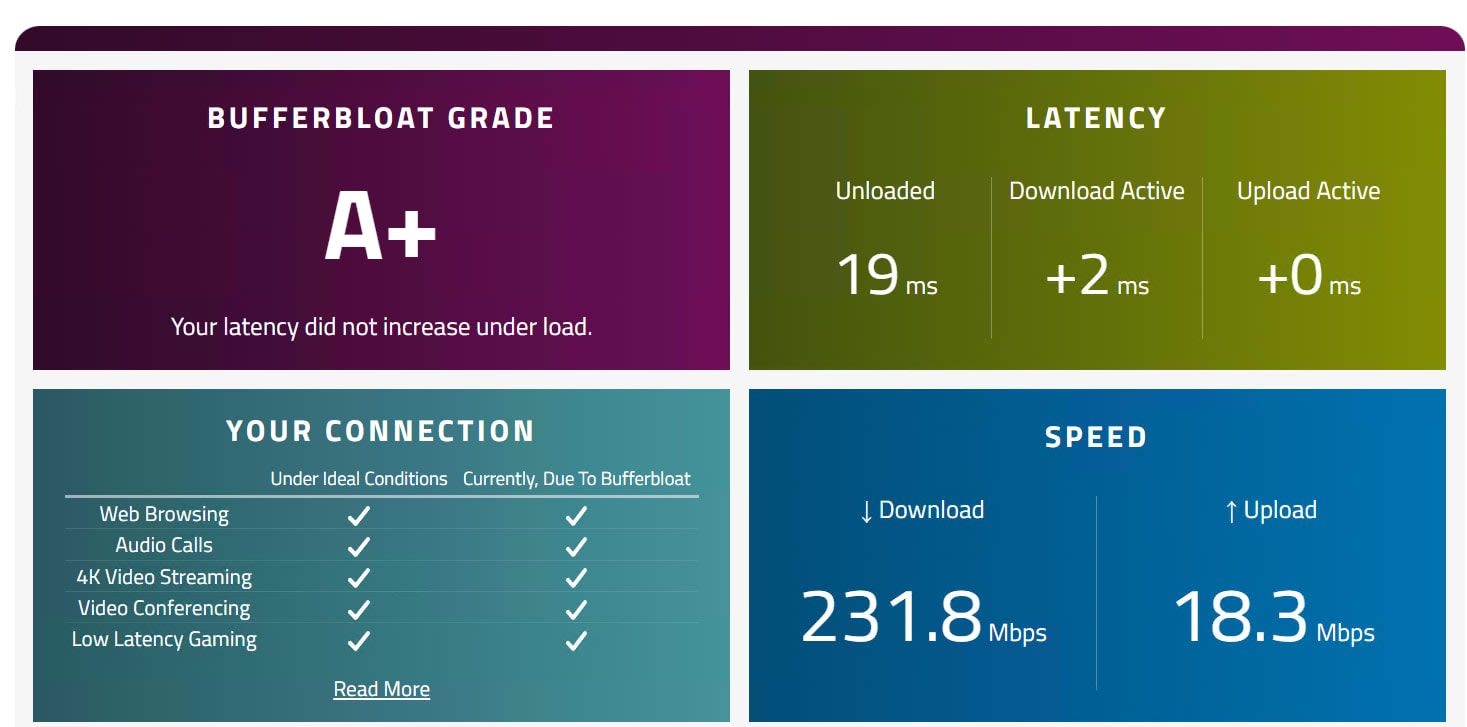
Waveform's bufferbloat test is the standard, and it grades the result A+ through F. Cloudflare's speed test also reports loaded latency separately for download and upload. Run either on a wired connection, with nothing else using the network.
Read three numbers:
Idle latency. Your baseline.
Latency under download load. How much it rose while pulling data.
Latency under upload load. How much it rose while sending. Usually the worse of the two.
| Increase under load | Grade | What it feels like |
|---|---|---|
| Under 5ms | A+ | Nothing you do to the line affects gaming |
| 5–30ms | A / B | Fine in practice |
| 30–60ms | C | Noticeable when the house is busy |
| 60–200ms | D | Games become unplayable during downloads |
| Over 200ms | F | Rubber-banding whenever anything streams |
A jump of more than about 50ms is worth fixing. If your increase is in single digits, bufferbloat is not your problem and the rest of this article will not help — skip to the last section.
The Fix: Smart Queue Management
SQM solves this by refusing to let the oversized buffer fill in the first place.
Two pieces do the work. fq_codel or CAKE are queueing algorithms that keep queues short and drop or mark packets early, restoring the congestion signal TCP needs. And a bandwidth limit set slightly below your real line speed moves the queue from your ISP's equipment — where you have no control — into your router, where the algorithm can manage it.
That second part is the piece people skip, and without it SQM does very little. Your modem's buffer is only reachable if your router is the bottleneck, so you have to deliberately make it the bottleneck.
Measure Your Real Speed
Run a speed test three times on a wired connection and take the typical figure, not the best one. Advertised speed is not the number you want.
Set Limits Below It
Configure SQM download and upload limits at roughly 85–95% of measured speed. Start at 85%, then raise it while re-testing until the grade drops.
Choose CAKE Where Available
CAKE is the newer algorithm and generally needs less tuning. fq_codel is excellent and lighter on the CPU where CAKE is unavailable.
Prioritise Upload
If your router only allows shaping one direction, shape upload. It is where bufferbloat is nearly always worst.
Re-test and Confirm
Run the bufferbloat test again. A correctly configured setup usually moves from D or F to A or A+ in one step.
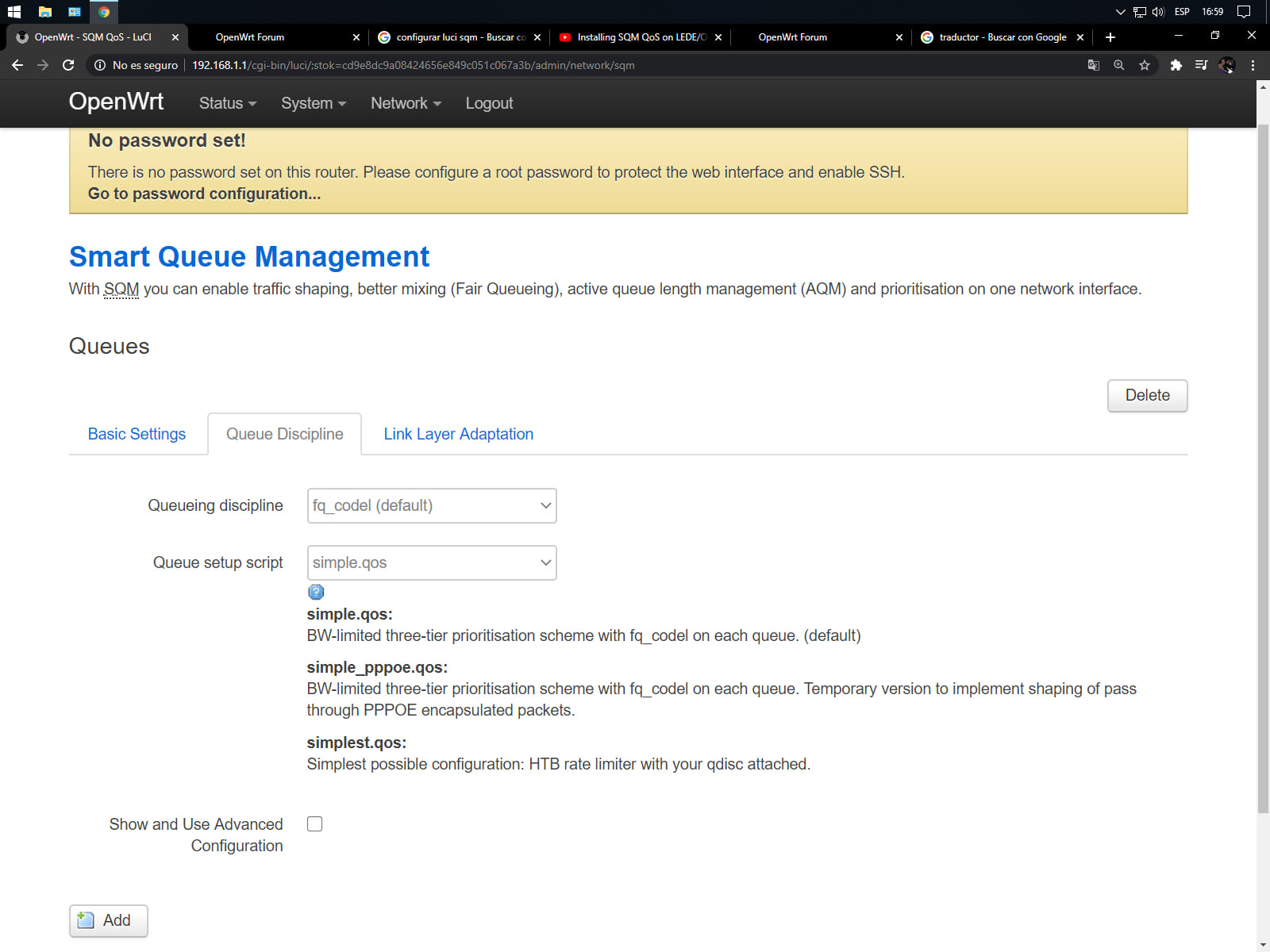
Where you find it depends on your hardware. Routers running OpenWrt have a dedicated SQM package and are the most reliable option. Several consumer router brands ship an equivalent under names like "adaptive QoS" or "smart queue," and dedicated firewall platforms have it built in. Many ISP-supplied gateways have nothing usable at all — in which case the practical fix is putting your own router in front of it and shaping there.
Warning
Vendor "QoS" menus that only let you prioritise a device or an application are not SQM and generally will not fix bufferbloat. They reorder traffic within an already-full queue. What you need is something that keeps the queue from filling — look specifically for fq_codel, CAKE, or an explicitly labelled bufferbloat or latency-reduction mode.
The Throughput Trade
Setting your limit to 90% of your line speed means giving up 10% of your bandwidth. People resist this, and they should not.
That 10% costs you a few seconds on a large download. What you get back is a connection that stays responsive while the download runs, instead of one that becomes unusable for the duration. For anyone gaming in a shared household this is one of the most favourable trades available in home networking.
If it helps, frame it the way frame rate people already think about it: consistency beats peak. It is the same logic that makes a steady 90 FPS feel better than an erratic 120, which we walked through in what 1% lows actually tell you.
Wi-Fi Is a Separate Problem
Fix bufferbloat and you have fixed queuing in the router. You have not fixed the wireless link, which adds its own latency and jitter through an entirely different mechanism.
Wireless is a shared medium with contention, retransmissions, and interference. A busy 2.4GHz band or a distant client produces jitter that no amount of queue management addresses, because the delay is in acquiring airtime rather than in a buffer.
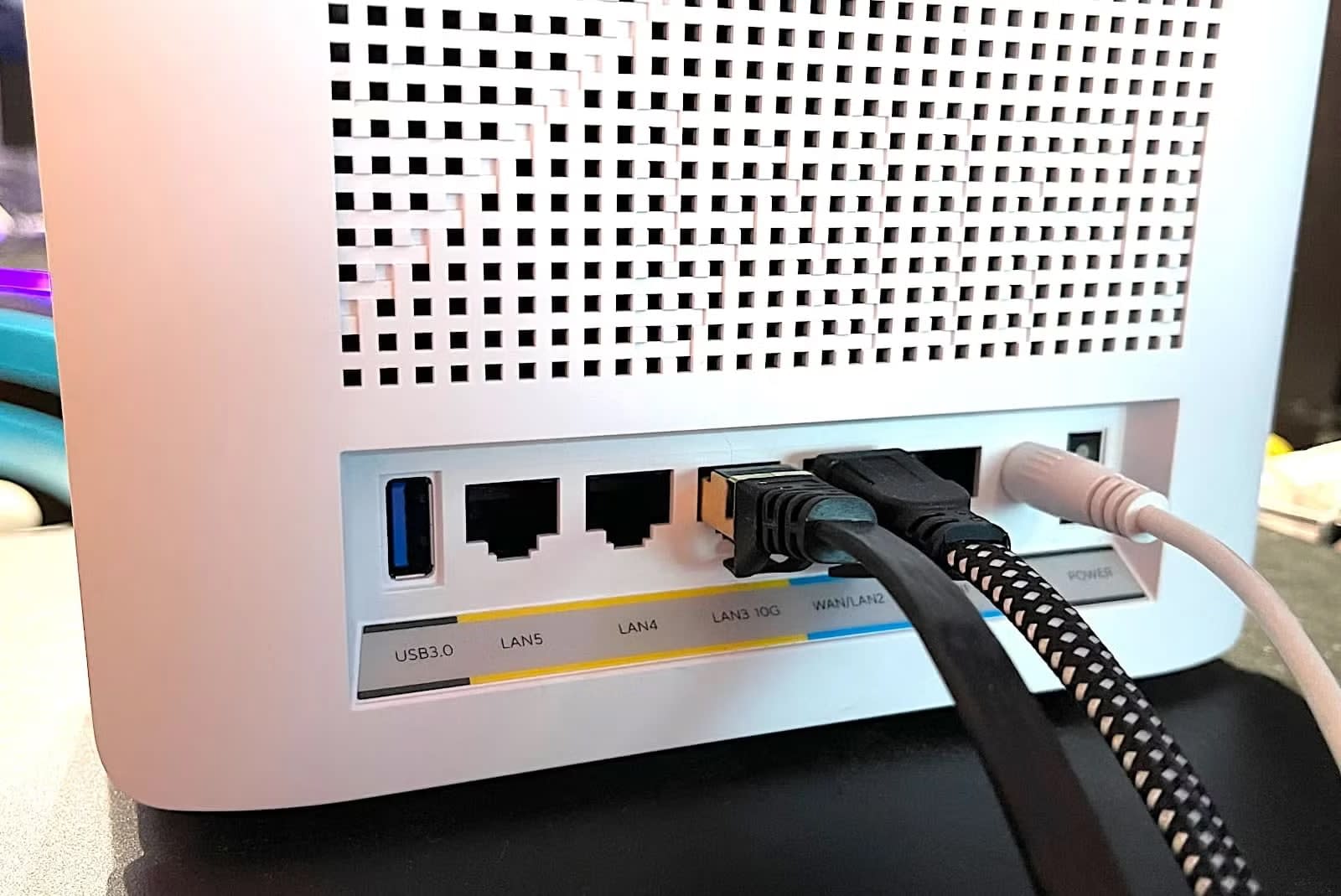
Run Ethernet if you can. It is the single largest improvement available to most setups, and it eliminates a whole category of intermittent problems rather than reducing them. We made the full case, including when Wi-Fi is genuinely fine, in is wired Ethernet necessary.
If a cable is impossible, put the gaming device on 5GHz or 6GHz, keep it close to the access point, enable WMM, and accept that the last few milliseconds of jitter are structural.
When It Is Not Bufferbloat
If your loaded-latency test grades well and games still feel laggy, the problem is elsewhere. Work through these before touching the router again.
Packet loss. Rubber-banding, teleporting enemies and shots that do not register are loss symptoms, not latency symptoms. Run a sustained ping to your gateway and then to a public address to find which hop is losing packets.
Server-side factors. Tick rate, regional server choice and lag compensation all shape how a game feels, and none of them are visible in any test you can run at home. If one game feels bad and everything else is fine, this is the likely explanation.
Frame pacing misread as network lag. This one is extremely common. Inconsistent frame delivery produces exactly the delayed, disconnected feeling people attribute to their connection. If aiming feels heavy rather than teleporty, start with fixing stuttering in PC games and check whether a second monitor is costing you frames.
Input-side latency. Controller processing, polling rate and display latency all add up before a packet is ever sent. The measurable side of that is covered in is an 8000Hz polling rate worth it.
Registry "optimisations." TCP tweaks and Nagle's algorithm edits circulate endlessly in gaming forums. Most target behaviour that modern Windows already handles, and none of them address queue depth in a device you do not control. Skip them.
Frequently Asked Questions
Why do I have low ping but still lag in games?
Almost always because your ping was measured on an idle connection. Under load, oversized buffers in your router and modem queue traffic and add hundreds of milliseconds of delay — a problem called bufferbloat. Test loaded latency rather than idle latency to see it.
What is bufferbloat?
Oversized packet queues in networking equipment. When a link saturates, excess packets are buffered instead of dropped, which prevents TCP from detecting congestion and backing off. The buffer stays permanently full, and every packet behind it waits — including the small, urgent ones your game sends.
How do I test for bufferbloat?
Use a speed test that measures latency during the transfer, such as Waveform's bufferbloat test or Cloudflare's speed test. Run it wired, with nothing else on the network. Compare idle latency to latency under download and upload load; an increase above roughly 50ms is worth fixing.
How do I fix bufferbloat on my router?
Enable SQM using fq_codel or CAKE, and set download and upload bandwidth limits to about 85–95% of your measured real speed. The limit is essential — it moves the queue into your router, where the algorithm can manage it, instead of your ISP's equipment where you have no control.
Does QoS fix bufferbloat?
Usually not. Most consumer QoS menus only reorder traffic within a queue that is already full, which does not reduce the delay. What works is queue management that prevents the queue from filling — look specifically for fq_codel, CAKE, or a setting explicitly labelled for bufferbloat or latency.
Will fixing bufferbloat lower my ping?
Not your idle ping, which is set by distance and routing. It dramatically lowers your latency while the connection is busy, which is what you actually experience when someone else in the house is downloading, streaming or on a video call.
The Bottom Line
Idle ping is the number everyone quotes and the least useful one available. Run a loaded-latency test. If your latency climbs more than about 50ms under load, you have found the cause of lag that appears whenever the household gets busy — and it has nothing to do with your ISP's advertised speed.
The fix is SQM with a bandwidth limit slightly under your real line rate. It costs a small slice of throughput and typically moves a connection from an F to an A in a single configuration change. Do that, then run Ethernet to the gaming machine, and you have eliminated the two largest sources of home network latency that are actually within your control.
Everything after that — tick rates, routing, server choice — is somebody else's equipment.
Networking hardware and interface photography courtesy of the respective manufacturers and publications, used for editorial coverage.
Sources
- Bufferbloat.net, Introduction to bufferbloat and the CoDel/CAKE queue disciplines, retrieved 2026-08-03, https://www.bufferbloat.net/projects/
- Waveform, Bufferbloat and Internet Speed Test, retrieved 2026-08-03, https://www.waveform.com/tools/bufferbloat
- OpenWrt Project, SQM (Smart Queue Management) configuration, retrieved 2026-08-03, https://openwrt.org/docs/guide-user/network/traffic-shaping/sqm
- IETF, RFC 8290: The FlowQueue-CoDel Packet Scheduler and Active Queue Management Algorithm, retrieved 2026-08-03, https://www.rfc-editor.org/rfc/rfc8290
- Ars Technica, Bufferbloat: the reason your internet feels slow when it isn't, retrieved 2026-08-03, https://arstechnica.com/information-technology/2021/08/bufferbloat-explained/