Audio that crackles, pops, or stutters specifically when a game is running is almost never a failing headset. It is a driver holding onto the CPU for too long, starving the audio buffer of the data it needs on time. The giveaway is that the same headset is flawless on the desktop and in music playback, and only breaks under load.
That distinction matters because it changes what you should do about it. Replacing the headset fixes nothing when the cause is a network or USB driver blocking the audio path — and this is measurable in about five minutes with one free tool rather than guessed at through trial and error.
Note
Key Takeaways
- Crackling is a buffer underrun — audio data arriving later than the deadline to play it.
- The usual cause is DPC latency: a driver monopolising the CPU long enough to miss that deadline.
- LatencyMon names the responsible driver directly. Measure before changing anything.
- Network, GPU, USB, storage, and wireless drivers cause the clear majority.
- Moving a wireless dongle from a USB 3.0 port to USB 2.0 is a genuinely common one-step fix.
- A sample rate mismatch between Windows and your device produces the same symptom with a different cause.
What Crackling Actually Is
Audio playback runs to a hard deadline. Windows fills a small buffer with the next few milliseconds of sound, and the audio device drains it at a fixed rate. Refills have to arrive before the buffer empties.
When a refill is late, the device has nothing to play. The gap is what you hear — as a pop, a click, a crackle, or a brief burst of static depending on how long it lasted. The sound is the shape of the silence, not distortion of the audio itself.
That is why it correlates with system load rather than with volume, content, or the headset. Nothing is wrong with the signal. Something is preventing it from arriving on time.
Why Drivers Cause It
Windows drivers do urgent work in a Deferred Procedure Call — a mechanism that lets a driver defer processing while running at high priority. While a DPC executes, other work on that processor waits.
A well-behaved driver finishes its DPC in a few microseconds. A badly behaved one — or a correctly written one interacting with flaky hardware — can hold the processor for milliseconds. That is thousands of times longer, and it is more than enough to blow past an audio buffer deadline.
This is why the symptom appears under gaming load specifically. Games drive the network stack, the GPU, storage, and USB peripherals hard and simultaneously. Any driver with a latency problem is far more likely to expose it under that combination than while you are reading a web page.
Measure It First
Do not start swapping hardware. LatencyMon is free, and it names the driver responsible rather than leaving you to guess.
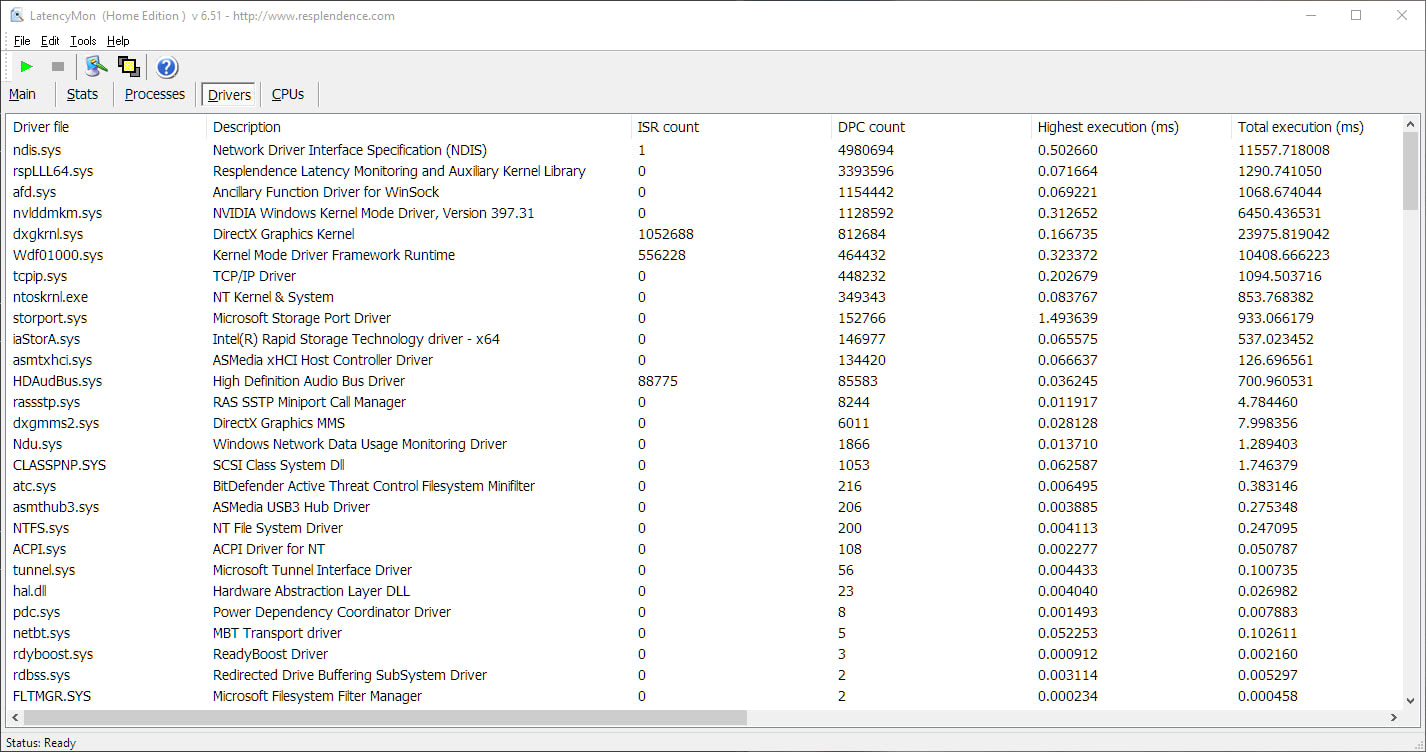
Download it from Resplendence, run it as administrator, press start, and then go and do the thing that causes the problem — play the game for five to ten minutes with audio running. Come back and open the Drivers tab, sorted by highest execution time.
Interpreting the result is straightforward:
| # | Highest DPC execution time | Verdict |
|---|---|---|
| 1 | Under 100 µs | Healthy, look elsewhere |
| 2 | 100-500 µs | Acceptable, unlikely to be your cause |
| 3 | 500-1000 µs | Suspect, likely audible on small buffers |
| 4 | Over 1000 µs | Almost certainly your problem |
| 5 | Over 5000 µs | Severe, expect stutter beyond audio too |
The driver at the top of that list is your suspect. The name is usually recognisable — ndis.sys and nvlddmkm.sys are the network stack and the NVIDIA display driver respectively, usbxhci.sys is the USB 3.0 host controller, storport.sys and stornvme.sys are storage.
Tip
Run LatencyMon while the problem is actually happening. Measuring an idle desktop tells you almost nothing — the whole point is to catch the driver misbehaving under the load that triggers it.
The Five Usual Culprits
Network drivers top this list more often than anything else. Windows Update installs a generic driver for many Intel and Realtek adapters, and the manufacturer's own driver frequently has dramatically better DPC behaviour. Download it from the adapter maker rather than the PC maker, and rather than letting Windows choose.
Wireless adapters are worse than wired ones, because scanning for networks happens on a timer and blocks. If crackling arrives in periodic bursts a few seconds apart rather than continuously, a Wi-Fi adapter scanning is a strong suspect.
USB 3.0 controllers are a notorious source of spikes, and they interact badly with wireless headset dongles and 2.4GHz receivers plugged directly into them. Moving the dongle to a USB 2.0 port fixes a surprising share of cases outright — the receiver does not need USB 3.0 bandwidth, and it removes it from the problematic controller entirely.
GPU drivers appear here after driver updates and after Windows feature updates. A clean reinstall is the usual remedy, and rolling back one version is worth trying when a specific update introduced it.
Storage drivers matter most on systems where a game streams assets continuously. This overlaps heavily with general stutter, which is covered in how to fix stuttering in PC games.
The Fix Order
Work down this list, testing after each change rather than applying all of them at once:
| # | Action | Effort |
|---|---|---|
| 1 | Move wireless dongles to USB 2.0 ports | 1 min |
| 2 | Match Windows sample rate to your device | 2 min |
| 3 | Disable audio enhancements and spatial sound | 2 min |
| 4 | Install the network driver from the chip maker | 10 min |
| 5 | Set power plan to High Performance | 2 min |
| 6 | Clean-reinstall the GPU driver | 15 min |
| 7 | Disable idle power states in BIOS as a last resort | 10 min |
Rows 1 through 3 cost five minutes together and resolve a large share of cases. Row 4 is the highest-value change when LatencyMon points at the network stack.
The Sample Rate Mismatch
This one is not DPC latency at all, but it produces an almost identical symptom and it is worth ruling out early because the fix takes two minutes.
Windows resamples audio when an application's output rate differs from the device's configured rate. When several applications with different rates are mixed — a game at 48kHz, a voice client at 16kHz, a browser at 44.1kHz — the resampling can produce artefacts that sound exactly like crackling.
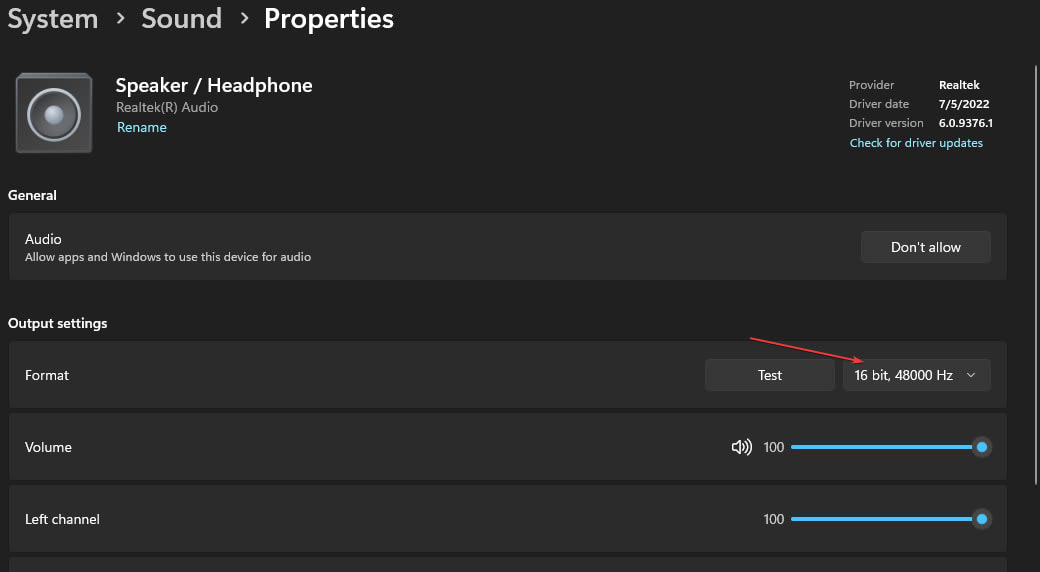
Open Settings → System → Sound, select your output device, and look at the format. Set it to 24-bit, 48000 Hz, which is what games and voice clients overwhelmingly use. Match your microphone's rate too, since a mismatch between input and output devices causes its own problems.
While you are there, turn off Audio enhancements and Spatial sound temporarily. Both add processing to the path, and both have been known to introduce artefacts on specific driver combinations. Turn them back on individually afterwards if you want them.
Voice Clients Make It Worse
Discord and similar clients take exclusive-ish control of audio devices, run their own noise suppression, and switch sample rates dynamically. All of that adds processing to the same path that is already missing deadlines.
If crackling appears only with a voice client running, test with it fully closed rather than merely disconnected. Then re-enable its features one at a time — hardware acceleration and noise suppression are the two most likely to matter. If you also run a separate suppressor such as Nvidia Broadcast, pick one: our guide to AI noise suppression for gamers explains why stacking two adds cost and makes your voice sound worse.
Its overlay is a separate question with its own performance cost, covered in whether Discord lowers your FPS.
Power Management Interference
Aggressive CPU power saving causes audio problems by design, because waking a core from a deep idle state takes time that the audio deadline does not allow for.
Setting the Windows power plan to High Performance is the easy version of this fix and worth trying early. The more thorough version lives in BIOS, where C-states and similar idle states can be limited — but that raises idle power draw and temperature, so treat it as a last resort rather than a routine tweak.
On laptops this interacts with battery profiles directly, and crackling that appears only on battery is nearly always this.
When It Genuinely Is the Hardware
Not everything is a driver. A few patterns point at physical faults:
Crackling at all times, including on the desktop and on another machine, is the headset or the cable. Test it on a phone — if it crackles there, you have your answer.
Crackling that changes when you move the cable is a failing connector or a broken conductor, most often at the jack or where the cable meets the earcup.
Crackling only on one specific port points at that port rather than the device. Front-panel audio jacks on desktop cases are frequently poorly shielded and pick up interference from the components around them; the rear jacks on the motherboard are usually cleaner.
A high-pitched whine that changes with GPU load is not audio at all — that is electrical noise, either coil whine or ground loop interference. Our guide to GPU coil whine covers it, and if it comes through your speakers rather than from inside the case, a USB or optical audio connection sidesteps the analogue ground path entirely.
When the Problem Is Bigger Than Audio
If LatencyMon shows severe numbers and you are also seeing input hitches, video stutter, and general unresponsiveness, audio is just the most audible symptom of a system-wide problem.
Look at what 1% lows measure for how the same interference shows up in frame delivery. If the machine also drops network connections or the game rubber-bands, packet loss in online games and low ping but laggy connections cover the networking side of the same driver problems.
And if it escalates to the machine cutting out entirely rather than merely stuttering, that is a different investigation — see why a PC shuts down while gaming.
Frequently Asked Questions
Why does my audio only crackle when gaming?
Because games load the network stack, GPU, storage, and USB peripherals hard and at the same time. A driver with a latency problem is far more likely to hold the CPU too long under that combination than while idle. The audio buffer misses its deadline, and the gap is what you hear.
What is a normal DPC latency figure?
Under 100 microseconds is healthy and under 500 is generally fine. Anything consistently above 1000 microseconds is very likely to be audible on typical buffer sizes, and above 5000 you should expect stutter in input and video as well as audio.
Will a USB DAC or a new headset fix crackling?
Only if the fault is genuinely in the current device. If the same headset is clean on the desktop and on a phone, the hardware is fine and new hardware will crackle in exactly the same way. Measure with LatencyMon first — replacing a device to fix a driver problem is an expensive way to learn nothing.
Why does moving my wireless dongle to a USB 2.0 port help?
Because USB 3.0 host controllers are a common source of DPC spikes, and 2.4GHz receivers sitting on them are exposed to that directly. The dongle does not need USB 3.0 bandwidth, so moving it to a USB 2.0 port costs nothing and removes it from the problem controller. USB 3.0 ports also emit interference in the 2.4GHz band, which compounds it.
Does changing the Windows sample rate really matter?
It can. When applications running at different rates are mixed, Windows resamples, and on some driver combinations that produces artefacts indistinguishable from crackling. Setting the device to 24-bit 48000 Hz matches what games and voice clients use and removes the resampling step for most of what you play.
Could this be a failing sound card or motherboard?
Possible but uncommon, and it looks different. A hardware fault usually crackles constantly rather than under load, persists across drivers and operating system reinstalls, and often affects only one specific port. Front-panel jacks picking up interference from nearby components is far more common than an actually failing audio chip.
The Bottom Line
Measure before you replace anything. LatencyMon takes five minutes and names the driver, which turns this from an expensive guessing game into a specific fix.
Then start with the cheap moves: wireless dongle onto a USB 2.0 port, sample rate set to 48kHz, enhancements off. Those three cost about five minutes together and clear a large share of cases. If the numbers still look bad, the network driver from the chip maker's own site is the single highest-value change left — and the headset you were about to replace is almost certainly fine.
If the crackling is periodic rather than constant, the cause is usually a driver whose deferred procedure calls run too long to meet the audio buffer deadline. Our guide to reading LatencyMon results and fixing DPC latency covers how to find the driver responsible.
Sources
- Resplendence Software, LatencyMon: Real-Time Latency Monitoring, retrieved 2026-08-13, https://www.resplendence.com/latencymon
- Microsoft Learn, Introduction to DPC Objects, retrieved 2026-08-13, https://learn.microsoft.com/en-us/windows-hardware/drivers/kernel/introduction-to-dpcs
- Wccftech, How To Diagnose and Fix High DPC Latency in Windows, retrieved 2026-08-13, https://wccftech.com/how-to/how-to-diagnose-and-fix-high-dpc-latency-in-windows/
- Microsoft Support, Fix sound or audio problems in Windows, retrieved 2026-08-13, https://support.microsoft.com/en-us/windows/fix-sound-or-audio-problems-in-windows-73025246-b61c-40fb-671a-2535c7cd56c8
- Ten Forums, Audio Crackling/Popping and DPC Latency Issues Solved, retrieved 2026-08-13, https://www.tenforums.com/sound-audio/176723-audio-crackling-popping-dpc-latency-issues.html