Packet loss is the reason you get shot around a corner while your ping reads 25 ms. Ping measures how long a round trip takes; packet loss measures how many of those trips never complete at all. They are separate problems, and the second one is far more destructive to how a game feels.
Even 1–2% loss produces visible rubber-banding, rejected hit registration and characters teleporting, because the missing packets are exactly the position updates the game needs to stay consistent. The fix is almost never a product — it is finding which hop is dropping traffic and treating that specific link.
Note
Key Takeaways
- 1–2% packet loss is already a problem in fast online games. Anything over 5% makes competitive play essentially impossible.
- Low ping with packet loss is common. The two metrics measure different failures and a good ping does not clear your connection.
- Use
pathpingrather thanping— it tests every hop between you and the server and shows exactly where loss begins. - Loss at the final hop only is the game server's problem, not yours. Loss at your first or second hop is inside your home.
- Wi-Fi is the single most common cause. An Ethernet cable resolves more cases than every software fix combined.
- If loss is zero but the game still feels laggy under load, the problem is bufferbloat rather than packet loss.
Packet Loss vs Ping vs Jitter
These three numbers describe three different failures, and confusing them sends people down the wrong repair path.
| Metric | What it measures | What it feels like |
|---|---|---|
| Ping / latency | Round-trip time for a packet | A consistent delay between input and result |
| Jitter | Variation in that round-trip time | Uneven movement, unpredictable timing |
| Packet loss | Percentage of packets that never arrive | Rubber-banding, teleporting, shots that do not register |
A connection with 25 ms ping and 3% loss will feel dramatically worse than one with 60 ms ping and 0% loss. Games interpolate smoothly across consistent latency; they cannot interpolate across information that never arrived.
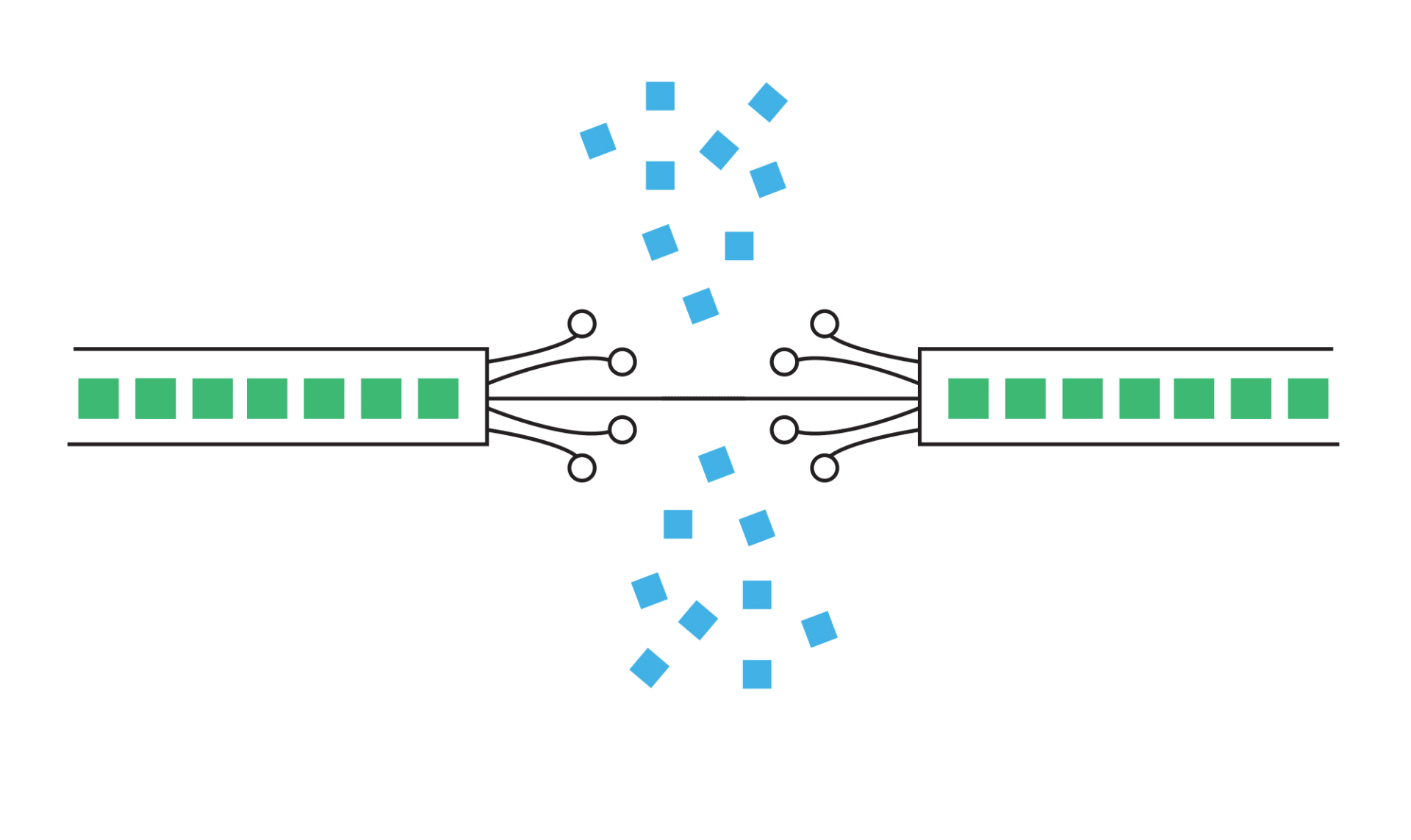
The reason lost packets hurt so much is what they contain. Online games send position and state updates continuously over UDP, which does not retransmit. A dropped update is simply gone, and the client has to guess where everything was until the next one arrives. When the truth turns up, your screen corrects — and that correction is the rubber-band.
Step 1: Measure It Properly
Run pathping from Command Prompt. It tests every hop between you and the destination and reports loss per hop, which ping cannot do.
Open Command Prompt and run:
pathping 8.8.8.8
It takes a few minutes because it samples each hop repeatedly. That patience is the point — a single ping run tells you almost nothing about intermittent loss.
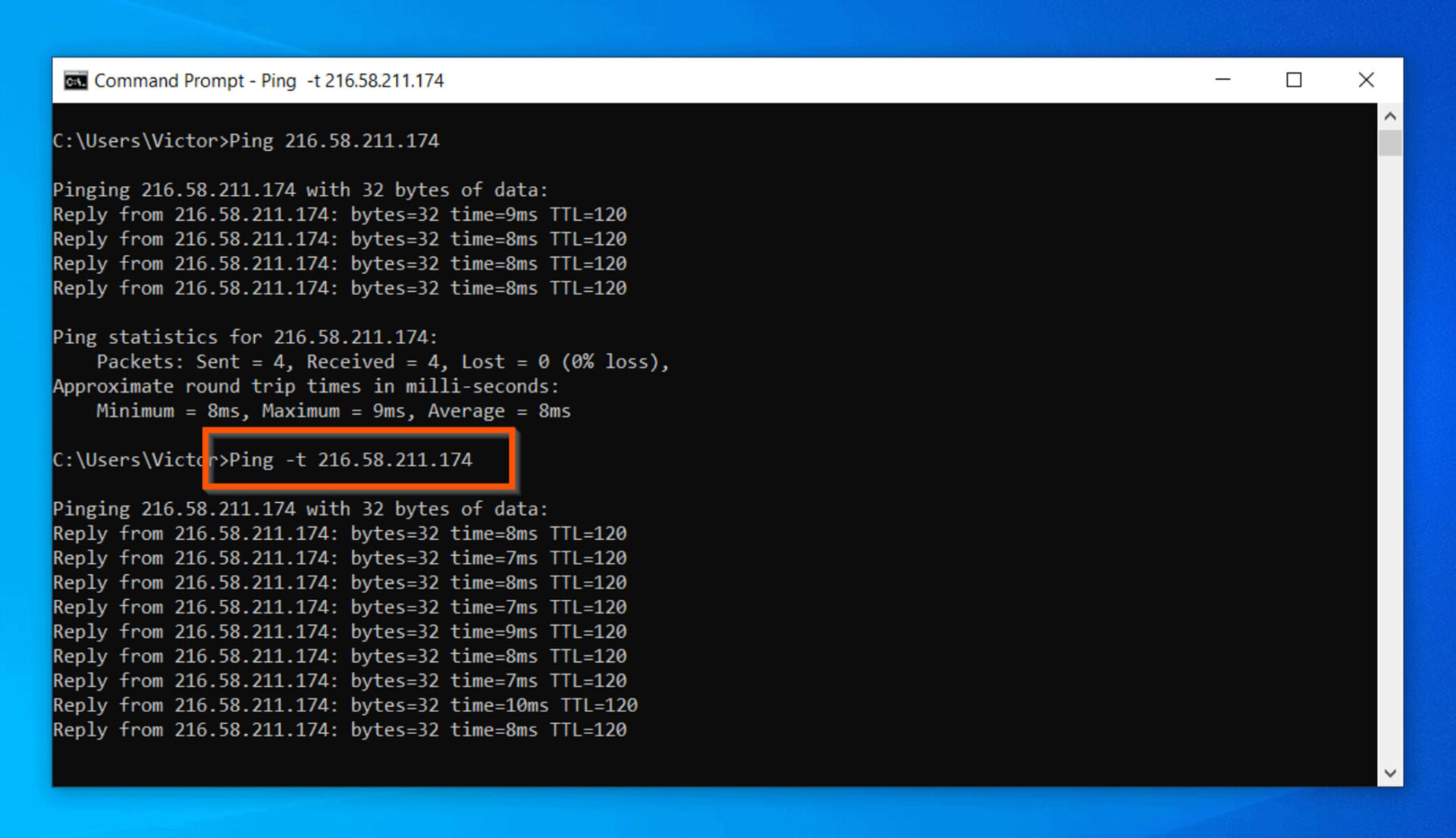
Read the output from the top down and find the first hop where loss begins and continues on every hop after it. That is where the problem starts.
Warning
Loss that appears at one middle hop and then disappears on later hops is almost always a false positive. Routers deprioritise replying to diagnostic traffic when busy, so they report loss for themselves while forwarding real traffic perfectly. Only loss that persists to the destination counts.
Reading the Result
Hop 1 (your router) shows loss → the problem is inside your home. Wi-Fi, a cable, or the router itself. This is the most common and the most fixable case.
Hop 2 or 3 shows loss → your modem, the line into your home, or your ISP's local equipment. Worth a support call with the pathping output attached.
Loss only at the final hop → the game server or its network. Nothing on your end will fix it. Change server region and see whether it follows you.
Loss everywhere from hop 1 → start with the physical layer. Cable, port, network adapter.
Step 2: Eliminate Wi-Fi
Wi-Fi causes more gaming packet loss than every other factor combined, and testing it costs nothing but the time to run a cable.
Wi-Fi drops packets for reasons wired connections do not have: interference from neighbouring networks, microwaves and Bluetooth devices; physical obstructions; distance from the access point; and channel congestion in dense housing. None of these produce steady degradation — they produce intermittent bursts, which is exactly the signature that ruins online games.
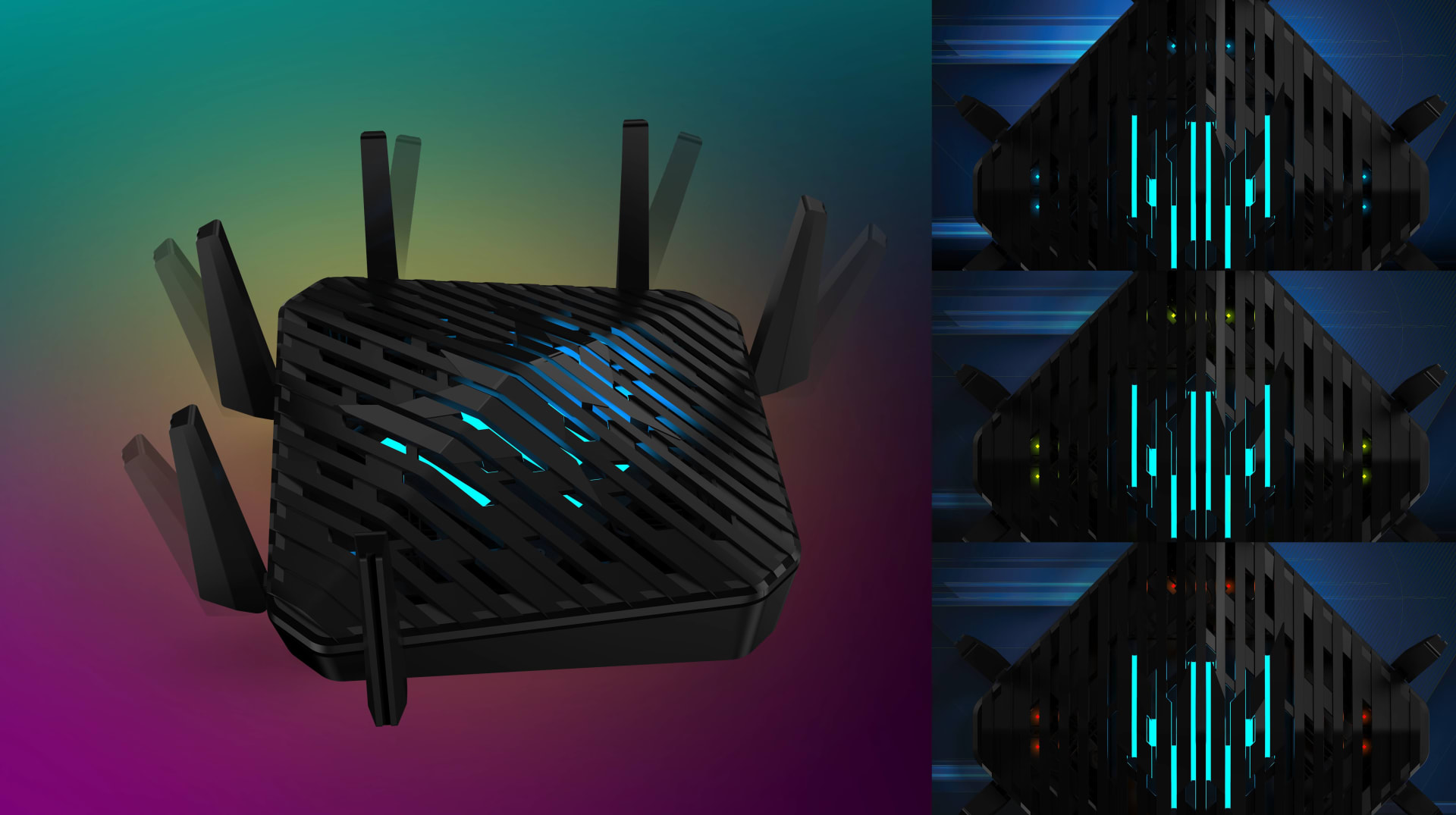
Run an Ethernet cable directly to the router and re-run pathping. If the loss disappears, you have your answer, and every remaining decision is about whether to keep the cable, add a powerline or MoCA adapter, or improve the Wi-Fi.
Use 5 GHz or 6 GHz
The 2.4 GHz band is the most congested and the most vulnerable to interference. Force the gaming device onto a higher band.
Change the Channel
In dense housing, dozens of networks overlap. Pick a channel your neighbours are not using and re-test.
Move the Router
Line of sight beats output power. A router behind a television, inside a cabinet, or on the floor is losing most of its signal to furniture.
Disable Band Steering For That Device
Automatic band switching mid-session drops packets during the handover. Pin the gaming device to one band.
Step 3: Check the Physical Layer
A damaged or poorly seated Ethernet cable produces exactly the same symptoms as a congested network, and it is far easier to rule out.
Swap the cable for a known-good one. Cat 5e is entirely sufficient for gigabit — this is not a case where a more expensive cable helps, but a crushed, kinked or crimped one genuinely hurts. Cables run under doors, behind furniture or through a pinch point are the usual suspects.
Try a different port on the router. Individual ports fail while the rest of the device works normally.
Check the network adapter driver. A clean install from the motherboard or laptop manufacturer's site occasionally resolves loss that survives every other test, and it costs ten minutes.
Step 4: Rule Out Local Congestion
Anything saturating your upload can push game traffic out, and upload is usually the constrained direction on a home connection.
The usual culprits are cloud backup sync, game downloads or updates running in the background, streaming or recording software uploading in real time, and other devices in the house doing any of the above.
Test cleanly: stop everything else on the network, then re-run pathping and re-test the game. If loss disappears with a quiet network, the fix is scheduling and quality-of-service rules rather than hardware.
Info
If your pathping comes back clean but the game still feels laggy the moment anyone else uses the connection, you are looking at bufferbloat, not packet loss. It is a queueing problem in your router that inflates latency under load, it produces a completely different signature, and it has its own fix — see low ping but still laggy: how to fix bufferbloat.
Step 5: When It Is Not Your Network
If loss only appears on the last hop, the problem is the game server's route, and no amount of local work will change it.
Test another game or another server region. If a different region is clean, the route to your usual one is the issue — playing on the healthy region is a legitimate workaround while it lasts.
Check the game's official status page and community reports before escalating. Server-side loss during a popular launch window is common and temporary.
If loss follows you across every game and every region, and pathping shows it starting at hop 2 or 3, that is an ISP line fault. Send the pathping output with your support ticket. It is the difference between a technician being dispatched and being told to reboot your router.
What Does Not Fix Packet Loss
"Gaming" VPNs and route-optimising services. They can occasionally help by routing around a broken peering link, but they add a hop and their own latency, and they do nothing for loss that originates inside your home. Only worth trying after pathping shows the loss is beyond your ISP.
Expensive Ethernet cables. Cat 8 does not reduce packet loss on a home connection. A working Cat 5e cable and a broken Cat 8 cable will both do exactly what their condition dictates.
Upgrading your internet speed. Packet loss is not a bandwidth problem. A 1 Gbps connection dropping 3% of packets performs worse than a 100 Mbps connection dropping none.
Network optimiser software. Registry tweaks and TCP tuning utilities do not affect the UDP traffic games use for state updates, and several make things worse.
If your problems are not actually network-related, the symptoms overlap more than people expect. How to fix stuttering in PC games covers the local-performance version of "the game feels wrong," and why a second monitor drops your FPS covers a cause that gets misdiagnosed as lag surprisingly often. For a compact system where the network hardware itself may be the limit, our mini PC internet connection guide covers the adapter side.
Two more worth ruling out before you blame the network. If your game is silently running on integrated graphics, the low frame rate can read as lag even though the connection is clean — the check takes 30 seconds and is covered in game running on integrated graphics instead of your GPU. And if you have frame generation enabled in a competitive shooter, the added input latency from frame generation feels remarkably like a bad connection while your ping stays perfect.
Frequently Asked Questions
How much packet loss is acceptable for gaming?
Zero is the target and under 1% is tolerable. At 1–2% you will notice rubber-banding and inconsistent hit registration in fast games. Above 5%, competitive play becomes effectively impossible because the client is guessing at more state than it is receiving.
Why do I have low ping but still lag in games?
Because ping and packet loss measure different failures. Ping is the round-trip time of packets that arrive; packet loss counts the ones that never do. A 25 ms connection with 3% loss feels far worse than a 60 ms connection with none. If loss is zero too, the likely cause is bufferbloat — latency spiking under network load.
How do I check for packet loss on Windows?
Run pathping 8.8.8.8 in Command Prompt. Unlike ping, it tests every hop between you and the destination and reports loss per hop, letting you see exactly where the problem starts. It takes a few minutes to complete because it samples each hop repeatedly.
Does Wi-Fi cause packet loss in games?
Yes, more often than any other cause. Interference, distance, obstructions and channel congestion all cause intermittent drops rather than steady slowdown, which is the worst possible pattern for online games. Testing with an Ethernet cable is the fastest way to confirm or rule it out.
Will a gaming VPN fix packet loss?
Only in one specific case: when the loss is happening on a broken route beyond your ISP, and the VPN happens to route around it. It cannot help with loss inside your home or on your own line, and it adds an extra hop and latency of its own. Run pathping first and only consider one if the loss starts several hops out.
Can packet loss be caused by my PC rather than the network?
Occasionally. A failing network adapter, a bad driver or software that intercepts network traffic can all drop packets locally. If pathping shows loss beginning at hop 1 even over a wired connection with a known-good cable, reinstall the network driver from the manufacturer's site before blaming the router.
The Bottom Line
Packet loss is a location problem, not a hardware problem. Once you know which hop is dropping traffic, the fix is usually obvious and usually free.
Run pathping, find the first hop where loss persists to the destination, and treat that link. Hop 1 means Wi-Fi or a cable. Hop 2 or 3 means your ISP, and the pathping output is your evidence. Last hop only means the game server, and switching region is the only lever you have.
Do that before you buy a router, a VPN subscription or a faster plan. In most homes the entire problem is a wireless link that should have been a cable.
Diagrams and screenshots courtesy of the respective manufacturers and publications, used for editorial coverage.
Sources
- Microsoft Learn, pathping command reference, retrieved 2026-08-09, https://learn.microsoft.com/en-us/windows-server/administration/windows-commands/pathping
- Microsoft Learn, tracert command reference, retrieved 2026-08-09, https://learn.microsoft.com/en-us/windows-server/administration/windows-commands/tracert
- Cloudflare, What is packet loss?, retrieved 2026-08-09, https://www.cloudflare.com/learning/network-layer/what-is-packet-loss/
- Bufferbloat.net, Bufferbloat projects and latency-under-load background, retrieved 2026-08-09, https://www.bufferbloat.net/projects/
- EA Help, Connection troubleshooting basics for PC, retrieved 2026-08-09, https://help.ea.com/en/help/pc/connection-troubleshooting-basics/