If a game runs at 20 FPS on hardware that should manage 100, the most common cause is that Windows never handed it to your real graphics card. Your system has two GPUs — the integrated one inside the CPU and the discrete one you paid for — and the rules that decide which gets used are less reliable than they should be.
The good news is that confirming it takes about 30 seconds in Task Manager, and the fix is usually one setting. The bad news is that there are three separate places the setting can live, and they can contradict each other.
Note
Key Takeaways
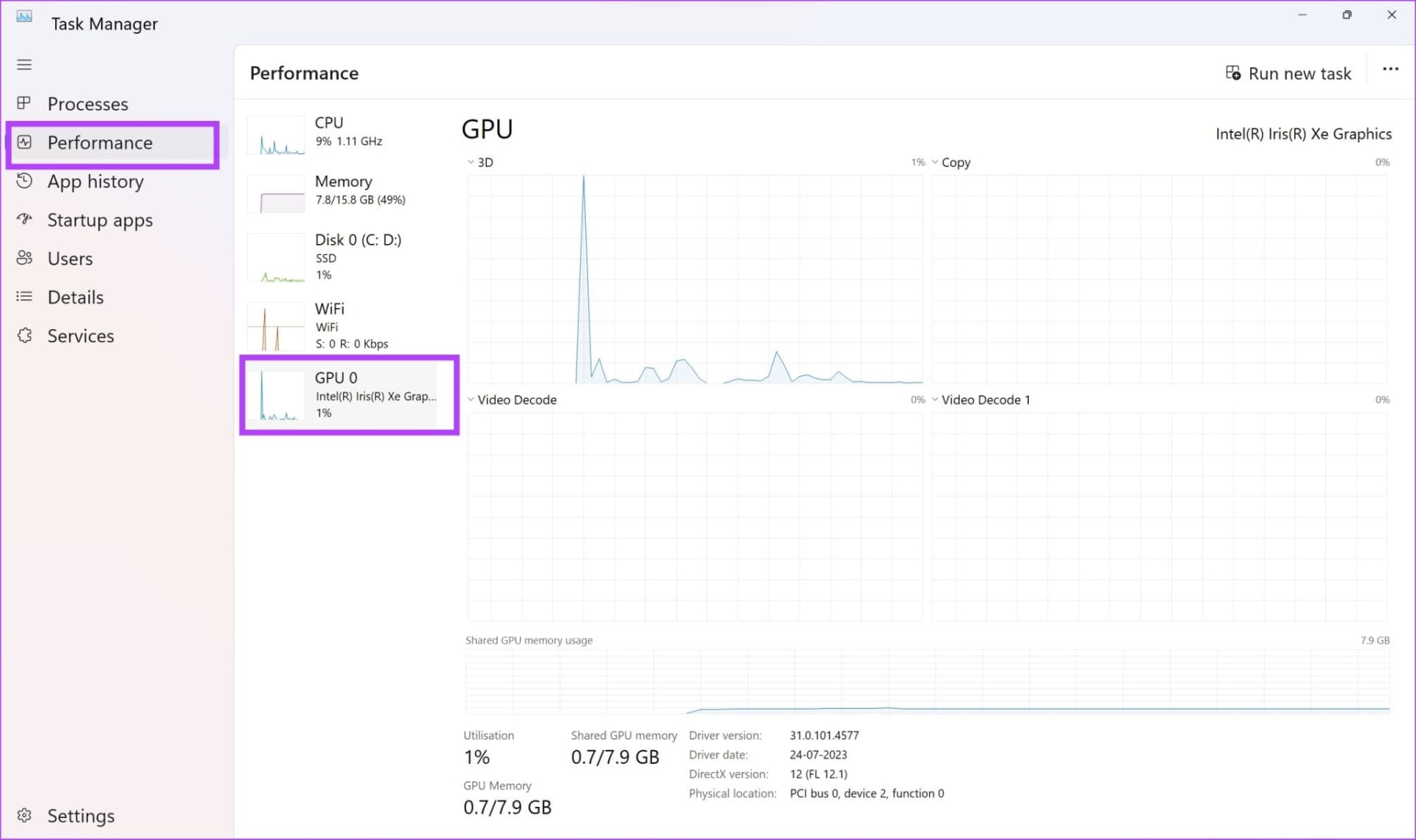
- Confirm first. Task Manager's Performance tab lists GPU 0 and GPU 1 separately. If the integrated one spikes during gameplay and the discrete one sits near zero, you have found it.
- Windows' Graphics settings page is the authoritative modern control. Set the game to High performance there first.
- The NVIDIA Control Panel or AMD Software per-application setting is the second place to check, and it can conflict with the Windows setting.
- On a laptop, which port your external monitor is plugged into can force the entire output through the iGPU regardless of any software setting.
- A MUX switch or Advanced Optimus setting on gaming laptops overrides everything above and is the fix when nothing else works.
- Launchers and overlays sometimes inherit the wrong GPU and pass it to the game — set the launcher to High performance too, not just the game executable.
Confirm It Before You Change Anything
Open Task Manager, go to Performance, and look at the GPU entries in the left sidebar. A system with both integrated and discrete graphics lists two: usually GPU 0 for the integrated chip and GPU 1 for the discrete card, though the numbering is not guaranteed.
Start the game, alt-tab out, and watch. If the integrated GPU shows heavy 3D utilisation and the discrete card sits idle, that is your answer and the rest of this guide applies. If the discrete card is loaded and you are still getting poor frame rates, the problem is somewhere else entirely.
Tip
A faster in-game check: most games display the detected GPU name in their graphics or display settings menu. If it names an "Intel UHD," "Intel Arc Graphics," "Radeon Graphics" or "Radeon 780M" while you own a discrete card, the game is looking at the wrong adapter and you can skip Task Manager entirely.
Fix 1: Windows Graphics Settings
This is the modern authoritative control in Windows 11 and where you should start. Go to Settings → System → Display → Graphics, find the game in the list, click Options, and choose High performance.
If the game is not listed, use Browse and point it at the executable. Two details matter here and are the usual reason this fix appears not to work.
Point at the right executable. Many games ship a small launcher that starts the real binary. Setting the launcher does not always propagate. Look inside the install folder for the largest .exe — often under Binaries\Win64\ for Unreal titles — and set that one as well.
Set the launcher too. Steam, the Epic Games Launcher, the Xbox app and Battle.net can each hand a child process their own GPU assignment. Adding the launcher to the list on High performance closes that path.
Restart the game fully after changing this. The assignment is read at process start, not applied live.
Fix 2: The GPU Vendor Control Panel
NVIDIA and AMD keep their own per-application preference, and it can quietly override or conflict with the Windows setting.
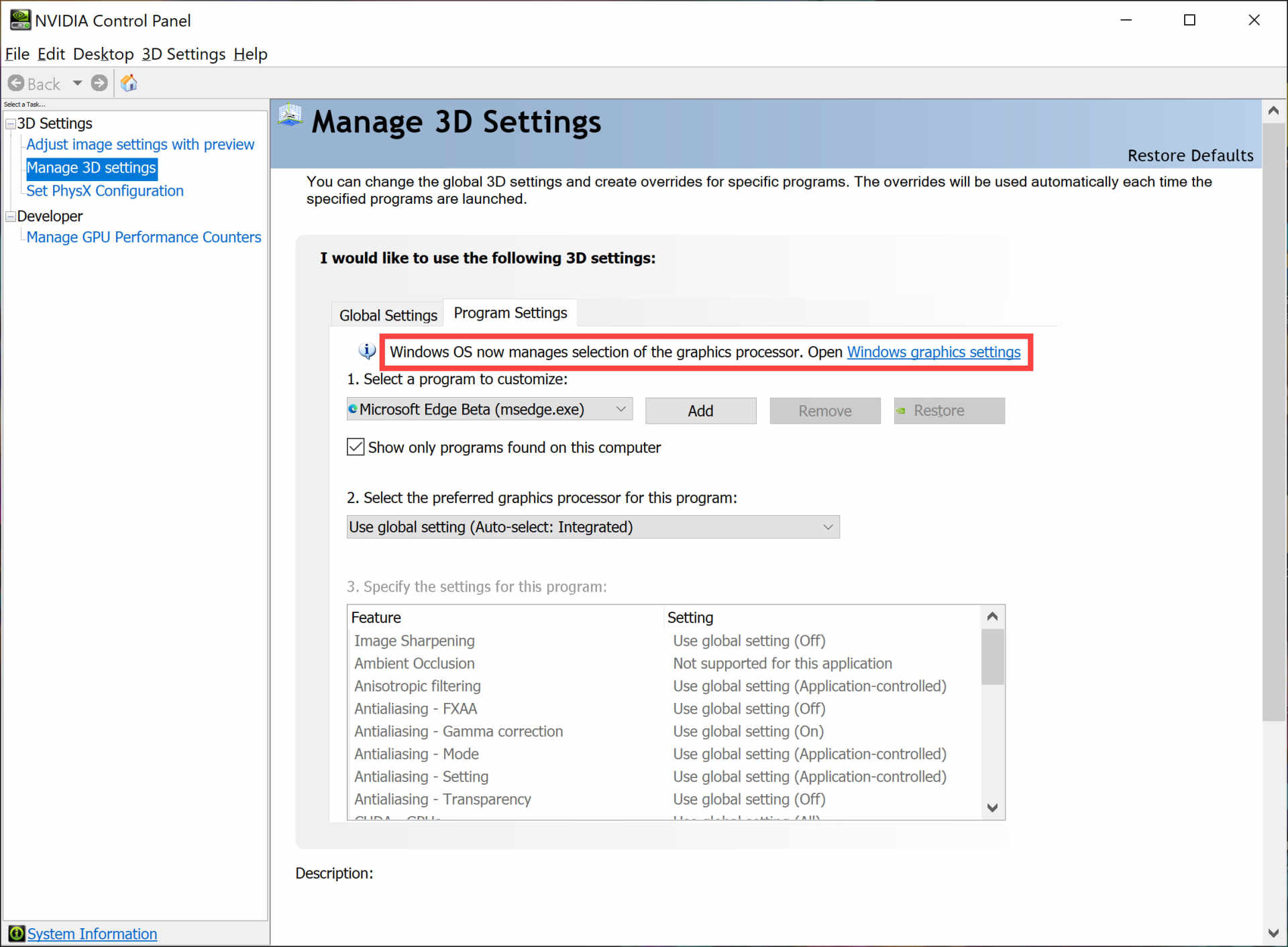
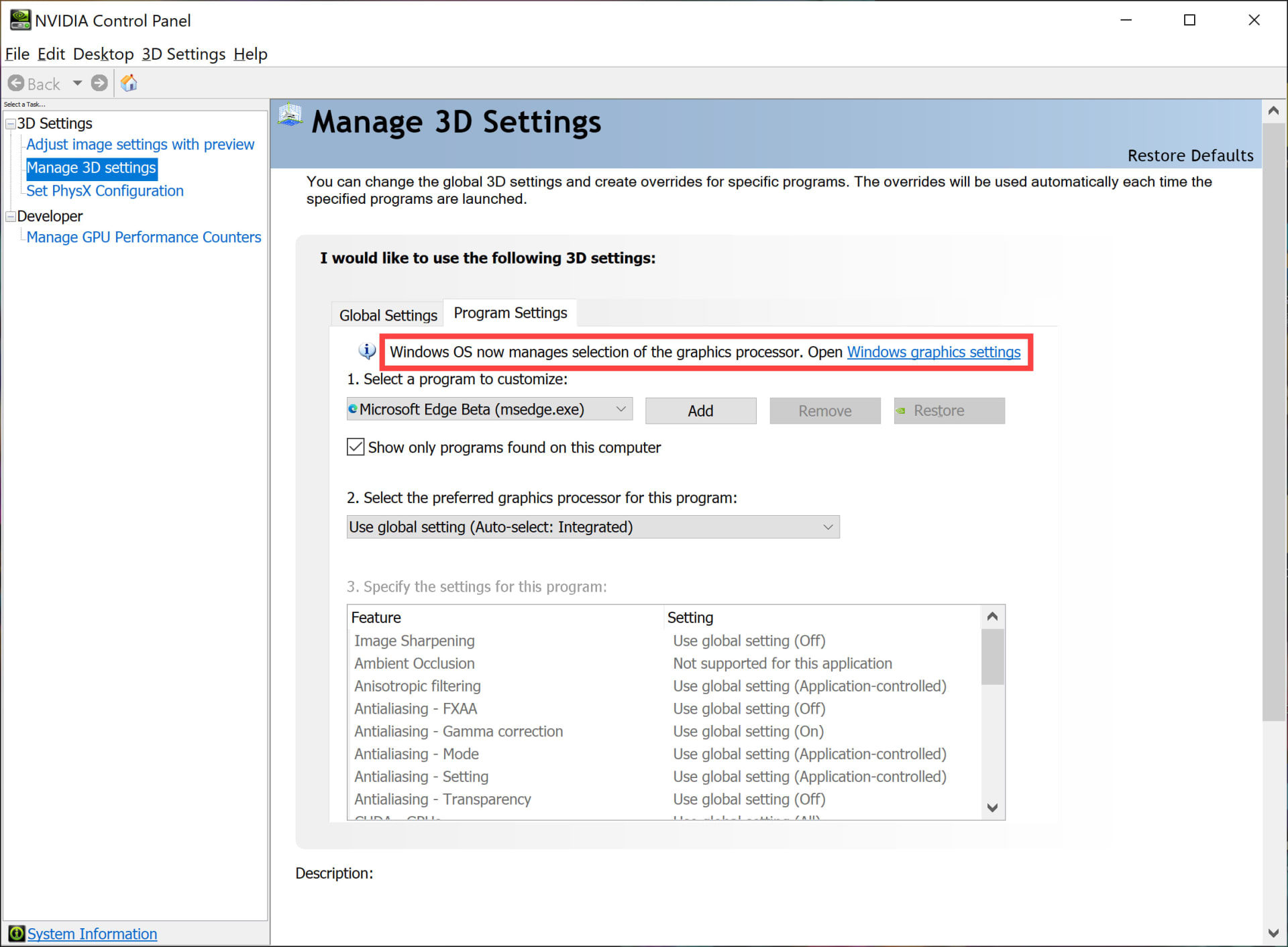
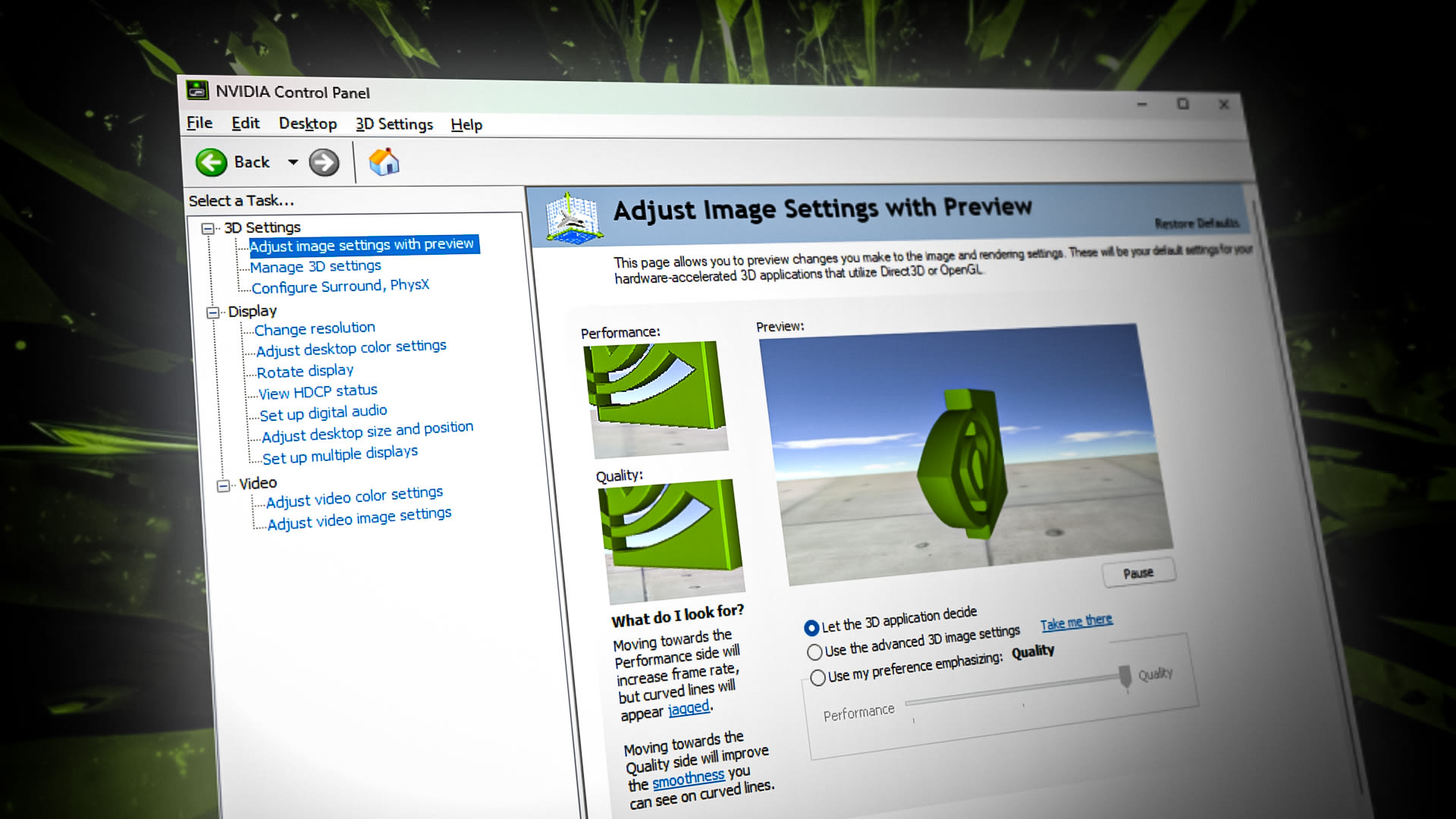
On NVIDIA, open the NVIDIA Control Panel → Manage 3D settings → Program Settings, add the game, and set Preferred graphics processor to High-performance NVIDIA processor. While you are there, check the Global Settings tab — if the global preference is set to the integrated GPU or "Auto-select," individual programs may fall through to it.
On AMD, open AMD Software → Gaming, select the game, and set Graphics Profile to the discrete GPU. AMD's switchable graphics behaviour on systems pairing a Ryzen APU with a Radeon card has historically been the more confusing of the two, and it is worth checking even when Windows already says High performance.
When the two settings disagree, set both to the discrete card rather than trying to work out which wins. The precedence rules have changed across driver versions and are not worth reverse-engineering.
Fix 3: The Physical Port (Laptops and Some Desktops)
On a laptop, the display output is often wired through the integrated GPU, and on a desktop it is entirely possible to have plugged your monitor into the motherboard instead of the graphics card.
The desktop case is the simpler one and embarrassingly common. If your monitor cable goes into the video port on the motherboard's I/O panel rather than into the graphics card's ports lower down the back of the case, everything renders on the iGPU. Move the cable to the graphics card.
On laptops it is more subtle. Many models wire the internal panel through the iGPU while routing one specific external port — often HDMI, sometimes a particular USB-C port — directly to the discrete GPU. If you use an external monitor, which port you choose can change which GPU drives everything.
What It Is
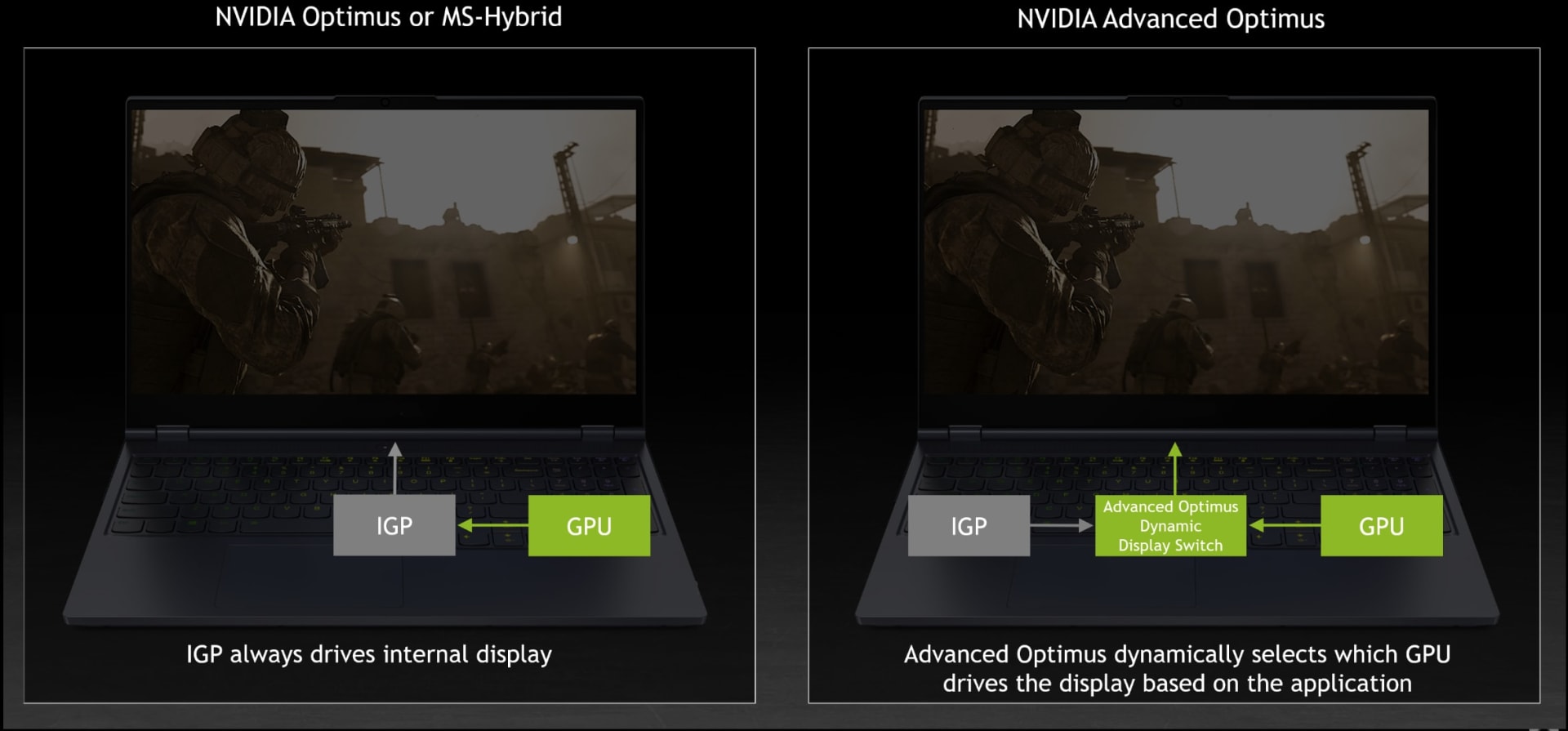
A hardware multiplexer that routes the display directly to the discrete GPU, bypassing the integrated one entirely. It overrides every software setting above.
Where To Find It
Your laptop vendor's control software — Armoury Crate on ASUS, Lenovo Vantage, Alienware Command Center, MSI Center. Look for "GPU Mode," "Discrete GPU only" or "Ultimate mode."
The Cost
Discrete-only mode disables the power saving that comes from letting the iGPU handle the desktop. Expect noticeably shorter battery life.
The Catch
Switching modes almost always requires a reboot, and some laptops do not have a MUX at all. Advanced Optimus does the same job automatically on supported models.
Fix 4: Update the Drivers, Properly
A clean driver install fixes a surprising share of these cases, because switchable-graphics logic lives in the driver and breaks after messy upgrades.
Install the current driver from NVIDIA, AMD or Intel directly rather than relying on Windows Update, which frequently serves older builds. On a laptop, check whether your manufacturer publishes a vendor-specific driver — some do, and switchable graphics on those models works properly only with the vendor build.
Do not skip the integrated GPU's driver. Switchable graphics is a negotiation between two drivers, and an outdated Intel or AMD integrated graphics driver is a genuine cause of the discrete card never being handed work.
When It Is Not the GPU Assignment
If Task Manager shows the discrete GPU under load and performance is still poor, this guide is the wrong one. A few common alternatives, in the order worth checking:
Frame rate drops only with a second display connected. That is a distinct problem with its own causes — covered in why a second monitor drops your FPS.
Stutter rather than low average frame rate. If the number looks fine but the game feels uneven, you are perceiving frame time inconsistency rather than average FPS. Start with what 1% lows actually measure, then how to fix stuttering in PC games.
Performance falls off after a few minutes. That pattern points to thermal or power behaviour rather than GPU selection. Why a PC shuts down while gaming covers the severe end of it.
Overlays and background apps. Communication and capture overlays inject themselves into the render path and occasionally attach to the wrong adapter. Our test of whether Discord lowers FPS covers how much of that is real.
Textures stuttering under load. If you are running out of graphics memory, performance collapses rather than degrading — see how much VRAM you need for gaming. On systems that genuinely rely on integrated graphics, how much VRAM to allocate to an iGPU covers the BIOS side of it.
The Order to Work Through
| # | Step | Time | Fixes |
|---|---|---|---|
| 1 | Confirm in Task Manager | 30 seconds | Nothing — but stops you fixing the wrong problem |
| 2 | Check the monitor cable (desktop) | 1 minute | The most common desktop cause |
| 3 | Windows Graphics settings → High performance | 2 minutes | Most cases |
| 4 | Set the launcher as well as the game | 2 minutes | Games started through Steam, Epic, Xbox |
| 5 | Vendor control panel per-app setting | 3 minutes | Conflicts with the Windows setting |
| 6 | Clean driver install, both GPUs | 15 minutes | Broken switchable-graphics logic |
| 7 | MUX switch / Advanced Optimus | 5 minutes plus reboot | Laptops where nothing else works |
Work top to bottom and stop when the frame rate jumps. Most people finish at step 3.
Frequently Asked Questions
How do I know if my game is using integrated graphics?
Open Task Manager, go to the Performance tab, and check the separate GPU entries in the sidebar. Start the game and watch which one shows 3D utilisation. Alternatively, most games display the detected GPU name in their graphics settings menu — if it names an Intel UHD, Intel Arc Graphics or Radeon integrated chip while you own a discrete card, that is the problem.
How do I force a game to use my dedicated GPU?
Go to Settings → System → Display → Graphics in Windows 11, add the game's executable, click Options and select High performance. Also set the same preference in the NVIDIA Control Panel or AMD Software, and add the launcher you start the game from. Restart the game fully afterwards, because the assignment is read at process start.
Why does my desktop PC use integrated graphics instead of my graphics card?
Almost always because the monitor cable is plugged into the motherboard's video port rather than the graphics card's. Move the cable to the ports on the graphics card itself, lower down the back of the case. If the cable is correct, check the Windows Graphics settings page and the GPU vendor control panel.
What is a MUX switch and do I need it?
A MUX switch is a hardware multiplexer in gaming laptops that routes the display directly to the discrete GPU, bypassing the integrated one entirely. It overrides all software GPU preferences and is the fix when nothing else works. It costs battery life and usually requires a reboot to change modes.
Should I disable integrated graphics in Device Manager?
Not as a first step. Disabling the iGPU removes hardware video decoding and any display outputs wired through it, which can leave you with no picture on a laptop. Work through the graphics preference settings first and treat disabling it as a last resort on desktops only.
Does setting High performance in Windows hurt battery life?
On a laptop, yes. Forcing a game to the discrete GPU keeps that GPU powered whenever the game runs, and a MUX switch set to discrete-only mode keeps it powered continuously. Per-application settings are the better compromise, because the desktop still runs on the efficient integrated chip.
The Bottom Line
A game running on integrated graphics is one of the few PC performance problems with a genuinely simple fix, and the reason it frustrates people is that the setting lives in three places that can disagree.
Confirm it in Task Manager, check your monitor cable, then set High performance in Windows for both the game and its launcher. That resolves the large majority of cases in under five minutes. If it does not, the vendor control panel and then the MUX switch are where the remaining cases live.
The one step worth never skipping is the first. Confirming which GPU is actually working saves you from spending an evening tuning settings for a problem you do not have.
Screenshots courtesy of Microsoft, NVIDIA, ASUS and the respective publications, used for editorial coverage.
Sources
- Microsoft Support, Optimizations for windowed games in Windows 11, retrieved 2026-08-09, https://support.microsoft.com/en-us/windows/hardware/display-graphics/optimizations-for-windowed-games-in-windows-11
- ASUS Support, [Windows 11/10] How to set the application as the discrete graphics used, retrieved 2026-08-09, https://www.asus.com/us/support/faq/1044213/
- ROG, How to maximize your ROG laptop's performance with the MUX Switch, retrieved 2026-08-09, https://rog.asus.com/articles/rog-gaming-laptops/maximize-your-rog-laptops-performance-with-a-mux-switch/
- ROG, Maximize Performance on Your ROG or TUF Gaming Laptop with Armoury Crate, retrieved 2026-08-09, https://rog.asus.com/in/articles/guides-software/maximize-performance-rog-tuf-gaming-laptop-asus-armoury-crate/
- AMD, AMD Software: Adrenalin Edition, retrieved 2026-08-09, https://www.amd.com/en/technologies/software