
Allocate 4GB of VRAM to your integrated GPU on a 16GB system, and 8GB on a 32GB system. That covers essentially every game that cares, and it leaves Windows enough memory to avoid paging. The number people reach for instinctively — max it out — is usually the wrong move, because integrated graphics do not work the way the setting implies.
The BIOS option is not creating VRAM at all. It is fencing off a slice of the system RAM you already paid for and handing it to the GPU permanently, whether the GPU uses it or not. Everything below follows from that one fact.
Note
Key Takeaways
- The setting is called UMA Frame Buffer Size on AMD, DVMT Pre-Allocated on Intel, and "Shared Memory" or "iGPU Memory" on prebuilt boards.
- It carves a fixed, permanent block out of system RAM. That memory is gone from Windows even when no game is running.
- Modern drivers already share additional memory dynamically, so a large pre-allocation is redundant for most workloads.
- 16GB system → 4GB. 32GB system → 8GB. 8GB system → 2GB and no more.
- Raising it helps mainly with games that read dedicated VRAM at launch and lock settings based on the number they see.
- On handhelds and many 2026 laptops you can change it from AMD's driver instead of the BIOS, with no reboot into firmware.
What the Setting Actually Does
An integrated GPU has no memory of its own. It sits on the same silicon as the CPU and reads from the same DDR5 sticks, over the same memory controller. There is no separate pool to size.
What the BIOS option does is reserve a region of that system RAM and mark it as belonging to the GPU. Windows never sees it. If you have 16GB installed and allocate 8GB, Task Manager will report roughly 8GB of usable RAM and behave accordingly — swapping to disk far earlier than it should, which is the exact behaviour that produces the hitching described in our guide to fixing stuttering in PC games.

This is why "more is better" fails here. On a discrete card, VRAM is dedicated hardware that costs you nothing to use. On an integrated GPU, every megabyte you assign is a megabyte taken directly from the operating system.
Info
The distinction matters for the shopping decision too. If you are weighing an APU against a cheap discrete card, the memory maths is completely different on each side — our how much VRAM you need for gaming guide covers the discrete case, where the number on the box is genuinely additive.
The Part Most Guides Skip: Dynamic Allocation
Here is the piece that makes most "set it to 16GB" advice obsolete. Your pre-allocated block is not the only memory the iGPU can touch.
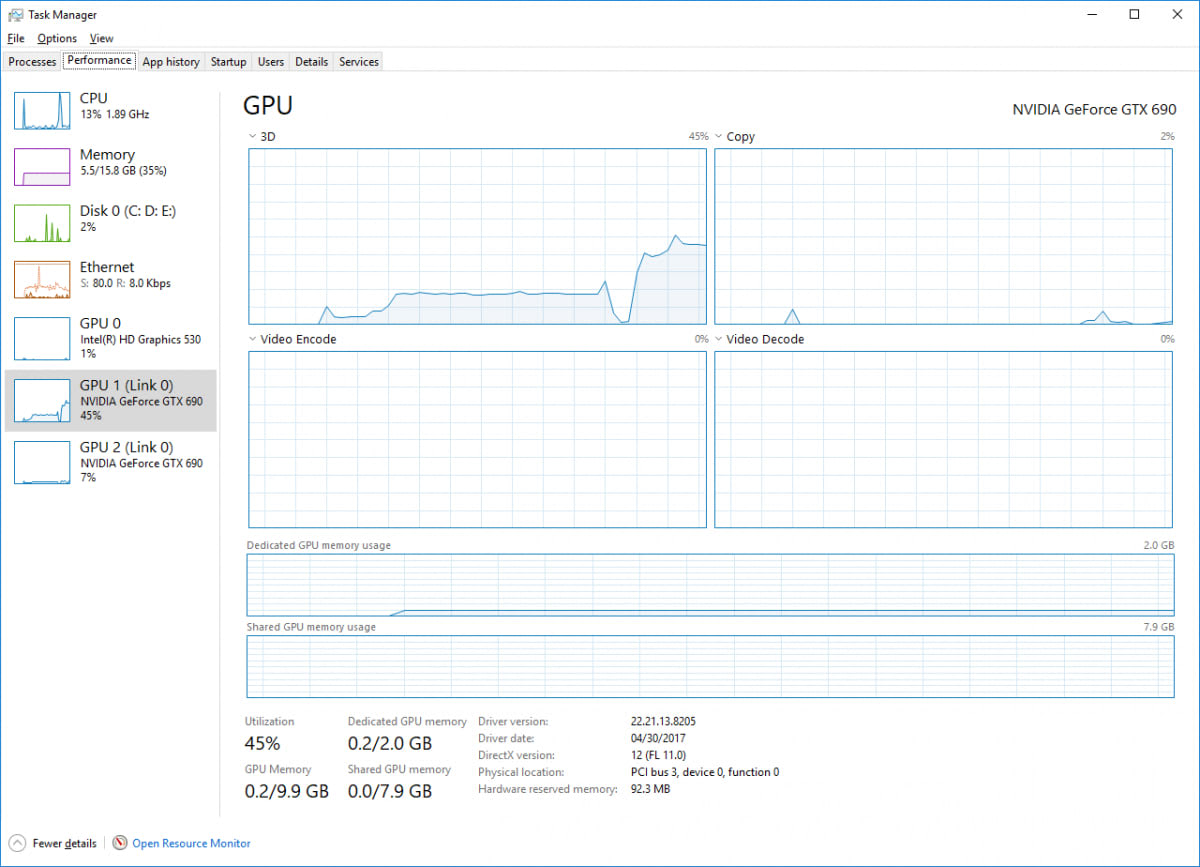
Both AMD and Intel drivers expose a second pool, usually reported by Windows as shared GPU memory, which the GPU borrows on demand and gives back when it is finished. Windows typically permits this pool to reach around half of installed system RAM. Open Task Manager, go to Performance, click your GPU, and you will see two figures: dedicated GPU memory, which is your BIOS allocation, and shared GPU memory, which is that dynamic ceiling.
In practice a game running on a Radeon 890M with a 4GB pre-allocation can still address well over 4GB of texture data. The driver pages the overflow through the shared pool. It is marginally slower than the reserved block, but it is not a wall, and for the vast majority of titles you will never notice which side of the line a given texture landed on.
That is the reason a huge allocation rarely produces the frame rate people expect. The memory was already reachable. All you did was take it away from Windows first.
When the Pre-Allocation Genuinely Matters
There are three cases where raising the number does real work, and they are worth knowing because they are the only ones that justify the cost.
Games that gate settings on reported VRAM. A meaningful set of titles queries dedicated video memory at launch and uses that single number to decide which texture presets you are allowed to select. Report 512MB and the game locks you to low textures regardless of how much shared memory is available. Report 4GB and the options unlock. The performance did not change; the permission did.
Games that refuse to launch below a threshold. A smaller group hard-fails on a minimum VRAM check. This is the classic "unsupported graphics device" error on hardware that is perfectly capable of running the game.
Sustained heavy texture streaming. Open-world titles that stream constantly benefit from having more of the working set inside the reserved block, because traffic through the shared pool carries extra overhead. This shows up in frame consistency rather than average frame rate, which is exactly the kind of difference that 1% lows expose and averages hide.
Outside those three, the gain from a larger allocation ranges from small to unmeasurable.
The Numbers, By System RAM
8GB System — Allocate 2GB
Do not go higher. Windows 11 plus a browser plus a game leaves very little headroom at 8GB, and taking 4GB away will cost you far more in paging than the GPU gains.
16GB System — Allocate 4GB
The sweet spot for the overwhelming majority of builds. Unlocks texture settings in the games that check, leaves 12GB for the system, and lets dynamic allocation handle the rest.
32GB System — Allocate 8GB
Comfortable. 24GB is still far more than Windows and a game will use, and 8GB clears every VRAM gate you are likely to meet.
64GB System — Allocate 8GB to 16GB
Only go past 8GB if you are doing GPU compute, local AI inference, or video work where a large contiguous block genuinely helps. Games will not notice.
Auto — Usually Too Low
"Auto" typically resolves to 512MB or 2GB, which is where the settings-gate problems come from. This is the one case where changing the default is clearly worth doing.
The pattern is straightforward: roughly a quarter of installed RAM, capped at 8GB. That is the shape most vendor guidance converges on, and it is where the trade-off between unlocking game settings and starving the OS balances out.
| System RAM | Allocate | Left for Windows | Verdict |
|---|---|---|---|
| 8GB | 2GB | 6GB | Tight but workable |
| 16GB | 4GB | 12GB | The default recommendation |
| 32GB | 8GB | 24GB | Comfortable, no downside |
| 64GB | 8–16GB | 48GB+ | Only raise past 8GB for compute |
If you are still deciding how much RAM to buy, note that this setting makes the 16GB-versus-32GB question sharper on an APU build than on a discrete one — you are effectively spending some of it twice. Our take on whether 32GB is overkill for gaming applies, with the allocation subtracted from the total before you judge it.
Where to Find the Setting
The name changes by vendor, and on some prebuilt machines it is hidden or absent entirely.
AMD boards list it as UMA Frame Buffer Size, usually under Advanced → NBIO Common Options → GFX Configuration, or on consumer boards under an "Advanced" or "Tweaker" menu. Some vendors label the parent option "Integrated Graphics" with a UMA Mode of Auto or Custom; you must set Custom before the size field appears.
Intel boards call it DVMT Pre-Allocated, generally under Advanced → System Agent Configuration → Graphics Configuration. Intel's pre-allocated values top out lower than AMD's on many boards, because Intel leans harder on dynamic allocation by design.
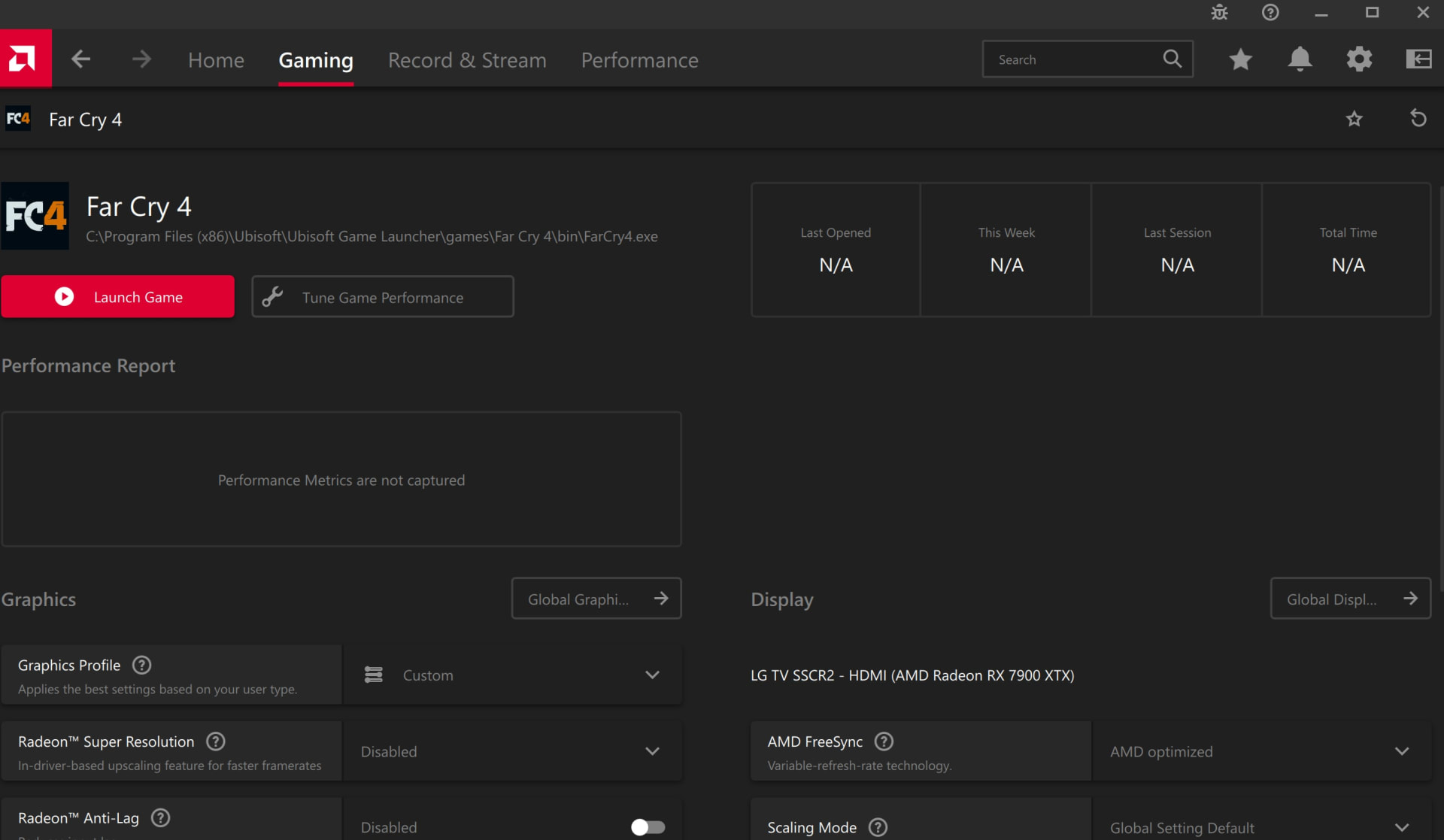
On many 2026 AMD laptops and handhelds you do not need the BIOS at all. AMD's driver exposes Variable Graphics Memory in Adrenalin under Performance → Tuning, which lets you move the allocation from Windows and apply it with a normal restart. If your machine has it, use it — it is reversible in thirty seconds, which makes testing different values practical rather than tedious.
Warning
If your prebuilt's BIOS has no such option, do not flash a modified firmware to expose it. The dynamic shared pool is doing the work anyway, and a bad flash on a laptop is frequently unrecoverable. The realistic gain does not justify the realistic risk.
Handhelds Are a Special Case
Gaming handhelds run this setting harder than desktops do, because they are memory-constrained by design and the iGPU is the only GPU.
Most handhelds ship with a modest default and expose the setting in a vendor menu rather than a traditional BIOS. The usual advice — 4GB on a 16GB device — holds, with one adjustment: because handhelds run at 800p or 1080p with upscaling, their texture working sets are smaller than a desktop at 1440p, so the returns from going past 4GB fall away faster. On the ROG Xbox Ally X, Microsoft's NPU-based Auto SR upscaler is also in preview for docked play, covered in our guide on whether you need an NPU for gaming.
The exception is emulation. Higher-end console emulators with upscaled internal resolutions are unusually sensitive to available graphics memory, and this is the one handheld workload where pushing to 6GB or 8GB on a 16GB device shows up clearly.
Test rather than assume. Set 4GB, play the thing you actually play for twenty minutes, then set 8GB and repeat. If you cannot tell the difference, keep the 4GB and give the memory back to the system.
What This Setting Will Not Fix
It is worth being blunt about the ceiling here, because a lot of people arrive at this setting hoping it is a free upgrade.
It will not give you discrete-GPU performance. Integrated graphics are bandwidth-limited long before they are capacity-limited. An iGPU shares one memory bus with the CPU at a fraction of the bandwidth a dedicated card enjoys on its own dedicated memory. No allocation value changes that. If frame rate rather than texture quality is your problem, the money is better spent on a card — our best budget GPU for 2026 comparison covers the entry point. If you would rather work with what you have, our roundup of games that genuinely run on integrated graphics sorts what plays well at 1080p from what needs 720p and upscaling.
It will not fix stutter caused by something else. Shader compilation, background processes, and mismatched display timings all produce hitching that looks like a memory problem and is not.
It will not help if your RAM is running single-channel. This one is genuinely important and widely missed. An integrated GPU's performance scales strongly with memory bandwidth, so a single stick roughly halves it. If you have one 16GB stick, replacing it with two 8GB sticks will do more for iGPU frame rate than any allocation change ever will. Check Task Manager's memory page for "Slots used" before you touch the BIOS at all.
Frequently Asked Questions
How much VRAM should I allocate to integrated graphics?
Allocate about a quarter of your system RAM, capped at 8GB. That means 2GB on an 8GB system, 4GB on 16GB, and 8GB on 32GB. Going higher rarely improves frame rate because drivers already share additional memory dynamically, and it removes that memory from Windows permanently.
Does allocating more VRAM to the iGPU increase FPS?
Usually not by much. The main benefit is unlocking texture settings in games that check reported dedicated VRAM at launch, and improving frame consistency in heavy texture streaming. Integrated graphics are limited by memory bandwidth rather than capacity, so allocation size is rarely the bottleneck.
What is the difference between dedicated and shared GPU memory in Task Manager?
Dedicated GPU memory is your fixed BIOS allocation, reserved and invisible to Windows. Shared GPU memory is the pool the driver borrows from system RAM on demand and returns when finished, typically permitted up to around half of installed RAM. Both are physically the same DDR5.
Should I set UMA Frame Buffer Size to Auto?
Usually not. Auto commonly resolves to 512MB or 2GB, which is low enough that some games lock you to low texture presets or refuse to launch. Setting an explicit 4GB on a 16GB system is the single most useful change most people make here.
Can I change iGPU memory allocation without entering the BIOS?
On many 2026 AMD laptops and handhelds, yes. AMD Adrenalin exposes Variable Graphics Memory under Performance → Tuning, which applies with a normal restart. Intel and older AMD platforms generally still require the firmware setting.
Will a bigger allocation slow down my PC?
It can. The reserved block is unavailable to Windows at all times, not just while gaming. Allocating 8GB on a 16GB system leaves the operating system with 8GB, which is enough to cause paging to disk during ordinary multitasking and produces stutter that looks like a GPU problem.
The Bottom Line
Set it to 4GB on a 16GB machine and 8GB on a 32GB machine, and stop thinking about it. That clears the VRAM checks that lock texture presets, which is the real reason to touch this setting, and it leaves the operating system enough room to stay out of the page file.
Do not max it out. The dynamic shared pool means the memory was already reachable by the GPU, so a huge pre-allocation buys you very little while costing Windows a great deal. The one genuinely free upgrade in this area is not the allocation at all — it is making sure your RAM is running in dual channel, which is worth more to an integrated GPU than every BIOS value on this page combined.
Interface and component photography courtesy of the respective manufacturers and publications, used for editorial coverage.
Sources
- AMD, Variable Graphics Memory in AMD Software: Adrenalin Edition, retrieved 2026-08-01, https://www.amd.com/en/resources/support-articles/faqs/DH-024.html
- Intel, Intel Graphics Memory on Windows, retrieved 2026-08-01, https://www.intel.com/content/www/us/en/support/articles/000020962/graphics.html
- Microsoft Learn, WDDM 2.0 and the video memory manager, retrieved 2026-08-01, https://learn.microsoft.com/en-us/windows-hardware/drivers/display/video-memory-management-and-gpu-scheduling
- Tom's Hardware, How to allocate more VRAM to your integrated GPU, retrieved 2026-08-01, https://www.tomshardware.com/how-to/allocate-more-vram
- XDA Developers, Everything you need to know about shared GPU memory, retrieved 2026-08-01, https://www.xda-developers.com/shared-gpu-memory-explained/