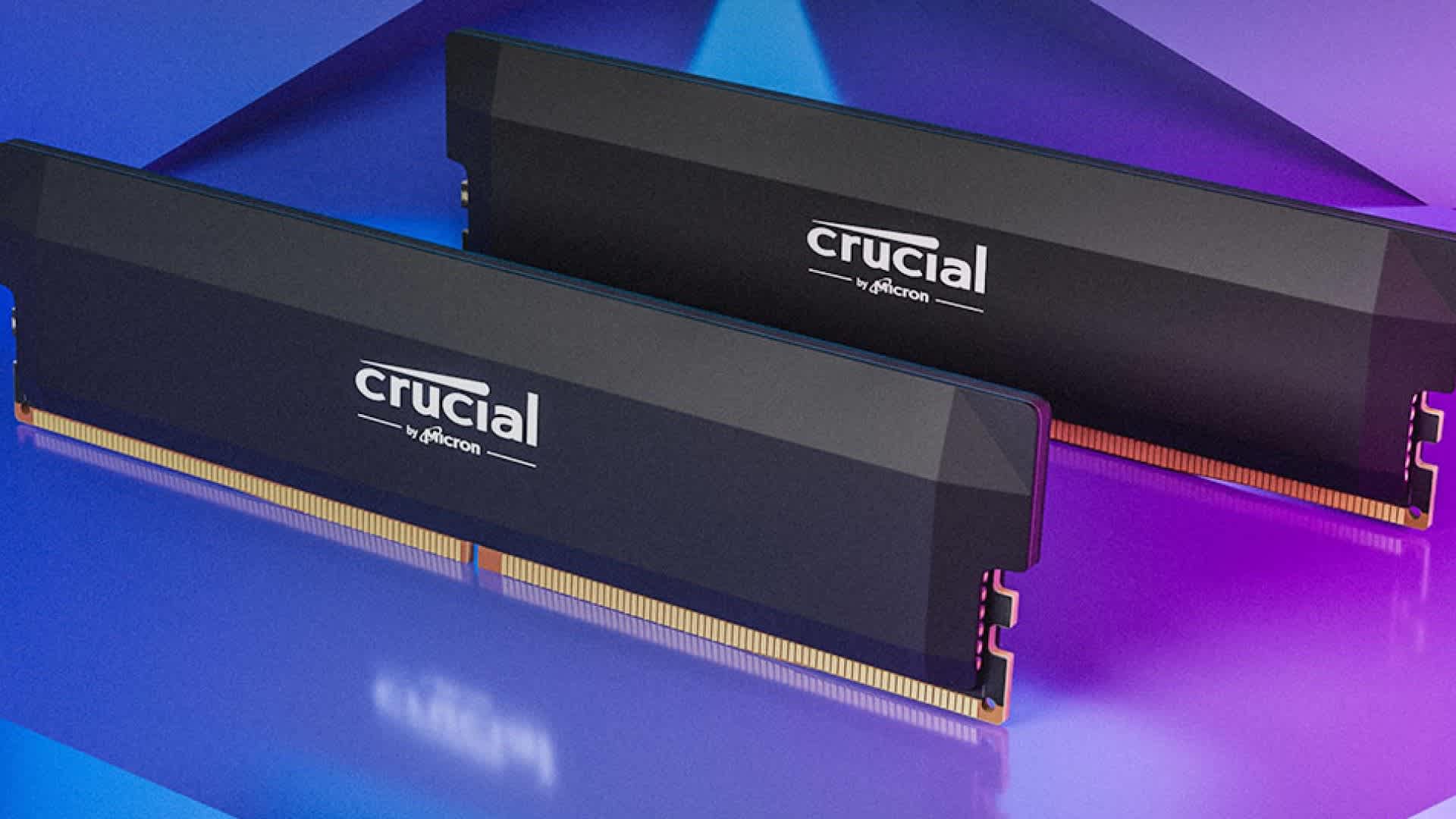
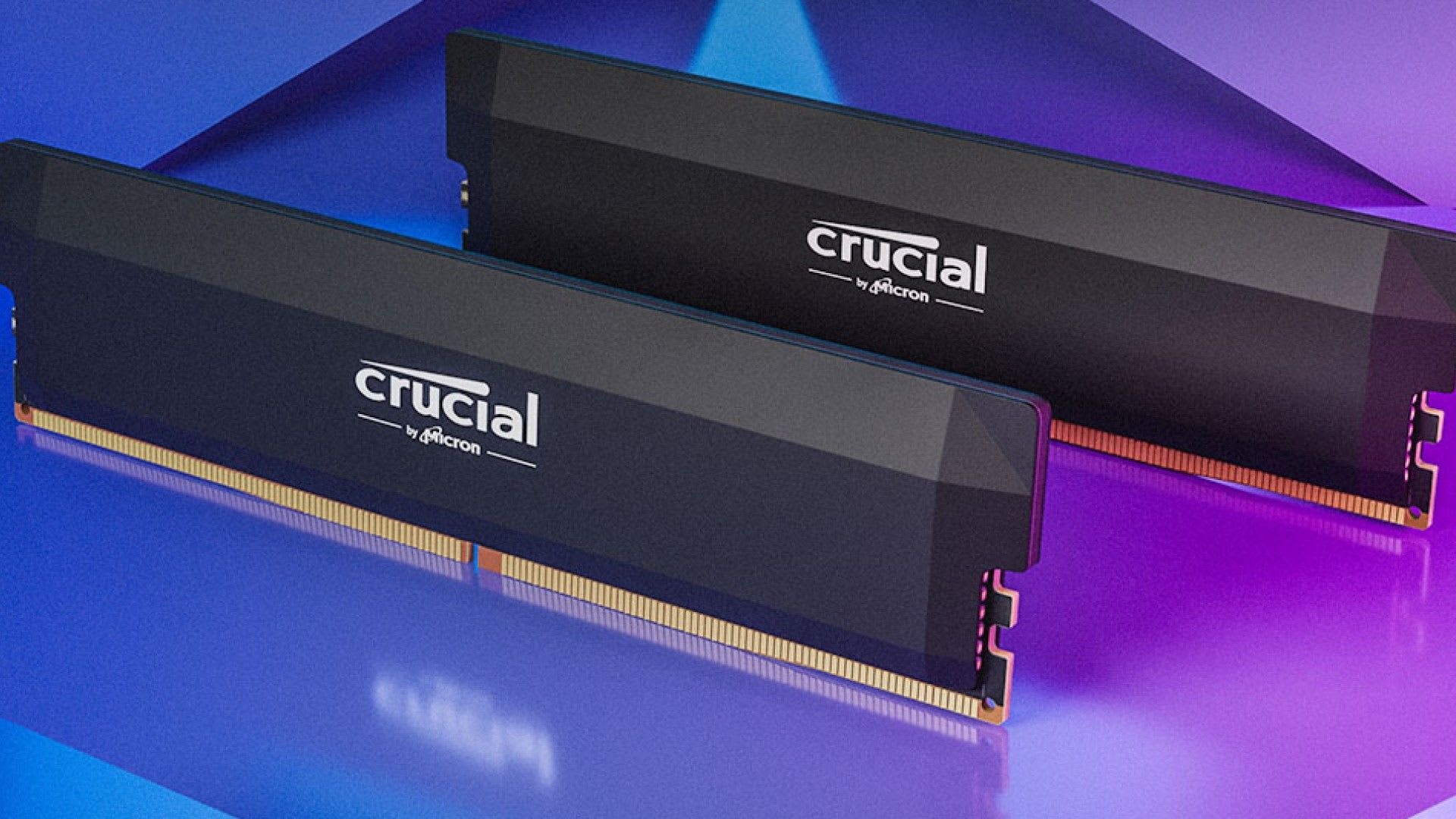
A DDR5-6000 kit reporting 4800 MT/s is not defective or mislabelled — it is doing exactly what the standard requires. It boots at a conservative JEDEC default until you explicitly enable the rated profile in BIOS. The advertised speed is opt-in, and nothing prompts you to opt in.
That single fact explains most "my new RAM is slower than advertised" complaints. The remaining cases are more interesting, because when a profile is enabled and still refuses to stick, the reason is usually the memory controller rather than the memory.
Note
Key Takeaways
- DDR5 boots at a JEDEC default — typically 4800 or 5600 MT/s — until XMP or EXPO is enabled.
- The rated speed on the box is a factory-tested overclock, not a guaranteed default.
- EXPO is AMD's profile standard, XMP is Intel's. Most kits carry one, some carry both.
- On AM5, 6000 MT/s is the practical sweet spot because of how it aligns with the fabric clock.
- Four DIMMs run slower than two. This is a memory controller limit, not a fault.
- CPU-Z showing "3000 MHz" for a 6000 MT/s kit is correct — the units differ.
Why It Boots Slow By Design
Every memory module carries a small chip describing its capabilities, and motherboards read it at power-on to configure the memory controller before anything else can run.
JEDEC, the standards body behind DDR5, defines a set of baseline speeds that every compliant module must support. Booting at that baseline guarantees the system starts on any combination of CPU, motherboard, and memory. For DDR5 the common defaults are 4800 MT/s with two modules installed and sometimes 5600 MT/s depending on platform and configuration.
Anything faster than the JEDEC baseline is, technically, an overclock. The manufacturer has validated it and stored the settings as a profile, but the motherboard will not apply that profile unless you tell it to. This is deliberate. A machine that always boots is far more valuable than one that boots fast but occasionally does not boot at all.
What the Rated Speed Actually Is
The number on the box is a factory-tested overclock with a matching voltage and timing set, stored on the module as a profile.
XMP — Extreme Memory Profile — is Intel's version, now in its third generation for DDR5. EXPO — Extended Profiles for Overclocking — is AMD's, introduced alongside AM5. They do the same job: package a validated combination of frequency, timings, and voltage that the motherboard can apply in one step.
Kits sold for AMD systems usually carry EXPO, kits for Intel usually carry XMP, and a growing number carry both. An XMP-only kit will generally still work on AM5, because most AM5 boards can read and apply XMP profiles, though occasionally with less reliability than a native EXPO profile.
Enabling It
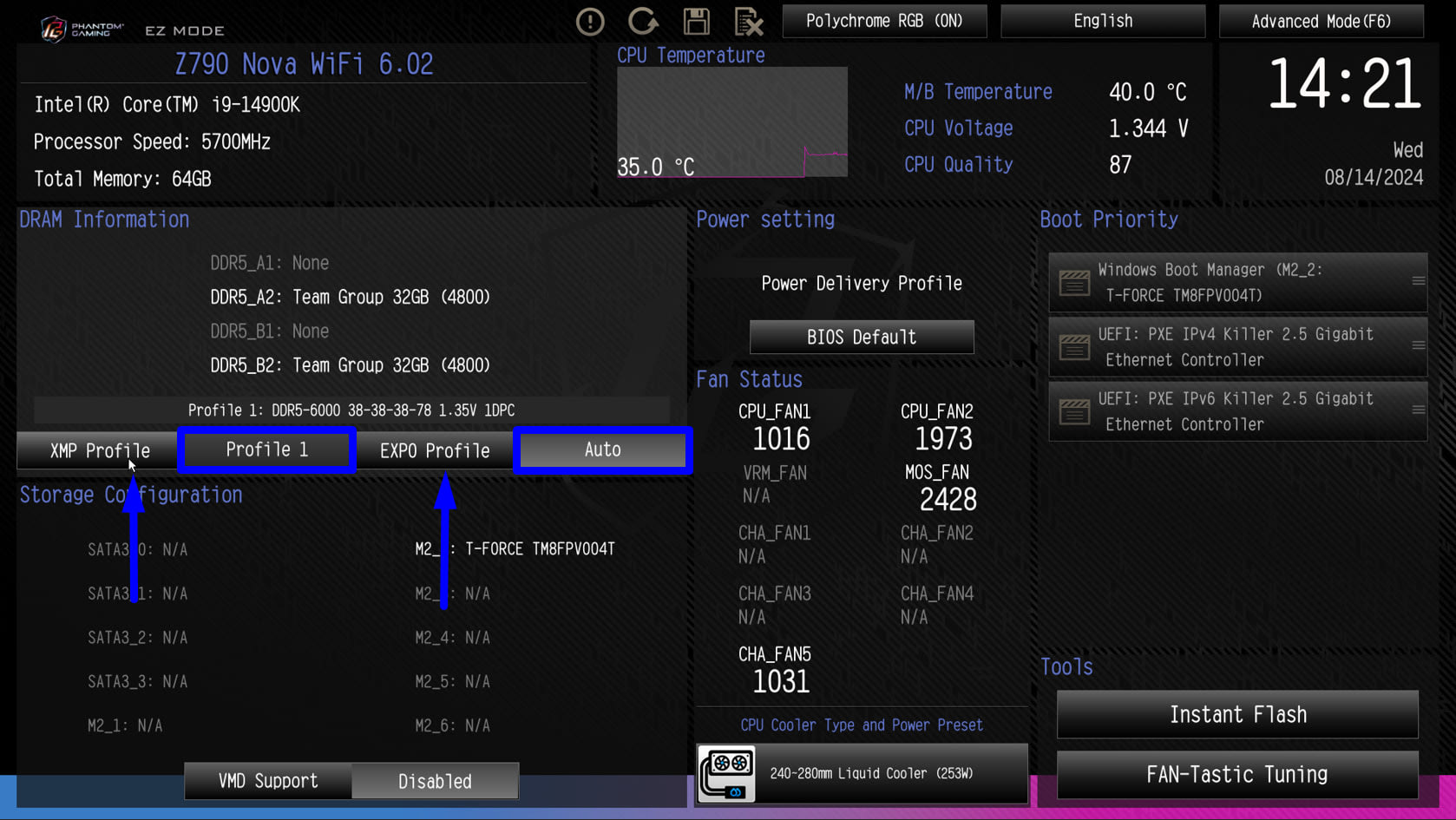
The setting is in BIOS, reachable by pressing Delete or F2 during boot.
On most boards it is on the first screen in the simplified view, labelled EXPO, XMP, D.O.C.P. on some ASUS boards, or A-XMP on some MSI boards. Select Profile 1, save, and exit.
Then verify. Open Task Manager → Performance → Memory and read the Speed figure. It should now show the rated number. If it still reads 4800, the profile did not apply — which is its own problem, covered below.
Tip
Enable the profile before you benchmark anything or troubleshoot performance. A machine running memory at 4800 instead of 6000 loses real frame rate in CPU-limited games, and it is a free fix that many people never make.
Why the Units Confuse Everyone
A large share of "my RAM is running at half speed" reports are a misreading rather than a fault.
DDR stands for Double Data Rate — memory transfers data on both the rising and falling edge of the clock. So a kit running at 6000 MT/s has an actual clock of 3000 MHz, and tools that report the clock rather than the transfer rate show 3000.
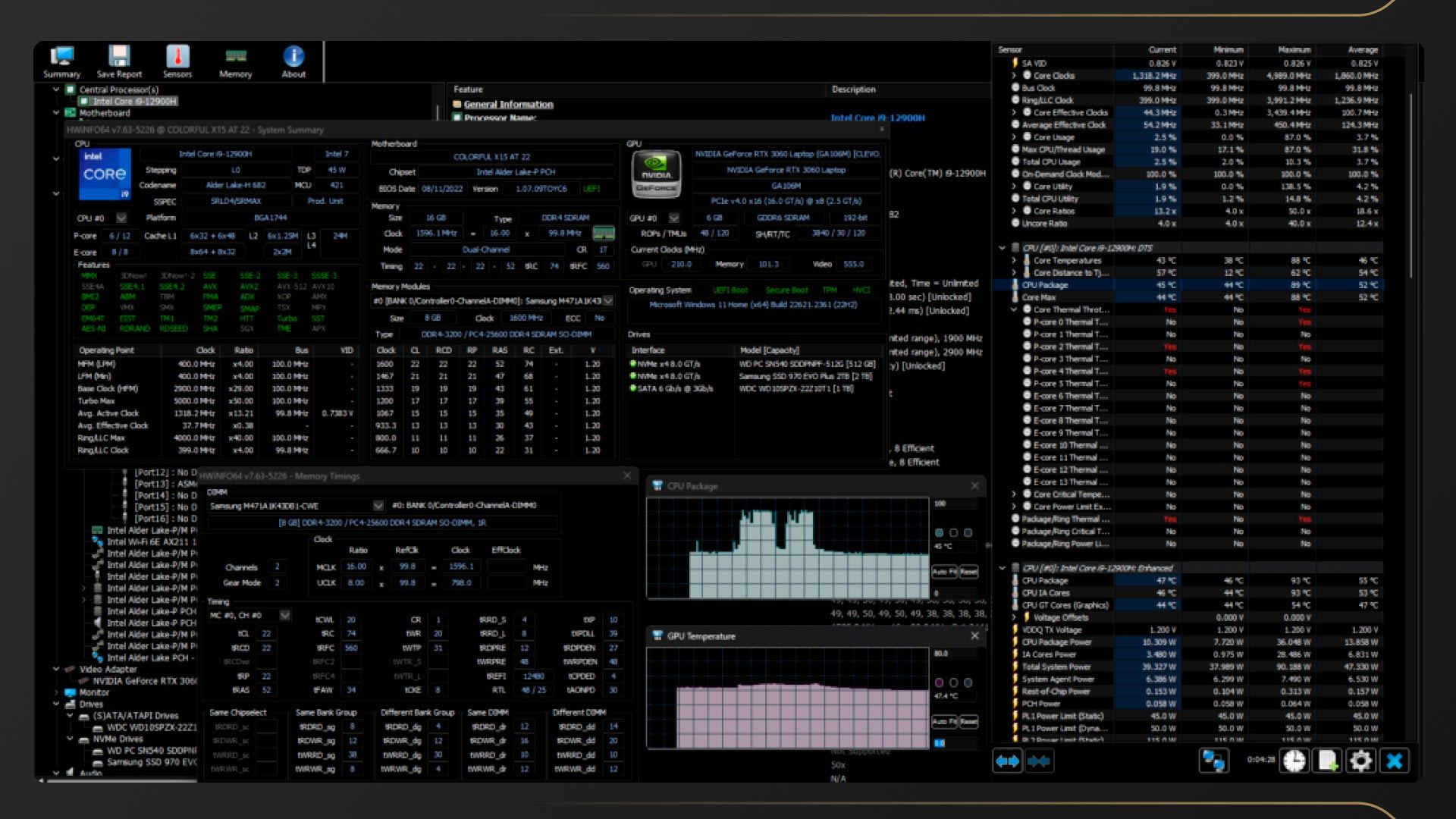
CPU-Z is the usual source of the confusion. Its memory tab reports DRAM Frequency in MHz, so a correctly configured 6000 MT/s kit reads 3000 MHz there. That is right. Double it to get the number on the box. Task Manager, by contrast, reports the transfer rate directly and shows 6000.
| # | Tool | Reports | 6000 MT/s kit shows |
|---|---|---|---|
| 1 | Task Manager | Transfer rate | 6000 MT/s |
| 2 | CPU-Z, Memory tab | Actual clock | 3000 MHz |
| 3 | BIOS memory frequency | Usually transfer rate | 6000 |
| 4 | HWiNFO | Both, labelled clearly | 3000 MHz / 6000 MT/s |
When the Profile Will Not Apply
If you enabled EXPO or XMP and the speed did not change — or the machine refused to boot and reset itself — you have hit memory training rather than a configuration mistake.
At power-on the memory controller trains the memory: it tests signal timings across the traces and calibrates. That process can take a long time on DDR5, and a first boot after enabling a profile taking thirty to sixty seconds with a blank screen is normal, not a hang. Let it run. Repeatedly power-cycling during training is how people convince themselves their board is dead.
If training fails, the board falls back to the JEDEC default and boots normally, which is why you can end up back at 4800 with the profile apparently still enabled.
The fixes, in order of how likely they are to help:
Update the BIOS. This is far and away the highest-value step on AM5. Early AGESA versions had poor memory compatibility, and the improvements since have been substantial. A board on launch firmware may simply be incapable of what a current firmware handles easily.
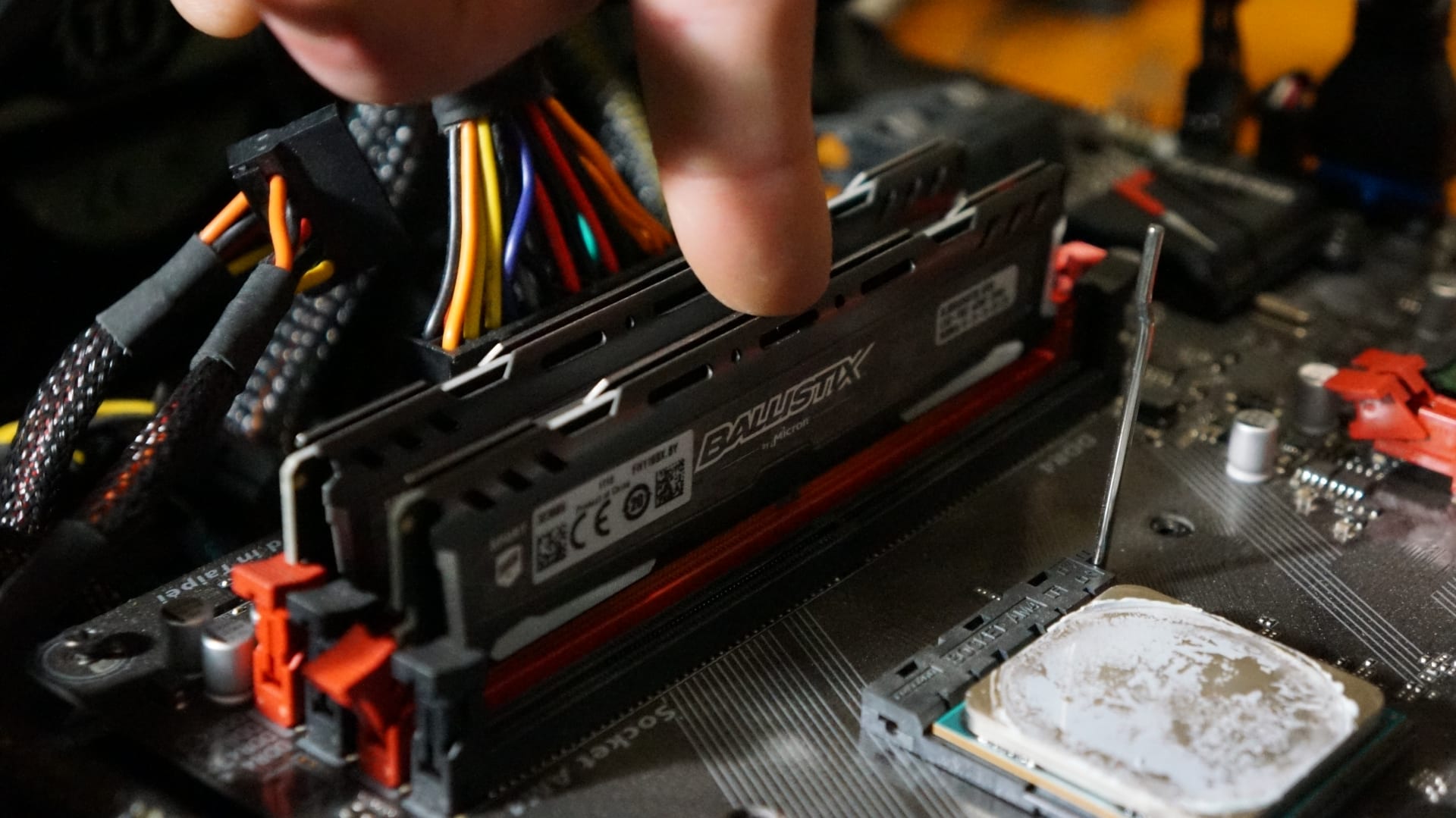
Check the slots. Two modules belong in A2 and B2 — the second and fourth slots from the CPU on nearly every board. Populating A1 and B1 instead degrades signal integrity measurably and can prevent a profile applying at all. The manual confirms it for your board.
Try the second profile. Many kits ship with a more conservative Profile 2. It is slower than the headline number and still much faster than JEDEC.
Step down one speed tier. Setting 5600 manually on a 6000 kit that will not train is a reasonable outcome. The difference in games is small; the difference between booting and not booting is not.
Clear CMOS. If the board is stuck in a boot loop, clearing CMOS with the jumper or button returns it to defaults. Every board has one and its location is in the manual.
The AM5 Sweet Spot
On AMD's AM5 platform, faster memory is not automatically better, and this trips up people who buy the highest-rated kit they can find.
The memory controller runs a fabric clock alongside the memory clock, and performance is best when the two stay in a 1:1 ratio. On most Ryzen 7000 and 9000 chips that ratio holds comfortably up to around 6000 MT/s. Push beyond it and the controller typically drops to a 2:1 mode, which adds latency and can leave a 7200 kit performing worse in games than a 6000 kit.
This is why 6000 MT/s CL30 has become the standard recommendation for AM5 gaming builds rather than the fastest kit available. It is also why a 7200 kit that refuses to train at its rated speed is not much of a loss — set it to 6000 and you are at the platform's practical optimum anyway.
Intel platforms are more tolerant of higher speeds and scale further, so the ceiling logic differs there.
Four Sticks Are Slower Than Two
If you have four DIMMs and cannot reach the speed a two-stick kit of the same modules would manage, that is expected behaviour.
Each additional module increases the electrical load on the memory controller. DDR5 runs at high enough frequencies that this matters a great deal, and four modules commonly cap out well below what two will do — sometimes only at JEDEC speeds on early firmware. Two 32GB modules are a better buy than four 16GB modules for this reason, even at identical capacity and price.
Mixing kits makes it worse again. Two kits bought separately are not guaranteed to run together at rated speed even if the part numbers match, because the modules were binned and validated as pairs rather than as a set of four.
Capacity planning is a separate question from speed — our look at whether 32GB of RAM is overkill for gaming covers how much you actually need, which matters more than ever given current DDR5 pricing. Our 1440p gaming PC build guide covers what a sensible kit costs in the current market, and the budget build under $1000 covers where to compromise.
Confirm It Is Stable
A profile that applies is not automatically a profile that is stable. Memory instability is unusually nasty because it produces symptoms that look like everything else — random crashes to desktop, corrupted game files, failed shader compilation, and occasional blue screens.
Test it deliberately. MemTest86 runs from a USB stick outside Windows and is the thorough option; a full pass takes hours. TestMem5 and Karhu run inside Windows and are faster for a confidence check. Anything above zero errors means the configuration is not stable, and the fix is a lower speed tier or slightly higher voltage rather than hoping.
This matters because unstable memory is a common hidden cause of problems people attribute elsewhere. If your games crash unpredictably after twenty minutes, memory is on the suspect list alongside heat and power — see why games crash after 20 minutes when stress tests pass and why a PC shuts down while gaming.
Does It Actually Matter for Games?
Enough to be worth the two minutes, and less than enthusiast forums suggest.
Going from JEDEC 4800 to 6000 MT/s with tight timings typically produces a meaningful gain in CPU-limited situations — high refresh rate targets at 1080p, simulation and strategy games, and open-world titles with heavy streaming. In GPU-limited scenarios at 1440p and 4K with settings turned up, the difference shrinks toward nothing.
The gain also lands disproportionately on frame consistency rather than average frame rate, which is the part people notice and the part an average FPS counter hides. Our guide to what 1% lows measure covers why that is the number to watch, and how to fix stuttering in PC games covers the other causes of the same symptom.
Frequently Asked Questions
Why does my DDR5-6000 show as 4800?
Because 4800 MT/s is the JEDEC default that DDR5 boots at until its rated profile is enabled. The advertised speed is a factory-validated overclock stored as an XMP or EXPO profile, and the motherboard will not apply it unless you enable it in BIOS. Nothing prompts you, so it stays at the default indefinitely.
Is enabling XMP or EXPO safe?
Yes, for normal use. The profile is a manufacturer-validated configuration and both AMD and Intel support the mechanism on their consumer platforms. It is technically running memory above the JEDEC baseline, which can affect warranty language on the CPU in principle, but enabling a rated profile is routine and expected on any gaming build.
Why does CPU-Z show 3000 MHz instead of 6000?
Because DDR memory transfers data twice per clock cycle. CPU-Z reports the actual clock in its DRAM Frequency field, so a 6000 MT/s kit correctly reads 3000 MHz. Double it to get the number on the box. Task Manager reports the transfer rate directly and will show 6000.
My PC will not boot after enabling EXPO. What now?
Wait first — memory training on DDR5 can take thirty to sixty seconds with a blank screen on the first boot after a change, and that is normal. If it genuinely fails, the board usually falls back to defaults on its own. Otherwise clear CMOS, update the BIOS, confirm the modules are in slots A2 and B2, and try Profile 2 or one speed tier lower.
Is faster DDR5 always better on AM5?
No. Ryzen performs best when the memory clock and fabric clock stay in a 1:1 ratio, which typically holds up to about 6000 MT/s. Beyond that the controller usually shifts to a 2:1 mode that adds latency, and a 7200 kit can end up slower in games than a 6000 kit. This is why 6000 CL30 is the standard AM5 recommendation.
Why can I not reach rated speed with four sticks?
Because each module adds electrical load to the memory controller, and DDR5 runs fast enough for that to matter significantly. Four DIMMs commonly cap well below what two of the same modules manage. Two larger modules are a better choice than four smaller ones at the same total capacity.
The Bottom Line
Go into BIOS and enable EXPO or XMP. That is the whole fix for the large majority of cases, it takes about two minutes, and the memory you already paid for starts running at the speed on the box.
If the profile refuses to stick, update the BIOS before doing anything else — on AM5 in particular, firmware maturity is the single biggest factor in whether a kit trains reliably. And if you are on AM5 and shopping rather than troubleshooting, 6000 MT/s is the target, not the floor. Buying faster than the fabric clock can match is how people spend more to get less.
Sources
- AMD, AMD EXPO Technology, retrieved 2026-08-13, https://www.amd.com/en/products/processors/technologies/expo.html
- Intel, Intel Extreme Memory Profile (Intel XMP), retrieved 2026-08-13, https://www.intel.com/content/www/us/en/gaming/extreme-memory-profile-xmp.html
- JEDEC, JESD79-5 DDR5 SDRAM Standard, retrieved 2026-08-13, https://www.jedec.org/standards-documents/docs/jesd79-5b
- PassMark Software, MemTest86 Memory Diagnostic Tool, retrieved 2026-08-13, https://www.memtest86.com/
- Tom's Hardware Forum, DDR5 RAM not stable with XMP, retrieved 2026-08-13, https://forums.tomshardware.com/threads/ddr5-ram-not-stable-with-xmp.3800938/