Clearing your shader cache makes stuttering worse before it makes it better, every single time. The cache exists so your GPU does not have to recompile shaders it has already compiled. Delete it and the game recompiles everything from scratch on the next run — which is the exact stutter you were trying to eliminate.
That is not a reason never to clear it. A corrupted cache genuinely causes more stuttering than no cache at all, and there are four specific situations where clearing is the correct move. But "clear your shader cache" gets recommended as a generic performance tip far more often than it is actually the right answer, and following it blindly costs you an evening of recompilation stutter for nothing.
Note
Key Takeaways
- The shader cache stores already-compiled shaders so they do not recompile on every launch. Deleting it is deliberately throwing that work away.
- Expect worse stutter on the first run after clearing. That is normal and not a sign the fix failed.
- Clear it after a driver update that introduced stuttering, after a GPU swap, or when a cache has genuinely corrupted.
- Do not clear it as routine maintenance, to free disk space, or because a game stutters on its very first playthrough.
- Raising the cache size limit fixes more problems than clearing ever will.
What the Shader Cache Actually Stores
Games do not ship with shaders your GPU can run directly. They ship with shader source that must be compiled for your specific GPU architecture and driver version. That compilation happens the first time each shader is needed — which in DirectX 12 and Vulkan titles means the first time you enter an area, trigger an effect, or see a new material.
Compiling a shader takes anywhere from tens to hundreds of milliseconds. During that time the frame cannot be drawn. That is shader compilation stutter, and it is why a game hitches in new areas and runs smoothly when you walk back through them.
The cache is the fix. Once a shader is compiled, the driver writes the result to disk. Next time, it loads the compiled version instead of building it again.
There are actually three separate caches, and confusing them is why people clear the wrong thing:
| # | Cache | Location | Owned by |
|---|---|---|---|
| 1 | Driver shader cache | %LOCALAPPDATA%\NVIDIA\DXCache and GLCache | GPU driver |
| 2 | DirectX shader cache | Windows Storage settings / Disk Cleanup | Windows |
| 3 | Game PSO cache | Inside the game's own install or save folder | The game |

Row 3 is the one most guides forget. DirectX 12 games compile pipeline state objects — bundles of shader plus render state — and many store them in their own directory. Clearing the driver cache does nothing to a corrupted PSO cache, which is why "I cleared my shader cache and nothing changed" is such a common outcome.
Why Clearing Always Hurts First
This is the part that needs stating plainly, because it is the reason so many people conclude the fix did not work.
When you delete the cache, every shader the game uses must be compiled again. Your next session will stutter in places that were previously smooth, sometimes for an hour or more of play depending on the game. That is not a symptom of a remaining problem. It is the unavoidable cost of the thing you just did.
Warning
Judge the result on the second and third session, not the first. If you clear the cache, play for twenty minutes, and conclude it made things worse, you have measured the recompilation and nothing else. The comparison that matters is how the game runs once the cache has repopulated.
This also means clearing the cache before a competitive match, a benchmark run, or a review session is a genuinely bad idea. If you are measuring performance at all — and our guide to what 1% lows are and why average FPS lies explains why percentile numbers are the ones to record — a freshly cleared cache will contaminate every result you collect.
The Four Times You Should Clear It
After a Driver Update Broke Something
Shaders compiled by an older driver can behave badly under a new one. If stuttering, freezing, or visual glitches started immediately after a driver update, this is the single best candidate.
After Changing GPU
Cached shaders are compiled for a specific architecture. Moving from NVIDIA to AMD, or across a generation gap, leaves a cache full of entries that no longer apply.
Visual Corruption, Not Just Stutter
Flickering textures, missing effects, or geometry artefacts that persist across restarts point at bad cached shaders rather than a performance problem.
Stutter That Is Getting Worse Over Time
A healthy cache makes a game smoother with play. If a game you have played for weeks is stuttering more than it did at week one, the cache is a reasonable suspect.
The fourth card is the strongest diagnostic signal available, so it is worth being precise about it. Normal shader stutter decreases with playtime. A cache that is corrupting produces the opposite curve — stutter that grows as more bad entries accumulate. If your stutter is improving over time, the cache is working correctly and clearing it will simply reset your progress.
One knock-on effect worth knowing: the sudden frame rate collapses that shader compilation produces are also the worst trigger for brightness wobble on OLED panels, since the refresh rate swings hard alongside the frame rate. If you game on an OLED and see flicker during compilation hitches, VRR flicker on OLED monitors explains why the two problems arrive together.
The Three Times You Should Not
As routine maintenance. There is no benefit. The cache is not a source of slowdown when it is healthy, and "cleaning" it is purely destructive.
To free disk space. A shader cache is typically a few gigabytes. If you are that tight on storage, uninstalling one game recovers vastly more, and it does not cost you an evening of recompilation.
Because a new game stutters on first playthrough. This is the most common misapplication. A brand-new game stuttering in new areas is compiling shaders for the first time — there is no cache to be at fault. Clearing an empty-for-that-game cache accomplishes nothing and may delete useful entries for your other titles.

The Fix That Usually Works Better: Raise the Limit
Here is the setting that resolves more shader stutter than clearing ever does, and it is the opposite action.
The NVIDIA driver enforces a shader cache size limit. The default has moved between driver versions — 10GB and 16GB have both been defaults in recent releases. Once the cache hits that ceiling, the driver starts evicting older entries. If your library is large, shaders you compiled last week get thrown out to make room, and those games stutter again on your next session as though they were new.
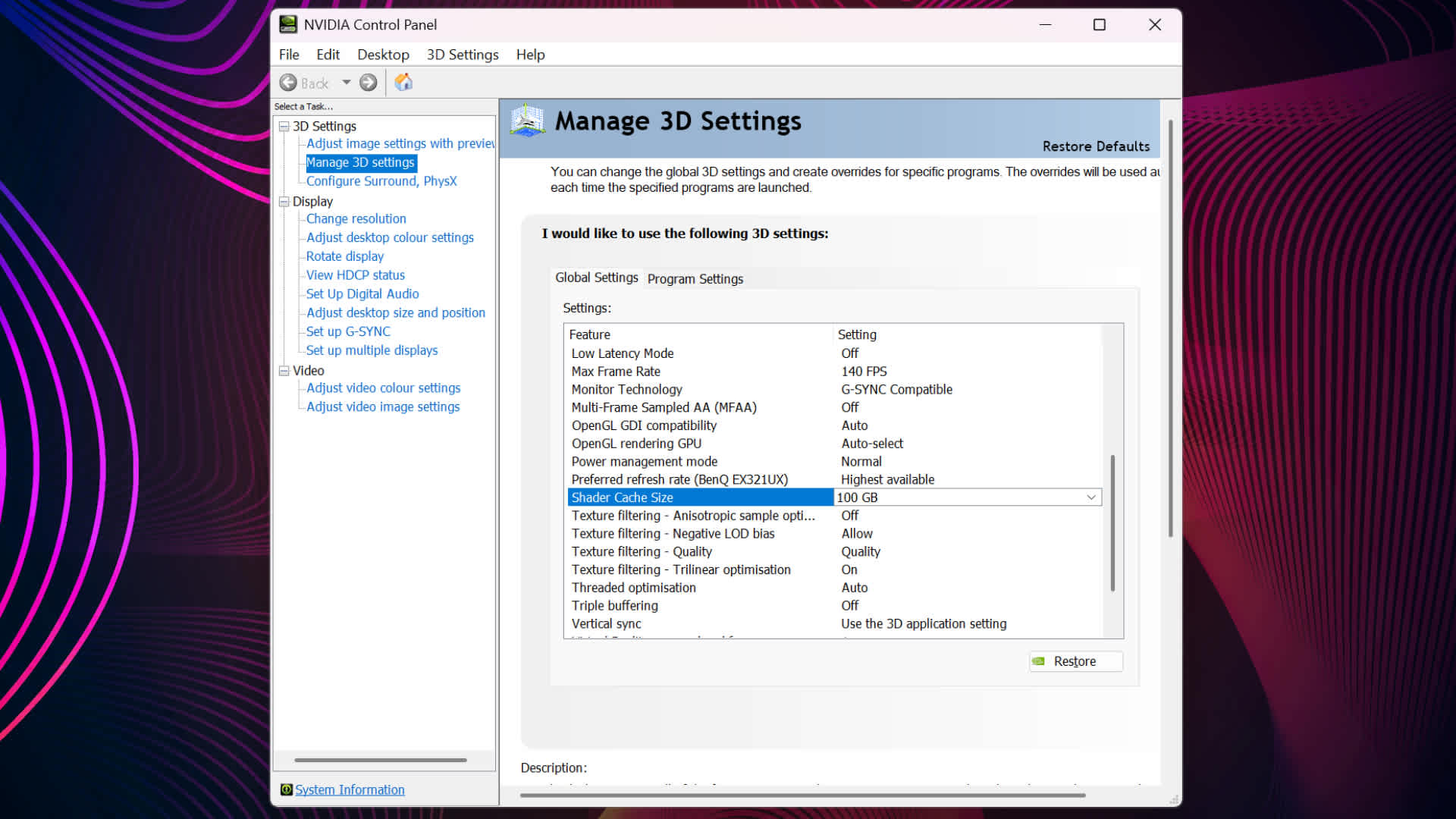
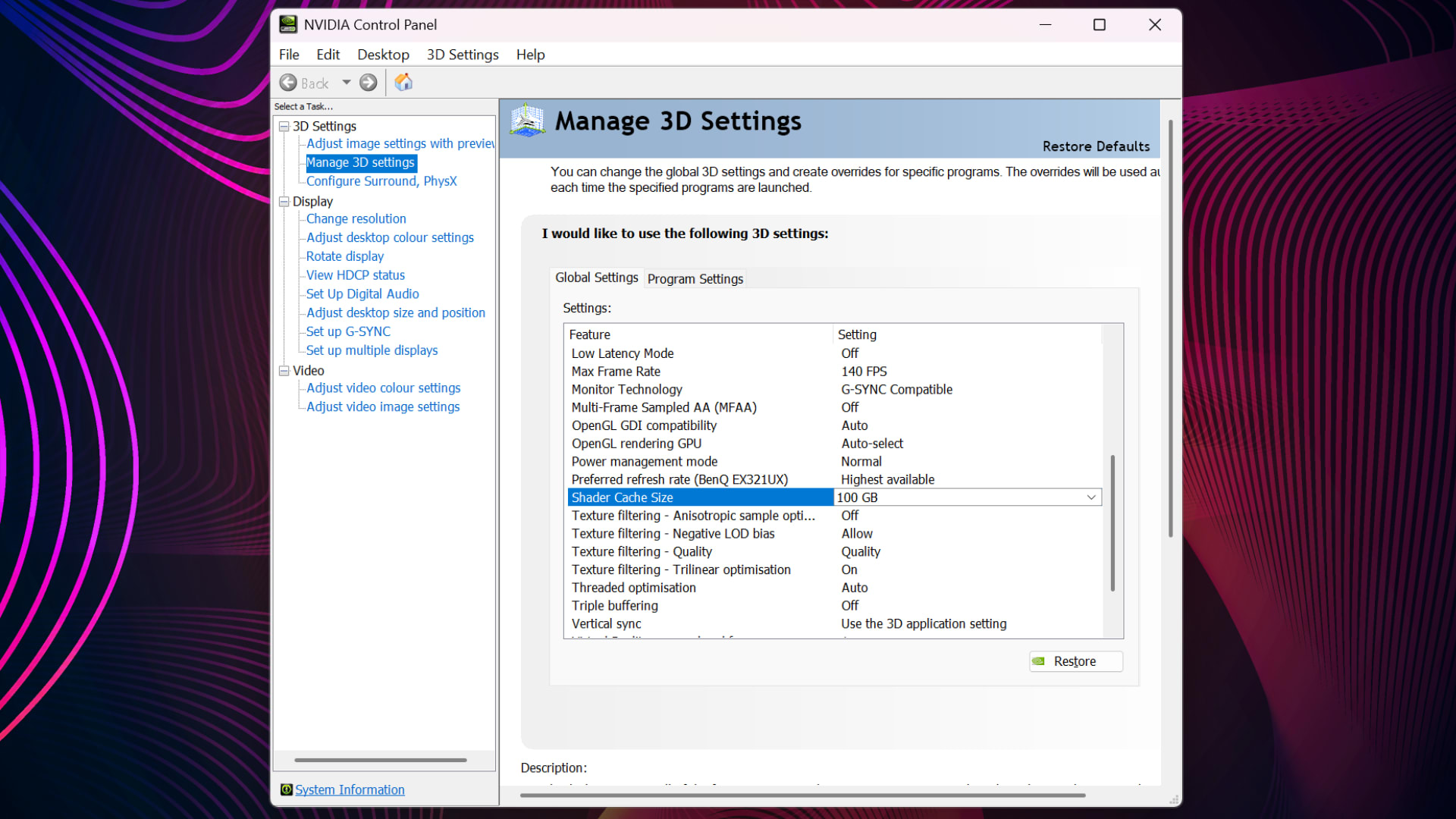
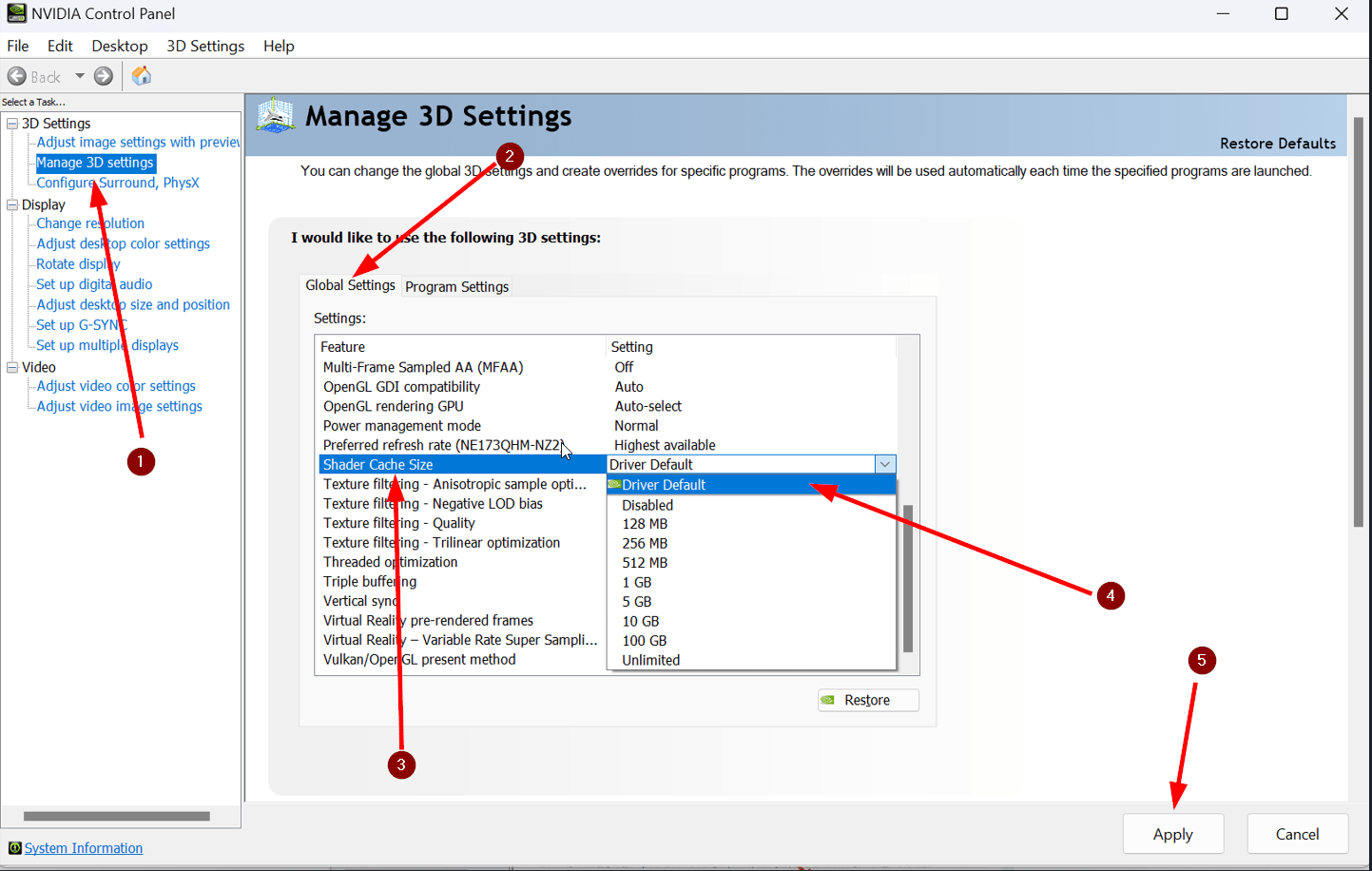
Raising the limit in NVIDIA Control Panel under Manage 3D Settings → Shader Cache Size stops that eviction cycle. PC Gamer documented this precisely with Borderlands 4: raising the limit to 100GB virtually eliminated the game's stuttering, and the DXCache folder grew to 16.8GB for that single title once it was allowed to build its shaders without eviction. A default ceiling of 10GB or 16GB cannot hold one modern game's shaders alongside the rest of a library.
That is the first thing to try before deleting anything. Our broader guide to fixing stuttering in PC games walks through this alongside the seven other causes worth ruling out.
Tip
If you have a large game library and a fast SSD, set Shader Cache Size to Unlimited or the largest available value. The disk cost is modest; the benefit is that shaders you compiled months ago are still there when you return to a game.
How to Clear Each Cache Properly
If you have worked through the above and clearing is genuinely the right call, do it completely — a half-cleared cache is a worse state than either extreme.
| # | Cache | How to clear it |
|---|---|---|
| 1 | NVIDIA driver cache | Delete the contents of %LOCALAPPDATA%\NVIDIA\DXCache and GLCache |
| 2 | NVIDIA legacy cache | Delete contents of %LOCALAPPDATA%\NVIDIA Corporation\NV_Cache |
| 3 | DirectX cache | Disk Cleanup, or Settings → System → Storage → Temporary files |
| 4 | Game PSO cache | Delete .pso / .pipelinecache files in the game's install or save folder |
| 5 | Steam shader cache | Steam → Settings → Downloads → Clear Shader Pre-Cache |

Close every game and launcher first. Deleting cache files while a game holds them open produces exactly the partially-corrupt state you were trying to escape.
Row 4 is the one to reach for when clearing the driver cache changed nothing. Persistent DX12 stutter that survives a driver cache wipe is very often a game-side PSO cache, and it lives somewhere the driver cannot touch.
An AMD-Specific Caveat
Users of AMD RDNA 2 cards and newer have reported for several years that clearing the shader cache produces noticeably worse recompilation stutter than the equivalent operation on NVIDIA hardware, tied to how AMD's caching behaves in DirectX 11 titles. Driver releases have improved this considerably, but the practical advice stands: on AMD hardware, treat cache clearing as a last resort rather than a first step.
If you are still diagnosing whether the problem is even shader-related, check the other usual suspects first. VRAM exhaustion produces a similar-looking stutter with a very different cause — our guide to how much VRAM you need for gaming covers how to tell them apart, and a system that hitches badly with plenty of VRAM free may simply be short on memory, which our look at whether 32GB of RAM is overkill addresses directly.
Frequently Asked Questions
Does clearing the shader cache improve FPS?
Not on its own. Clearing removes compiled shaders, which forces recompilation and temporarily makes performance worse. It only helps when the cache has become corrupted or contains shaders built by an older driver, in which case the rebuilt cache performs better than the broken one did. If your cache is healthy, clearing it is purely a cost.
How long does shader recompilation take after clearing?
It depends on the game and how much of it you play. Recompilation happens progressively as you encounter each shader, so a linear game might feel normal again within twenty minutes while a large open world can stutter intermittently for an hour or more of play. Judge the result on your second and third sessions rather than the first.
Is it safe to delete the DirectX shader cache?
Yes, it is entirely safe — it contains only regenerable compiled data, no game files or saves. Windows lists it in Disk Cleanup and Storage settings precisely because it is disposable. The only cost is the recompilation stutter afterwards, so treat it as a troubleshooting step rather than routine maintenance.
Should I clear my shader cache after every driver update?
No. Only clear it if a driver update actually introduced stuttering, freezing, or visual glitches. Most driver updates handle existing cached shaders correctly, and clearing preemptively means eating recompilation stutter you did not need to. If a driver update did break something, this is one of the strongest reasons to clear.
Why does my game still stutter after clearing the shader cache?
Two likely reasons. First, the cache is still repopulating — expect stutter through the first session. Second, DirectX 12 games often keep their own pipeline state object cache inside the game's install or save folder, and clearing the driver cache does not touch it. Look for .pso or .pipelinecache files in the game's directory if the problem persists.
The Bottom Line
Treat the shader cache as an asset you are accumulating, not clutter you are accruing. The default answer to "should I clear my shader cache" is no, and the second-best answer is "raise the size limit instead."
Clear it when a driver update broke something, when you have changed GPU, when you are seeing visual corruption rather than plain stutter, or when a game you have played for weeks is getting worse rather than better. Outside those four cases you are deleting hours of compilation work to solve a problem the cache was not causing — and then measuring the recompilation and concluding the fix failed.
Software screenshots courtesy of the respective developers and platform holders, used for editorial coverage.
Sources
- NVIDIA, Deleting NVIDIA Shader Cache files, retrieved 2026-07-28, https://nvidia.custhelp.com/app/answers/detail/a_id/5735/~/deleting-nvidia-shader-cache-files
- PC Gamer, I fixed Borderlands 4's stuttering issue by upping my shader cache size to 100 GB, retrieved 2026-07-28, https://www.pcgamer.com/hardware/i-fixed-borderlands-4s-stuttering-issue-by-upping-my-shader-cache-size-to-100-gb-which-feels-like-something-i-shouldnt-have-to-do-in-a-well-optimised-game/
- Gaijin Entertainment, How to clear NVIDIA and DirectX cache, retrieved 2026-07-28, https://support.gaijin.net/hc/en-us/articles/30268449678994-How-to-clear-NVIDIA-and-DirectX-cache
- WB Games Support, How To Clear Your Shader Cache, retrieved 2026-07-28, https://portkeygamessupport.wbgames.com/hc/en-us/articles/14659998310803-How-To-Clear-Your-Shader-Cache
- ResetEra, AMD 6000 series and newer: shader stuttering after clearing shader caches, retrieved 2026-07-28, https://www.resetera.com/threads/if-you-are-an-owner-of-an-amd-graphics-cards-6000-series-and-newer-you-might-have-issues-with-shader-stuttering-if-you-clear-your-shader-caches.1013136/