Enabling Gaming Mode can enhance your gameplay experience. However, outside of gaming, it can interfere with your computer activities and cause unwanted issues. To avoid disruptions and ensure smooth performance, disabling gaming mode is often recommended.
To Disable Gaming Mode on your Keyboard, Press the Fn key + specific F key (e.g., Fn + F5, Fn + F10) and then check your user manual for the exact combo. Press combo to toggle Gaming Mode off, and it will be disabled.
This article provides step by step instructions on how to disable Gaming Mode on popular keyboards like Razer, Logitech, and Corsair. If you have tried all the common tricks to switch off Gaming Mode but are still facing troubles, then this article is here to help you.
Note
Key Takeaways
Fnplus a function key is the usual toggle, but the exact combination differs by manufacturer and model.- Razer boards commonly use
Fn+F10, and the mode is also toggleable in Synapse. - Logitech exposes Game Mode in software, letting you choose exactly which keys get disabled rather than just the Windows key.
- Corsair uses a dedicated hardware key-lock button with an indicator light rather than a function-row shortcut.
- Gaming Mode's main job is disabling the Windows key so you cannot minimise a fullscreen game by accident.
- This is not Windows Game Mode, which is an operating system setting and entirely separate.
Top 5 Methods to Disable Gaming Mode on your Keyboard
There are various methods to disable Gaming Mode on your Keyboard to perform non-gaming tasks seamlessly. To turn off the Gaming Mode, you should walk through the various methods that are given below.
Keyboard Shortcut to Turn Off Gaming Mode
One common method to disable Game Mode is via keyboard shortcut. To disable Gaming Mode, follow the steps below:
Step 1: Find the exact Gaming Mode key combination for your Keyboard (typically Fn + a specific key, such as F1-F12) or check Keyboard’s manual or manufacturer’s website to identify the key. Step 2: Press the key combination to toggle Game Mode off. Step 3: Verify Game Mode is disabled by checking keyboard lights (e.g., LED indicators) or testing in-game.
Common Combinations
- Fn + F1-F12 (check which function key corresponds to Gaming Mode)
- Gaming Mode key + another key (varies by manufacturer)
Note
Keyboard shortcuts may vary depending on the model and brand.
Dedicated Gaming Mode Button to disable Gaming Mode (If Available)
If your Keyboard has a dedicated Game mode button, you can disable it with a simple and efficient process:
Step 1: Check your Keyboard for a button labeled Game Mode or Gaming Mode. Step 2: After locating the Gaming Mode button, press it to disable Gaming Mode. Step 3: Check your Keyboard’s light indicator to ensure Game Mode is Disabled (e.g., LED turns off)
By following these steps, you should be able to easily disable Gaming Mode using a dedicated button on your Keyboard.
Tip
If you can’t find the button, refer to your Keyboard’s manual.
Turn Off Gaming Mode via Keyboard Software
Disabling Game Mode using your Keyboard’s software is also an easy and convenient method. To deactivate Gaming Mode, follow these steps:
Step 1: Start by launching keyboard software specifically designed for your keyboard, such as Logitech G Hub or Razer Synapse or other popular keyboard software. Step 2: Locate the section related to Gaming Mode or Game Mode Settings within the software. Step 3: Once you’ve found the Game Mode Setting, turn it off or disable it, Step 4: After disabling Gaming Mode, make sure to apply or save the changes.
Tip
Consult Software documentation if you are unable to identify the software or find the Game Mode setting.
Reset the Keyboard to deactivate Gaming Mode
Resetting your keyboard to default settings can be a simple solution to disable Gaming Mode. Here’s how to do it:
Step 1: Check your keyboard user’s manual for specific reset instructions (process may vary depending on your keyboard model). Step 2: To initiate the reset process, look for a small reset button on the keyboard or a specific key combination (e.g., Fn + a specific key). Step 3: Press and hold the reset button or key combination for a few seconds or pressing it multiple times. Step 4: To confirm the reset process, follow any on-screen prompts or observe LED indicators on your keyboard.
Note
Before resetting, keep in mind that custom settings or profiles may be erased. If possible, note down or backup your preferred settings to easily restore them later.
Tip
For further assistance, refer to the manufacturer's website or contact their support team if you're unsure about the reset process or need specific guidance.
Uninstall or Update Keyboard Drivers or Software for turning off Gaming Mode
If previous methods don't work, you can try another way to disable Gaming Mode by updating or uninstalling Keyboard Drivers or Software. To done with this method, follow the steps below:
- Visit the official website to check for updates for your keyboard drivers or software.
- Download the latest version and follow the installation instructions.
Uninstalling Keyboard Software via Control Panel
Step 1: Open the Control Panel and then go to Programs and Features. Step 2: Find the keyboard software. Step 3: Select the software and click Uninstall to remove it.
Updating or Uninstalling Drivers via Device Manager
Step 1: Open Device Manager by Pressing the Windows key + X. Step 2: Select Device Manager and locate your keyboard under Keyboards. Step 3: Right click on the keyboard and select Update driver. Step 4: Alternatively, select Uninstall device to remove the driver.
Tip
After updating or uninstalling, restart your computer to ensure changes take effect.
Note
If uninstalling drivers or software resolves the issue but causes other problems, you may need to reinstall them.
Switching Off Gaming Mode on Popular Keyboards
There are step by step instructions given below to disable Gaming Mode on three different types of Popular Keyboards. To learn these methods, here we go:
How to Turn Off Gaming Mode on Razer Keyboards?
To Deactivate Gaming Mode on your Razer Keyboard, there are two types of methods:

Razer Synapse Software
- Initially, launch the Razer Synapse and open the software on your computer.
- Choose your Razer Keyboard from the list of connected devices.
- Within the Software, search for the Macro or Game Mode section.
- Turn off the Game Mode or adjust settings.
Key Combination
- Check your Keyboard for a physical switch or Key Combination that controls Game Mode such as,(Fn + F keys) .
- Refer to your Keyboard’s user manual for specific instructions.
Note
Make sure that you are running the latest version of Razer Synapse.
How to Deactivate Gaming Mode on Logitech Keyboards?
To Disable Gaming Mode on your Logitech Keyboard, there are two different types:
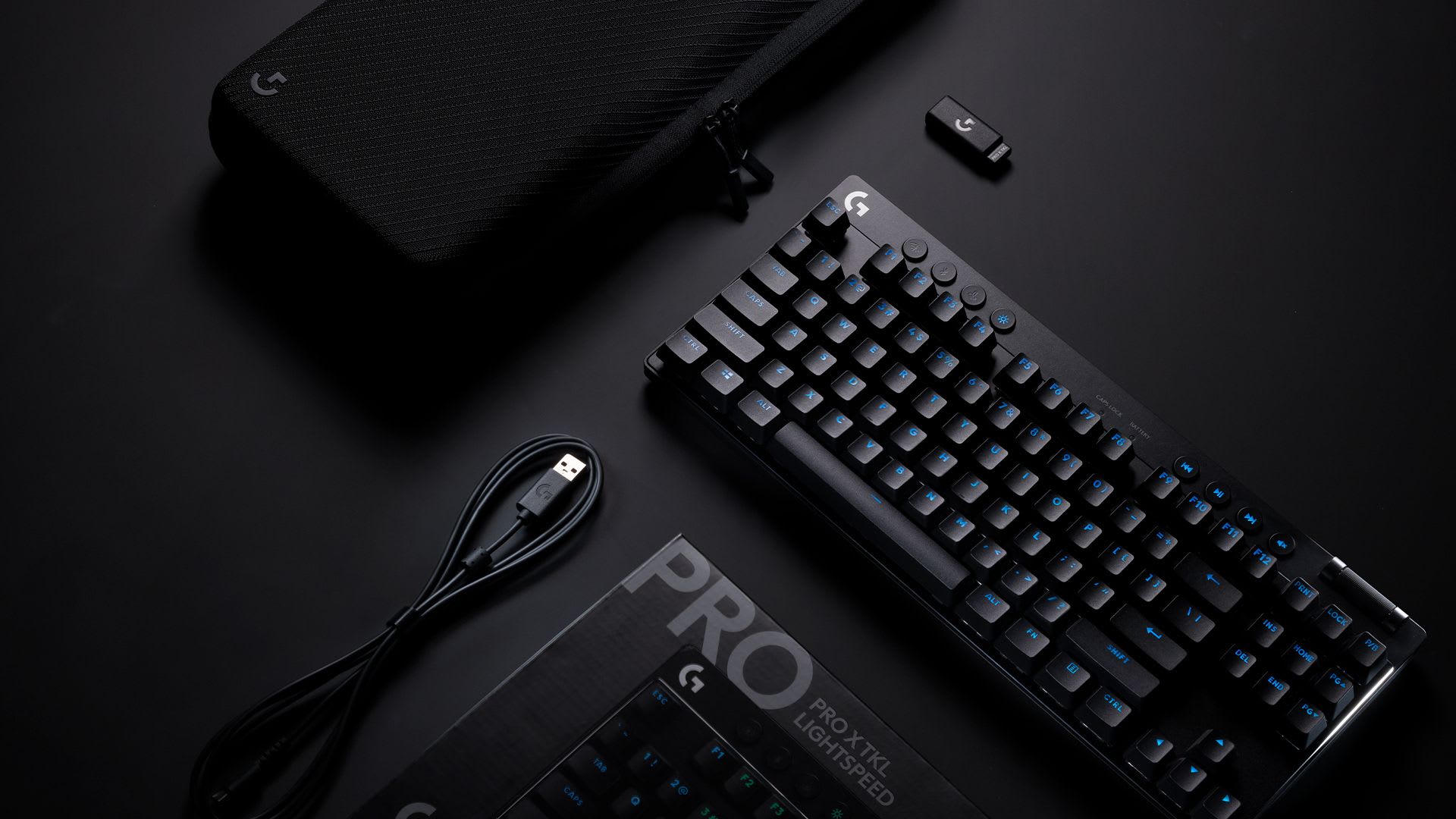
Logitech G Hub or Logitech Gaming Software
- Launch Logitech G HUB or Logitech Gaming Software.
- Choose your Logitech Keyboard from the device list.
- Find the Game Mode or similar settings section.
- Toggle off Game Mode or adjust settings as desired.
Physical Switch
- Look for a physical switch or key combination (e.g., Fn + specific key).
- Consult your keyboard's user manual for specific instructions.
Note
Ensure you're running the latest Logitech software version. If needed, reset keyboard settings to their default state.
How to Disable Gaming Mode on Corsair Keyboards?
To disable Gaming Mode on your Corsair keyboard, follow the instructions below:

Using iCUE Software
- Open Corsair iCUE software.
- Select your Corsair keyboard.
- Look for Game Mode or Lock Keys settings.
- Toggle off Game Mode.
Physical Controls
- Check for a physical switch on your keyboard.
- Try specific key combinations (consult user manual).
Note
Ensure iCUE software is up-to-date.
Frequently Asked Questions
What does Gaming Mode actually do?
It disables keys that would interrupt a game, most commonly the Windows key and sometimes Alt+Tab and Alt+F4. Some boards also switch the lighting profile or raise the polling rate at the same time. It does not improve performance; it only prevents accidental presses.
How do I turn off Gaming Mode quickly?
On most keyboards it is Fn plus one of the function row keys, often F12 or a key marked with a joystick or lock icon. A dedicated button exists on some models. If neither works, the manufacturer's software has a toggle, and a full keyboard reset clears it as a last resort.
Why is my Windows key not working?
Gaming Mode is by far the most common cause, and it is enabled by default on many gaming boards. Before assuming a hardware fault, try the Fn shortcut for your brand and check the vendor software. Genuine key failure is rare on mechanical and magnetic switches, both of which are rated for tens of millions of presses.
Does Gaming Mode affect input latency?
Not meaningfully. Some boards raise the polling rate alongside it, which is where any perceived difference comes from, and the returns there are smaller than the marketing implies — we cover them in is 8000Hz polling rate worth it.
Will resetting the keyboard erase my macros and lighting?
Yes. A factory reset clears onboard profiles, macros and custom lighting, so export your profile from the vendor software first if you have spent time on it. The reset is only worth reaching for when the Fn shortcut and the software toggle both fail.
Does the keyboard type change how Gaming Mode behaves?
No, it is a firmware feature rather than a switch feature, so it works the same on membrane, mechanical, optical and magnetic boards. Case material makes no difference either — see aluminum keyboards — and if noise rather than key locking is your issue, start with the quietest keyboard switches.
Sources
- Logitech Support, Activate and disable keys in Game Mode on the G310 gaming keyboard, retrieved 2026-08-20, https://support.logi.com/hc/en-us/articles/360023177054-Activate-and-disable-keys-in-Game-Mode-on-the-G310-gaming-keyboard
- Razer Insider, How to permanently disable game mode (FN+F10) keyboard shortcut, retrieved 2026-08-20, https://insider.razer.com/keyboards-8/how-to-permanently-disable-game-mode-fn-f10-keyboard-shortcut-86014
- Razer Insider, Enable Windows Key in Gaming Mode - BlackWidow Elite, retrieved 2026-08-20, https://insider.razer.com/keyboards-8/enable-windows-key-in-gaming-mode-blackwidow-elite-24976
- Corsair Community, Automatically Enable Windows Key Lock?, retrieved 2026-08-20, https://forum.corsair.com/forums/topic/128528-automatically-enable-windows-key-lock/