Leave Windows 11 Game Mode enabled, but do not expect your frame rates to change much. Its real value is preventing Windows Update from installing drivers or throwing restart prompts at you mid-match — not performance tuning.
The feature is widely misunderstood because its name promises optimisation while its actual behaviour is mostly interruption management. On a modern multi-core system the measurable frame rate benefit is close to nothing.
Note
Key Takeaways
- Game Mode's most reliable function is blocking interruptions — Windows Update driver installations and restart notifications are suppressed while you play.
- It also raises scheduling priority for the game process, deprioritising background tasks.
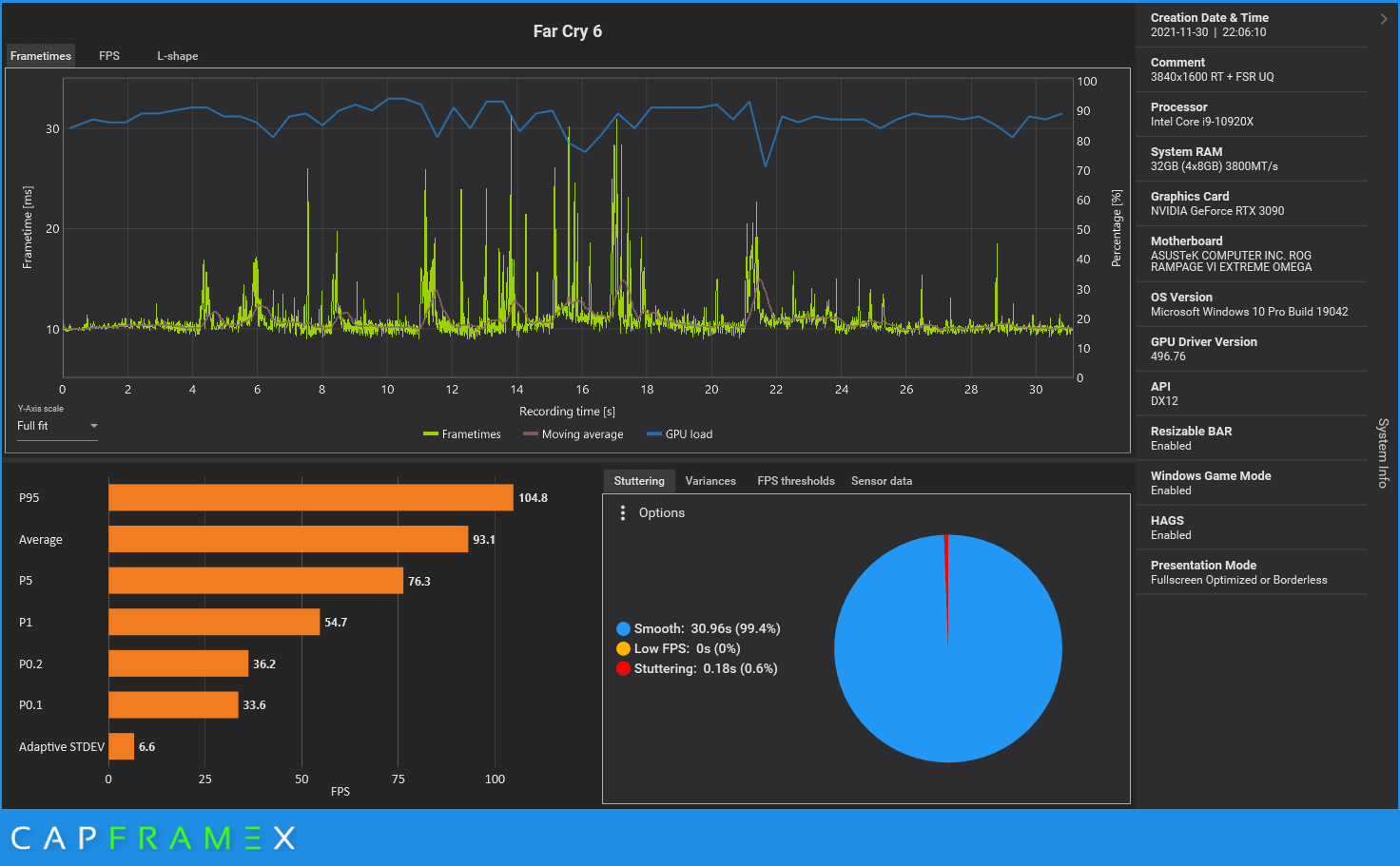
- On 8-core-plus systems the FPS difference is typically within margin of error. There simply is not enough contention to relieve.
- Low-core-count and low-RAM systems benefit most, which is the opposite of how it is usually marketed.
- It occasionally causes problems — stutter, or conflicts with capture and streaming software. If you see those, turn it off.
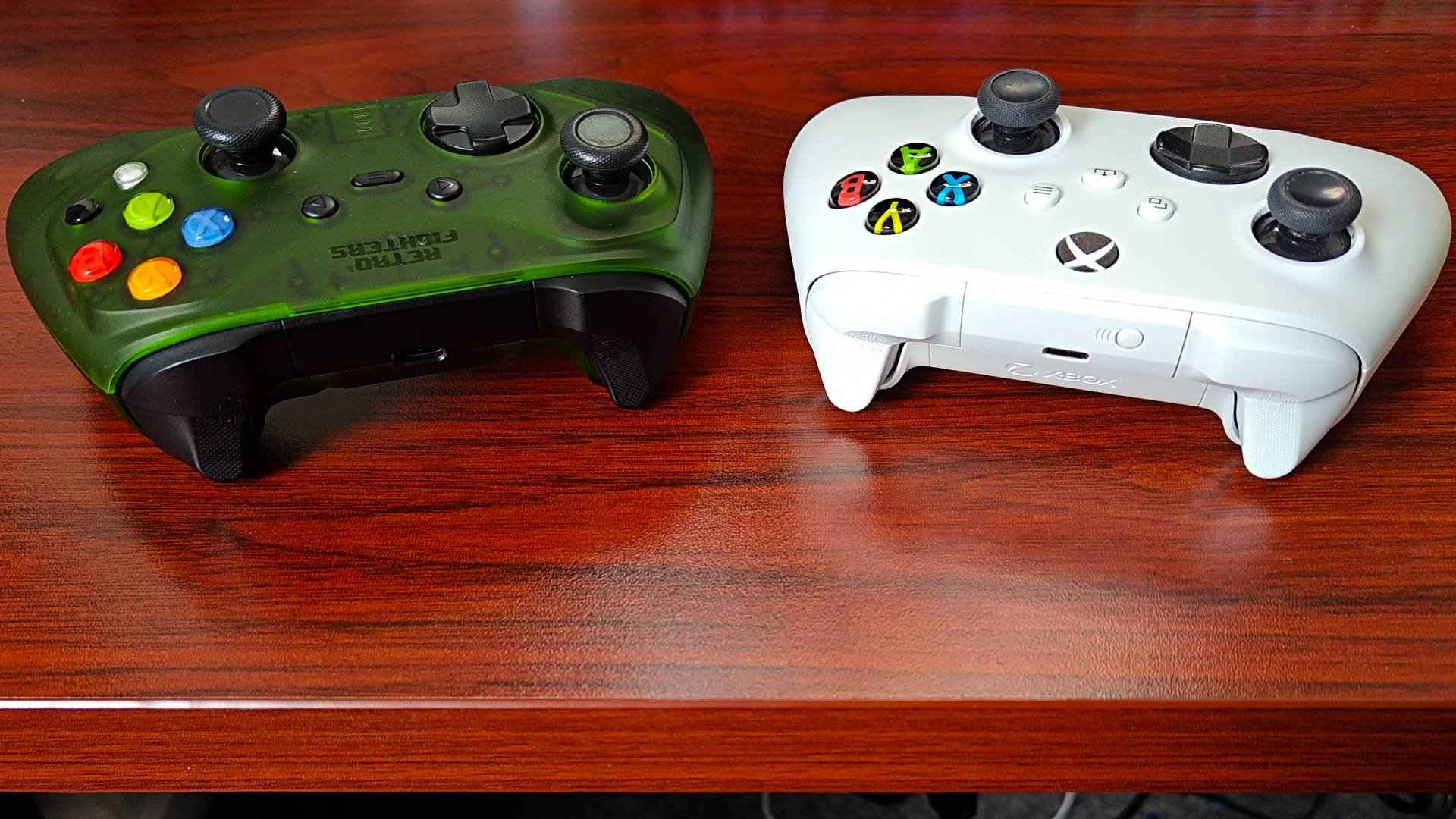
- This is not the same as your keyboard's Gaming Mode, which is a completely separate hardware feature.
Game Mode Is Not Your Keyboard's Gaming Mode
Worth clearing up first, because the two get confused constantly.
Windows Game Mode is an operating system setting under Settings → Gaming. It changes process scheduling and update behaviour.
Keyboard Gaming Mode is a hardware toggle on the keyboard itself, usually bound to an Fn key combination. It disables the Windows key so you do not minimise a fullscreen game by accident. If that is the one you are trying to switch off, see how to turn off Gaming Mode on any keyboard.
They share a name and nothing else.
What Windows Game Mode Actually Does
Microsoft documents three behaviours, and they are narrower than the branding implies.
It Stops Windows Interrupting You
While Game Mode is active and a game is running in the foreground, Windows will not install graphics drivers and will not display restart notifications. This is the feature's most dependable benefit and the reason to leave it on.
A driver installing itself mid-session is genuinely disruptive — it can black-screen the display or crash the game outright. Game Mode simply defers that until you are done.
It Adjusts Scheduling Priority
Game Mode gives the foreground game higher CPU and GPU scheduling priority, so background processes are less likely to steal time slices during a frame.
On a system with 8 or more cores and enough RAM, background tasks were rarely competing for resources in the first place, so there is little to reclaim. On a 4-core machine with 8GB of RAM and a browser open, there is considerably more.
It Does Not Do These Things
- It does not overclock anything.
- It does not close background applications.
- It does not free up VRAM or change graphics settings.
- It does not disable Windows services.
If your frame rate is low for a hardware reason, Game Mode will not help. Check whether the GPU is actually the limit first — see normal GPU usage while gaming and why GPU usage is low.
Who Actually Benefits
| # | System profile | Expected benefit |
|---|---|---|
| 1 | 4 cores, 8GB RAM, integrated graphics | Noticeable |
| 2 | 6 cores, 16GB RAM | Small but real |
| 3 | 8+ cores, 16-32GB RAM | Within margin of error |
| 4 | Streaming or recording while playing | Possibly negative |
Row 4 is the case worth flagging. Because Game Mode deprioritises non-foreground processes, it can interfere with OBS, capture software, or voice chat running alongside the game. If your recordings drop frames or your stream stutters while the game itself looks fine, Game Mode is a reasonable suspect. The same goes for auto-clipping apps that keep a replay buffer running, compared in our guide to AI auto-clipping tools.
Discord specifically is a common source of confusion here — its overlay has its own performance cost, covered in does Discord lower FPS.
When to Turn It Off
Leave it enabled by default. Turn it off if you hit any of these:
- Stutter that started without a hardware or driver change. Game Mode's priority shuffling occasionally produces frame pacing problems in specific titles.
- Capture or streaming software dropping frames while the game runs smoothly.
- A game misidentified as not-a-game, so Game Mode never engages — or a non-game application being treated as one.
- Emulators and launchers, which Windows sometimes classifies incorrectly.
If you are chasing stutter generally, Game Mode is far down the list of causes. Work through how to fix stuttering in PC games first, and if the pattern points at driver-level delays, LatencyMon will identify them properly.
How to Turn Game Mode On or Off
- Open Settings (
Win+I). - Select Gaming in the left sidebar.
- Select Game Mode.
- Toggle it On or Off.
Warning
Some guides recommend disabling Game Mode through the registry by setting AutoGameModeEnabled to 0 under HKEY_CURRENT_USER\Software\Microsoft\GameBar. The Settings toggle does the same thing safely. Editing the registry to achieve an available setting adds risk for no benefit.
Game Mode and Game Bar Are Separate
Turning off Game Mode does not disable the Xbox Game Bar overlay, and turning off Game Bar does not disable Game Mode. They live in the same Settings section and are independently toggled. If the Win + G overlay is what bothers you, that is Game Bar.
Frequently Asked Questions
Does Windows 11 Game Mode increase FPS?
Rarely by a meaningful amount. On systems with 8 or more cores the difference typically falls within run-to-run variance. Lower-core-count systems with limited RAM see the clearest gains.
Should I turn Game Mode off?
Only if you are experiencing stutter, or capture and streaming software is dropping frames. For everyone else, the interruption-blocking behaviour alone justifies leaving it on.
Does Game Mode work on Windows 10?
Yes, with essentially the same behaviour, found under Settings → Gaming → Game Mode. Windows 11 refined the update-deferral logic but the feature is fundamentally the same.
Why does Game Mode keep turning itself on?
Windows re-enables it after some feature updates, and it is on by default in a clean installation. If it needs to stay off, verify the toggle after each major Windows update.
Does Game Mode affect frame times or just average FPS?
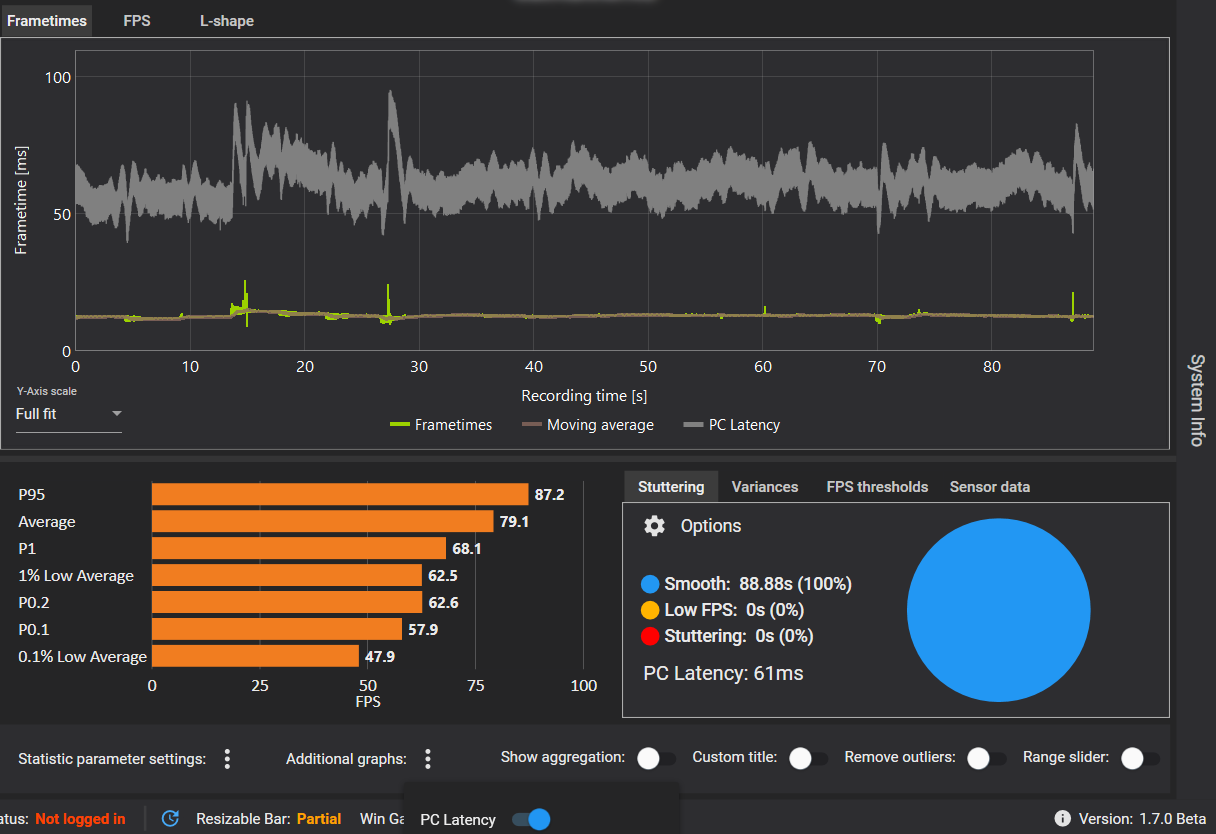
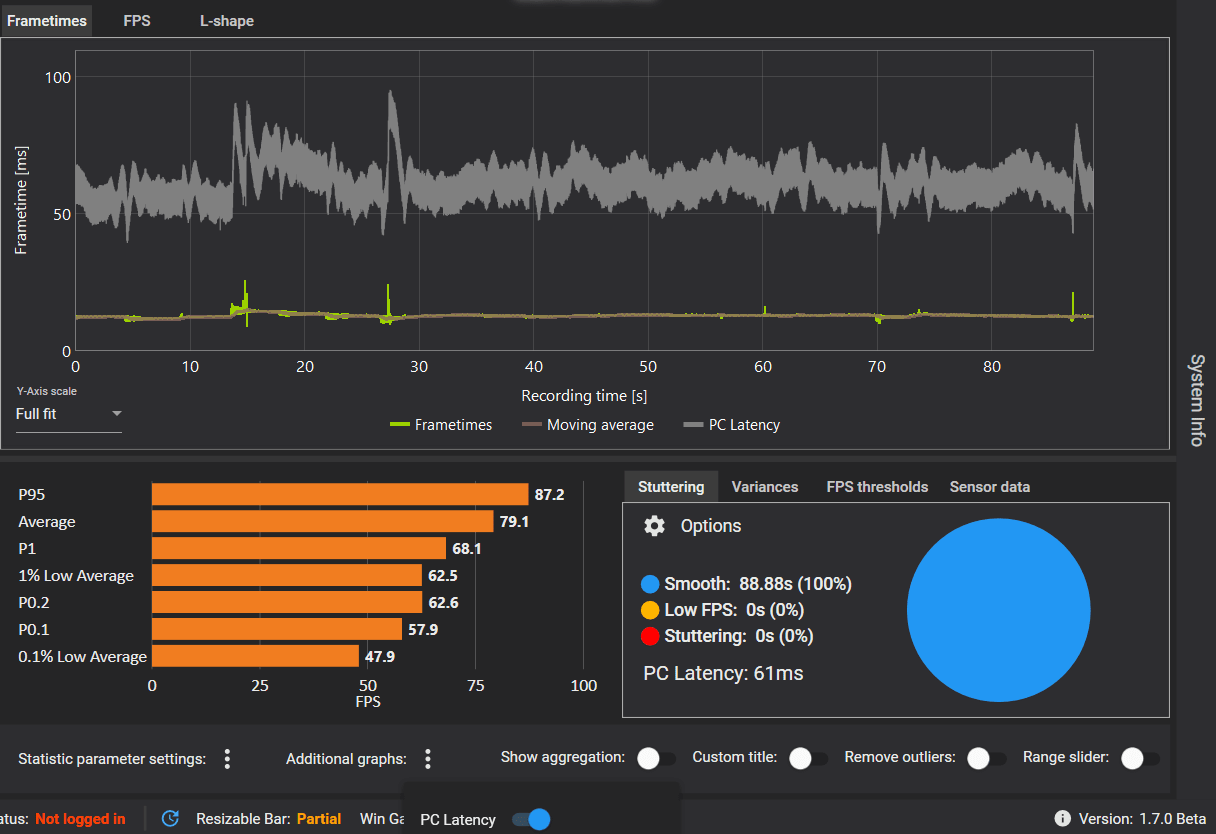
Its scheduling changes are more likely to influence 1% lows than average frame rate, since the mechanism is about reducing contention spikes rather than raising throughput. Measure frame times rather than averages if you want to see the effect.
Is Game Mode causing my game to run in Efficiency Mode?
No — those are separate systems. Efficiency Mode is applied by the Windows scheduler to background processes and can be checked and disabled per-process in Task Manager's Details tab.
The Bottom Line
Enable Game Mode, then stop thinking about it. It is not a performance feature in any meaningful sense on modern hardware, and treating it as one leads people to expect frame rates it was never going to deliver.
What it does reliably is stop Windows behaving badly at the worst possible moment. That is worth having switched on, and it is the only claim about Game Mode that holds up consistently.
If frame rate is the actual problem, the causes are almost always elsewhere — GPU limits, CPU bottlenecks, shader compilation, or thermal throttling.
Screenshots courtesy of the respective software publishers, used for editorial coverage.
Sources
- Microsoft Q&A, How to programmatically turn off Game Mode in Windows 11 system settings, retrieved 2026-08-20, https://learn.microsoft.com/en-us/answers/questions/1375090/how-to-programmatically-turn-off-game-mode-in-wind
- Microsoft Q&A, Game Mode keeps turning off on Windows 11, retrieved 2026-08-20, https://learn.microsoft.com/en-us/answers/questions/4155195/game-mode-keeps-turning-off-on-windows-11-game-mod
- Microsoft Q&A, Game Mode & Game Bar won't turn off, retrieved 2026-08-20, https://learn.microsoft.com/en-us/answers/questions/4108270/game-mode-game-bar-wont-turn-off
- Microsoft Q&A, When gaming and the game goes into Efficiency mode, retrieved 2026-08-20, https://learn.microsoft.com/en-us/answers/questions/3945597/when-i-am-gaming-and-the-game-goes-into-efficiency
- Tom's Hardware Forum, Gaming mode?, retrieved 2026-08-20, https://forums.tomshardware.com/threads/gaming-mode.3745610/