Normal GPU usage while gaming is 95-100%, and that is the number you want to see. A graphics card pinned at 99% is not struggling or overheating — it is doing exactly the job it was bought to do, with nothing else holding it back.
This trips people up constantly. Task Manager showing 100% CPU usage genuinely does mean something is wrong. Task Manager showing 100% GPU usage in a game means everything is right. The two metrics look identical and mean opposite things.
Note
Key Takeaways
- 95-100% is the healthy target while gaming. High GPU utilisation means the card is the limiting factor, which is the correct place for the bottleneck to sit.
- Usage is a measure of time, not effort. It reports the percentage of sampled intervals in which the GPU had work queued — not how hard it worked.
- Low usage plus low frame rate is the pattern worth investigating. Low usage plus a frame rate at your cap is normal and correct.
- Menus, loading screens and older titles legitimately produce low readings. Judge the number during actual gameplay only.
- The percentage says nothing about temperature or power. A card at 99% usage may be drawing well under its power limit.
What the Percentage Actually Measures
GPU utilisation is a time-based sample, not a workload measurement. The driver checks at short intervals whether the GPU had any work queued. If it did, that interval counts as busy. The reported percentage is simply the share of intervals that came back busy.
That definition has a consequence most people never hear: a GPU can report 100% utilisation while using a small fraction of its actual processing resources. If one tiny shader operation is queued for every sampling interval, the card reports 100% — busy the whole time, barely working.
Why This Matters in Practice
This is why utilisation alone is a poor diagnostic. A card sitting at 99% with the power draw well below its limit is being fed work inefficiently — the queue never empties, but the work in it is not saturating the hardware.
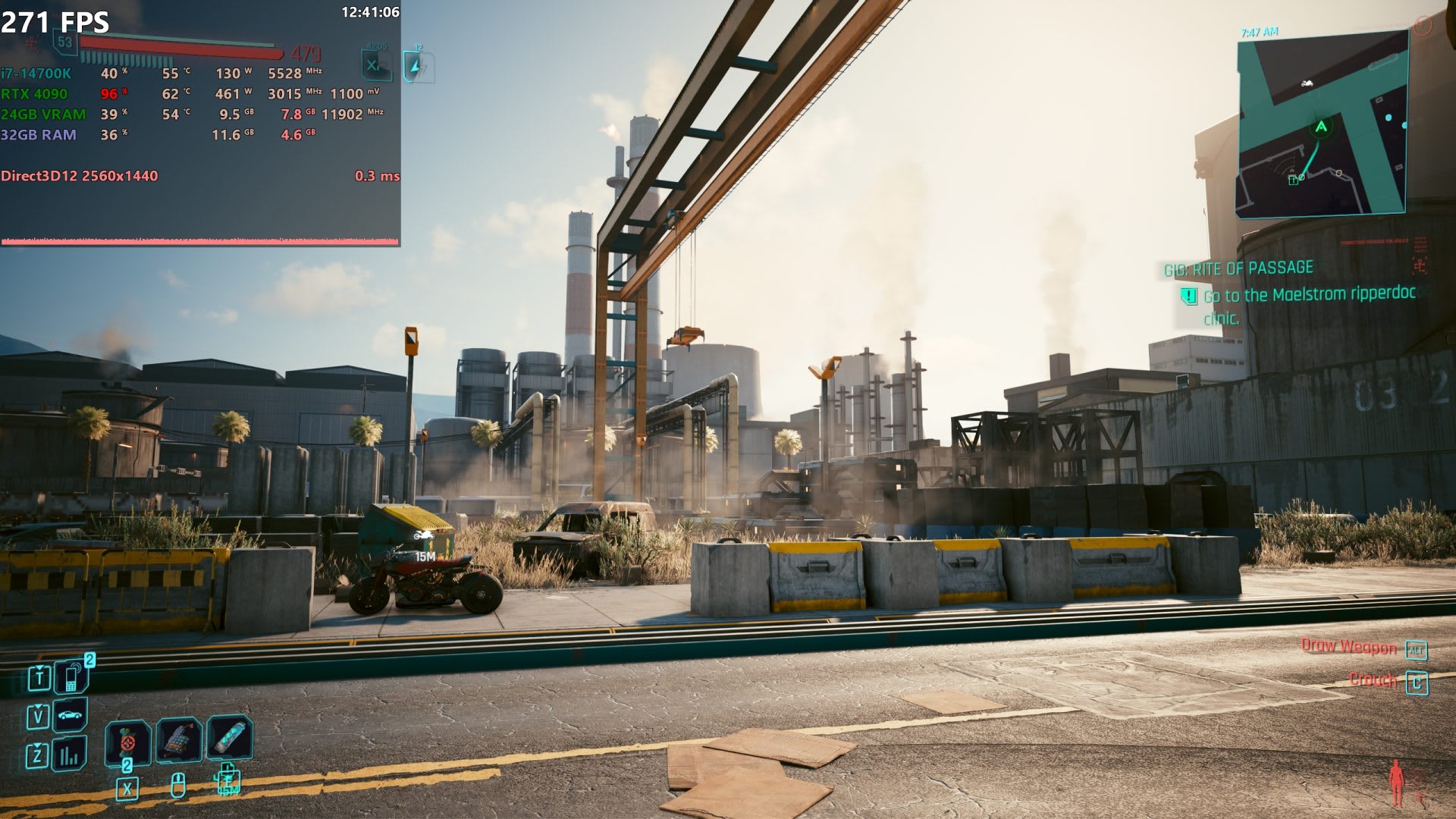
For a fuller picture, watch three numbers together: utilisation, power draw, and clock speed. A healthy, fully loaded card shows high utilisation, power near its configured limit, and boost clocks holding steady.
The Numbers by Scenario
| # | Scenario | Expected GPU Usage | Is It Normal? |
|---|---|---|---|
| 1 | Demanding game, uncapped | 95-100% | Yes — this is the goal |
| 2 | Game running at your frame cap | 40-80% | Yes — cap is working |
| 3 | Menu or loading screen | 5-40% | Yes |
| 4 | Older or indie title | 20-60% | Yes |
| 5 | Demanding game, uncapped, 40% use | 40% | No — investigate |
| 6 | Desktop idle | 0-5% | Yes |
Row 5 is the only one that describes a problem. Everything else is a graphics card correctly doing less work because less work was asked of it.
The Frame Cap Exception
If you run V-Sync, G-Sync with a cap, or a driver-level frame limit, your GPU will deliberately idle once it hits the target. A card holding 60 FPS at 55% usage on a 60Hz display is behaving perfectly — it finished early and waited.
This catches people who enable a cap, check utilisation, and conclude something broke. Nothing broke. Our guide to G-Sync, V-Sync and frame cap settings covers which combination to run and why capping slightly below your refresh rate is usually correct.
When Low GPU Usage Is a Real Problem
The pattern that signals trouble is low GPU usage together with a frame rate below what your hardware should deliver, with no frame cap active. That combination means something upstream is starving the card.
The usual causes, in rough order of frequency:
- CPU bottleneck. The processor cannot prepare draw calls fast enough to keep the GPU fed. Common at 1080p with a high-end card and an older CPU.
- Settings too low for the hardware. Running a modern card at 1080p Medium simply does not generate enough work.
- Power or thermal limits. A card throttling back reports lower utilisation alongside reduced clocks.
- Background software competing for CPU time or holding the GPU in a low-power state.
- The game itself. Some engines are single-thread bound and will never saturate a modern GPU regardless of hardware.
We cover the diagnosis and fixes in depth in why your GPU usage is low while gaming.
Tip
Test for a CPU bottleneck in sixty seconds: raise your resolution or graphics settings. If frame rate stays roughly the same while GPU usage climbs toward 100%, the CPU was the limit and you just got free visual quality. If frame rate drops proportionally, the GPU was already the limit.
High Usage Is Not a Warning Sign
There is a persistent belief that running a GPU at 100% will wear it out. It will not. Graphics cards are designed to run at full load indefinitely, and their boost algorithms actively manage clocks, voltage and fan speed to stay inside safe limits.
What genuinely matters is temperature and cooling, not the utilisation figure. A card at 100% usage and 70°C is healthy. A card at 100% usage and 90°C has an airflow problem — and that problem exists independently of the percentage.
What to Watch Instead
Utilisation is the least informative number on your overlay. These tell you more:
- Temperature. Under roughly 80°C on the core is comfortable for most modern cards.
- Clock speed. Sharp, sustained drops indicate thermal or power throttling.
- Power draw. Sitting well under the limit at high utilisation suggests inefficient feeding.
- 1% lows. Far more representative of how a game actually feels than average FPS.
If your card is loud rather than hot, that is usually a separate phenomenon — see GPU coil whine for what causes it and how to reduce it.
How to Check GPU Usage Correctly
Task Manager's GPU column is convenient but unreliable for gaming — it aggregates across engines and often under-reports 3D load. Use a tool that reads the 3D engine directly.
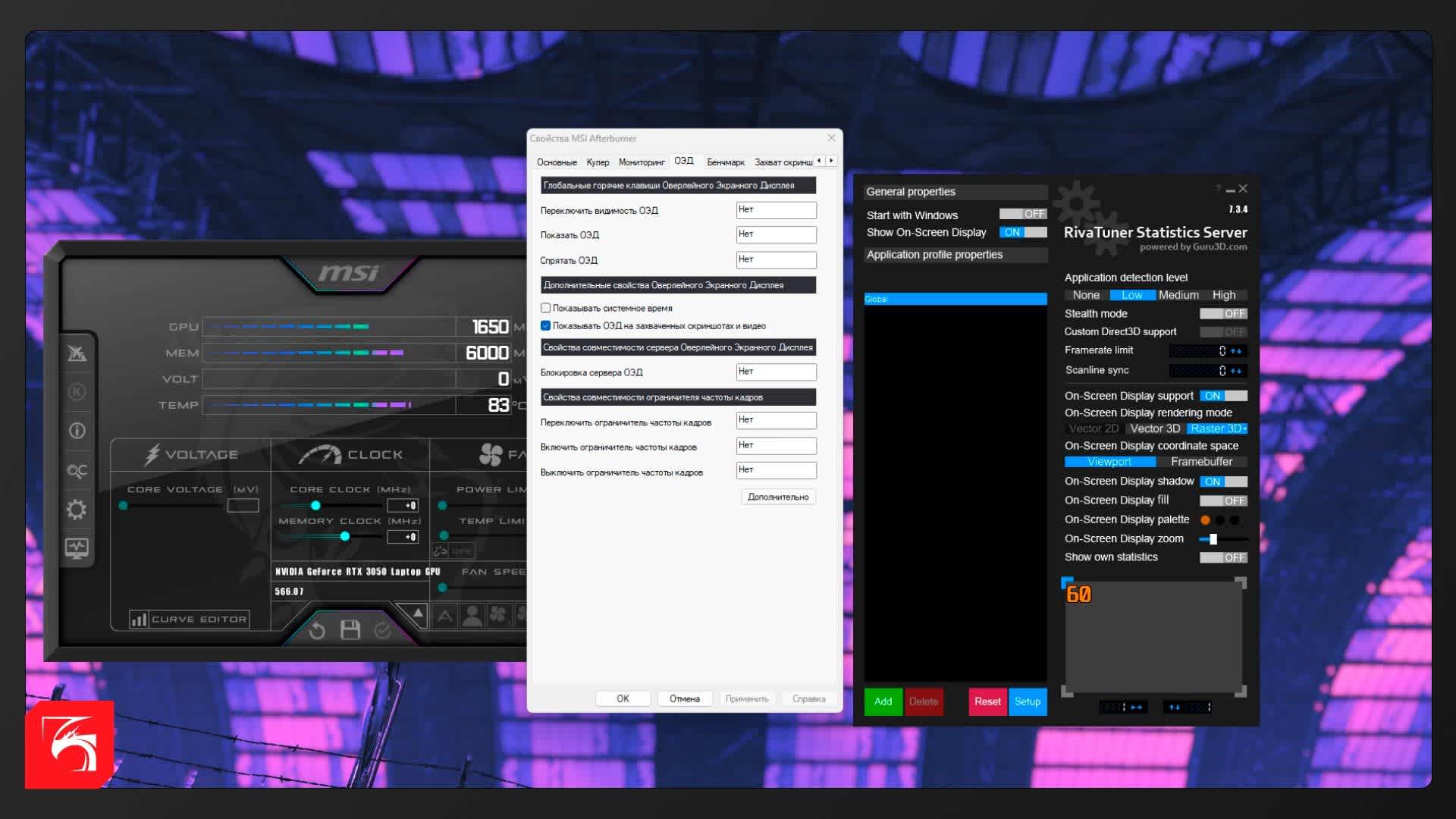
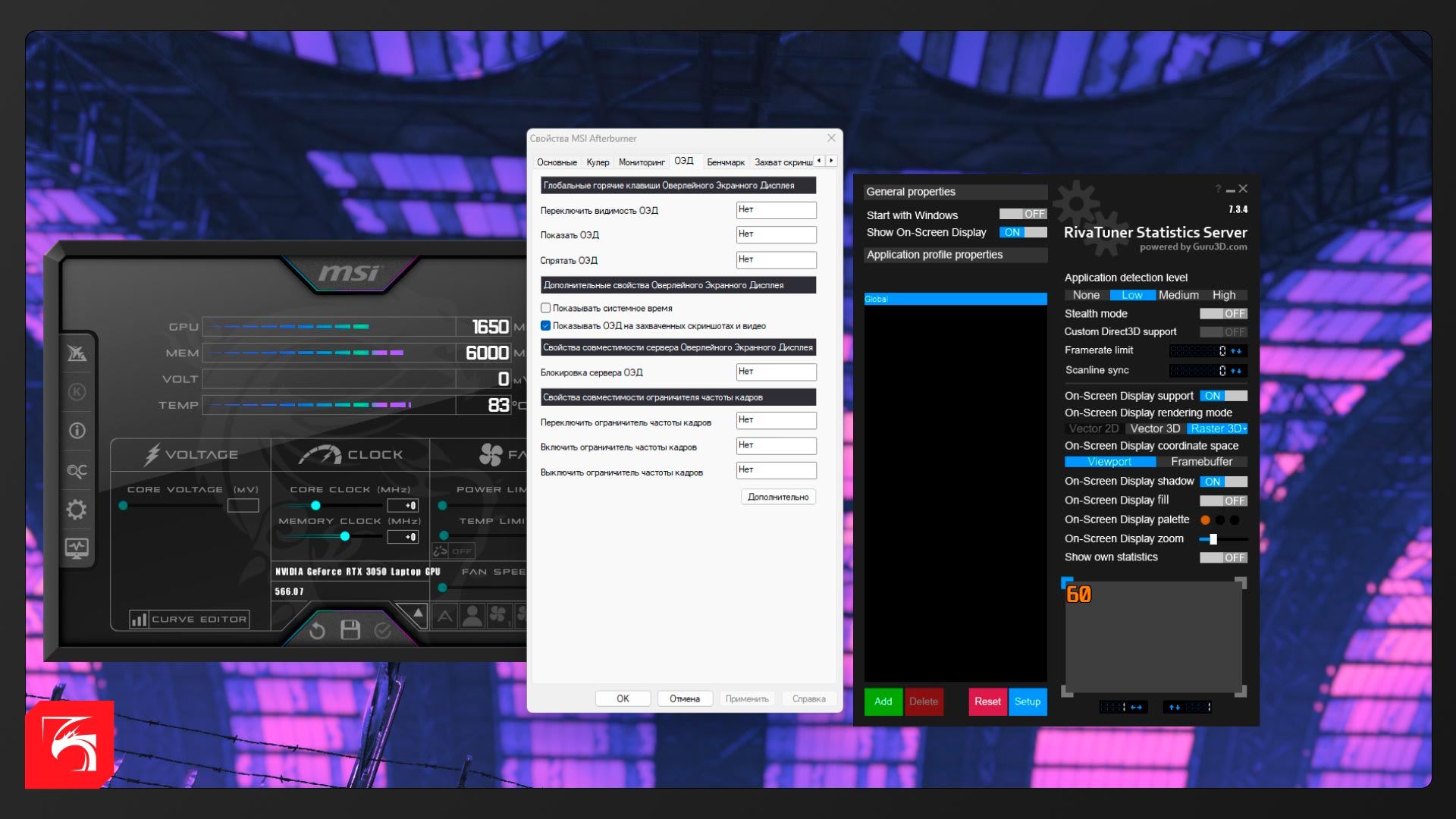
MSI Afterburner with RivaTuner remains the standard, giving an in-game overlay with utilisation, clocks, temperature and power on one line. GPU-Z offers a sensor log for after-the-fact review. NVIDIA and AMD both provide overlays in their own drivers.
Read the number during gameplay, not in a menu, not during a loading screen, and not while a shader cache is compiling. Any of those will show a misleadingly low figure. If you see stutter alongside your readings, our stuttering guide works through the causes.
Frequently Asked Questions
Is 100% GPU usage bad while gaming?
No. It is the target. It means your graphics card is the performance limit rather than something else starving it, which is the most efficient configuration for gaming. Watch temperature rather than utilisation.
Why is my GPU usage only 30% while gaming?
With no frame cap active and a frame rate below expectations, the usual cause is a CPU bottleneck, settings too low to generate meaningful load, or a background process interfering. Raise your resolution and watch whether utilisation climbs.
Does high GPU usage damage the graphics card?
No. Cards are engineered for sustained full load and self-regulate clocks and voltage to stay within safe limits. Poor cooling damages hardware over time; the utilisation percentage does not.
Should GPU usage be 100% in every game?
No. Older titles, indie games and anything running against a frame cap will legitimately show lower figures. Only judge the number in demanding titles with no cap applied.
Is 80% GPU usage normal while gaming?
It can be. If you are hitting your target frame rate, 80% is fine and simply means headroom remains. If frame rate is below expectations with no cap, 80% suggests a partial CPU bottleneck worth investigating.
Does more VRAM change GPU utilisation?
Not directly. VRAM capacity affects whether assets fit in memory; utilisation measures whether the processing cores have queued work. Running out of VRAM usually shows up as stutter and frame-time spikes rather than a lower utilisation figure — see how much VRAM you need for gaming.
The Bottom Line
Stop treating GPU utilisation as a health metric. In a demanding game with no frame cap, 95-100% is the correct reading and anything lower deserves a look. In every other situation the number tells you almost nothing on its own.
The single question worth asking is whether your frame rate matches what your hardware should deliver. If it does, utilisation is irrelevant. If it does not, low utilisation points upstream — to the CPU, the settings, or a throttling limit — and that is where to look.
Component and software photography courtesy of the respective manufacturers and publications, used for editorial coverage.
Sources
- NVIDIA, GeForce Performance Overlay and Statistics, retrieved 2026-08-19, https://www.nvidia.com/en-us/geforce/news/geforce-experience-performance-monitoring-overlay/
- Tom's Hardware Forum, Should GPU utilization in games always be more than 90%?, retrieved 2026-08-19, https://forums.tomshardware.com/threads/should-gpu-utilization-in-games-always-be-more-then-90.3876232/
- Tom's Hardware Forum, GPU usage 100% when playing?, retrieved 2026-08-19, https://forums.tomshardware.com/threads/gpu-usage-100-when-playing.2116177/
- TechPowerUp, GPU-Z Sensor Monitoring Documentation, retrieved 2026-08-19, https://www.techpowerup.com/gpuz/
- Puget Systems Labs, Most Reliable Hardware of 2025, retrieved 2026-08-19, https://www.pugetsystems.com/labs/articles/puget-systems-most-reliable-hardware-of-2025/