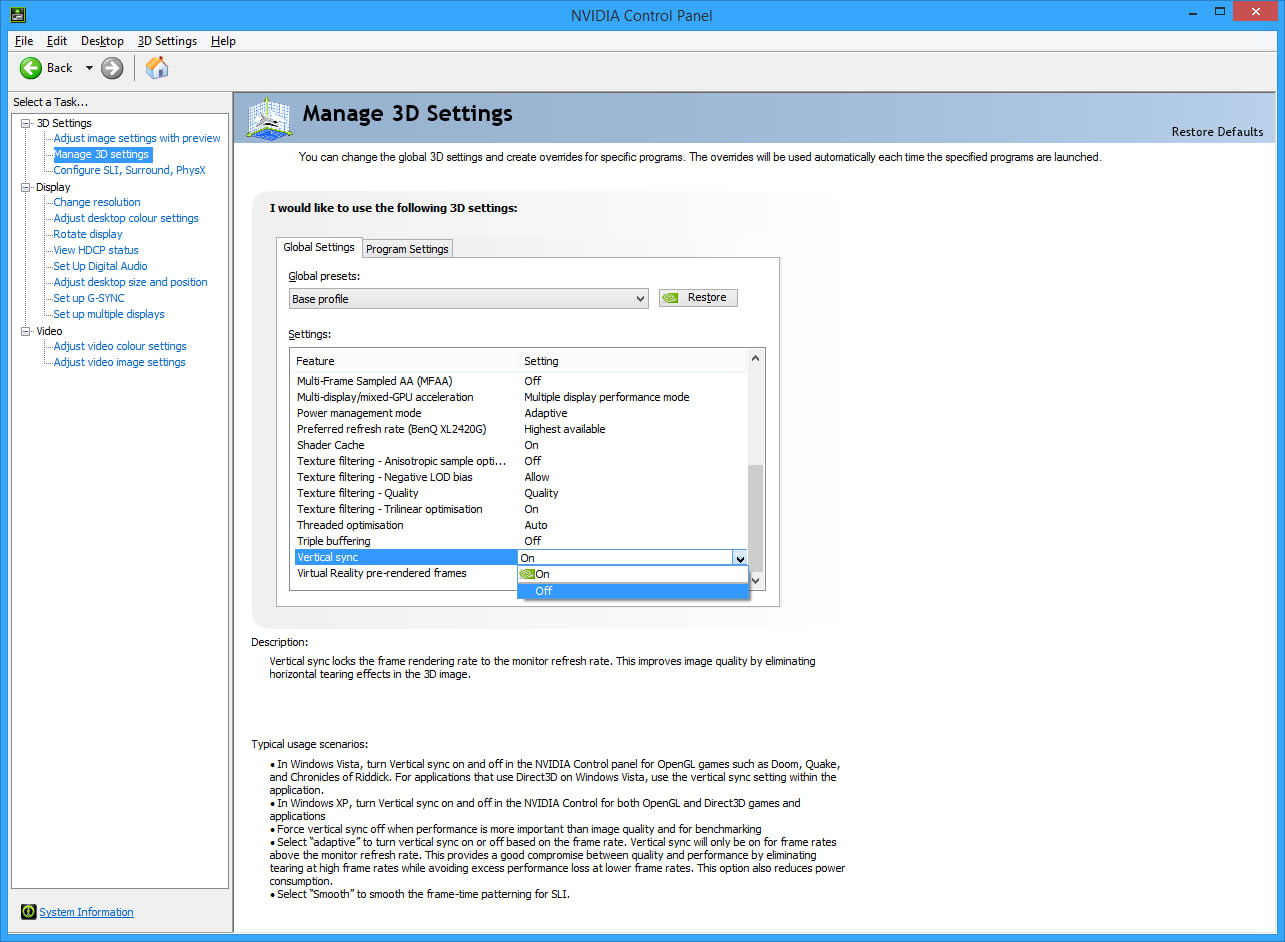
The lowest-latency G-Sync setup is the one that sounds wrong: V-Sync on in the driver, off in the game. Add a frame rate cap three FPS below your monitor's maximum and that is the whole configuration. Turning V-Sync off everywhere — which is what most people do to avoid input lag — actively makes things worse inside a variable refresh window.
The reason is that V-Sync does something completely different when G-Sync is active than it does on a fixed-refresh display. It stops being a frame pacing mechanism and becomes a tearing backstop, and in that role it costs almost nothing.
Note
Key Takeaways
- G-Sync ON in the monitor menu and in the NVIDIA Control Panel.
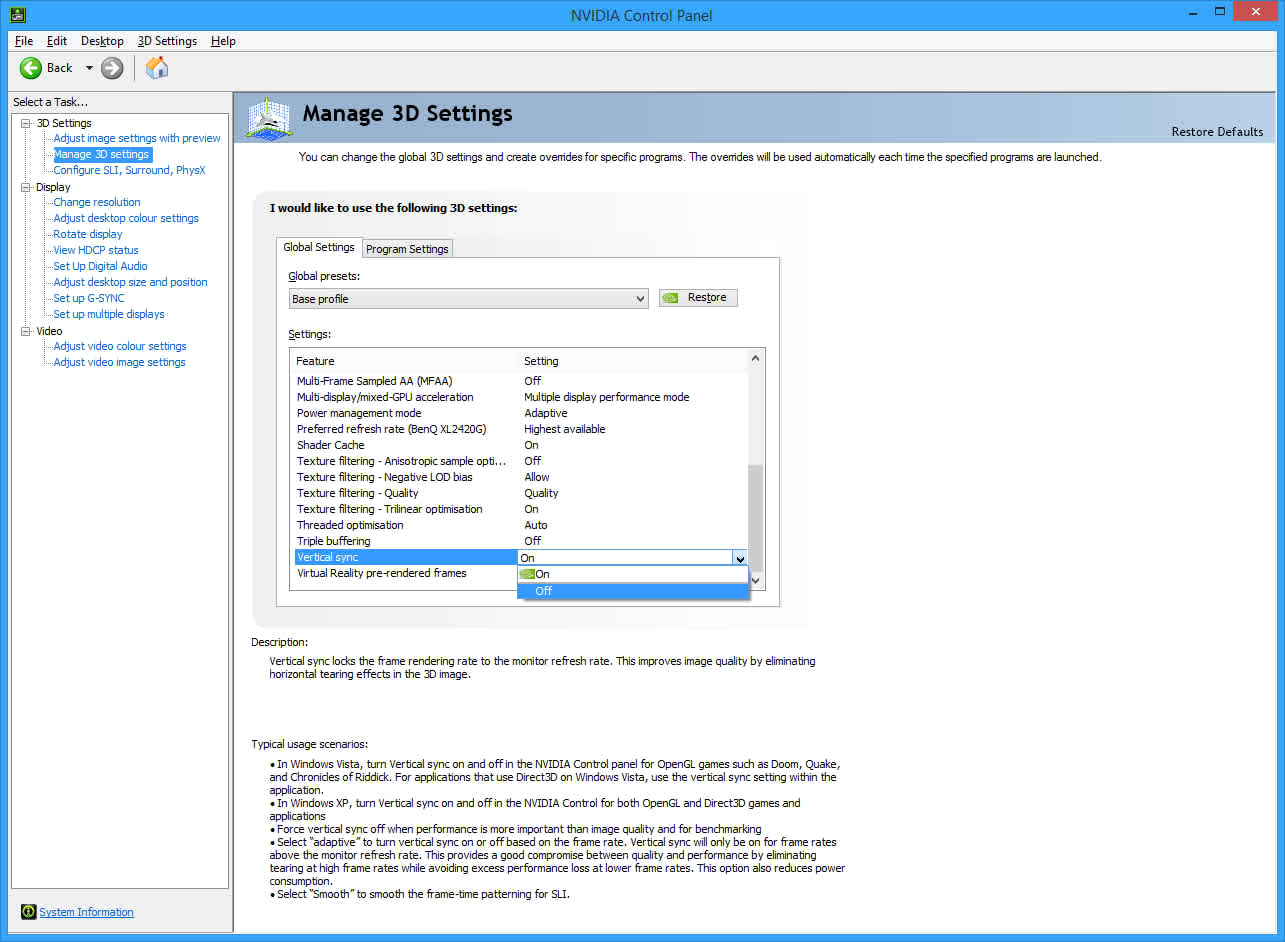
- V-Sync ON in the driver, OFF in the game. These are two separate settings and they do different jobs.
- Cap 3 FPS below your maximum refresh rate — 141 on a 144Hz panel, 237 on 240Hz.
- Without the cap, exceeding your refresh rate drops you out of the variable window and back into ordinary V-Sync latency.
- With Reflex enabled, the manual cap is unnecessary — Reflex sets its own.
- AMD FreeSync follows the identical logic with different menu names.
What G-Sync Actually Changes
On a fixed 144Hz display, the panel refreshes every 6.94ms whether a new frame is ready or not. Your GPU finishes frames on its own irregular schedule, and the mismatch is the source of both tearing and judder.
Variable refresh inverts the relationship. The monitor waits for the GPU. Each finished frame triggers a refresh, so a frame is displayed the moment it exists rather than at the next fixed interval. That removes tearing and judder together, without the frame-holding delay that V-Sync uses on a fixed-refresh panel.
The catch is that this only works within a range. Every variable refresh display has a window — commonly around 48Hz to its maximum — and the behaviour outside that window is where every configuration argument originates.
Why V-Sync Belongs On in the Driver
This is the part that reads as wrong, so it is worth being precise about what happens at the boundary.
Inside the variable refresh range, V-Sync does nothing at all. The monitor is already synchronised to the GPU, so there is nothing for V-Sync to hold back. It adds no latency because it never engages.
At the very top of the range, it matters enormously. When your frame rate reaches the monitor's maximum, the display cannot refresh any faster, and the variable mechanism has run out of room. With V-Sync off, frames that arrive during a refresh tear the image exactly as they would on a fixed-refresh panel. With V-Sync on, the driver holds that frame briefly instead, and you get a clean image.
So V-Sync's entire job in this configuration is to cover the last few frames per second at the ceiling. It is insurance that costs nothing while you stay below the limit — which is precisely why the frame cap matters.
Tip
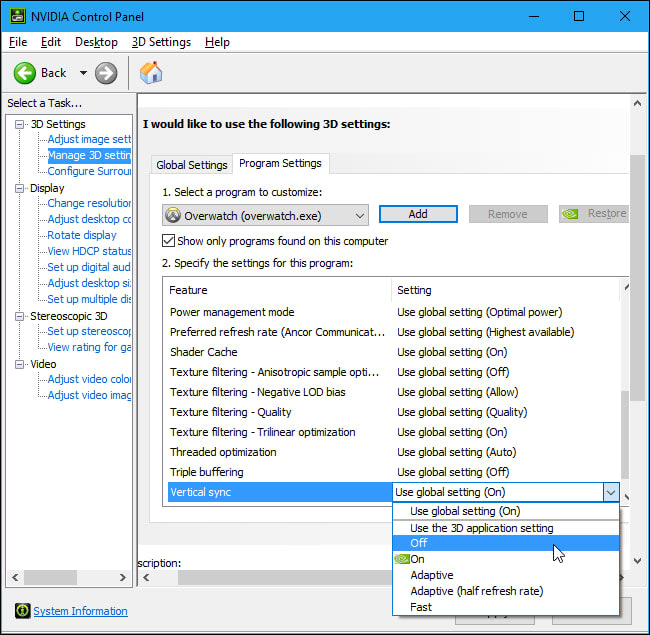
V-Sync in the NVIDIA Control Panel and V-Sync in a game's graphics menu are not the same switch. The in-game one usually implements its own frame pacing, which fights the driver. Set it on in the driver and off in the game, not both.
The Cap Is What Keeps You Inside the Window
If V-Sync is the backstop, the frame cap is what stops you ever reaching it.
A cap a few frames below the maximum keeps the GPU permanently inside the variable refresh range, where G-Sync does its job and V-Sync stays dormant. Blur Busters' G-SYNC 101 testing settled on roughly 3 FPS below maximum, or about 3-5% for very high refresh rates, as the point where you stay reliably inside the window without giving up meaningful performance.
| # | Monitor refresh | Recommended cap |
|---|---|---|
| 1 | 60Hz | 57 FPS |
| 2 | 120Hz | 117 FPS |
| 3 | 144Hz | 141 FPS |
| 4 | 165Hz | 162 FPS |
| 5 | 240Hz | 237 FPS |
| 6 | 360Hz | 355 FPS |
Without the cap, hitting your ceiling puts you into conventional V-Sync behaviour, and that is where the latency people associate with V-Sync actually lives. The frequently repeated advice to "turn V-Sync off to reduce input lag" is a fix for the wrong problem — the cap is what removes the latency, not disabling V-Sync.
Where to Set the Cap
Not all limiters are equivalent, and the differences are small but consistent.
In-game limiters generally produce the lowest latency, typically half a frame to a full frame better than external ones, because they sit closest to the game's own simulation loop. Their weakness is frame time consistency, which varies by engine.
RTSS sits at the other end — the steadiest frame pacing available, at the cost of roughly a frame of additional latency from how it holds frames.
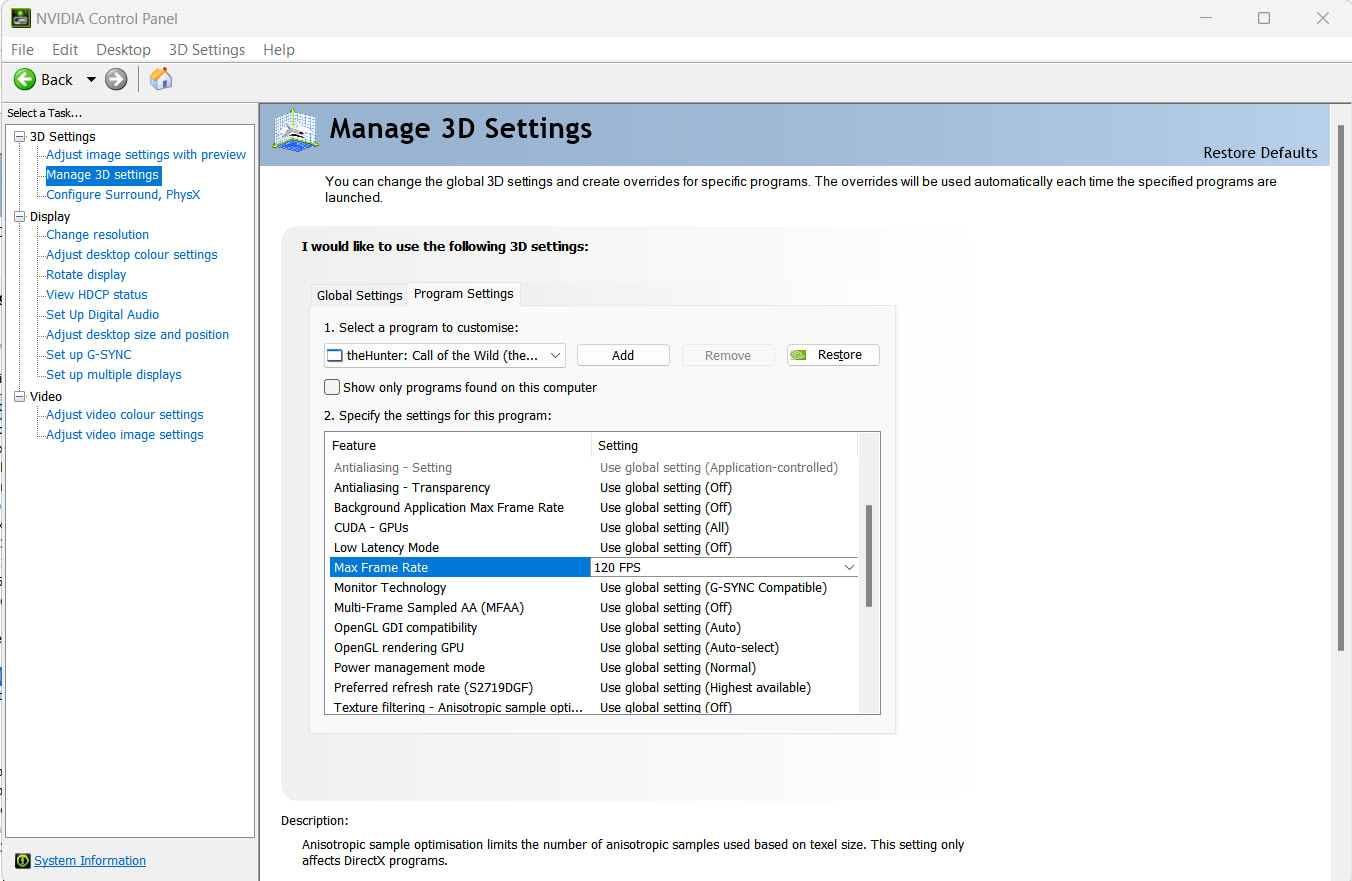
The NVIDIA Control Panel's Max Frame Rate setting is the convenient middle option. It is applied per-game or globally, needs no third-party software, and lands between the other two.
Use the in-game limiter when the game has a good one. Fall back to the driver setting when it does not.
Reflex Changes the Answer
If a game supports NVIDIA Reflex, enable it and skip the manual cap entirely.
Reflex does two things relevant here. It shortens the render queue so the CPU does not run ahead of the GPU, which is where a large share of input latency accumulates. And when it detects a G-Sync display, it applies its own frame rate cap slightly below the maximum refresh rate — doing automatically what the manual cap does, and adjusting dynamically.
Setting a manual cap on top of Reflex is redundant and can occasionally conflict. In a Reflex-enabled game the correct configuration is G-Sync on, V-Sync on in the driver, V-Sync off in the game, Reflex on, and no manual limiter.
The Complete Configuration
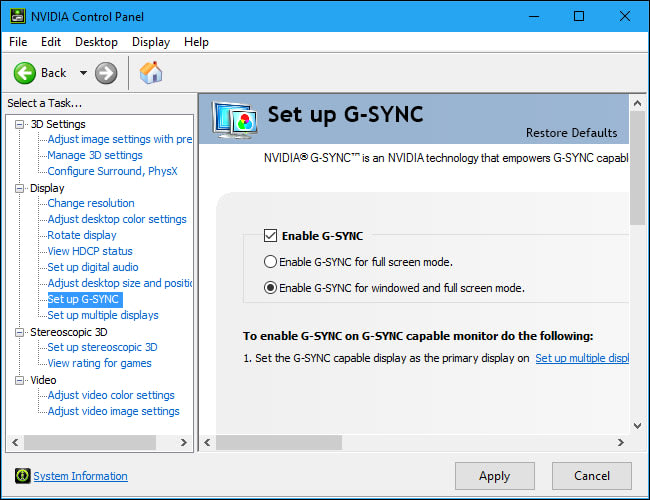
In the monitor's own menu: enable G-Sync, FreeSync, Adaptive-Sync, or whatever the manufacturer calls it. It is frequently off by default, and nothing in Windows will tell you.
In the NVIDIA Control Panel: set Monitor Technology to G-Sync, enable it for full screen and windowed mode, set Vertical sync to On, and set Max Frame Rate to your refresh rate minus three if the game has no Reflex support and no good internal limiter.
In the game: V-Sync off, Reflex on where offered, and the internal frame limiter set to your target if you prefer it over the driver's.
On AMD: the logic is identical. Enable FreeSync in the monitor and in AMD Software, turn on Wait for Vertical Refresh, and use Radeon Chill or the in-game limiter for the cap. Anti-Lag is the rough equivalent of Reflex.
What Goes Wrong Without the Cap
Three distinct failure modes, and people routinely misattribute all three.
Tearing at high frame rates. You have exceeded the window with V-Sync off. The variable mechanism is no longer engaged and you are seeing ordinary tearing.
Input lag that appears only in menus and lighter scenes. You are hitting the ceiling in exactly those scenes and dropping into V-Sync frame holding, then leaving it again when the scene gets heavy. The inconsistency is the tell.
Frame rate that feels erratic near the top of the range. Repeatedly crossing in and out of the variable window produces exactly this, and it is far more perceptible than the raw numbers suggest. Measuring it needs frame time data rather than an FPS counter — see what 1% lows measure.
Below the Window: Low Framerate Compensation
The bottom of the range is handled automatically on most modern displays, but it is worth understanding.
When your frame rate falls below the monitor's minimum variable refresh rate, Low Framerate Compensation duplicates frames to keep the panel refreshing inside its supported range. A game at 30 FPS on a 48-144Hz monitor gets each frame shown twice at 60Hz. It works well and needs no configuration.
Its one requirement is a wide enough range — LFC generally needs a maximum refresh rate of at least about 2.5 times the minimum. Cheap FreeSync panels with narrow windows, say 48-75Hz, cannot do it, and those displays genuinely do stutter badly below the floor.
Things This Setup Will Not Fix
Variable refresh solves tearing and judder. It does not solve everything that looks like them.
Ghosting and smearing are overdrive tuning, and variable refresh can make them worse because the optimal overdrive setting changes with refresh rate — covered in monitor overdrive and ghosting and GtG versus MPRT.
Brightness flicker on OLED panels in variable refresh is a separate phenomenon with its own causes, covered in VRR flicker on OLED monitors.
Stutter from shader compilation or asset streaming is unaffected — see how to fix stuttering in PC games.
Frame generation interacts with all of this in ways worth understanding before enabling it, covered in frame generation and input lag.
And if none of this is available because your display is not running at its rated refresh rate to begin with, start with why a 144Hz monitor runs at 60Hz.
Frequently Asked Questions
Should V-Sync be on or off with G-Sync?
On in the NVIDIA Control Panel, off in the game. Inside the variable refresh range V-Sync never engages and adds no latency. Its only job is preventing tearing in the moments your frame rate touches the monitor's maximum. With a frame cap keeping you below that ceiling, it stays dormant essentially all the time.
Why cap 3 FPS below the refresh rate instead of at it?
Because a cap set exactly at the maximum still allows brief excursions to the ceiling, which drops you into conventional V-Sync behaviour and its latency. A small margin keeps you reliably inside the variable window at all times. Three FPS is the widely tested figure for typical refresh rates, with 3-5% preferred at very high ones.
Do I still need a frame cap if I use Reflex?
No. Reflex applies its own cap slightly below your maximum refresh rate when it detects a G-Sync display, which serves the same purpose and adjusts dynamically. Adding a manual limiter on top is redundant and occasionally counterproductive. Enable Reflex and leave the cap alone.
Does G-Sync add input lag?
No, and within its range it removes the lag that V-Sync would otherwise add on a fixed-refresh display. The latency people attribute to G-Sync comes from running without a frame cap and repeatedly hitting the top of the refresh range, where conventional V-Sync frame holding takes over.
Does any of this apply to FreeSync?
Yes, with different names. Enable FreeSync in the monitor and in AMD Software, turn on Wait for Vertical Refresh, and cap a few frames below your maximum using Radeon Chill or the in-game limiter. Anti-Lag fills the role Reflex does. The underlying logic is identical because the displays work the same way.
What happens below the minimum refresh rate?
Low Framerate Compensation duplicates frames to keep the panel refreshing within its supported range, so a 30 FPS game on a 48-144Hz display refreshes at 60Hz. It is automatic. It only fails on panels with a narrow variable range, which cannot multiply frames cleanly enough to cover the gap.
The Bottom Line
Set G-Sync on, V-Sync on in the driver and off in the game, and cap three frames below your monitor's maximum. That configuration is not a compromise between smoothness and latency — inside the variable window it is simply the best of both, because V-Sync never engages and the cap ensures it never has to.
If the game supports Reflex, turn it on and delete your manual cap. And if you take one idea away, make it this: the latency people blame on V-Sync is really the latency of running uncapped into your refresh ceiling. Fix the cap and the old advice stops being relevant.
Sources
- Blur Busters, G-SYNC 101: Input Lag Tests and Settings, retrieved 2026-08-13, https://blurbusters.com/gsync/gsync101-input-lag-tests-and-settings/
- Blur Busters Forums, Updated recommended G-Sync settings, retrieved 2026-08-13, https://forums.blurbusters.com/viewtopic.php?t=15267
- NVIDIA, NVIDIA Reflex Low Latency Technology, retrieved 2026-08-13, https://www.nvidia.com/en-us/geforce/technologies/reflex/
- VESA, Adaptive-Sync and DisplayPort, retrieved 2026-08-13, https://www.vesa.org/featured-technologies/mainstream-displays/displayport/
- Blur Busters Forums, G-Sync with frame limiter, retrieved 2026-08-13, https://forums.blurbusters.com/viewtopic.php?t=9764