Overdrive pushes your monitor's pixels harder so they change colour faster, and the highest setting almost always pushes them too hard. The result is bright trails behind moving objects that look worse than the blur you were trying to remove. On the overwhelming majority of LCD gaming monitors, the correct setting is the middle preset, not the one with the most aggressive name.
That single sentence resolves most ghosting complaints. The setting labelled Extreme, Fastest, or Level 3 is a marketing number. It is tuned to hit the response time printed on the box, not to look good in real use. The rest of this guide covers how to verify that on your own panel, why VRR changes the answer, and the specific cases where the top setting is genuinely correct.
Note
Key Takeaways
- Overdrive overvolts pixels to force a faster transition. Too much and they overshoot the target colour.
- Overshoot looks like a bright or inverted halo trailing a moving object — often called inverse ghosting.
- The middle preset is the right answer on most LCDs. The top preset usually exists to hit a spec sheet number.
- With VRR enabled, a preset that looks clean at max refresh can overshoot badly when frame rate dips — tune at your worst-case frame rate, not your best.
- OLED panels do not have overdrive in any meaningful sense; their pixel transitions are already near-instant.
- Ten minutes with a free browser test beats any generic recommendation for your specific panel.
What Overdrive Actually Does
An LCD pixel changes colour by physically rotating liquid crystals. That takes time. On a 144Hz monitor each frame is on screen for just 6.94ms, and if a pixel needs 12ms to complete a transition, it is still mid-change when the next frame arrives. You see that as a soft smear trailing behind moving objects — conventional ghosting.
Overdrive attacks this by lying to the pixel. Instead of sending the voltage for the target colour, the scaler briefly sends a stronger voltage to accelerate the transition, then backs off once the pixel is close. Done well, the pixel arrives at the right colour faster and the smear shrinks.
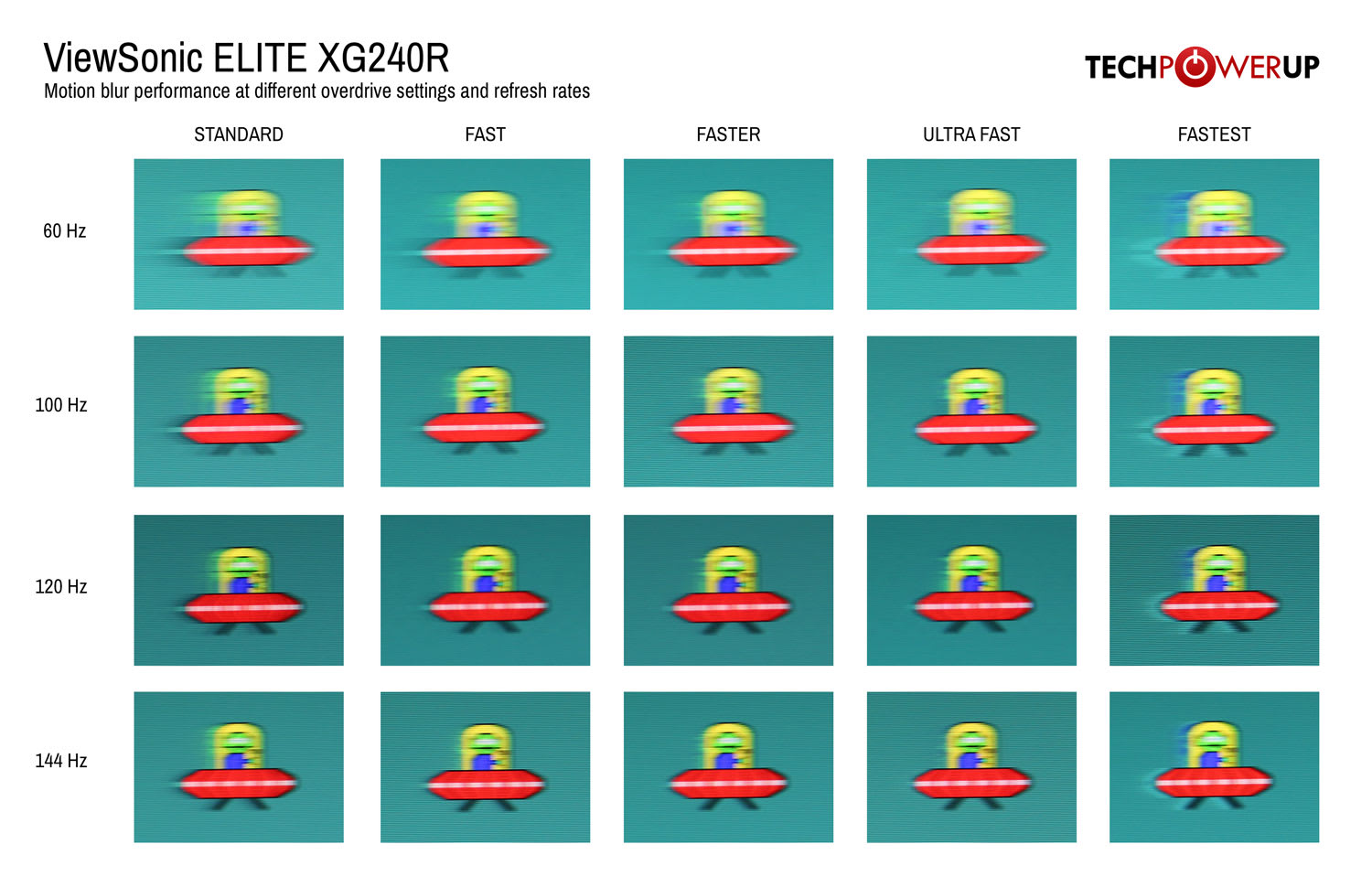
Done too aggressively, the pixel blows straight past the target before settling back. A dark-to-light transition overshoots into something brighter than intended, and you see a light halo leading or trailing the object. This is overshoot, commonly called inverse ghosting, and it is far more visually distracting than the original blur because your eye is drawn to bright artefacts far more readily than to soft ones.
Info
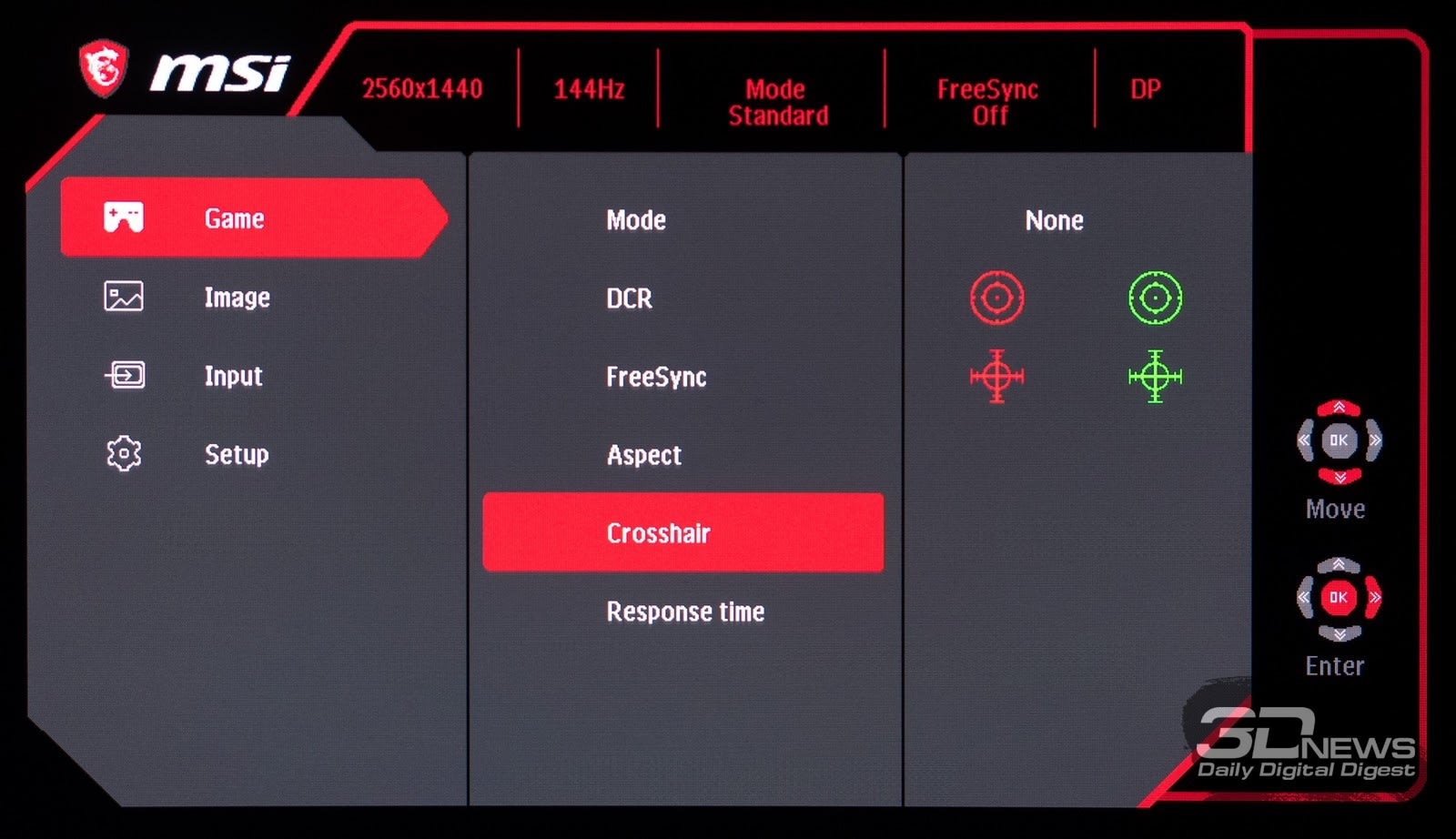
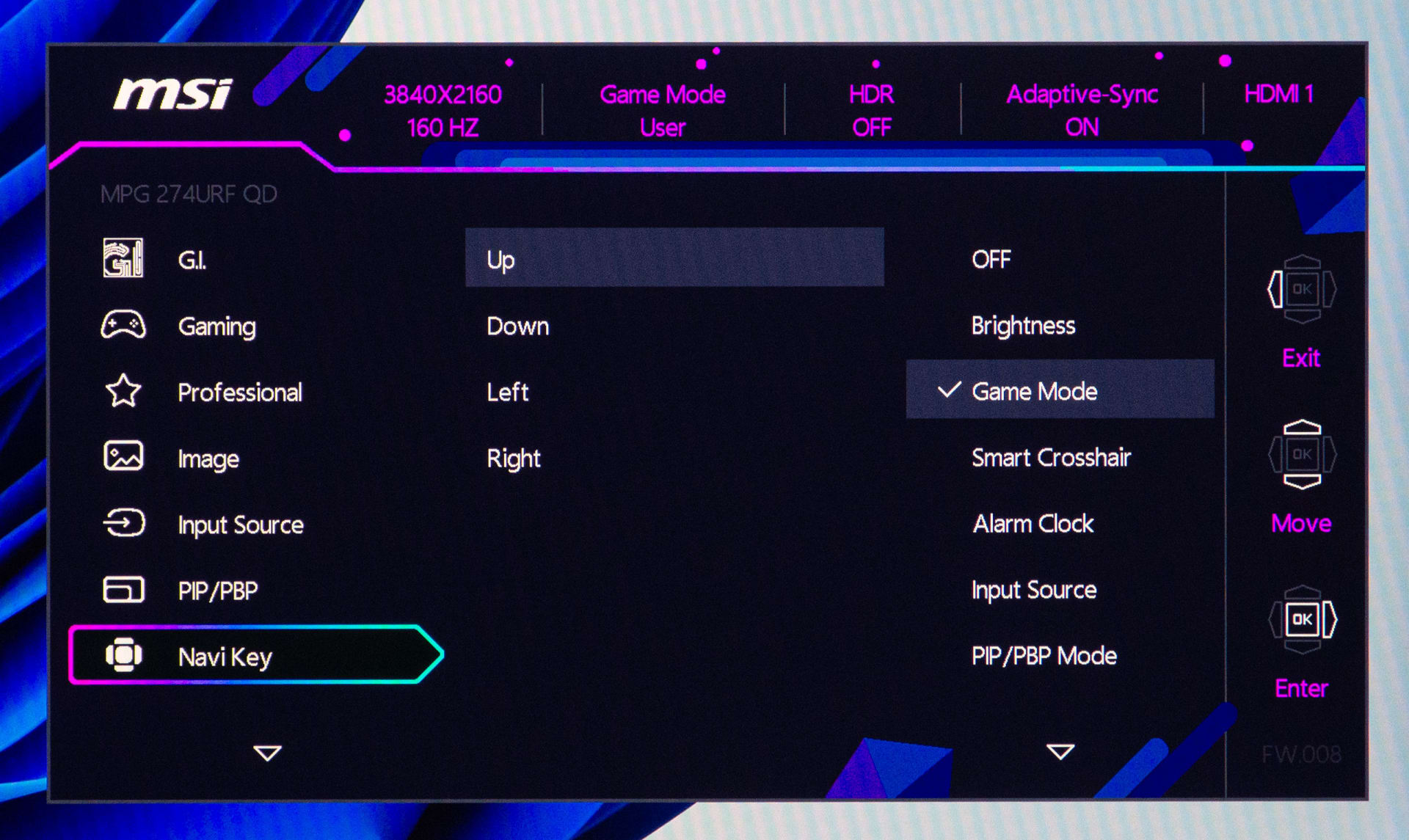
Manufacturers name this setting inconsistently. Depending on the brand you will find it as Overdrive, Response Time, OD, Trace Free, Rampage Response, MPRT or Smart Response. If a menu item offers Off / Normal / Fast / Fastest, that is your overdrive control regardless of what it is called.
Why the Top Setting Is Usually Wrong
Monitor specification sheets quote a grey-to-grey response time, and that number is measured at the most aggressive overdrive setting available, usually with a favourable transition chosen and a generous measurement threshold. A panel advertised at 1ms GtG will hit 1ms on precisely one transition, at maximum overdrive, in ideal conditions.
The top preset therefore exists mainly so that number can be printed. It is not tuned to be pleasant. Independent monitor reviewers routinely find that the maximum setting introduces obvious overshoot on the majority of panels tested, and recommend a lower mode as the daily driver.
The middle preset is a compromise the engineers actually had to make look reasonable across a range of transitions, which is why it wins so consistently. Reduce blur without pushing pixels hard enough to overshoot badly is a better goal than winning a specification argument you were not part of.
How to Tune It in Ten Minutes
You do not need equipment for this. You need a moving test pattern, your monitor's menu, and a little patience.
1. Open a Motion Test
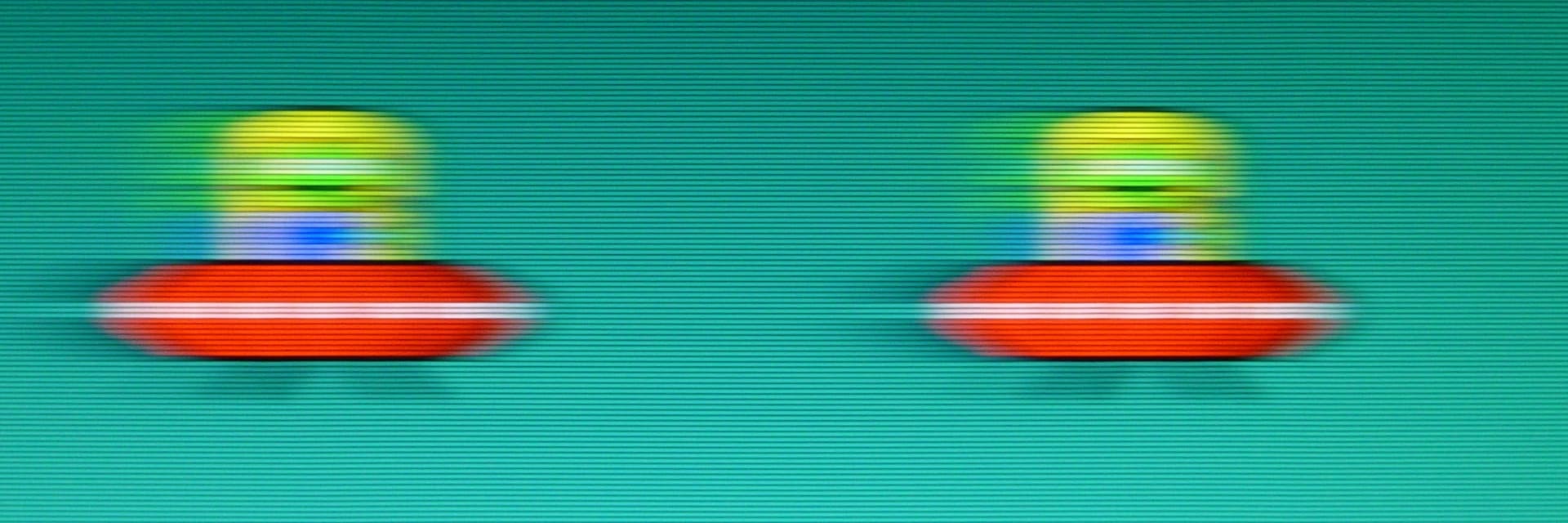
Use the UFO Test at testufo.com. Set it to the default moving pattern and let it run full screen.
2. Confirm Your Refresh Rate
Make sure Windows is actually running the panel at its rated rate before you judge anything.
3. Cycle Every Preset
Step through Off, then each level in turn. Spend at least 20 seconds on each and look specifically at the trailing edge of the moving object.
4. Look for Bright Halos
Soft dark smear behind the object is conventional ghosting. A bright or inverted outline is overshoot. Overshoot is the one to eliminate.
5. Pick the Highest Clean Setting
Choose the most aggressive preset that shows no bright halo. That is your answer, not the fastest one available.
6. Re-test at Low Frame Rate
If you use VRR, cap frames to around 55–60 and repeat. Many panels only overshoot in the lower half of the VRR window.
Step six is the one almost everyone skips, and it is the reason a monitor can look flawless in a benchmark and smeary in an actual game.
The VRR Complication
Overdrive tuning depends on refresh rate. The voltage boost that is correct for a 6.94ms frame at 144Hz is far too strong for a 16.67ms frame at 60Hz, because the pixel has more than twice as long to settle and will spend most of that time sitting at the overshot value where you can see it.
With a fixed refresh rate this is a non-issue — the monitor is tuned for one interval. With VRR enabled and frame rate swinging between 55 and 140 depending on what is on screen, the panel is being asked to use one overdrive curve across a range where no single curve is right.
Better monitors solve this with variable overdrive, adjusting the strength dynamically with refresh rate. If your panel has it, enable it and you are largely done. If it does not, you have to pick a preset that is acceptable at your lowest common frame rate rather than your highest, which usually means dropping one step below what looks best at max refresh.
| # | Scenario | Recommended setting |
|---|---|---|
| 1 | Fixed refresh, high frame rate | Middle preset, test the one above it |
| 2 | VRR with variable overdrive | Enable variable OD, then middle preset |
| 3 | VRR without variable overdrive | One step below the max clean setting |
| 4 | Frame rate frequently below 60 | Low preset or Off |
| 5 | Console at locked 60Hz | Middle preset |
| 6 | OLED panel | Setting is cosmetic — ignore it |
If you are running VRR and seeing brightness instability rather than trailing artefacts, that is a different phenomenon on a different panel type entirely, and it is covered in VRR flicker on OLED monitors.
Things That Look Like Overdrive Problems But Are Not
A significant share of "my monitor is ghosting" reports turn out to be something else. Rule these out before you touch the OSD.
The monitor is not running at its rated refresh rate. A display silently dropped to 60Hz by a driver update, a cable swap, or an inadequate connection will look smeary no matter what you set overdrive to. Check Settings → System → Display → Advanced display first. Whether your cable can even carry the rate you want is a real constraint — see our HDMI versus DisplayPort comparison.
Low frame rate, not slow pixels. A game running at 45 FPS on a 165Hz monitor looks blurry in motion because it is blurry in motion. Overdrive cannot manufacture frames. If your frame rate is the problem, start with how to fix stuttering in PC games.
Frame pacing rather than pixel response. Uneven frame delivery reads as judder, which people frequently describe as ghosting. The way to tell them apart is to measure — average FPS will not show it, but 1% lows will.
A second display dragging the first down. Mismatched refresh rates across two monitors cause composition problems that show up as motion irregularity on the primary. That is its own topic, covered in why your second monitor kills your FPS.
Black frame insertion left on. BFI or backlight strobing modes reduce perceived blur but cut brightness substantially and can introduce their own artefacts. If motion looks strange and the screen is dim, check whether a strobing mode is enabled before blaming overdrive.
When the Highest Setting Is Actually Right
There are real exceptions, and they follow a pattern.
Fast IPS and modern TN panels at high fixed refresh rates sometimes genuinely need the top setting to keep up, and are engineered with enough margin that it does not overshoot. If you run a 240Hz or 360Hz esports panel at a locked high frame rate and the maximum preset shows no halo in the UFO test, use it.
Some VA panels have such slow dark transitions that even aggressive overdrive leaves visible smear, and the overshoot penalty is worth paying to reduce it. VA black smear is a panel-technology limitation rather than a tuning problem, and the best available setting may still be imperfect.
Panels with only two options — an on/off toggle rather than graded levels — usually benefit from being on. The manufacturer has picked a single conservative curve.
Tip
Judge with games, not just test patterns. The UFO test is excellent for spotting overshoot because it isolates the artefact, but a setting that shows a faint halo on a synthetic high-contrast pattern may be completely invisible in an actual game. Confirm your choice in the games you actually play before committing to it.
Frequently Asked Questions
What is the best overdrive setting for a gaming monitor?
The middle preset on most LCDs — Normal, Fast, Standard or Level 2 depending on the brand. The correct answer for your specific panel is the most aggressive setting that shows no bright halo behind a moving object in a motion test, which is rarely the highest one available.
Should I turn monitor overdrive off completely?
Only if every available level produces visible overshoot, or if you regularly play below 60 FPS where the pixel has plenty of time to settle anyway. On most modern panels, Off leaves obvious conventional ghosting on the table for no benefit.
What is inverse ghosting and how is it different from normal ghosting?
Normal ghosting is a soft, dark smear trailing a moving object, caused by pixels transitioning too slowly. Inverse ghosting is a bright or inverted halo, caused by overdrive pushing pixels past their target colour. Bright artefacts are much more noticeable, which is why too much overdrive looks worse than none.
Does overdrive matter on an OLED monitor?
Effectively no. OLED pixels change state in well under a millisecond, so there is nothing to accelerate. Some OLED monitors expose an overdrive-style menu item for consistency, but changing it has no meaningful effect on motion clarity.
Why does my monitor look fine in benchmarks but smeary in games?
Almost always VRR. A preset tuned at maximum refresh can overshoot badly when frame rate drops into the lower half of the variable refresh window, which is exactly what happens in real gameplay and never happens in a fixed-rate test pattern. Re-tune with your frame rate capped around 60.
Does overdrive add input lag?
No meaningful amount. Overdrive changes the voltage sent to the pixel, not the processing pipeline. Strobing and black frame insertion modes are the ones that can add latency, and they are separate settings.
The Bottom Line
Overdrive is one of the few monitor settings where the most aggressive option is usually the wrong one, and where the correct choice differs from panel to panel in ways no generic recommendation can capture.
Start at the middle preset. Open a motion test. Step up one level and look for bright halos. If you see them, step back down. That is the whole method, and it takes less time than reading a review of your monitor.
Then repeat the test with your frame rate capped low if you use VRR, because that is the condition under which real games actually run and the condition where most people's chosen setting quietly falls apart.
Monitor photography and motion test imagery courtesy of the respective manufacturers and publications, used for editorial coverage.
Sources
- Blur Busters, Motion Tests and Pursuit Camera Testing Techniques, retrieved 2026-07-29, https://blurbusters.com/motion-tests/
- Blur Busters, TestUFO Motion Test, retrieved 2026-07-29, https://www.testufo.com/
- KTC, Monitor Overdrive Explained: Reduce Ghosting & Overshoot, retrieved 2026-07-29, https://us.ktcplay.com/blogs/technology-hub/monitor-overdrive-explained
- KTC, Best Monitor Overdrive Setting to Reduce Ghosting, retrieved 2026-07-29, https://us.ktcplay.com/blogs/support-tips/best-monitor-overdrive-setting-for-ghosting
- Hone, Overdrive Setting on Monitor – What is it, On or Off?, retrieved 2026-07-29, https://hone.gg/blog/overdrive-setting-on-monitor/