If HDR on Windows 11 makes everything look grey, flat and desaturated, the cause is usually one of three things: SDR content being stretched across an HDR container, your GPU outputting Limited range instead of Full, or Auto HDR applying tone mapping to games that were never authored for it.
Quick answer: Run the Windows HDR Calibration app from the Microsoft Store, set your GPU output to RGB Full range, and turn Auto HDR off. Those three steps fix the large majority of washed-out HDR complaints.
The frustrating part is that HDR should look better than SDR, and when it is set up correctly it does. What most people see instead is a milky, low-contrast image that makes them turn the feature off entirely.
Note
Key Takeaways
- Confirm HDR is enabled on the correct display first — multi-monitor setups toggle per-display.
- Run Windows HDR Calibration (free, Microsoft Store). It is the single highest-impact fix.
- Set GPU output to RGB, Full range. Limited range crushes contrast and looks washed out immediately.
- Auto HDR frequently produces the flat look people complain about. Turn it off and judge native HDR alone.
- Use the SDR content brightness slider — it controls how desktop apps look, and it defaults badly.
Why Does HDR Look Washed Out?
HDR looks washed out when the display is in HDR mode but the content, the output signal, or the tone mapping does not match. The monitor stretches a limited signal across a much wider range, and the result is low contrast and pale colours.
The most common version of this is simply your desktop. Windows, browsers and most applications are SDR content. When HDR mode is on, Windows has to map that SDR content into the HDR container, and if the SDR brightness slider is set wrong, everything outside of games looks grey.
Warning
A hard truth worth knowing before you spend an evening on this: many monitors labelled "HDR" cannot actually display it. DisplayHDR 400 panels typically lack local dimming and the peak brightness HDR requires, so enabling HDR on them genuinely does look worse than SDR. If your display is DisplayHDR 400 without local dimming, no amount of calibration will fix it — leaving HDR off is the correct answer.
Fix 1: Confirm HDR Is On for the Right Display
Windows enables HDR per-display, and on a multi-monitor setup it is easy to toggle it on the wrong one.
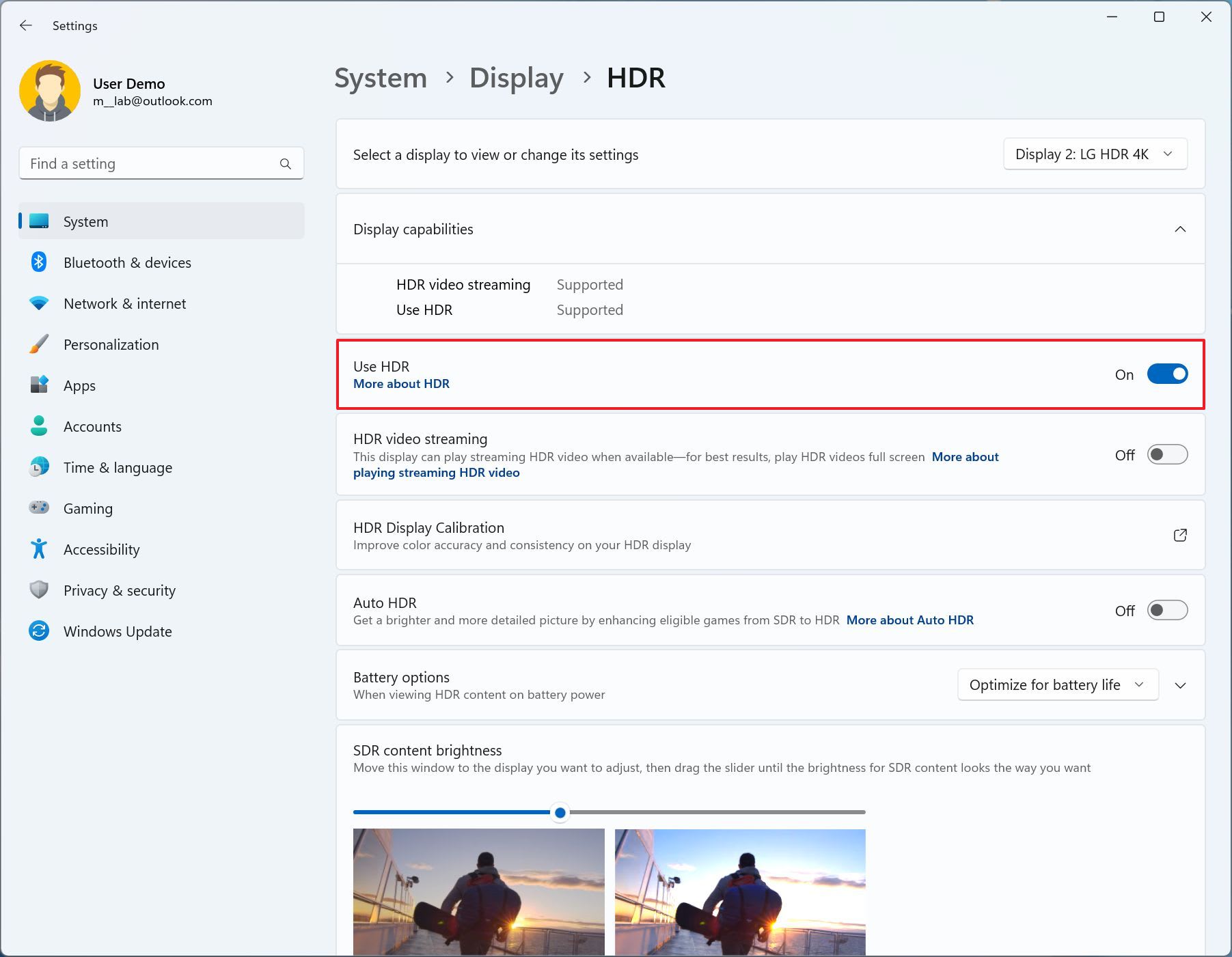
- Open Settings → System → Display.
- Select the correct monitor at the top of the page.
- Expand HDR.
- Confirm Use HDR is on for that specific display.
While you are here, check that the panel reports HDR support at all. If Windows shows "Not supported," the problem is the cable, the port, or the display itself rather than any software setting.

Fix 2: Run the Windows HDR Calibration App
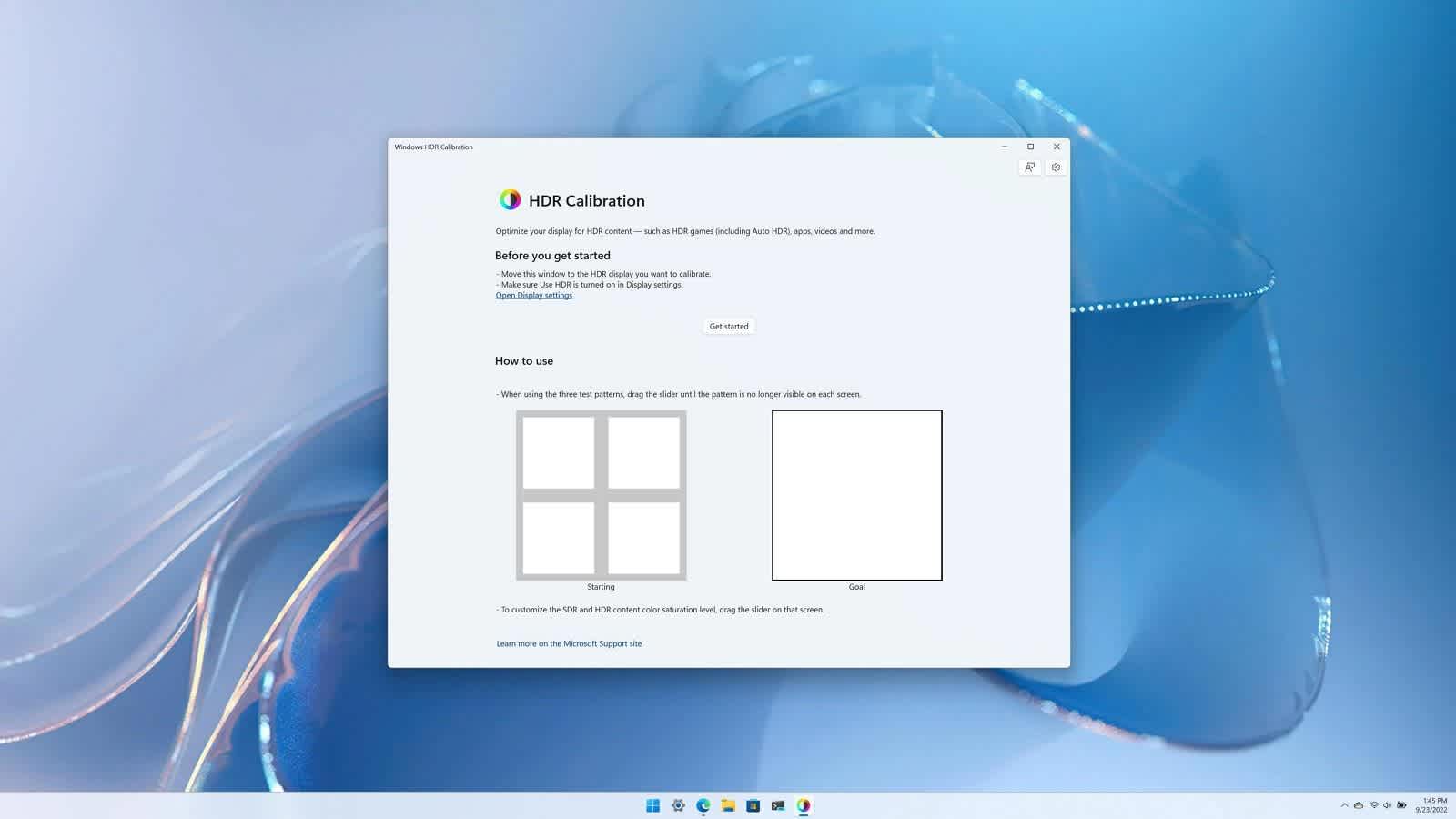
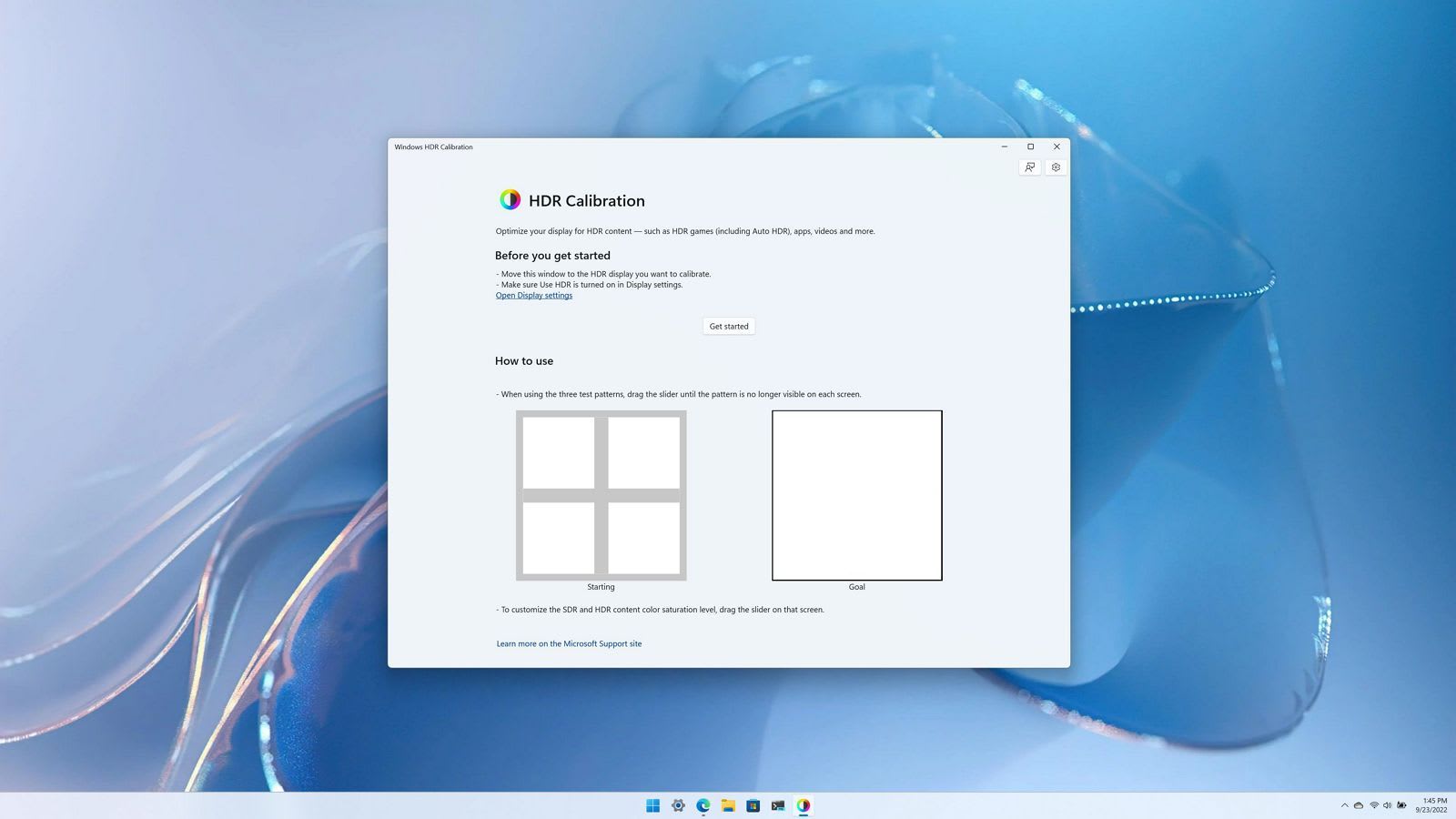
This is the highest-impact fix and most people have never run it. Microsoft publishes a free Windows HDR Calibration app on the Microsoft Store that generates a proper colour profile for your specific panel.
It walks through three test patterns:
- Black level — find the point where dark detail just disappears.
- Maximum luminance — find your panel's real peak brightness.
- Full-frame maximum luminance — the brightness it can sustain across the whole screen.
Then it applies a saturation adjustment and saves an ICC profile.

The reason this matters so much: without calibration, Windows assumes generic panel capabilities. If your monitor peaks at 600 nits and Windows assumes 1,000, everything bright gets tone-mapped down and the image goes flat.
Do It in Your Normal Room Lighting
Your eyes adapt to ambient light. Calibrating in a dark room and then gaming with the curtains open produces the wrong result.
Trust the Patterns, Not Your Instinct
The instruction is to adjust until the pattern just disappears. People consistently overshoot because they want to keep seeing detail.
Recalibrate After Firmware Updates
Monitor firmware updates can change tone mapping behaviour. Rerun the app if the image changes after one.
Fix 3: Set Output to RGB Full Range
This one causes an immediately visible washed-out look and is extremely common, particularly over HDMI.
On Nvidia: open the Nvidia Control Panel → Display → Change resolution. Set Output color format to RGB and Output dynamic range to Full.
On AMD: open AMD Software: Adrenalin Edition → Settings → Display. Set Pixel Format to RGB 4:4:4 Full RGB.
Limited range sends values from 16 to 235 instead of the full 0 to 255. If the display is expecting full range and receives limited, blacks become grey and the whole image loses contrast — precisely the "washed out" complaint.
Tip
HDMI connections default to Limited range far more often than DisplayPort does, because HDMI's origins are in television rather than computing. If your washed-out problem appeared after switching from DisplayPort to HDMI, check this setting before anything else.
Fix 4: Turn Off Auto HDR
Auto HDR takes SDR games and applies automatic tone mapping to make them look HDR. The results are inconsistent, and it frequently produces exactly the flat, desaturated appearance people are trying to fix.
Turn it off in Settings → System → Display → HDR → Auto HDR, then restart the game.
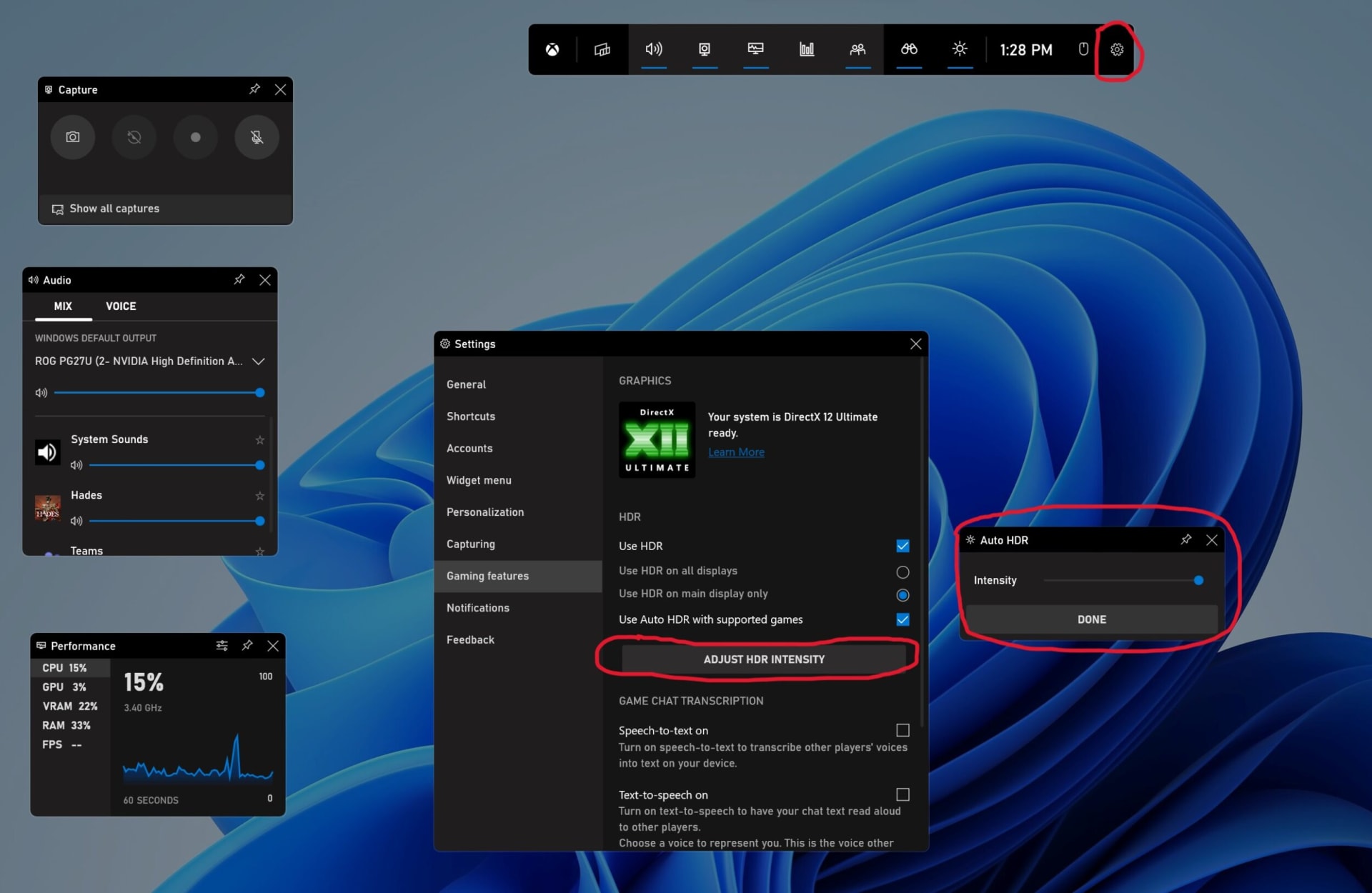
Judge native HDR on its own first. If games with real HDR support look correct and only Auto HDR titles look bad, you have found your answer and you can leave Auto HDR off permanently. Nvidia users have an alternative worth trying: RTX HDR, enabled through the Nvidia app under Graphics → Global Settings, generally produces better results than Microsoft's implementation.
Fix 5: Adjust the SDR Content Brightness Slider
This slider controls how non-HDR content — your desktop, browser, and most applications — appears while HDR is enabled. It has no effect on HDR games at all.
Find it under Settings → System → Display → HDR → SDR content brightness.
If your desktop looks washed out but games look fine, this slider is your entire problem. Adjust it until white windows look properly white rather than grey. The default is frequently wrong for the panel.
Fix 6: Pick the Right HDR Mode In-Game
Many games offer several HDR pipelines, and choosing the wrong one produces a flat image regardless of your Windows configuration.
| # | In-game option | What it does | When to use it |
|---|---|---|---|
| 1 | HDR10 | Native HDR output, game handles tone mapping | Usually the correct choice |
| 2 | Use Windows HDR | Defers to the Windows calibration profile | Good if you ran HDR Calibration |
| 3 | Console HDR | Tone mapping tuned for TV panels | Only on an actual TV |
| 4 | Auto / Automatic | Lets the game guess | Try last, results vary |
Games also usually include their own HDR brightness calibration screen. Run it — a game-level calibration set for a different panel will override everything you did in Windows.
This matters more with each new release: big 2026 and 2027 titles such as GTA 6 ship with their own HDR pipelines, and the in-game setting almost always wins over the Windows one.
Fix 7: Update Drivers and Check the Cable
HDR requires a successful handshake between GPU, cable and display. Stale drivers break this, and so does insufficient cable bandwidth.
Install the latest WHQL driver for your GPU, then reconfigure the output format settings — a driver update frequently resets them back to Limited range.
For cables: HDR at high resolution and refresh rate needs real bandwidth. Use DisplayPort 1.4 or later, or HDMI 2.1 for 4K at high refresh. A cheap or old HDMI cable can negotiate a lower link and silently produce an SDR-like image. Our comparison of HDMI and DisplayPort covers which standard delivers what bandwidth.
Fix 8: Check the Monitor's Own Settings
Monitors have their own HDR modes, and some ship in a preset that defeats the point.
A display running hot or underpowered can also drop out of HDR mode mid-session; if that happens alongside other instability, our guide to why a PC shuts down while gaming covers the power and thermal side.
Look through the on-screen display for a picture mode set to something like "HDR Standard" versus "HDR Vivid" or a display-side tone mapping option. Also check whether local dimming is enabled — on panels that have it, HDR without local dimming looks noticeably flat because the backlight cannot produce the contrast HDR assumes.
The Full Fix Order
| # | Step | Time | Fixes |
|---|---|---|---|
| 1 | Confirm HDR on the correct display | 1 min | Multi-monitor confusion |
| 2 | Set RGB Full range in GPU control panel | 2 min | Crushed contrast, grey blacks |
| 3 | Run Windows HDR Calibration | 10 min | Wrong tone mapping assumptions |
| 4 | Adjust SDR content brightness | 2 min | Washed-out desktop and apps |
| 5 | Turn off Auto HDR | 1 min | Flat SDR-to-HDR conversion |
| 6 | Select the right in-game HDR mode | 2 min | Per-game flat image |
| 7 | Update GPU driver, recheck output format | 20 min | Handshake and reset settings |
| 8 | Check monitor OSD and local dimming | 5 min | Display-side tone mapping |
Frequently Asked Questions
Why does HDR make my screen look grey on Windows 11?
Most often because SDR content is being mapped into the HDR container with the SDR content brightness slider set too low, or because your GPU is outputting Limited range instead of Full. Both make blacks appear grey and reduce overall contrast. Check the output range first, then the SDR brightness slider.
Should I turn off Auto HDR?
Try it off first. Auto HDR applies automatic tone mapping to games that were not authored for HDR, and the results are inconsistent — it commonly produces the washed-out look people are trying to fix. Judge native HDR titles on their own, and if they look correct, leave Auto HDR disabled.
Does the Windows HDR Calibration app actually help?
Yes, significantly, and it is free from the Microsoft Store. Without it Windows assumes generic panel capabilities, so if your monitor peaks at 600 nits while Windows assumes 1,000, bright content gets tone-mapped down and the image goes flat. Calibration writes a profile matching your actual panel.
Is my monitor good enough for HDR?
If it is DisplayHDR 400 without local dimming, probably not. Those panels lack the peak brightness and contrast control HDR needs, and enabling HDR genuinely looks worse than leaving it off. DisplayHDR 600 with local dimming is roughly where HDR starts being worth using, and OLED panels handle it best.
Why does HDR look fine in games but bad on my desktop?
That is the SDR content brightness slider, found under Settings → System → Display → HDR. It controls only how non-HDR content appears while HDR mode is active and has no effect on HDR games. Raising it until white windows look properly white resolves the desktop issue without touching game output.
The Bottom Line
Three settings resolve most washed-out HDR: RGB Full range, the Windows HDR Calibration app, and Auto HDR off. Do those in that order before changing anything else, and re-evaluate after each one rather than all at once.
If the image still looks flat afterwards, the honest answer is often the panel. HDR is a display capability before it is a software feature, and a monitor without the brightness and local dimming to deliver it will look worse in HDR no matter how carefully Windows is configured. There is no shame in leaving it off.
For other display-side tuning, our guide to fixing stuttering in PC games covers frame delivery, and what 1% lows actually measure explains how to tell a display problem from a performance one.
If the HDR toggle is greyed out entirely, or the calibration app will not launch or save its profile, that is a different fault — Windows HDR calibration not working covers the bandwidth and signal-path causes behind it.
Screenshots courtesy of Microsoft and the respective software vendors, used for editorial coverage.
Sources
- Microsoft DirectX Developer Blog, The Windows HDR Calibration app is here, retrieved 2026-07-27, https://devblogs.microsoft.com/directx/the-windows-hdr-calibration-app-is-here/
- Microsoft Q&A, How do I prevent HDR from washing out and being entirely incorrect in supported applications?, retrieved 2026-07-27, https://learn.microsoft.com/en-us/answers/questions/4007655/how-do-i-prevent-hdr-from-washing-out-and-being-en
- Windows Report, Windows 11 HDR is Washed Out? 5 Ways to Fix it, retrieved 2026-07-27, https://windowsreport.com/windows-hdr-washed-out/
- MakeUseOf, Windows 11 HDR looks bad for browsing and gaming, so I fixed it with these tweaks, retrieved 2026-07-27, https://www.makeuseof.com/windows-11-hdr-looks-bad-for-browsing-gaming-fixed-it-with-tweaks/
- Position Is Everything, 15 Most Effective Ways to Fix Windows 11 HDR is Washed Out, retrieved 2026-07-27, https://www.positioniseverything.net/15-most-effective-ways-to-fix-windows-11-hdr-is-washed-out/