When the HDR toggle is greyed out or the calibration app refuses to run, the cause is nearly always a signal-path limit rather than a Windows bug.
Windows only offers HDR when the display tells it, through EDID, that HDR is available at the resolution, refresh rate and colour depth currently negotiated. Break any part of that chain — a cable, a dock, a port, a bandwidth ceiling — and the option disappears without ever explaining why.
Quick answer: Enable Use HDR on the target display first, because the Windows HDR Calibration app will not run without it. If the toggle is greyed out or missing, drop the refresh rate one step and connect the monitor directly to the GPU with a certified cable. That restores the option in most cases.
This is a different problem from HDR that is switched on but looks wrong. If your image is enabled but grey and flat, our guide to HDR looking washed out on Windows 11 is the one you want.
Note
Key Takeaways
- The calibration app requires HDR to already be on for the display you are calibrating. It will not enable it for you.
- A greyed-out toggle is a bandwidth or EDID problem far more often than a software fault.
- Docks, adapters and daisy-chained monitors routinely strip HDR from the signal path. Test connected directly to the GPU.
- On laptops, HDR usually needs the discrete GPU driving the panel. Hybrid graphics modes frequently remove the option.
- A missing SDR content brightness slider is the clearest sign that HDR is not actually active on the display you selected.
First: Confirm What Windows Thinks Your Display Can Do
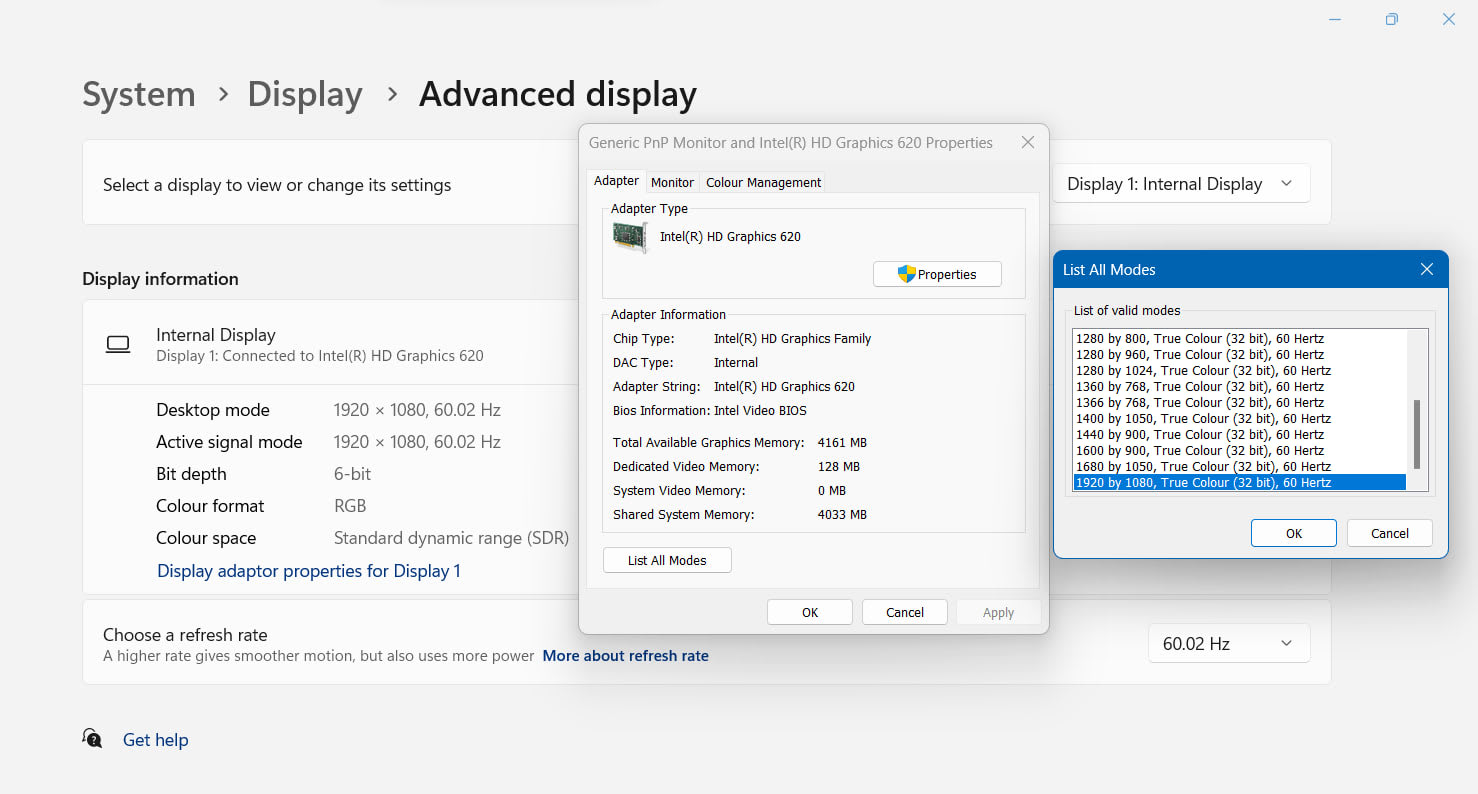
Before changing settings, read what Windows has actually negotiated. This step alone identifies the fault in a large share of cases.
Go to Settings → System → Display → Advanced display. Select the correct monitor from the dropdown, then read the panel below.
What to look for
- Colour space / Bit depth — if it reports 8-bit when you expect 10-bit, you are bandwidth-limited.
- Refresh rate — the negotiated rate, which may be lower than the panel's maximum.
- HDR certification / support line — if this says the display does not support HDR, Windows is not seeing HDR10 metadata in the EDID at all.
If that last line reports no support, no amount of clicking in Windows will help. The problem is physically upstream: the cable, the port, or a device in between.
Fix 1: Remove Everything Between GPU and Monitor
This is the highest-yield test and it takes two minutes.
Connect the monitor directly to the graphics card with the cable that came with the display, and remove every intermediary:
- USB-C hubs and docking stations, especially DisplayLink-based ones
- HDMI and DisplayPort adapters or converters
- KVM switches
- Daisy-chained MST monitors
- Long or uncertified cables
Docks are the most frequent culprit because many of them negotiate a reduced signal to guarantee compatibility, and DisplayLink docks in particular perform compression that removes HDR entirely.
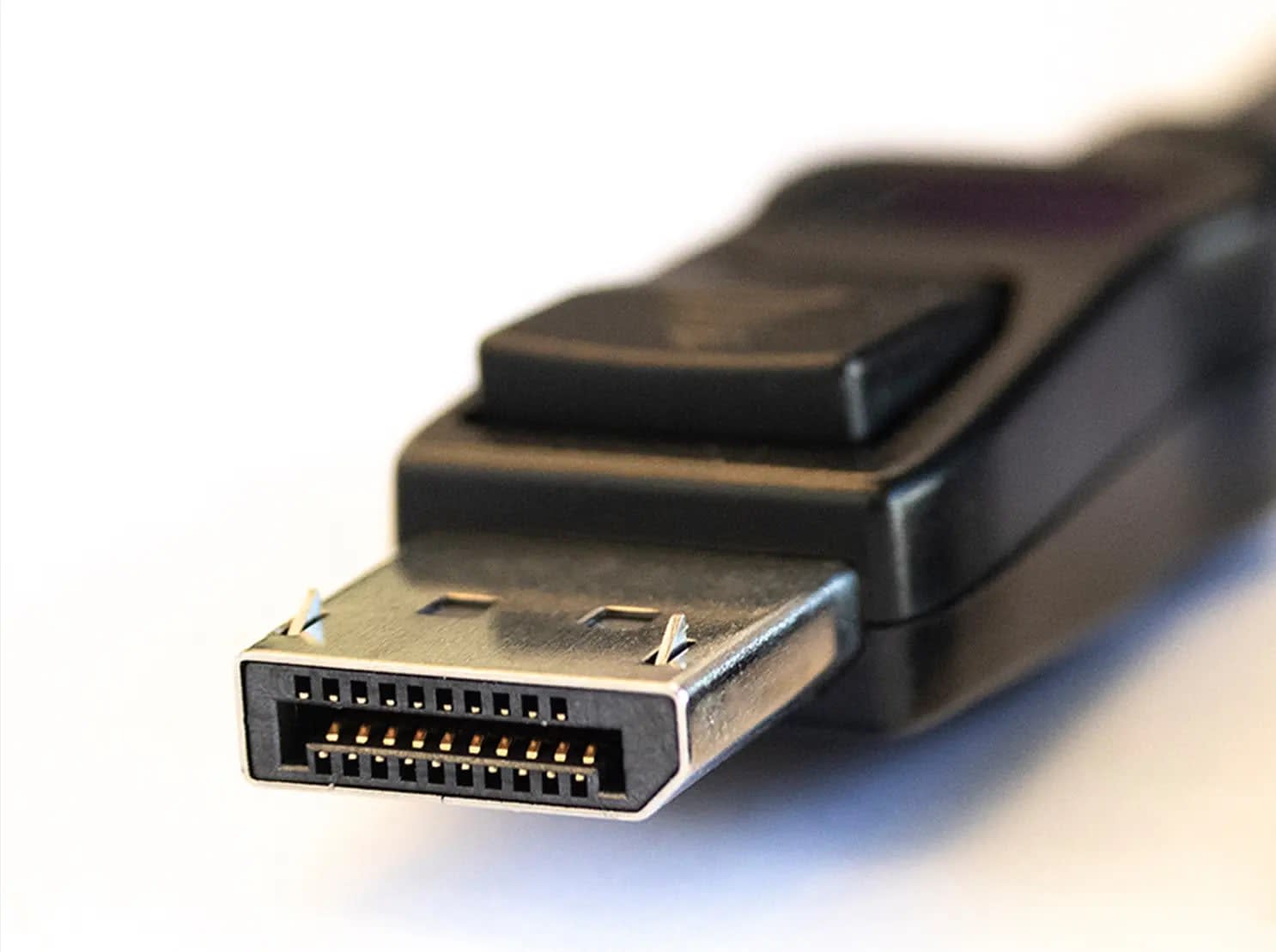
If HDR appears once connected directly, the fault is the removed device — not Windows, and not your monitor.
Fix 2: Trade Refresh Rate for Colour Depth
HDR needs 10-bit colour, and 10-bit costs roughly 25% more bandwidth than 8-bit. When there is not enough bandwidth for both your refresh rate and 10-bit colour, the display drops to 8-bit and Windows withdraws the HDR option.
The test is simple: lower the refresh rate one step and see whether HDR becomes available.
If it does, you have confirmed a bandwidth ceiling, and now you choose how to spend it:
| Situation | Practical options |
|---|---|
| HDMI 2.0 at 4K | Use DisplayPort instead, or accept 4K 60Hz |
| DisplayPort with no headroom | Enable DSC if both GPU and monitor support it |
| Chroma subsampling in use | Force RGB or 4:4:4 and lower refresh rate to fit |
| Cable is the limit | Replace with a certified cable of the correct standard |
Cables matter more than people expect here. Our guide to spotting a fake HDMI 2.1 cable covers why uncertified cables commonly fail above 4K 60Hz, and DisplayPort 1.4 vs HDMI 2.1 explains which standard carries what.
If the refresh rate itself is stuck rather than the colour depth, why a monitor is stuck at 60Hz covers the same negotiation from the other direction.
Fix 3: Get the Calibration App to Launch
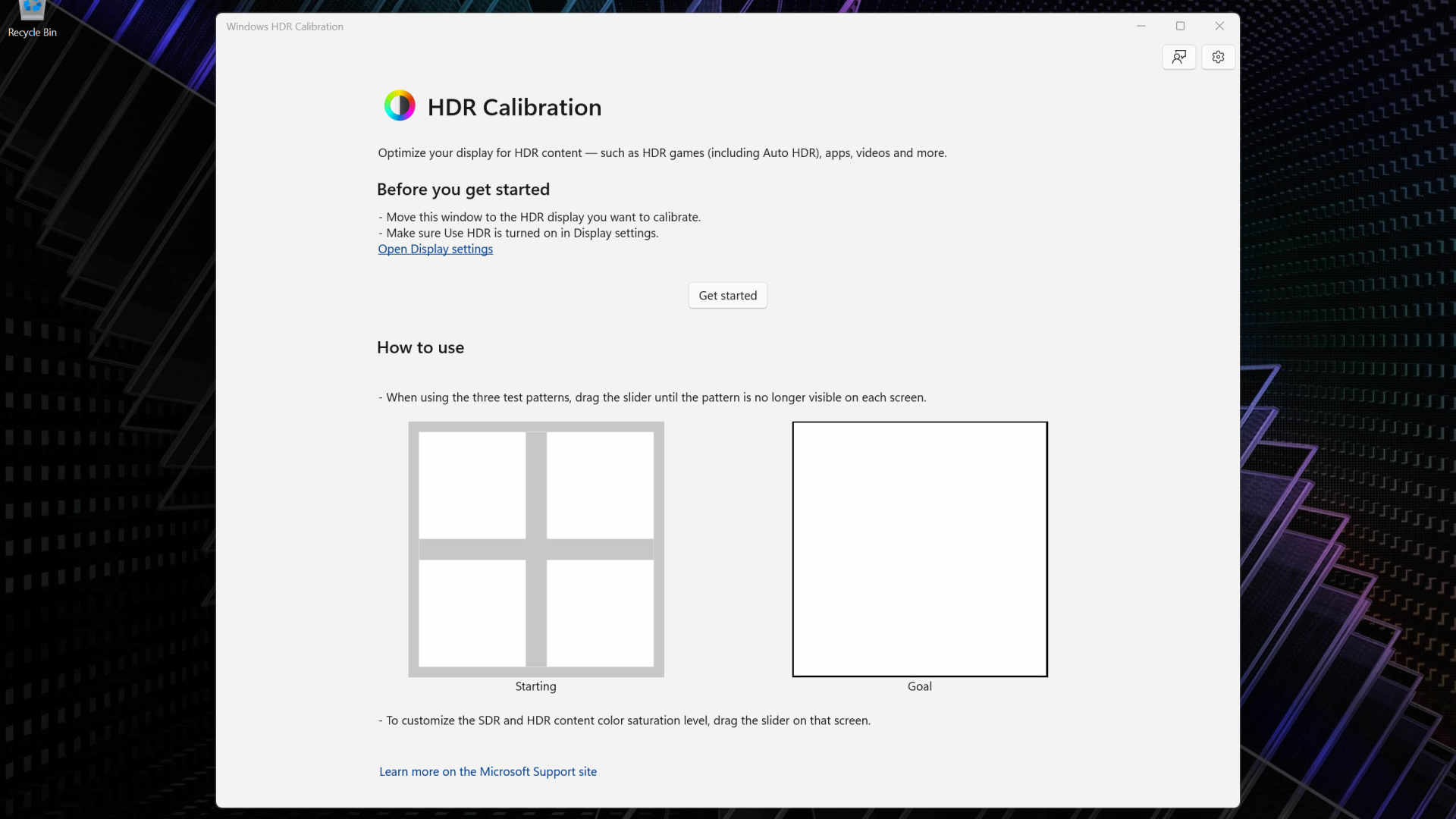
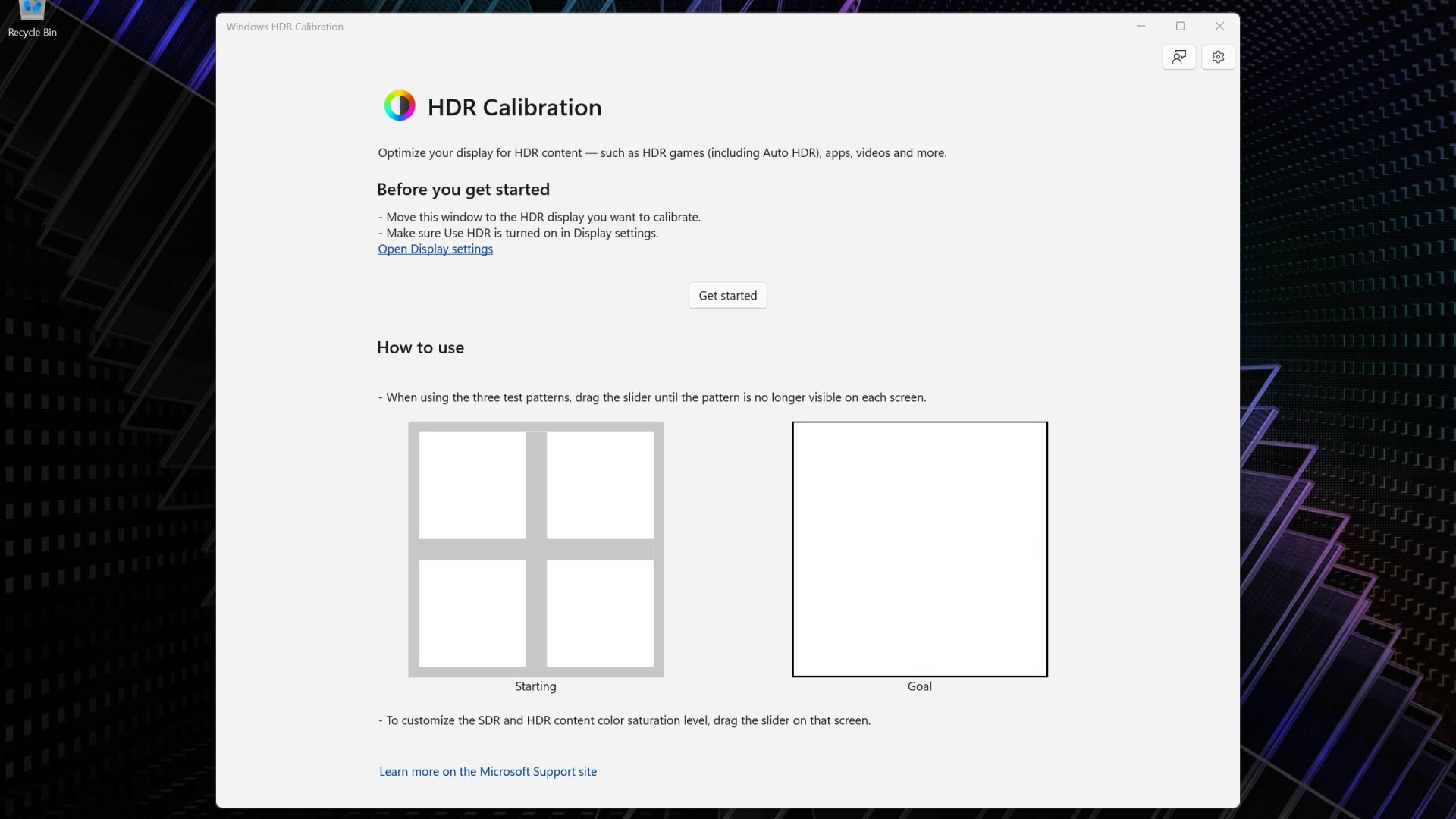
The Windows HDR Calibration app is free on the Microsoft Store, and most people who say it "does not work" are hitting one of three specific conditions.
It closes immediately or says HDR is not enabled
The app calibrates the display it is currently running on, and it requires Use HDR to be on for that display before it starts. Enable HDR first, then launch the app.
It runs on the wrong monitor
On a multi-monitor setup the app calibrates whichever display its window is on. Drag the app window onto the monitor you want to calibrate before beginning, and confirm HDR is enabled on that specific display.
A pattern or slider is skipped
The app steps through test patterns for black level, peak brightness and colour saturation. If your display reports identical minimum and maximum luminance values for a given step, the app has nothing meaningful to adjust and moves on. A skipped step is usually correct behaviour, not a failure — it reflects what your panel reported about itself.
It finishes but nothing changes
Calibration writes a colour profile and applies it to that display. If the image looks identical afterwards, confirm the profile is actually selected:
- Open Colour Management from the Control Panel.
- Select your display and tick Use my settings for this device.
- Confirm the profile the calibration app created is set as default.
Driver updates and display reconnections can reset this association, which is why calibration sometimes appears to "wear off" after a few weeks.
Fix 4: The Missing SDR Content Brightness Slider
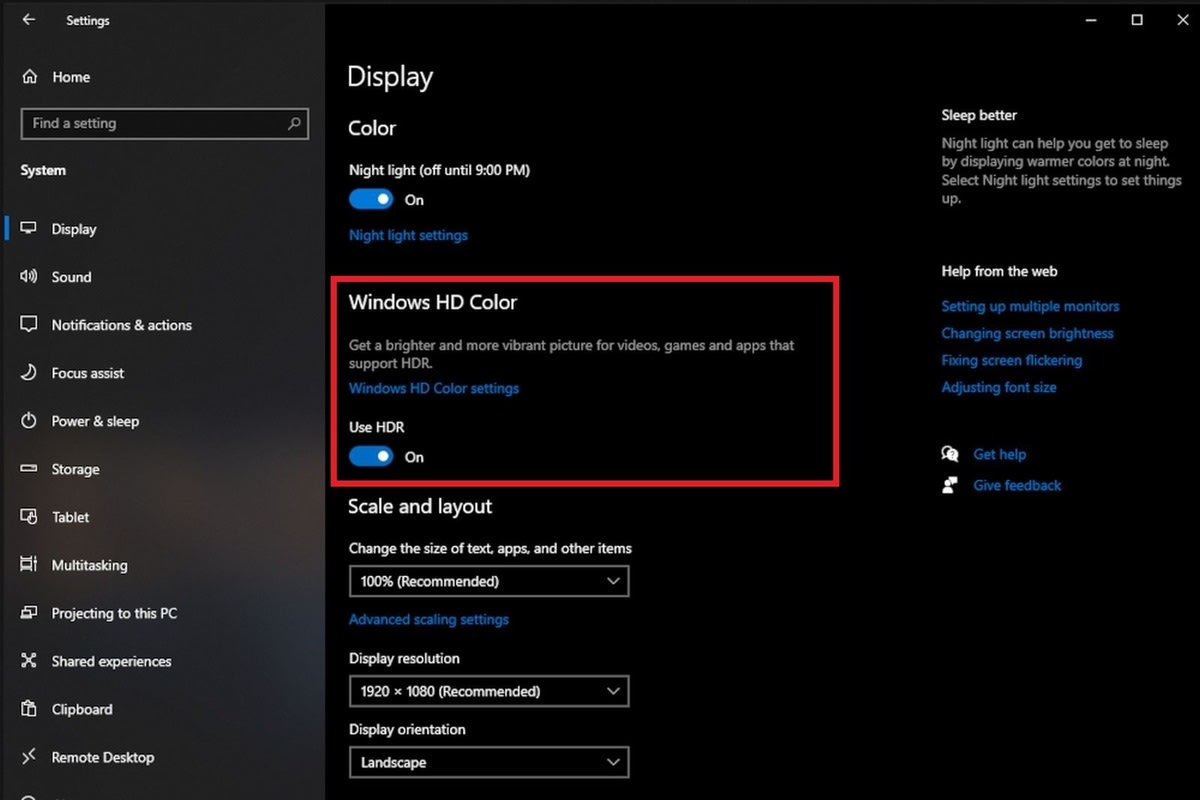
If the SDR content brightness slider is absent, HDR is not currently active on the display you have selected. That slider only exists while HDR is on, because it controls how non-HDR content is mapped into the HDR container.
Two things commonly cause the confusion:
- The wrong monitor is selected at the top of the Display settings page. HDR is per-display.
- HDR toggled itself off after a driver update, a cable reconnection, or a resolution change.
Re-select the correct display, confirm Use HDR is on, and the slider returns.
Fix 5: Laptops and Hybrid Graphics
On laptops, HDR support depends on which GPU is physically wired to the panel. Many machines route the internal display through the integrated GPU by default, and if that iGPU path does not carry HDR, Windows will not offer it regardless of what the discrete GPU can do.
Check your manufacturer's control panel for a MUX switch, Discrete GPU mode, or Advanced Optimus setting, and set the display to be driven by the dGPU. Reboot and re-check.
External displays on a laptop are usually wired to one specific GPU as well, and which port maps to which GPU varies by model — an HDMI port and a USB-C port on the same laptop often behave differently.
Fix 6: Driver and Firmware State
Driver problems are real but less common than the bandwidth issues above, which is why they sit sixth rather than first.
Worth doing, in this order:
- Update the GPU driver from the vendor directly rather than Windows Update.
- Update the monitor firmware. OLED and mini-LED displays in particular have shipped EDID and HDR-handshake fixes in firmware updates.
- Power-cycle the display fully — off at the wall for 30 seconds, not standby. This forces a fresh EDID handshake.
- Reset the monitor OSD to factory defaults. Some displays carry an HDR or "deep colour" option per input that must be enabled on the monitor side before the signal ever reaches Windows.
That last one catches people constantly. Several manufacturers ship with HDR disabled per-input by default, so the monitor is refusing to advertise HDR before Windows is ever involved.
Fix 7: Know When the Panel Is the Answer
Some displays will never calibrate to a good result, and recognising that early saves an evening.
DisplayHDR 400 panels without local dimming lack both the peak brightness and the contrast control that HDR depends on. The calibration app will complete, the profile will apply, and the image will still look worse than SDR. That is the panel telling you the truth.
DisplayHDR 600 with local dimming is roughly where the format starts being worth using, and OLED handles it best. Our comparison of OLED and mini-LED gaming monitors covers how the two backlight approaches differ in exactly this respect.
Diagnostic Order
| # | Step | Time | Rules out |
|---|---|---|---|
| 1 | Read Advanced display for bit depth and HDR line | 2 min | What Windows actually negotiated |
| 2 | Connect directly to the GPU, no dock or adapter | 5 min | Docks, KVMs, MST, converters |
| 3 | Lower refresh rate one step | 2 min | Bandwidth ceiling |
| 4 | Enable HDR in the monitor's own OSD | 5 min | Display-side HDR disabled |
| 5 | Enable Use HDR, then launch the calibration app | 10 min | App launch failures |
| 6 | Confirm the colour profile in Colour Management | 5 min | Calibration not applying |
| 7 | Update GPU driver and monitor firmware | 30 min | Handshake and EDID bugs |
Frequently Asked Questions
Why is the HDR toggle greyed out in Windows 11?
Because Windows is not receiving HDR10 metadata from the display at the currently negotiated resolution, refresh rate and colour depth. This is usually a bandwidth limit or a device in the signal path, not a Windows fault. Connect the monitor directly to the GPU with a certified cable and lower the refresh rate one step to confirm.
Why does the Windows HDR Calibration app close as soon as it opens?
The app requires HDR to already be enabled on the display it is running on. Turn on Use HDR for that specific monitor in Settings → System → Display, then relaunch. On a multi-monitor setup, drag the app window onto the display you intend to calibrate before starting.
Where did my SDR content brightness slider go?
That slider only appears while HDR is active on the selected display. If it has vanished, either HDR switched off — commonly after a driver update or cable reconnection — or you are looking at a different monitor in the settings page. Re-select the right display and confirm Use HDR is on.
Does a docking station stop HDR from working?
Frequently, yes. Many docks negotiate a conservative signal for compatibility, and DisplayLink-based docks compress the video stream in a way that removes HDR entirely. Testing with the monitor plugged straight into the graphics card is the fastest way to confirm whether the dock is responsible.
Why does my calibration stop working after a while?
The colour profile becomes unassociated from the display. Driver updates, resolution changes and reconnecting the cable can all reset it. Open Colour Management, select the display, tick Use my settings for this device, and set the calibration profile back as default rather than re-running the whole process.
The Bottom Line
Work outward from the signal path, not inward from Windows settings. Connect directly to the GPU, drop the refresh rate one step, and check the monitor's own OSD — those three steps resolve the majority of greyed-out toggles, and none of them involve reinstalling anything.
Once HDR is genuinely enabled, the calibration app is straightforward, and skipped steps usually mean your panel had nothing to adjust rather than that the app failed. If the image is on but still looks wrong afterwards, that is a separate problem covered in HDR looking washed out on Windows 11.
And if the display is DisplayHDR 400 without local dimming, the honest answer is that leaving HDR off is the correct configuration. For console setups hitting the same handshake problems, why a PS5 or Xbox is not running at 4K 120Hz covers the equivalent negotiation on the living-room side.
Screenshots courtesy of Microsoft and the respective software vendors, used for editorial coverage.
Sources
- Microsoft Support, Set up HDR in Windows, retrieved 2026-08-18, https://support.microsoft.com/en-us/windows/set-up-hdr-in-windows-2d767185-38ec-7fdc-6f97-bbc6c5ef24e6
- Microsoft DirectX Developer Blog, The Windows HDR Calibration app is here, retrieved 2026-08-18, https://devblogs.microsoft.com/directx/the-windows-hdr-calibration-app-is-here/
- Microsoft Support, Troubleshoot HDR display problems in Windows, retrieved 2026-08-18, https://support.microsoft.com/en-us/windows/troubleshoot-hdr-display-problems-in-windows-b4ea0a9e-fdb2-4e6b-9e9e-9e2a1c1b0b5b
- VESA, DisplayHDR performance tiers and certification, retrieved 2026-08-18, https://displayhdr.org/performance-criteria/
- VESA, Display Stream Compression (DSC) overview, retrieved 2026-08-18, https://www.vesa.org/vesa-display-compression-codecs/