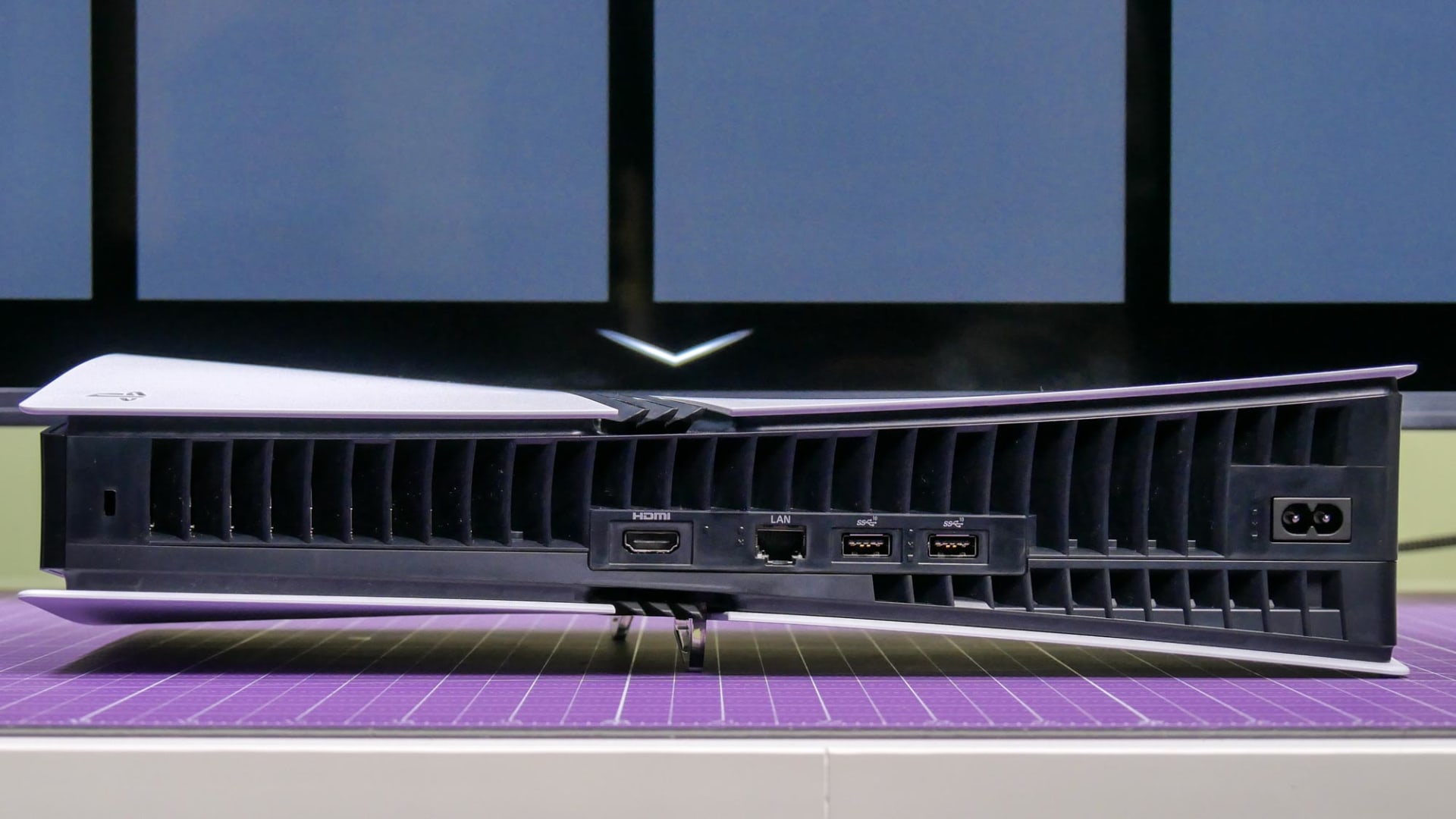
The single most common reason a PS5 or Xbox Series X will not output 4K 120Hz is a TV setting that ships disabled — not a faulty cable. Televisions default their HDMI ports to a compatibility mode that caps bandwidth well below what 120Hz at 4K needs, and enabling the full-bandwidth mode is a per-port toggle buried in the input menu.
The second most common reason is subtler and worth understanding before you buy anything. Not every port labelled HDMI 2.1 carries the same bandwidth, and consoles handle that shortfall differently from PCs because they cannot compress the signal.
Note
Key Takeaways
- Enable the full-bandwidth HDMI mode on the specific port you are using. It is off by default on most TVs.
- The name differs by brand: Input Signal Plus, HDMI Deep Color, HDMI UHD Color, or Enhanced format.
- Only some HDMI ports on a TV are full bandwidth. Using the wrong one silently caps you.
- Both consoles ship with a suitable cable — the cable is rarely the fault.
- The PS5 has no Display Stream Compression, so a 24 Gbit/s port forces reduced colour rather than compressing.
- An AV receiver in the chain is a frequent cause. Test connected directly to the display first.
Confirm What You Are Actually Getting
Check the console's own report before changing anything, because both consoles will tell you exactly what the display accepted.
On PS5, go to Settings → Screen and Video → Video Output and read the Video Output Information panel. It lists the resolution, refresh rate, and colour format currently negotiated. If 120Hz is unavailable it will say so.
On Xbox Series X, go to Settings → General → TV & display options → 4K TV details. This screen reports which capabilities the connected display has advertised — including whether 4K 120Hz and HDMI 2.1 features like VRR and ALLM were detected.
That second screen is the more useful of the two, because it distinguishes between "your TV cannot do this" and "your TV can, but the current connection is not delivering it."
Tip
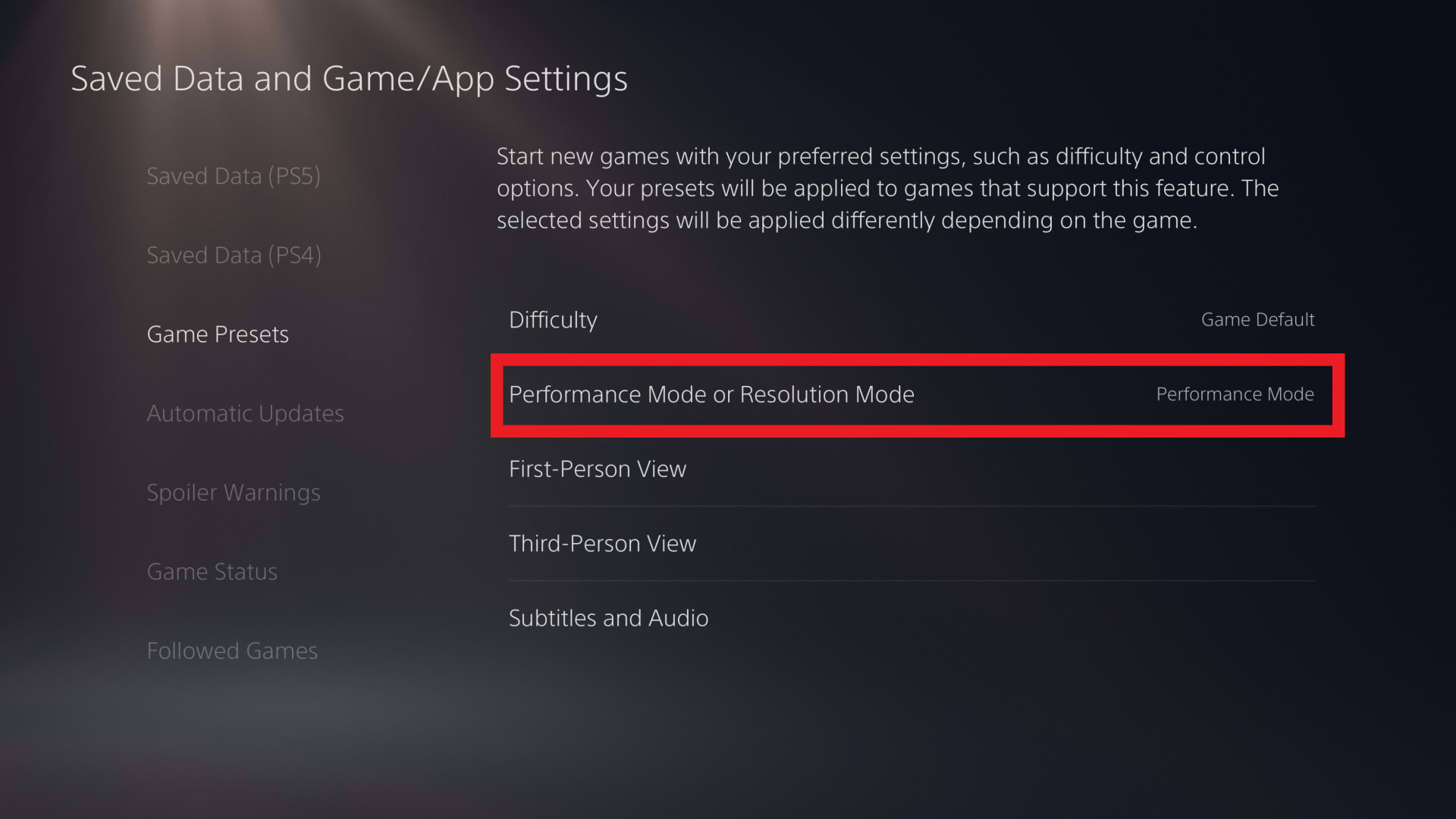
A game running at 120 FPS is a separate question from the display running at 120Hz. Many titles offer a Performance mode that must be selected per game. Getting the output to 120Hz does nothing on its own if the game is still in its 30 FPS quality mode.
Fix 1: Turn On the Full-Bandwidth HDMI Mode
This is the fix for the clear majority of cases, and almost nobody finds it without being told.
Televisions ship their HDMI ports in a reduced-bandwidth compatibility mode so that older devices negotiate reliably. In that mode the port will not accept 4K 120Hz, and often will not accept 4K 60Hz at full colour either. The setting is per port, so enabling it on HDMI 1 does nothing for a console plugged into HDMI 3.
| # | TV brand | What the setting is called |
|---|---|---|
| 1 | Samsung | Input Signal Plus |
| 2 | LG | HDMI Deep Colour / Ultra HD Deep Colour |
| 3 | Sony | Enhanced format / HDMI signal format |
| 4 | TCL and Hisense | HDMI Mode or HDMI 2.1 Mode |
| 5 | Philips | HDMI Ultra HD |
| 6 | Panasonic | HDMI Auto / Full |
It usually lives under the input or external device settings rather than under picture settings. Turn it on for the port your console is using, then re-check the console's video output screen.
Fix 2: You Are In the Wrong Port
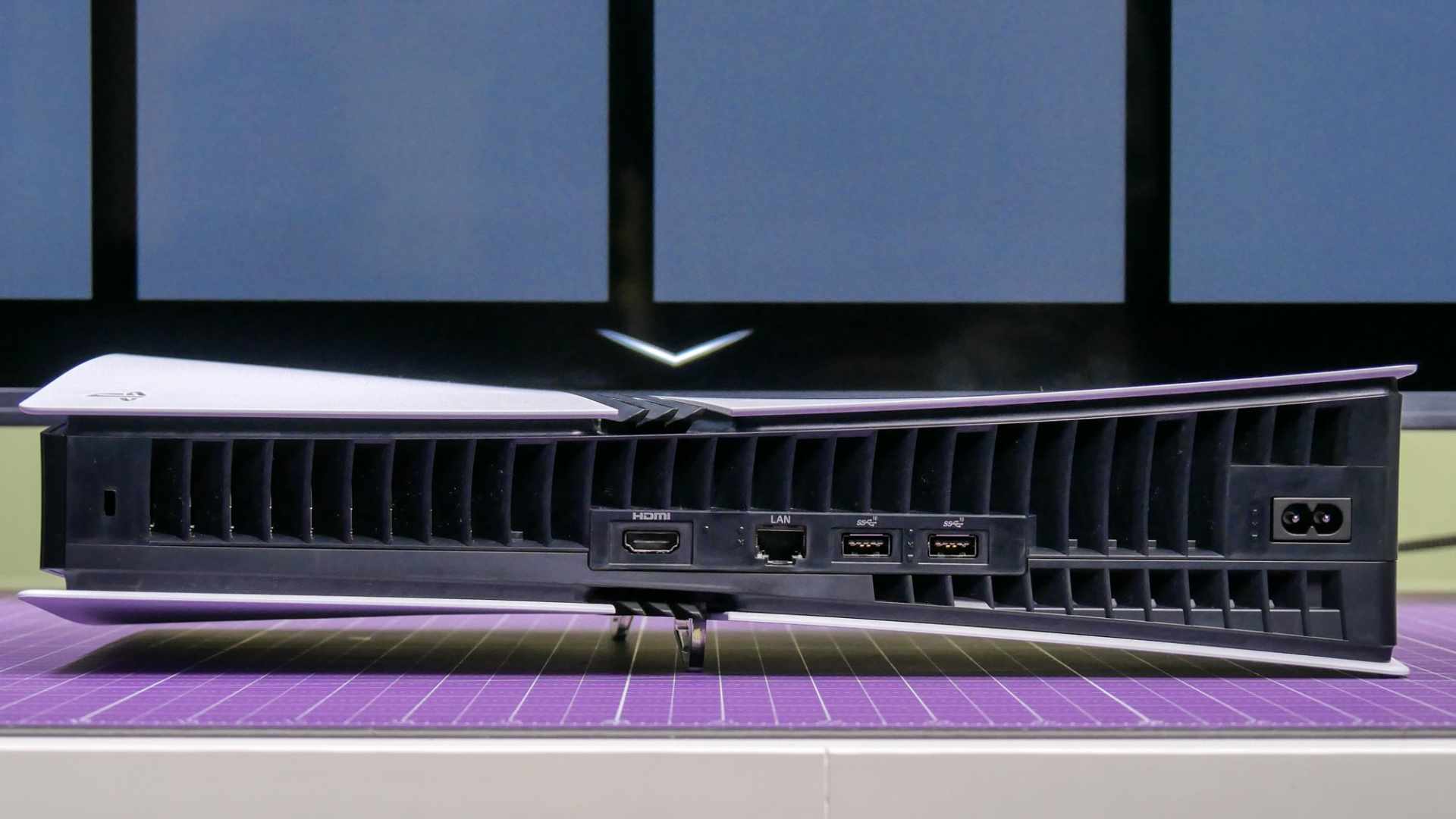
Most 4K televisions do not give every HDMI port the same capability. It is common for a set to have four ports and only two of them capable of 4K 120Hz.
Worse, one of those capable ports is often the eARC port, which you may already be using for a soundbar. Between eARC on one and a capped port on another, plenty of people end up with the console in the one remaining port that cannot do what they need.
Check the manual or the labels on the back panel — capable ports are frequently marked 4K120, HDMI 2.1, or Game. Move the console there and re-test. On many LG and Samsung sets the capable ports are HDMI 3 and 4 rather than 1 and 2, which is the opposite of where most people plug things in.
Fix 3: The Port's Bandwidth Is Not What the Label Implies
This one matters most on monitors and cheaper televisions, and it is where the marketing gets genuinely misleading.
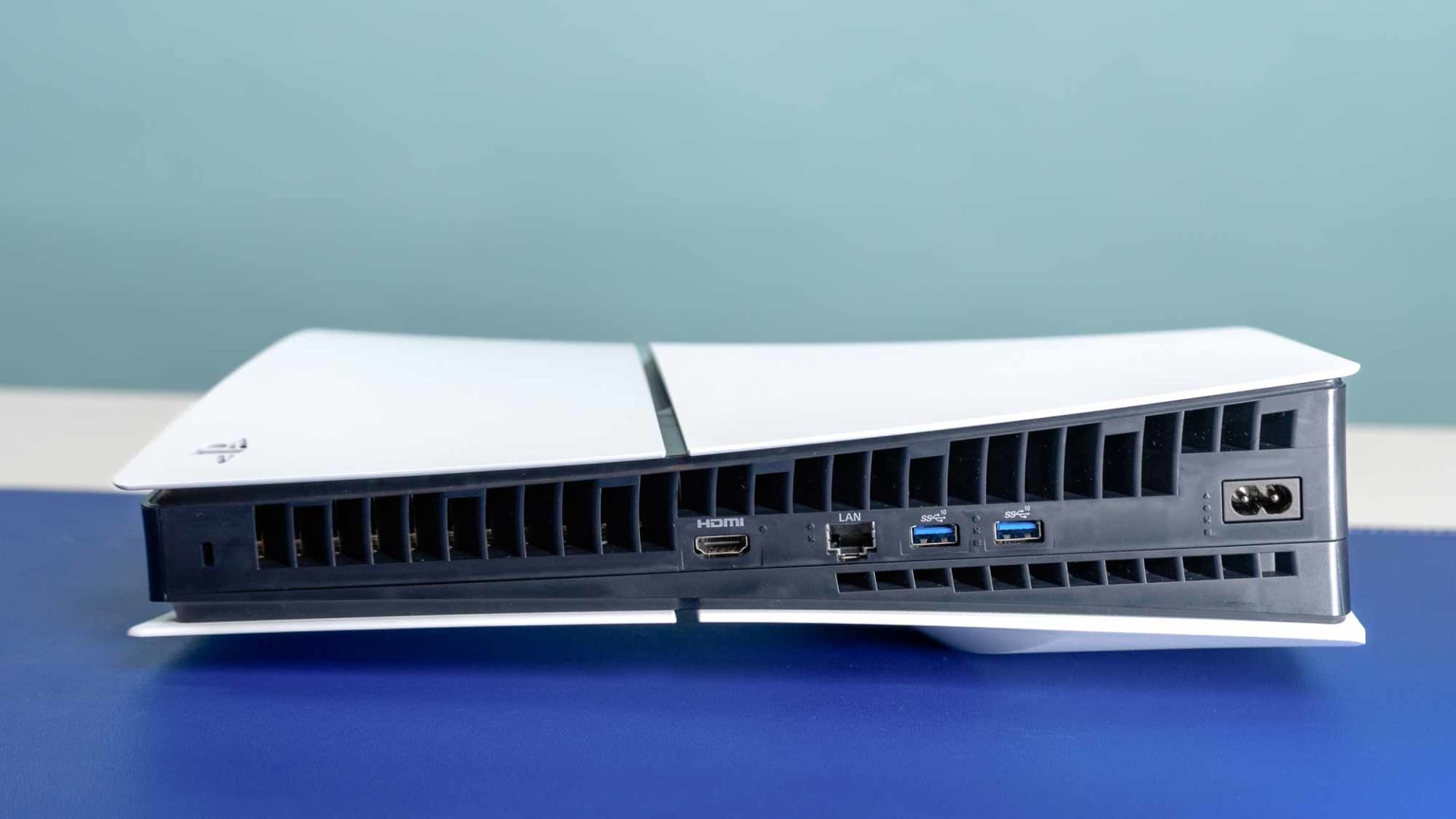
HDMI 2.1 is a specification, not a bandwidth guarantee. A port can be advertised as HDMI 2.1 while implementing only a subset of its features, and 24 Gbit/s and 32 Gbit/s ports are both sold under the same label as full 48 Gbit/s ones. For a PC this is often survivable because the GPU can apply Display Stream Compression.
The PS5 does not support DSC. With no compression available, a console facing a bandwidth shortfall has to give up something else — usually colour. The result is that 4K 120Hz technically works but drops to 4:2:2 chroma subsampling or 8-bit colour, which looks worse in menus and on text than the 60Hz mode you were using before.
If your display's 4K 120Hz mode looks softer or shows colour fringing on small text, this is the likely explanation, and no cable will fix it. Our guide to telling a fake HDMI 2.1 cable from a real one covers why the certification you should look for applies to cables rather than ports, and DisplayPort 2.1 versus HDMI 2.1 covers what the real payload figures are behind the headline numbers.
Fix 4: Take the Receiver Out of the Chain
An AV receiver or HDMI switch between the console and the display is one of the most reliable ways to lose 120Hz without any error message.
Many receivers — including ones sold as HDMI 2.1 — pass through only a subset of the bandwidth, and some early models had a well-documented fault that broke 4K 120Hz entirely until firmware fixed it. HDMI switches and splitters are worse and often lie about their capability outright.
Test with the console connected directly to the display. If 120Hz appears, the receiver is the constraint. The workaround is to run video directly to the TV and send audio back to the receiver over eARC, which keeps surround sound working without putting the receiver in the video path.
Fix 5: VRR and Console Settings Conflicts
Variable refresh rate and 120Hz occasionally fight each other on displays whose implementation is incomplete, and disabling VRR to test is a quick way to isolate that.
On PS5: Settings → Screen and Video → Video Output → VRR. On Xbox: Settings → General → TV & display options → Video modes. Turn VRR off, confirm whether 120Hz appears, then turn it back on. If 120Hz only works with VRR disabled, your display's firmware is the problem and an update from the manufacturer is the real fix.
While in the Xbox video modes menu, confirm Allow 4K and Allow 120Hz are both ticked. They are not always on by default, and an Xbox will happily sit at 60Hz with the 120Hz box unchecked.
Fix 6: Firmware, Then the Cable
Television firmware is a genuine cause here rather than a generic suggestion. Several manufacturers shipped 2020 and 2021 sets whose 4K 120Hz support was incomplete at launch and only became reliable after later updates. If your set is from that era, check for an update before concluding the hardware cannot do it.
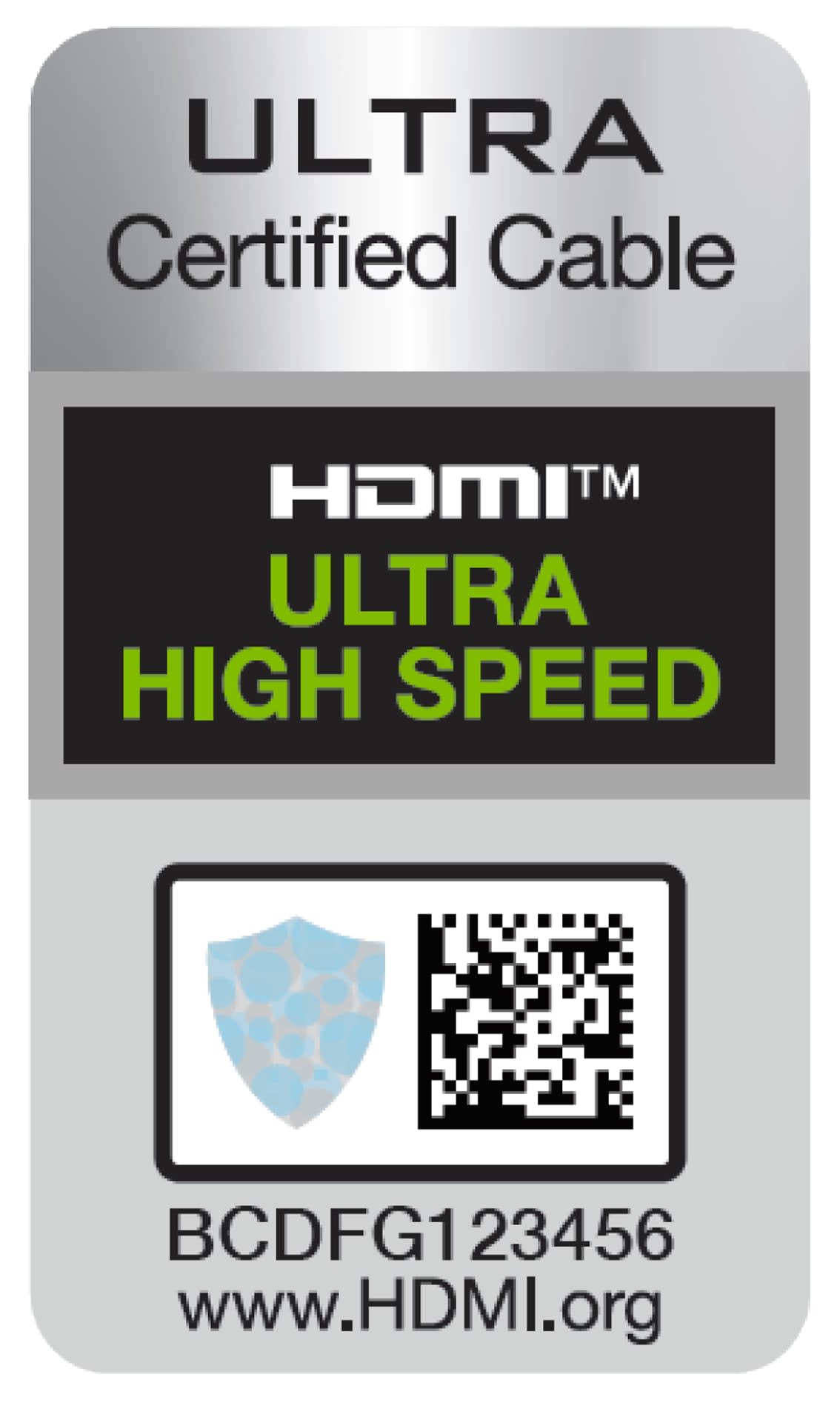
The cable is the last thing to suspect, not the first. Both the PS5 and the Xbox Series X include an Ultra High Speed HDMI cable rated for 48 Gbit/s in the box, and if you are still using it, it is almost certainly not your problem. The cable becomes a real suspect only if you replaced it with an older one, or if you are running a long third-party cable — beyond about three metres, passive cables become unreliable at full bandwidth.
The Diagnostic Order
| # | Check | Time |
|---|---|---|
| 1 | Console video output info screen | 1 min |
| 2 | Enable full-bandwidth HDMI mode on that port | 2 min |
| 3 | Move to a port marked 4K120 or HDMI 2.1 | 2 min |
| 4 | Bypass any receiver or switch | 5 min |
| 5 | Toggle VRR off and re-test | 2 min |
| 6 | Update TV firmware | 15 min |
| 7 | Revert to the cable that came in the box | 2 min |
Rows 2 and 3 between them resolve most cases, and both are free.
What This Will Not Fix
A game that does not offer 120 FPS. Output at 120Hz is a display mode. The game still has to render at that rate, and most titles offer it only in a specific performance mode at reduced resolution.
Input lag from the TV's processing. If the display feels sluggish rather than choppy, you want Game Mode, which is a separate setting from bandwidth and refresh rate.
Blurry motion. That is panel response, not refresh rate — the same distinction covered in GtG versus MPRT response times and monitor overdrive and ghosting.
A console that shows nothing at all. A blank screen is a different fault entirely — see PS5 showing no signal on your TV.
If you are chasing the same problem on a PC monitor rather than a console, the causes overlap but the settings differ — see why a 144Hz monitor runs at 60Hz.
Frequently Asked Questions
Why does my PS5 say 4K 120Hz is not supported when my TV supports it?
Almost always because the port's full-bandwidth mode is disabled. TVs ship HDMI ports in a reduced compatibility mode, and it has to be enabled per port under a brand-specific name such as Input Signal Plus or HDMI Deep Colour. The second most likely cause is that the console is in one of the TV's ports that does not support 4K 120Hz at all.
Do I need a special HDMI cable for 4K 120Hz?
You need an Ultra High Speed certified cable, and both the PS5 and Xbox Series X include one in the box. If you are still using the supplied cable, it is very unlikely to be the problem. Cables become a genuine suspect mainly when they are long third-party runs or older High Speed cables from a previous console.
Why does 4K 120Hz look worse than 4K 60Hz on my display?
Because the port probably does not have the full 48 Gbit/s of bandwidth, and the PS5 cannot use Display Stream Compression to make up the difference. Instead it reduces colour — dropping to 4:2:2 chroma or 8-bit — which shows up as softer text and colour fringing. A 24 Gbit/s port marketed as HDMI 2.1 is the usual culprit.
Will an HDMI splitter or AV receiver break 4K 120Hz?
Frequently, yes. Many receivers pass through less bandwidth than they advertise, and cheap switches and splitters commonly misreport their capability. Test with the console connected straight to the display. If that fixes it, run video direct to the TV and return audio to the receiver over eARC.
Does 120Hz output mean my games run at 120 FPS?
No. The display mode and the game's frame rate are independent. Most console games that support high frame rates offer it through a specific Performance or 120Hz mode that you select per game, usually at a lower resolution. Enabling 120Hz output does nothing if the game is still in its quality mode.
Which HDMI ports on my TV support 4K 120Hz?
It varies by model, and it is rarely all of them. Many 4K sets have four ports with only two capable of 4K 120Hz, and one of those is often the eARC port already used by a soundbar. Look for ports labelled 4K120, HDMI 2.1, or Game, and check the manual — on several LG and Samsung sets the capable ports are 3 and 4 rather than 1 and 2.
The Bottom Line
Before you buy a cable, open your TV's input settings and turn on the full-bandwidth HDMI mode for the exact port your console is plugged into. That one toggle, plus making sure you are in a port that actually supports 4K 120Hz, accounts for most of these cases and costs nothing.
Then read the console's own video output screen rather than trusting the box or the TV's marketing. It reports what was actually negotiated — and if it shows 120Hz at 4:2:2 instead of full colour, you have learned something a cable purchase would never have told you.
Sources
- Sony Interactive Entertainment, PS5 Video Output Settings, retrieved 2026-08-13, https://www.playstation.com/en-us/support/hardware/ps5-video-output-settings/
- Microsoft Xbox Support, 4K and HDR settings on Xbox, retrieved 2026-08-13, https://support.xbox.com/en-US/help/hardware-network/display-sound/4k4khdr-tv-settings
- HDMI Licensing Administrator, HDMI 2.1 Specification, retrieved 2026-08-13, https://www.hdmi.org/spec/hdmi2_1
- Pocket-lint, 120Hz on PS5 and Xbox Series X/S: What do you need on your TV, retrieved 2026-08-13, https://www.pocket-lint.com/what-tv-is-needed-for-120fps-120hz-gaming-ps5-xbox-series-x-s/
- Stevivor, Xbox Series X and PS5: How to fix issues with 4K 120Hz mode, retrieved 2026-08-13, https://stevivor.com/guides/xbox-series-x-and-ps5-how-to-fix-issues-with-4k-120-hz-mode-on-lg-b9-c9-tvs/