A DualSense that will not charge is almost never a dead battery — it is usually the cable, a blocked port, or the console being asleep in the wrong way. Those three account for the overwhelming majority of cases, and all three are free to rule out in about five minutes.
The single most useful test costs nothing: plug the controller into a phone charger or a PC instead of the console. If it charges there, the controller is fine and your problem is the PS5's USB ports or its rest mode configuration.
Note
Key Takeaways
- Test on a different power source first. A wall charger or PC instantly separates a controller fault from a console fault.
- Many USB-C cables are charge-only or data-only, and cheap ones fail intermittently. Use the cable that shipped with the console before blaming anything else.
- Lint in the USB-C port is the most common physical cause. The port is open-topped and lives in a pocket-shaped world.
- The PS5's USB ports stop supplying power in rest mode unless "Supply Power to USB Ports" is set to Always.
- There is a reset pinhole on the back of the DualSense next to the Sony logo. It clears pairing and charge-controller faults that nothing else touches.
- A controller that charges but drains in under 4 hours has a worn battery, which is a replacement job rather than a settings fix.
Step 1: Change the Power Source, Not the Controller
Plug the DualSense into a phone charger, a laptop, or any USB port that is not on the PS5. Watch the light bar — it should pulse amber within a few seconds.
If it charges elsewhere, stop troubleshooting the controller. The fault is in the console's USB ports or its rest mode power setting, and the fix is in the section below on rest mode.
If it does not charge anywhere, the fault is in the cable, the port or the controller, and the next three steps sort out which.
Tip
The light bar behaviour tells you what state the controller is in. A slow amber pulse means charging. Solid amber usually means fully charged while off. No light at all with a cable attached means no power is reaching the charge circuit, which points at the cable or port rather than the battery.
Step 2: Suspect the Cable Before Anything Else
USB-C cables are not interchangeable, and a large share of them are power-only, low-current, or simply badly made. A cable that charges your phone perfectly can fail to charge a DualSense reliably.
Use the cable that came with the PS5 first. If you no longer have it, borrow a known-good one rather than buying another unknown quantity.
The failure mode that catches people is intermittence. A worn cable will charge for ten minutes, lose contact when the controller shifts, and resume when nudged — which reads as a battery problem rather than a cable one. If your controller charges only in one specific position, that is a cable or port fault, full stop.
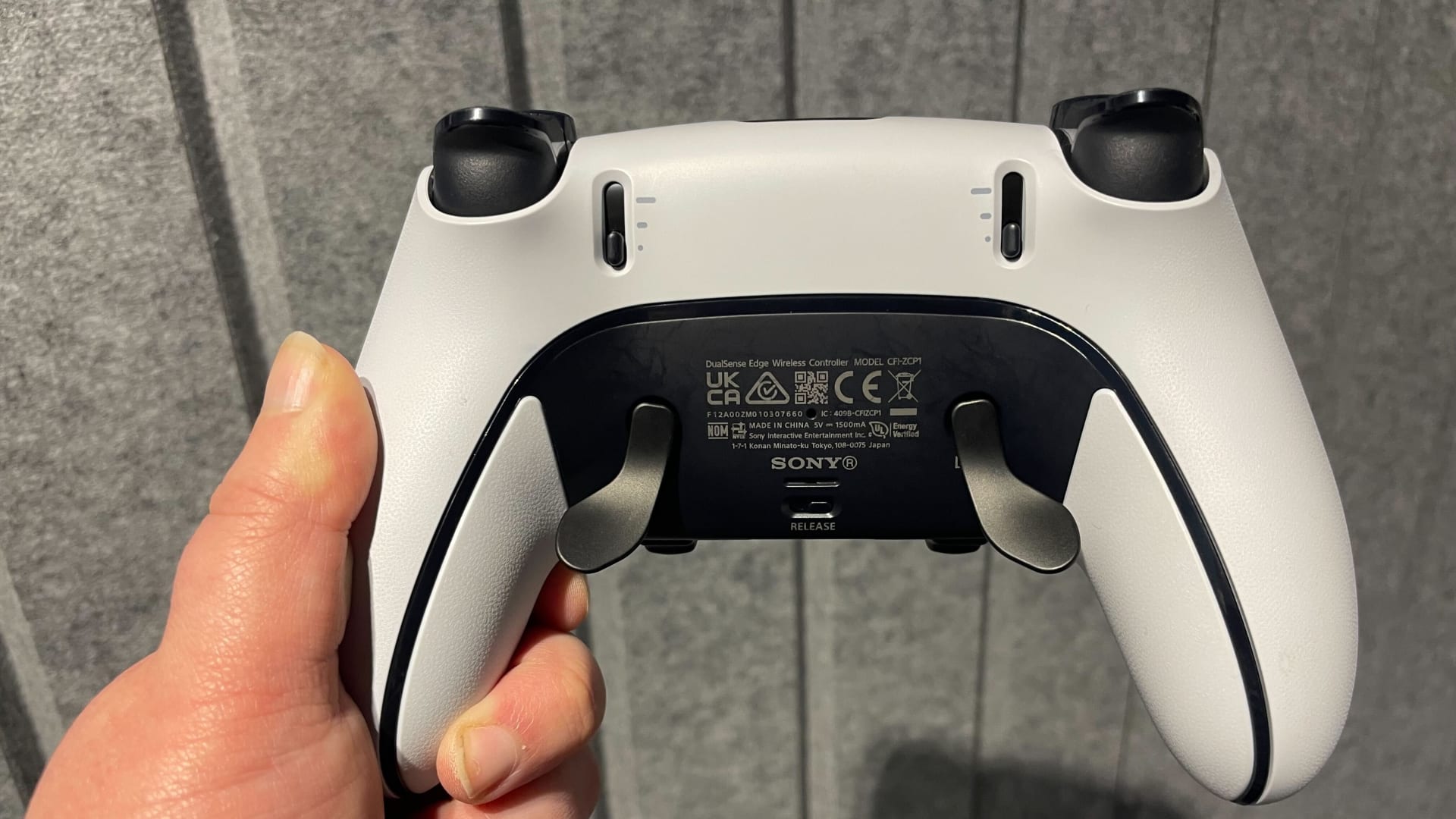
Step 3: Clean the USB-C Port
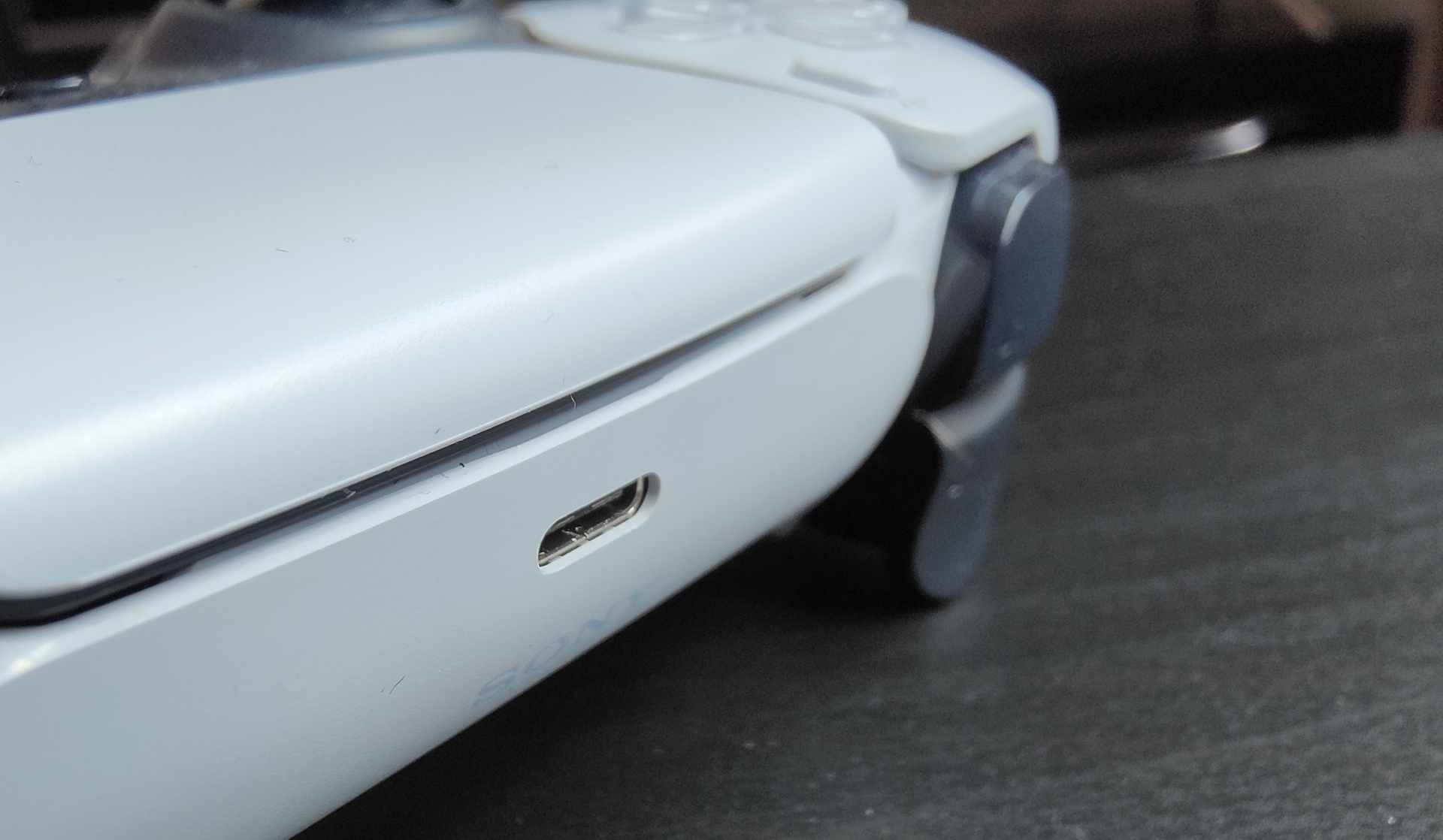
The DualSense USB-C port faces upward and collects pocket lint, dust and crumbs, and a compacted plug of lint stops the connector seating fully.
Look into the port with a bright light. You are looking for grey fuzz packed against the back wall, which is easy to mistake for the port's own shadow.
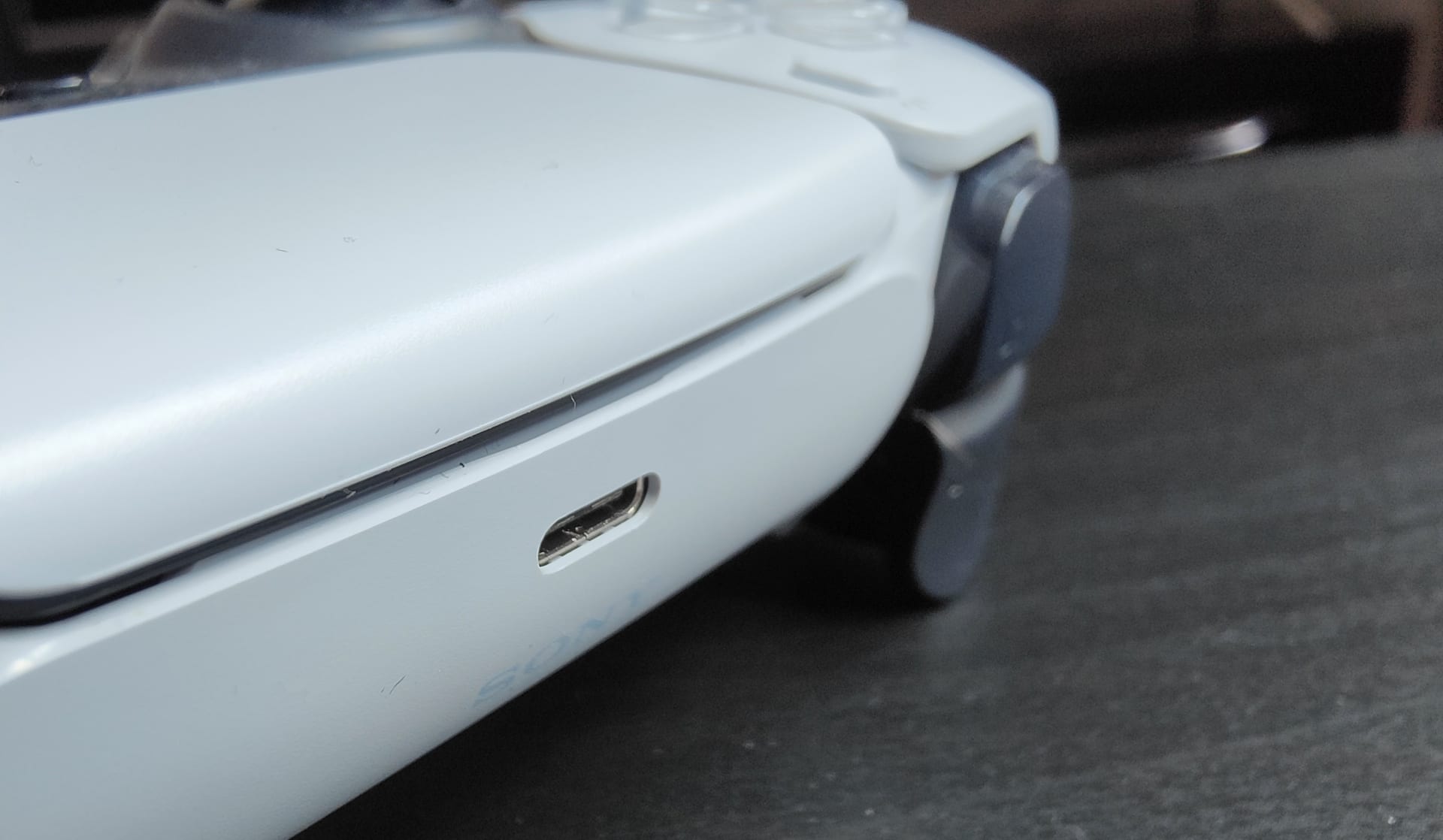
Clean it with a wooden or plastic toothpick, working gently and from the sides toward the centre. Turn the controller upside down afterwards and tap it so debris falls out rather than deeper in.
Warning
Do not use a metal pin, paperclip or needle. The USB-C connector has exposed contacts on both faces and it is genuinely easy to bridge or bend them. A bent contact turns a five-minute cleaning job into a port replacement.
Compressed air helps only after you have loosened compacted lint mechanically. On its own it usually just packs the debris tighter.
Step 4: The Reset Pinhole
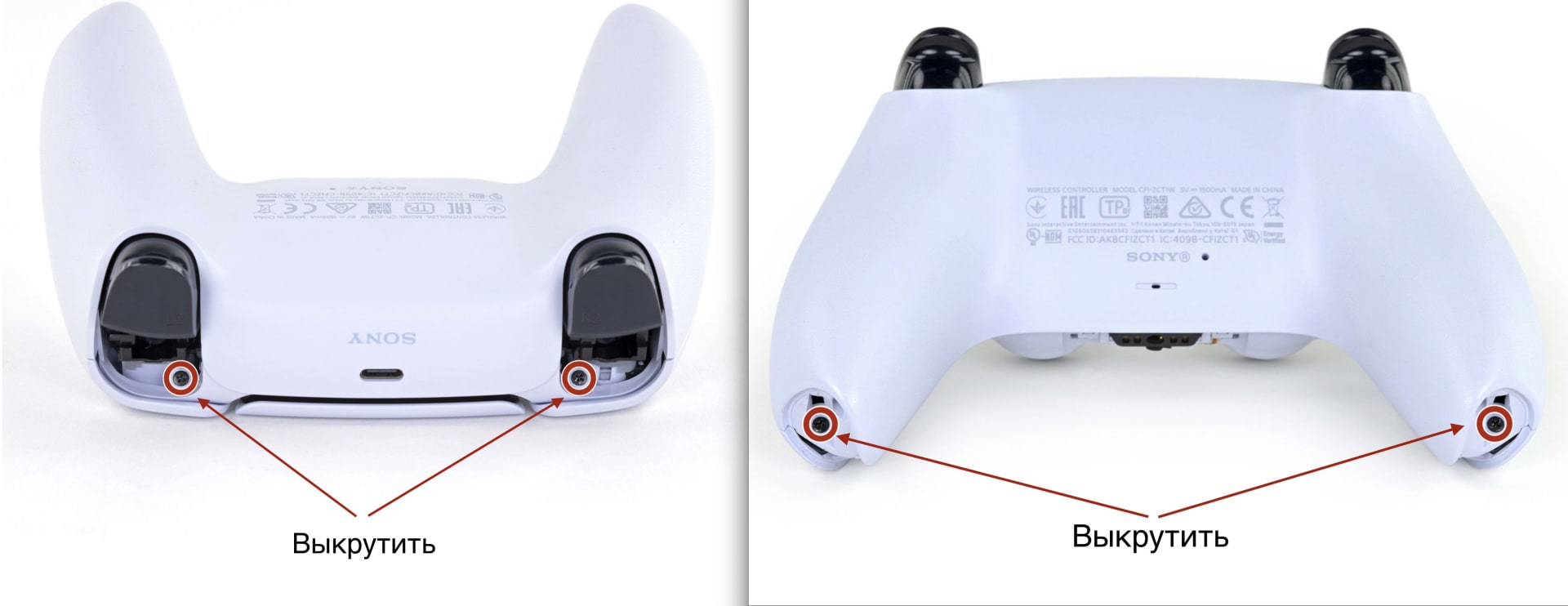
There is a small hole on the back of the DualSense, near the Sony logo beside the left grip screw. Inside it is a hardware reset button that clears pairing state and charge-controller faults.
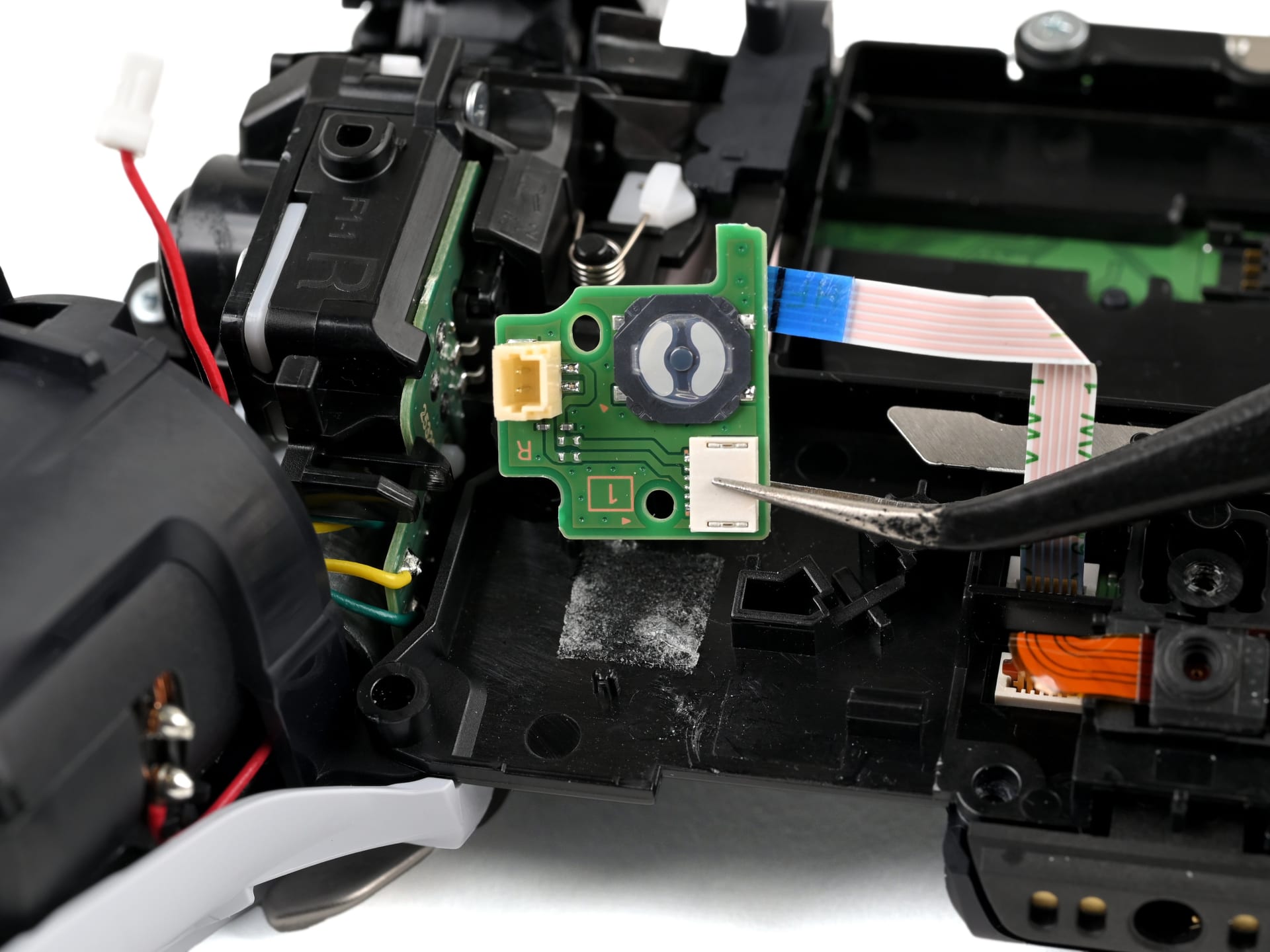
Turn the console off completely — not rest mode. Push a straightened paperclip or SIM tool into the hole and hold for about five seconds. Then reconnect the controller to the console with a USB cable and press the PS button.
This resolves a specific and frustrating category of fault where the controller appears completely dead: no light, no response, no charging indication. It is worth doing before concluding the hardware has failed.
Step 5: Rest Mode Is Cutting the Power
The PS5 stops supplying power to its USB ports in rest mode unless you tell it not to. If your controller only fails to charge overnight, this is your answer and the controller is fine.
Go to Settings → System → Power Saving → Features Available in Rest Mode → Supply Power to USB Ports and set it to Always.
The default on many consoles is "3 Hours," which is enough for a topped-up controller and not enough for a flat one left charging overnight. The same setting is behind downloads that never finish in rest mode, so changing it fixes two problems at once.
The Case For
A dock bypasses the console's USB power management entirely and runs off its own mains supply, so rest mode settings become irrelevant. It also removes the USB-C port from daily wear, which is the part that fails most often.
The Case Against
Docks use the controller's external charging contacts, not the USB port. If those contacts are dirty or the dock is poorly made, you have swapped one intermittent connection for another.
The Verdict
Worth it if you have two or more controllers or if your USB-C port is already worn. Not a fix for a controller that will not charge from any source.
Step 6: Check the Console's USB Ports
If the controller charges from a wall charger but not from the PS5, test both the front and rear USB ports. The front port sees far more insertion cycles and fails first.
Also remove any USB hub, extension cable or charging station from the chain while testing. Hubs frequently cannot supply the current a flat DualSense wants, and the symptom is a controller that charges extremely slowly or not at all.
Step 7: Update the Controller Firmware
Sony ships DualSense firmware updates through the console, and they occasionally address charging and power management behaviour.
Connect the controller by cable and go to Settings → Accessories → Controller (General) → Wireless Controller Device Software. If an update is available, install it with the cable connected throughout.
This will not revive a physically dead controller, but it is quick and it rules out a software cause.
Step 8: Accept a Worn Battery
A DualSense that charges normally but only lasts three or four hours has a battery near the end of its life, and no setting will bring it back.
The DualSense battery is rated for roughly 400 to 500 full charge cycles before meaningful capacity loss, which for most people is two to three years of regular play. The symptom pattern is distinctive: charging works fine, the light bar behaves correctly, but runtime shrinks steadily over months.
Replacement batteries are available and the job is straightforward for anyone comfortable with small electronics, though it does mean opening the controller. If the controller is under warranty, that is the better route.
| Symptom | Most likely cause | Fix |
|---|---|---|
| No light at all with cable attached | Cable, port debris, or dead charge circuit | Steps 2–4 |
| Charges from wall but not console | Console USB port or rest mode setting | Steps 5–6 |
| Charges only in one cable position | Worn cable or worn port | Steps 2–3 |
| Charges fully, drains in 3–4 hours | Worn battery | Step 8 |
| Completely unresponsive, no charge light | Needs hardware reset | Step 4 |
If the Problem Is Drift, Not Charging
Two different faults get reported together often enough to be worth separating. If the controller charges fine but the sticks move on their own, that is stick drift, which is a mechanical wear problem with an entirely different set of fixes — covered in how to fix controller stick drift.
If the sticks are physically fine but the game reads small unintended movements, the culprit is usually the deadzone configuration rather than the hardware. Our guides to controller deadzone settings and Steam Input deadzones and response curves cover the tuning side.
And if you are weighing a replacement controller, the sensor technology inside is the thing that determines how long it lasts before drifting — see TMR vs Hall effect joysticks.
Frequently Asked Questions
Why is my PS5 controller not charging?
Most often the cable, debris in the USB-C port, or the console cutting USB power in rest mode. Test the controller on a phone charger or PC first — if it charges there, the controller is fine and the problem is the console's USB ports or its rest mode power setting.
Where is the reset button on a PS5 controller?
There is a small pinhole on the back of the DualSense next to the Sony logo, near the left grip screw. Turn the console fully off, insert a paperclip or SIM tool and hold for about five seconds, then reconnect the controller by cable and press the PS button.
Why does my PS5 controller not charge in rest mode?
Because "Supply Power to USB Ports" is set to 3 Hours rather than Always. Change it under Settings → System → Power Saving → Features Available in Rest Mode. The 3-hour setting is enough to top up a nearly-full controller but not to charge a flat one overnight.
How long should a PS5 controller take to charge?
Roughly three hours from empty using the console's USB port or a standard charger. Significantly longer than that points at a low-current source such as a USB hub, a worn cable, or debris preventing the connector from seating fully.
How long does a DualSense battery last before it needs replacing?
The cell is rated for around 400 to 500 full charge cycles, which for most players is two to three years. The telltale sign of a worn battery is normal charging behaviour combined with runtime that has shrunk to three or four hours, and the only real fix is replacing the cell.
Is a DualSense charging dock worth buying?
It is if you own more than one controller or your USB-C port is already worn, because a dock runs on its own mains power and bypasses the console's rest mode settings entirely. It will not help a controller that refuses to charge from any source.
The Bottom Line
Work in this order and you will find the cause in minutes: test on a different power source, swap the cable, clean the port, then use the reset pinhole. Those four cover the large majority of DualSense charging failures.
If the controller charges everywhere except the console, the answer is the rest mode USB setting rather than anything wrong with the hardware. And if it charges perfectly but dies after three hours, that is a worn battery, which is the one outcome on this list that genuinely needs a part rather than a fix.
Controller photography courtesy of Sony Interactive Entertainment, iFixit and the respective publications, used for editorial coverage.
Sources
- PlayStation Support, How to troubleshoot DualSense wireless controller issues, retrieved 2026-08-09, https://www.playstation.com/en-us/support/hardware/troubleshoot-dualsense/
- iFixit, DualSense Controller Not Charging troubleshooting, retrieved 2026-08-09, https://www.ifixit.com/Troubleshooting/DualSense/Controller+Not+Charging/538810
- Android Authority, How to charge your PS5 controller, retrieved 2026-08-09, https://www.androidauthority.com/charge-ps5-controller-3146627/
- Nacon Gaming, PS5 controller not charging, retrieved 2026-08-09, https://www.nacongaming.com/en-US/blog/ps5-controller-not-charging
- PlayStation Support, How to use Safe Mode on PS5 consoles and PS4 consoles, retrieved 2026-08-09, https://www.playstation.com/en-us/support/hardware/safe-mode-playstation/