If your PS5 wakes up with a download exactly where you left it, the console did not fail — it disconnected on schedule. Rest mode has a separate internet setting from normal operation, and on many consoles it is set to stay connected for only a few hours before dropping the link.
The fix takes under a minute and lives in Settings → System → Power Saving → Features Available in Rest Mode. Everything else in this guide is for the cases where that one change is not enough.
Note
Key Takeaways
- Stay Connected to the Internet must be enabled under Features Available in Rest Mode. Without it, the PS5 drops its network connection the moment it sleeps.
- Supply Power to USB Ports governs how long rest mode stays fully awake. Set it to Always — the 3-hour option ends downloads mid-transfer.
- Downloads also stop if Automatic Updates are off, which is a separate setting from the rest mode ones.
- A power strip or smart plug that cuts standby power will silently defeat every setting on this list.
- Rest mode downloads run slower by design because the console is in a low-power state. Slow is not the same as stopped.
- If settings are correct and downloads still stall, rebuild the database in Safe Mode — a corrupt download queue is the most common remaining cause.
The Setting That Fixes Most Cases
Go to Settings → System → Power Saving → Features Available in Rest Mode and enable "Stay Connected to the Internet." This is a distinct network setting that applies only while the console sleeps, and if it is off the PS5 disconnects from your router the instant rest mode begins.
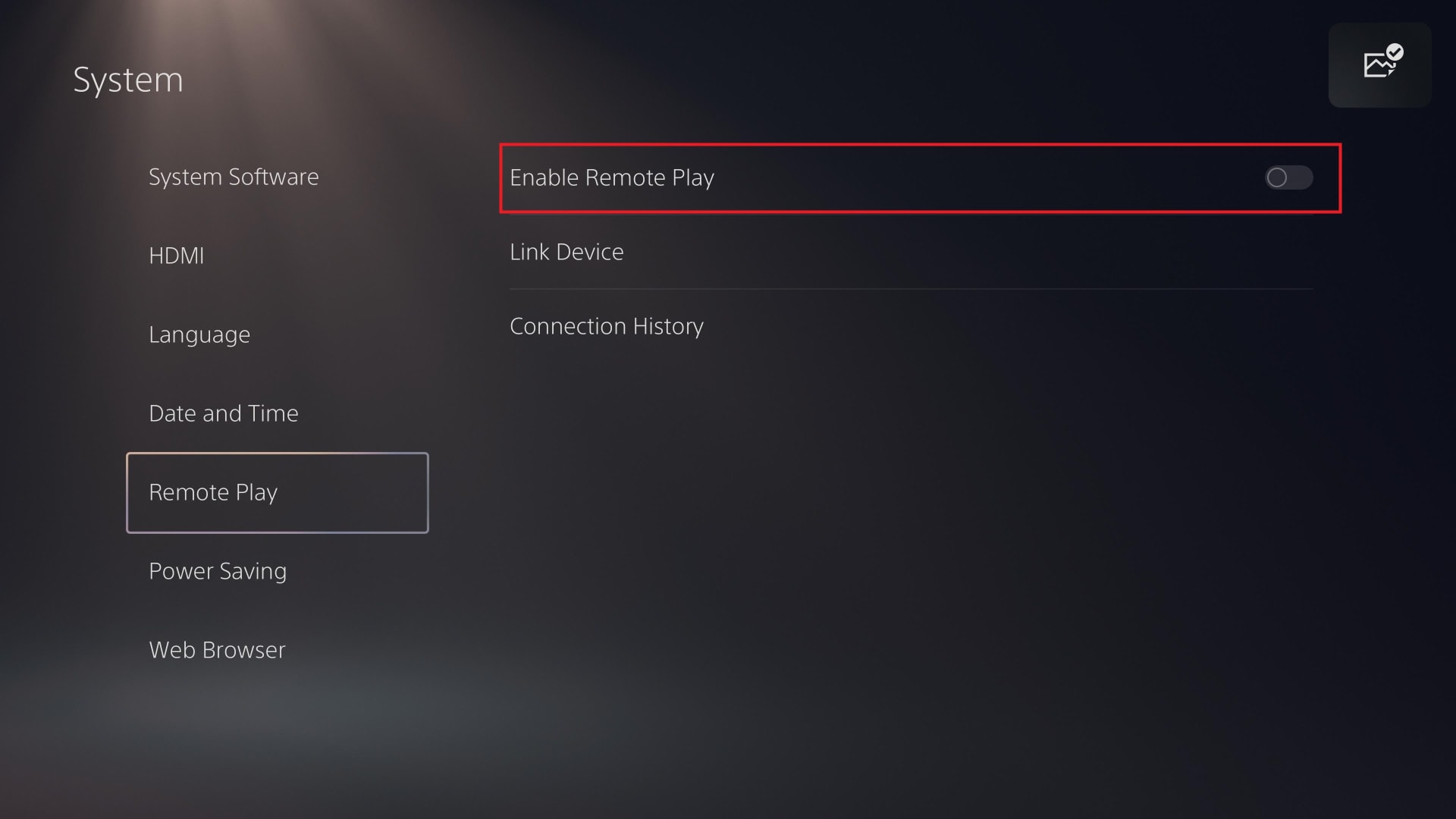
While you are on that screen, change Supply Power to USB Ports from "3 Hours" to "Always." The name is misleading — it does not only control controller charging. It governs how deeply the console sleeps, and on the 3-hour setting a long download will be cut off partway through the night.
Both settings need to be right. Enabling one and leaving the other is the single most common reason people follow a guide, change something, and still wake up to an unfinished download.
Then Check Automatic Updates
Rest mode downloading and automatic updating are separate systems, and both can block you.
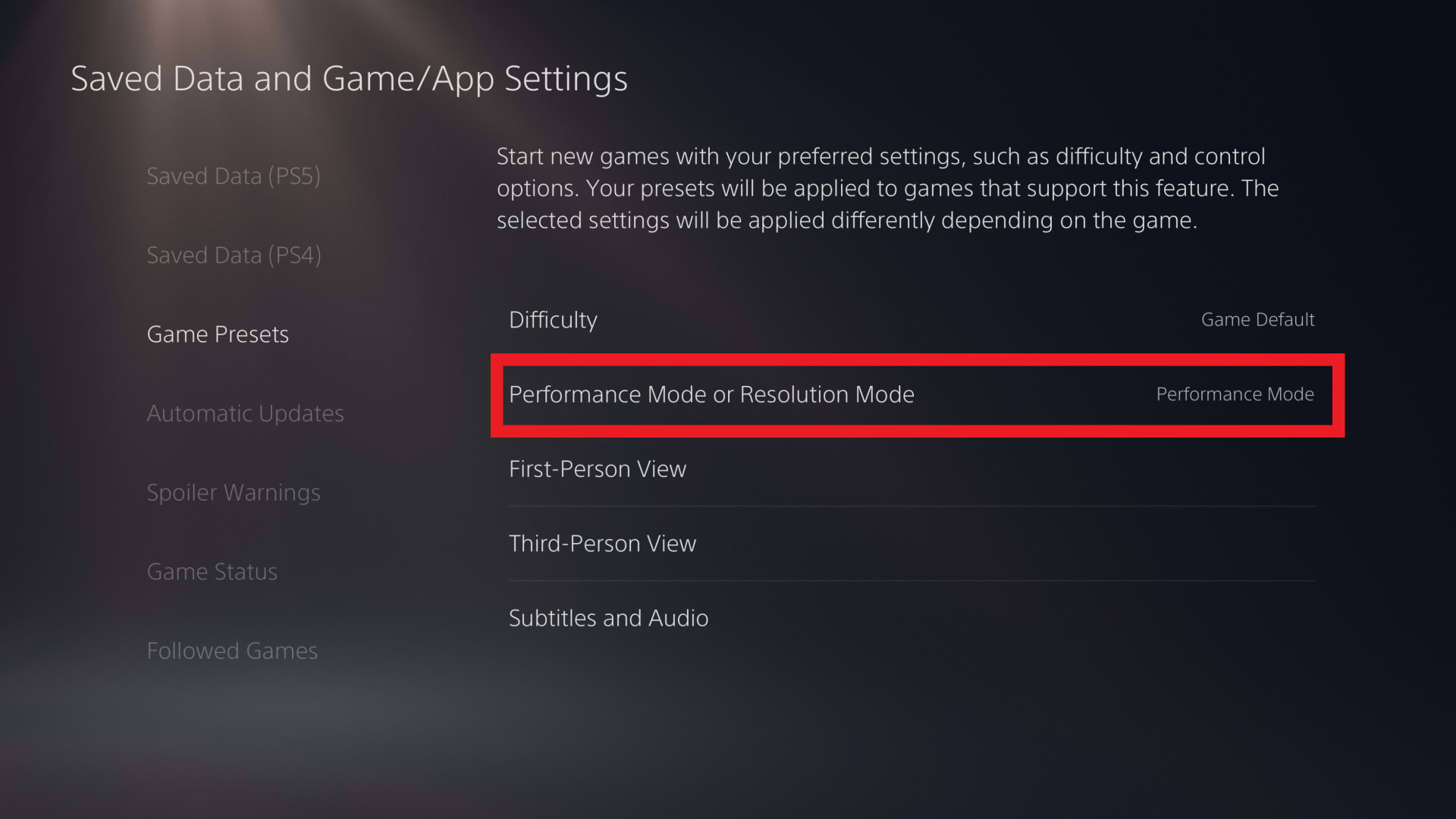
Go to Settings → Saved Data and Game/App Settings → Automatic Updates and turn on Auto-Download and Auto-Install in Rest Mode. If these are off, the console will happily stay connected all night and download nothing, because nothing has been queued.
Rule Out the Power Strip
A smart plug, a switched power strip, or an energy-saving socket that cuts standby draw will stop rest mode dead, and no console setting can override it.
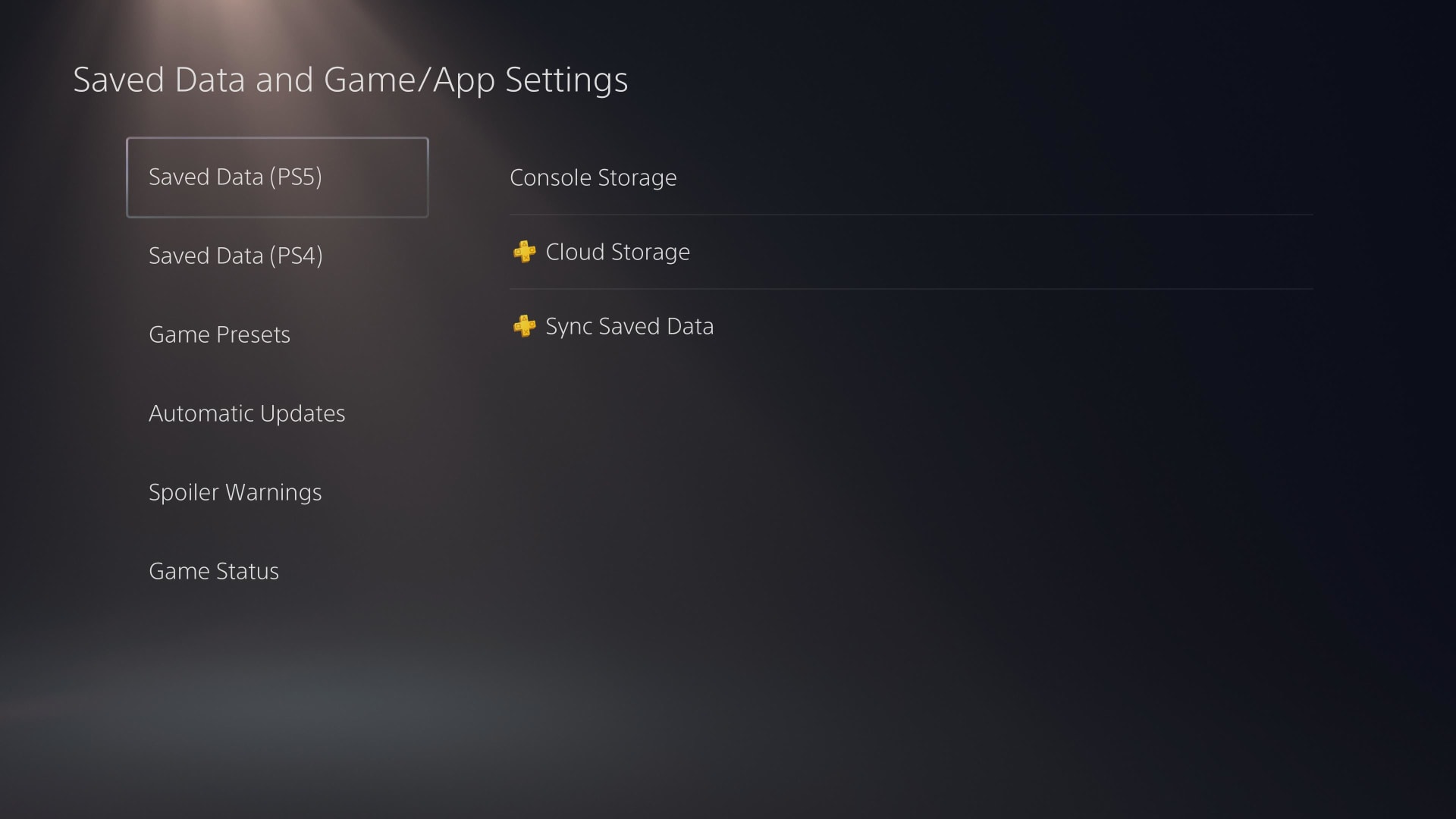
Rest mode is a low-power state, not an off state. The PS5 needs continuous mains power to keep its network interface alive and its storage spinning. If the socket cuts power when the console's draw drops below a threshold — which is exactly what many "energy saving" smart plugs are designed to do — the console shuts down rather than sleeping.
Plug the PS5 directly into a wall socket for one night and test again. This one accounts for a surprising share of "I have tried every setting" cases.
Warning
Some smart plugs report the console as "off" when it enters rest mode because the power draw drops from roughly 200W to under 2W. If your plug has an auto-off rule based on power threshold, disable it entirely for the console's socket rather than raising the threshold.
Slow Is Not Stopped
Rest mode downloads are intentionally slower than downloads with the console awake, because the system is running on reduced power with most subsystems idle.
Before assuming something is broken, check the actual progress. Wake the console, open the Downloads and Uploads section from the control centre, and look at whether the figure moved overnight. A 90 GB update that advanced 40 GB is working correctly — it just needs another night.
If it moved zero bytes, the connection is dropping. If it moved a little and stopped at the same point repeatedly, the download itself is corrupt and needs the fix further down this page.
The Full Checklist, in Order
1. Enable Stay Connected
Settings → System → Power Saving → Features Available in Rest Mode. This is the fix for most consoles.
2. Set USB Power to Always
Same menu. The 3-hour option ends the session partway through a long download.
3. Turn On Automatic Updates
Settings → Saved Data and Game/App Settings → Automatic Updates. Both Auto-Download and Auto-Install.
4. Bypass the Power Strip
Plug directly into the wall. Smart plugs with power-threshold rules kill rest mode silently.
5. Switch to Ethernet
Rest mode maintains a wired link far more reliably than a wireless one on a distant router.
6. Rebuild the Database
Safe Mode option 5. Clears a corrupt download queue without touching your games or saves.
Why Ethernet Helps More Than It Should
In rest mode the PS5 runs its Wi-Fi radio at reduced power, and a marginal wireless signal that works fine while the console is awake can become unreliable when the radio is throttled.
If the console sits far from the router, or the 2.4 GHz band in your building is congested, this shows up as downloads that start and then die at random points. An Ethernet cable removes the variable entirely.
A wired link also removes the latency-under-load problem that makes downloads and gameplay compete for the same connection, covered in low ping but still laggy: bufferbloat. If wired is not practical, the diagnostic order for an unreliable connection is the same as for gameplay problems — our guide to fixing packet loss in online games covers how to identify whether your router or the wireless link is the weak point.
Rebuilding the Database
If the settings are correct and the console still stalls at the same percentage, the download queue itself is corrupt. Rebuilding the database fixes it without deleting games or saves.
Hold the power button until you hear the second beep — around seven seconds — to boot into Safe Mode. Connect a controller with a USB cable, because Safe Mode does not accept wireless input. Choose Option 5: Clear Cache and Rebuild Database.
The process takes anywhere from a few minutes to an hour depending on how full your drive is. It rebuilds the content index and clears the cache; it does not delete games, saves or accounts.
Afterwards, cancel the stuck download entirely and re-queue it rather than resuming. A corrupt partial file will keep failing at the same point no matter how many times you retry it.
When It Is the Account, Not the Console
Occasionally a licence or sign-in problem prevents downloads while everything else looks healthy. The symptom is downloads that queue but immediately go to "Waiting to Install" or fail with a generic error.
Go to Settings → Users and Accounts → Account → Sign Out, restart the console fully, and sign back in. Then restore licences under Settings → Users and Accounts → Other → Restore Licences.
This costs two minutes and resolves a category of failure that no amount of power-setting changes will touch.
Related Rest Mode Behaviour
The same "Supply Power to USB Ports" setting also governs whether the console keeps charging a controller overnight, which is why a single change often fixes two complaints at once — see PS5 controller not charging.
If the console has been shutting itself down rather than merely failing to download, that is thermal protection rather than a power-saving setting, and console overheating covers it. And if the console wakes to a black screen after a night in rest mode, the culprit is a failed display negotiation rather than the download queue — console no-signal problems walks through it.
Frequently Asked Questions
Why is my PS5 not downloading in rest mode?
Most often because "Stay Connected to the Internet" is disabled under Settings → System → Power Saving → Features Available in Rest Mode. The PS5 uses a separate network setting for rest mode, and with it off the console disconnects the moment it sleeps. Also set "Supply Power to USB Ports" to Always, since the 3-hour option ends downloads partway through.
What should Supply Power to USB Ports be set to?
Always. Despite the name, this setting controls how deeply the console sleeps rather than just controller charging. On the 3-hour option the PS5 drops into a deeper sleep state after three hours and stops downloading, which is why long overnight updates finish only partially.
Does the PS5 download slower in rest mode?
Yes, and that is by design. The console runs on reduced power with most subsystems idle, so throughput is lower than when it is awake. Check the actual progress in Downloads and Uploads before assuming a failure — a large update that advanced significantly overnight is working correctly.
Can a smart plug stop my PS5 downloading in rest mode?
Yes. Rest mode is a low-power state, not an off state, and the console draws under 2W while sleeping. Smart plugs with an auto-off rule based on a power threshold read that as "device switched off" and cut the socket. Plug the console directly into a wall outlet to test.
Will rebuilding the PS5 database delete my games or saves?
No. Safe Mode option 5, Clear Cache and Rebuild Database, rebuilds the content index and clears cached data. Games, saved data and accounts are left intact. It is the correct fix when a download repeatedly stalls at the same percentage.
Should I use Wi-Fi or Ethernet for rest mode downloads?
Ethernet, if it is practical. In rest mode the PS5 runs its Wi-Fi radio at reduced power, so a marginal wireless signal that is fine during gameplay can drop while the console sleeps. A wired connection removes that variable completely.
The Bottom Line
Almost every "PS5 won't download in rest mode" case comes down to two settings on the same screen: Stay Connected to the Internet enabled, and Supply Power to USB Ports set to Always. Change both, not one.
If that does not do it, check that a smart plug is not cutting standby power, switch to Ethernet, and rebuild the database in Safe Mode to clear a corrupt queue. Those four steps cover essentially everything short of a hardware fault.
And before you troubleshoot at all, look at the download progress. Rest mode is slow on purpose, and a lot of consoles diagnosed as broken were simply partway through a very large update.
Console photography and interface screenshots courtesy of Sony Interactive Entertainment and the respective publications, used for editorial coverage.
Sources
- PlayStation Support, How to use Safe Mode on PS5 consoles and PS4 consoles, retrieved 2026-08-09, https://www.playstation.com/en-us/support/hardware/safe-mode-playstation/
- Digital Trends, How to put your PS5 in Rest Mode, retrieved 2026-08-09, https://www.digitaltrends.com/gaming/how-to-put-your-ps5-in-rest-mode/
- The CPU Guide, Why PS5 Rest Mode won't download game file updates, retrieved 2026-08-09, https://www.thecpuguide.com/gaming/ps5-rest-mode-not-downloading-game-file-updates/
- 10Scopes, PS5 Not Downloading Games in Rest Mode, retrieved 2026-08-09, https://10scopes.com/fix-ps5-not-downloading-in-rest-mode/
- iFixit, PlayStation 5 device page and repair guides, retrieved 2026-08-09, https://www.ifixit.com/Device/PlayStation_5