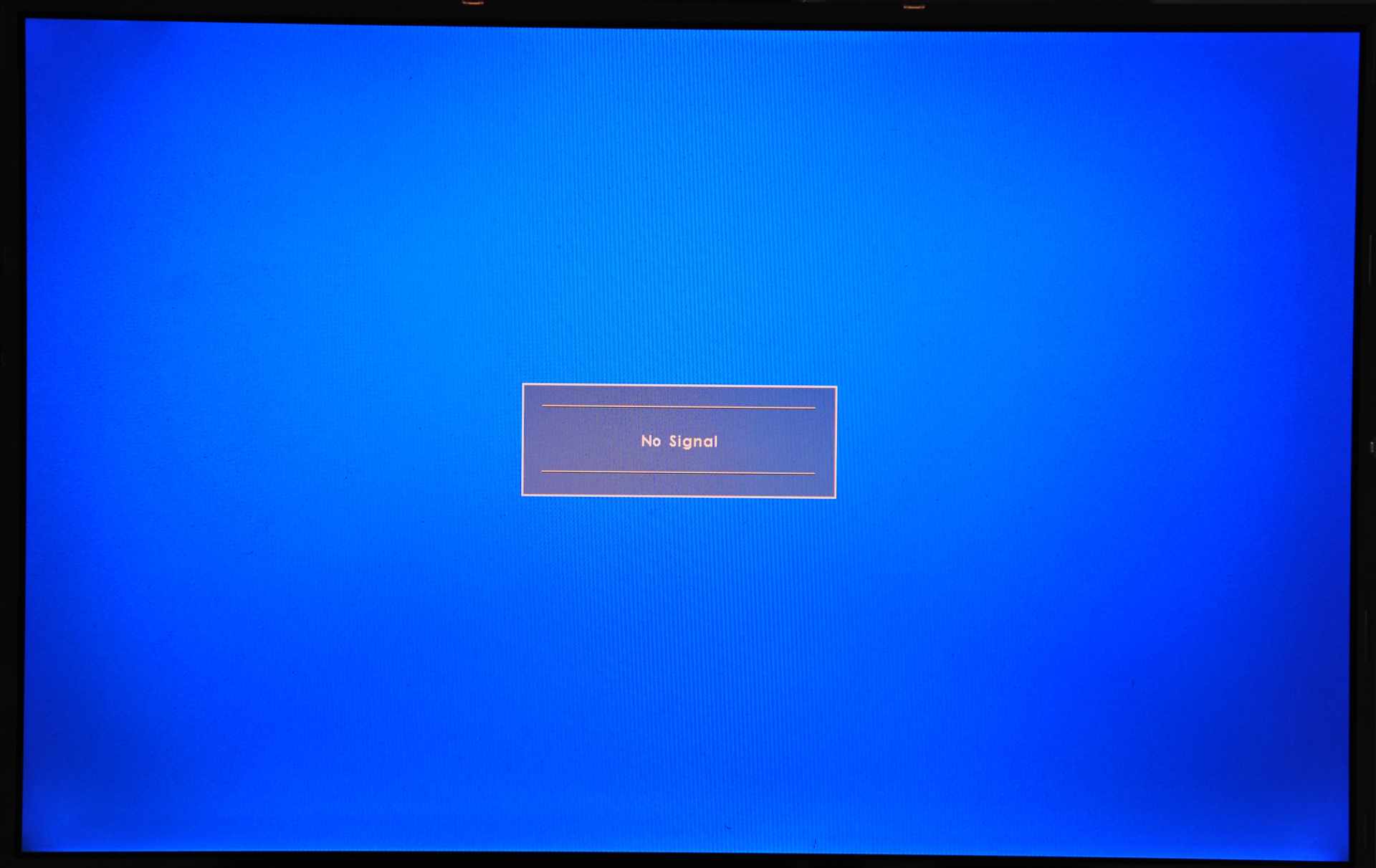
A console that powers on but shows "No Signal" is almost never broken — the two devices simply failed to agree on what to send each other. HDMI negotiates resolution, refresh rate, colour format and copy protection every time the link comes up, and if any part of that negotiation fails you get a black screen from working hardware.
The fix that resolves the largest share of cases takes 30 seconds and costs nothing: unplug both the console and the TV from mains power, wait 30 seconds, and plug them back in. That clears the stored handshake state on both ends and forces a clean renegotiation.
Note
Key Takeaways
- A full mains power cycle of both devices clears the stored HDMI handshake and fixes the majority of no-signal faults.
- Remove every device in between first — soundbars, AV receivers, HDMI switches and capture cards are the most common single cause.
- HDCP copy protection is part of the handshake. A device in the chain that negotiates it badly blocks the picture entirely.
- 4K at 120 Hz requires HDMI 2.1 and a certified Ultra High Speed cable. A cable that works at 4K60 can fail completely at 4K120.
- The PS5 has a Safe Mode option to reset video output to the lowest common resolution, which gets you a picture back without seeing the menu.
- Adaptive Sync and VRR settings on the display interfere with handshake timing on some panels and are worth toggling off while testing.
Step 1: The Power Cycle That Actually Works
Turn off the console and the TV, then unplug both from the wall for at least 30 seconds before reconnecting. Standby alone is not enough — HDMI handshake state is held in memory that survives a standby cycle on most televisions.
Plug the TV in first and let it fully boot. Then plug in the console and start it. Order matters more than it should, because the TV needs to be ready to respond when the console starts negotiating.
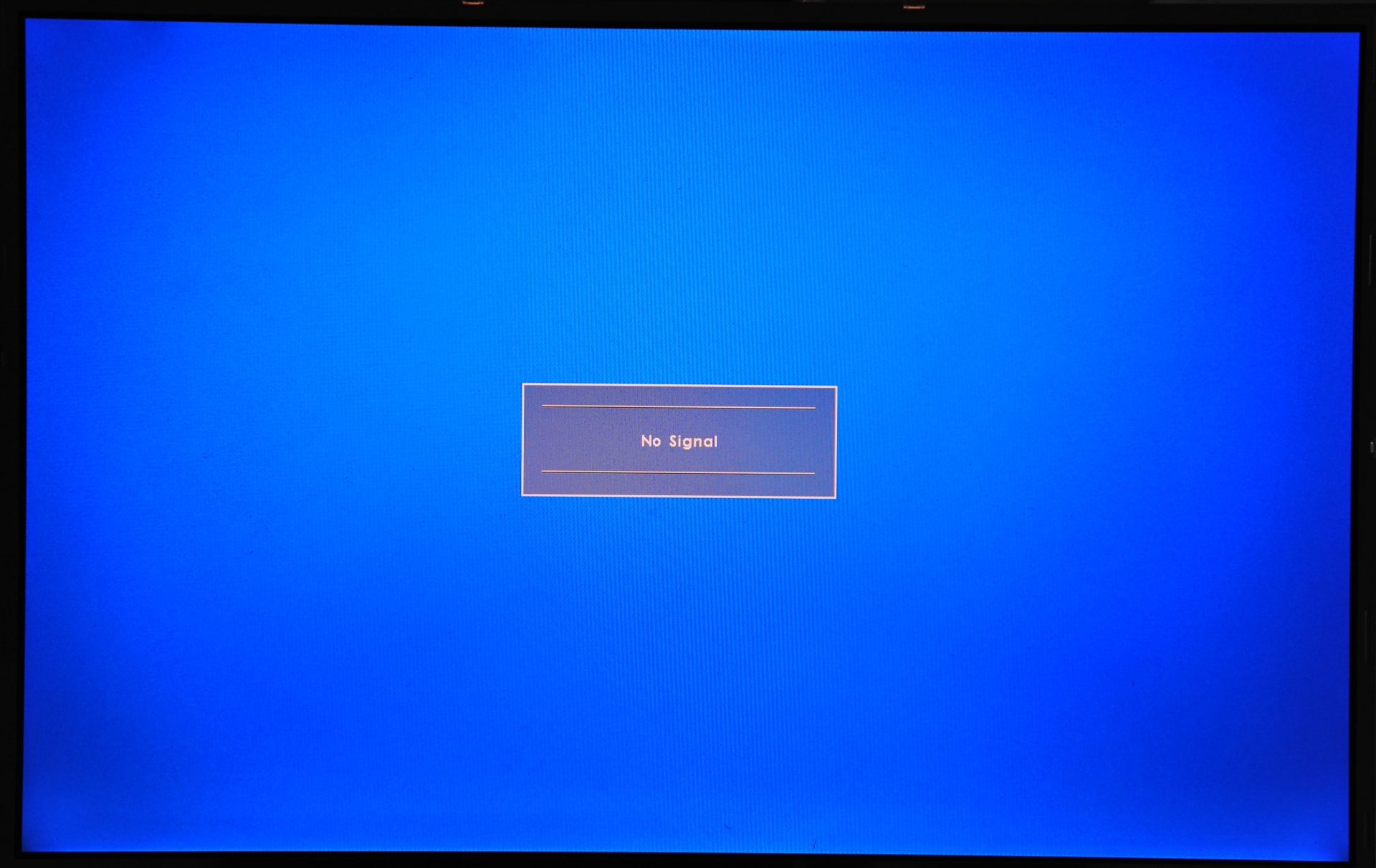
If that restores the picture, you are done. If the problem returns every time the console sleeps, the underlying cause is usually one of the devices in the chain rather than the console itself.
Step 2: Simplify the Chain
Connect the console directly to the television with nothing in between, using the cable that came in the box. No soundbar, no AV receiver, no HDMI switch, no capture card, no extension.
This is the highest-value diagnostic step on the page. Every additional device in an HDMI chain has to pass through the handshake, and each one is an opportunity for it to fail. Older receivers and cheap switches are particularly bad at passing modern signal formats, and many strip the metadata the console needs.
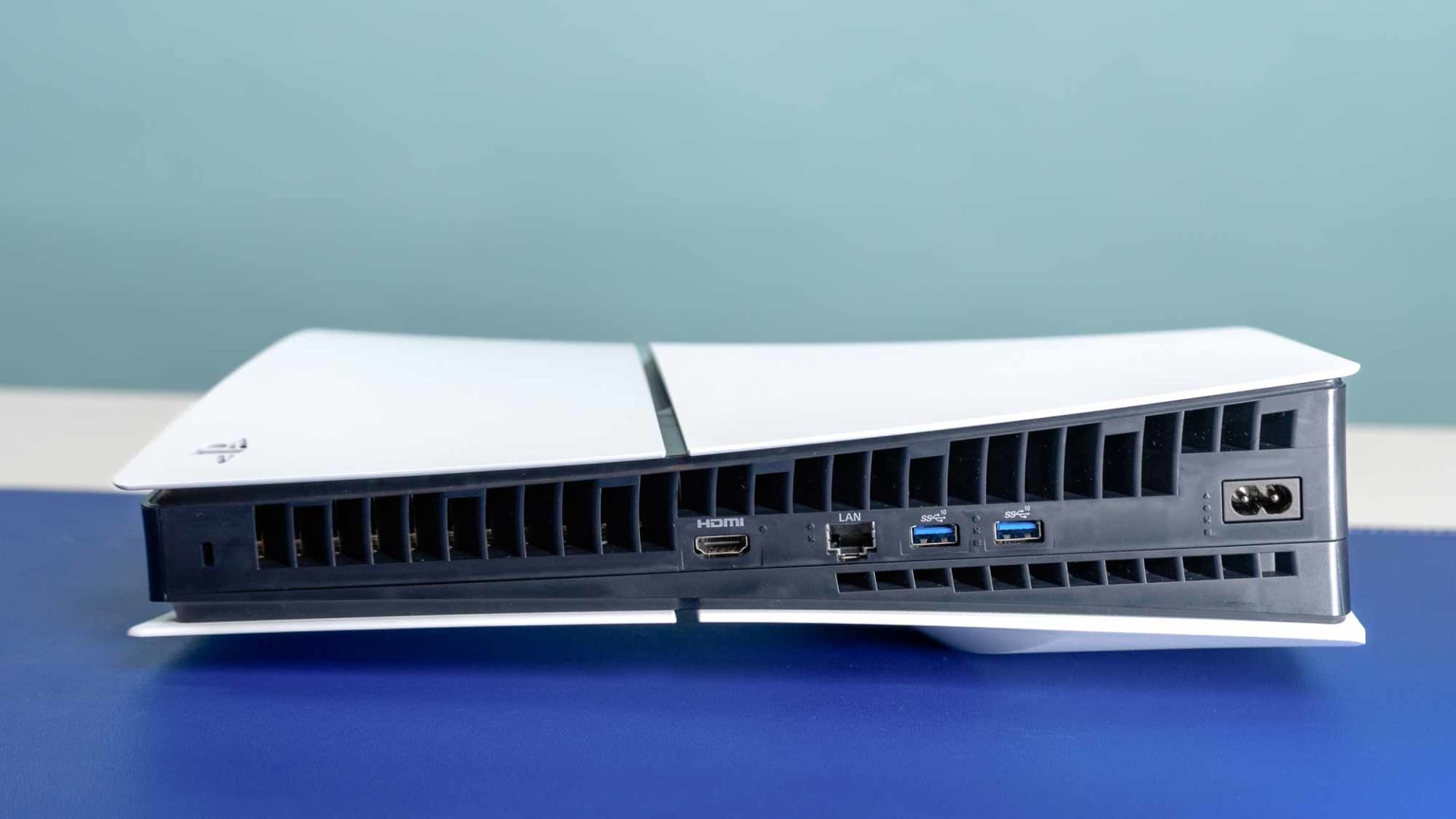
If direct connection works, add the devices back one at a time until it breaks. Whichever one breaks it is the one to replace or configure — usually by enabling an "enhanced" or "4K" HDMI mode on that specific input.
Info
HDCP is part of the handshake. Consoles enable copy protection by default, and if any device in the chain negotiates it incorrectly the picture is blocked entirely rather than degraded. On PS5 you can disable HDCP under Settings → System → HDMI, which is a useful diagnostic — but note that it stops some streaming apps working, so re-enable it once you have identified the culprit.
Step 3: Check the Input and the Port
Obvious, and worth ten seconds. Confirm the TV is on the exact input the console is plugged into, and that nothing has renamed or disabled that input.
Then move the cable to a different HDMI port on the TV. Not all ports are equal — on most 4K televisions only one or two are full-bandwidth HDMI 2.1 ports, and the others cap out well below what a modern console wants to output. Ports also fail individually while the rest of the set works.
While you are there, enable the TV's enhanced HDMI mode for that port. Manufacturers name it differently — HDMI Deep Colour on Sony, HDMI UHD Colour on Samsung, HDMI Ultra HD Deep Colour on LG — and it is frequently off by default. With it off, the port will refuse anything above 4K at 30 Hz.
Step 4: The Cable Is Probably Not Fine
A cable that reliably carries 4K at 60 Hz can fail completely at 4K 120 Hz, because the bandwidth requirement roughly doubles. This is the most misdiagnosed part of the whole problem.
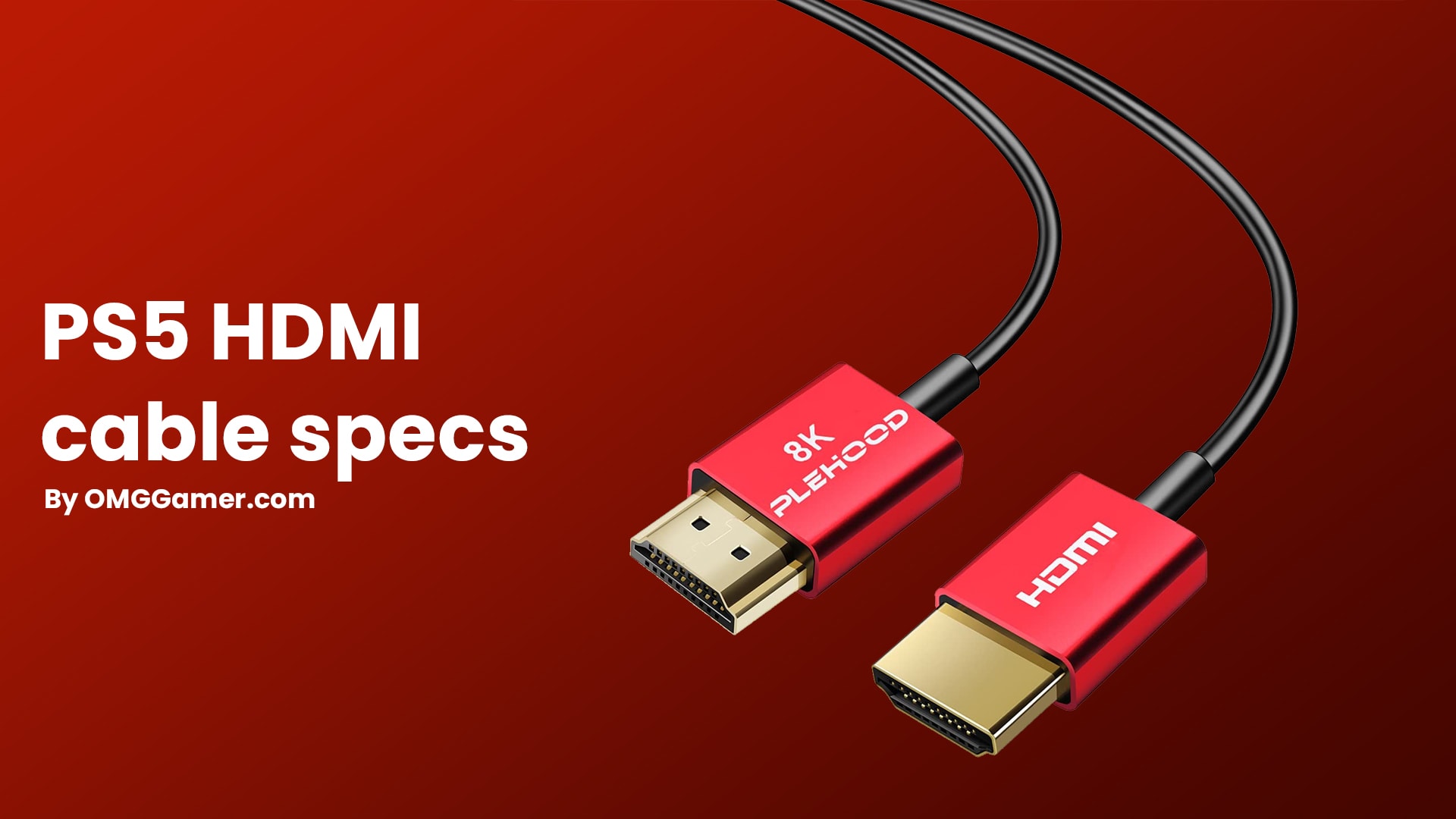
Use the cable that shipped with the console — it is a certified Ultra High Speed cable and it is there for a reason. If you have replaced it with a longer one, that is a prime suspect.
Cable labelling in this category is genuinely unreliable, and "HDMI 2.1" printed on a package means very little on its own. Our guide to spotting a fake HDMI 2.1 cable covers what to look for, and DisplayPort 2.1 vs HDMI 2.1 explains the actual bandwidth each standard delivers.
The failure mode to recognise: a picture that works fine until you enable 120 Hz mode, then black-screens. That is a bandwidth ceiling, not a broken console.
Step 5: PS5 Safe Mode Video Reset
If the console outputs a resolution the TV cannot display, you cannot get into the menu to change it — which is exactly what Safe Mode's video reset is for.
Turn the PS5 fully off. Hold the power button until you hear a second beep at around seven seconds. Connect a controller with a USB cable, since Safe Mode does not accept wireless input.
Choose Option 2: Change Video Output → Change Resolution. The console restarts at 480p, the lowest common denominator every display can show. From there, raise the resolution in normal settings until you find the ceiling your chain actually supports.
Xbox has an equivalent: hold the power button for 10 seconds to force a shutdown, then hold the power and eject buttons together until you hear a second chime, which boots into low-resolution troubleshooting mode.
Step 6: Turn Off VRR and Adaptive Sync While Testing
Variable refresh rate is negotiated as part of the handshake, and some displays handle that negotiation badly — particularly monitors and older televisions where HDMI VRR support was added late.
Disable Adaptive Sync or VRR in the display's own menu, power cycle, and test. If the picture returns, re-enable it afterwards and see whether it survives now that the rest of the chain is stable.
On OLED panels there is a related quirk worth knowing about even when the handshake is fine: rapid frame rate changes inside the VRR window can cause visible brightness flicker, covered in VRR flicker on OLED monitors.
1. Power Cycle Both Devices
Mains unplugged, 30 seconds, TV back first. Clears stored handshake state.
2. Remove Everything In Between
Direct console to TV, boxed cable. Soundbars and switches are the top cause.
3. Try a Different Port
Only some ports on a 4K TV are full-bandwidth. Enable enhanced HDMI mode on it.
4. Use the Original Cable
4K120 needs roughly double the bandwidth of 4K60. Long replacement cables fail here.
5. Safe Mode Video Reset
Forces 480p output so you can see the menu again and work upward.
When It Is Genuinely the HDMI Port
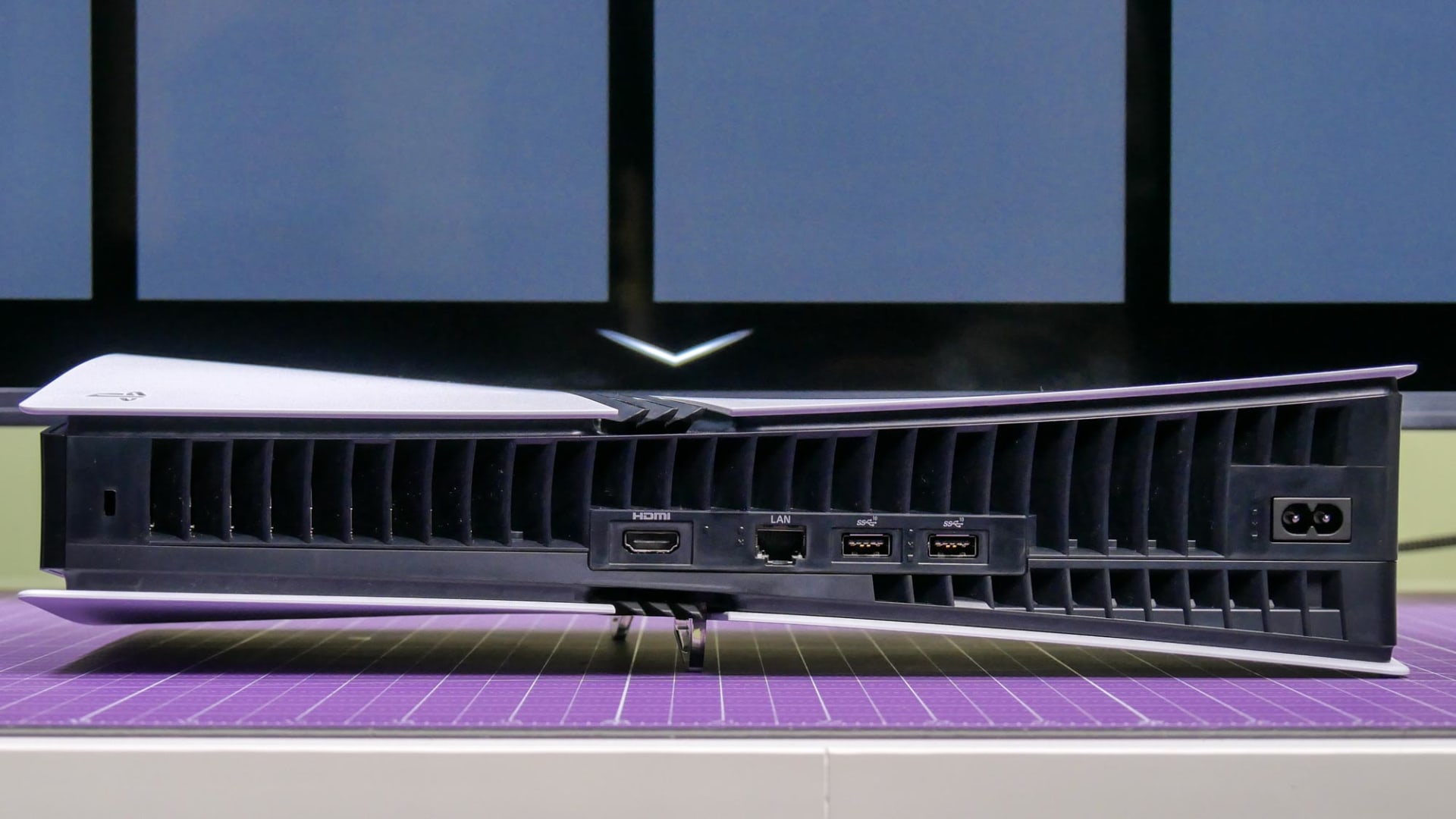
A physically damaged HDMI port on the console is real but rare, and it has a distinctive signature: the cable feels loose in the socket, or the picture appears only when you hold the cable at an angle.
The usual cause is the console being knocked while a stiff cable is plugged in, which levers the port off its solder pads. It is a board-level repair rather than a settings fix.
Before concluding that, confirm the console outputs nothing on any TV, with any cable, in any port. A console that works on one display and not another does not have a broken port — it has a negotiation problem with that specific display.
Once the Picture Is Back
A restored picture that looks grey and flat rather than black is a separate HDR configuration problem, not a handshake one — the same washed-out symptom PC players hit, covered in fixing HDR that looks washed out.
If you are choosing which port to use permanently, our comparison of HDMI and DisplayPort covers the trade-offs, and GtG vs MPRT response time explains which display specification actually predicts how a console will look in motion.
Frequently Asked Questions
Why does my PS5 say no signal on my TV?
Usually because the HDMI handshake between the console and the display failed rather than because either device is broken. Unplug both from mains power for 30 seconds, plug the TV in first and let it boot, then start the console. That clears the stored handshake state and fixes most cases.
What is an HDMI handshake and why does it fail?
It is the negotiation that happens every time an HDMI link comes up, where the two devices agree on resolution, refresh rate, colour format and HDCP copy protection. It fails when a device in the chain cannot support a requested format, when copy protection is negotiated incorrectly, or when stale state from a previous session is cached.
Do I need a special HDMI cable for 4K 120Hz?
Yes. 4K at 120 Hz requires HDMI 2.1 bandwidth and a certified Ultra High Speed cable. A cable that works perfectly at 4K 60 Hz can black-screen entirely at 120 Hz because the bandwidth requirement roughly doubles. Use the cable supplied with the console.
How do I reset PS5 video output without seeing the screen?
Boot into Safe Mode by holding the power button until you hear a second beep at around seven seconds, connect a controller with a USB cable, and choose Option 2: Change Video Output → Change Resolution. The console restarts at 480p, which every display can show.
Can a soundbar or AV receiver cause a no-signal screen?
Yes, and it is one of the most common causes. Every device in an HDMI chain has to pass the handshake through, and older receivers and cheap switches frequently strip the metadata modern consoles need. Connect the console directly to the TV to test, then add devices back one at a time.
Should I turn off HDCP on my PS5?
Only as a diagnostic. Disabling HDCP under Settings → System → HDMI will identify whether copy protection negotiation is what is blocking the picture, but it also stops several streaming apps from working. Turn it back on once you have found the device that is mishandling it.
The Bottom Line
No signal from a console that is clearly powered on is a negotiation failure, not a hardware failure, in the large majority of cases. Power cycle both devices from the mains, then connect the console straight to the TV with the boxed cable and nothing in between.
Those two steps solve most of it. If the picture only breaks when you enable 120 Hz, the cable or the port is your bandwidth ceiling. If nothing at all appears, Safe Mode's video reset forces 480p and gets you back to a menu you can actually read.
Leave "the HDMI port is broken" as the last conclusion, not the first — it is real, but it is far rarer than a soundbar that cannot pass a 4K120 signal.
Console and cable photography courtesy of Sony Interactive Entertainment, Microsoft and the respective publications, used for editorial coverage.
Sources
- PlayStation Support, How to use Safe Mode on PS5 consoles and PS4 consoles, retrieved 2026-08-09, https://www.playstation.com/en-us/support/hardware/safe-mode-playstation/
- Xbox Support, Troubleshoot a blank TV or monitor screen on Xbox, retrieved 2026-08-09, https://support.xbox.com/en-US/help/hardware-network/display-sound/troubleshoot-tv-monitor-issues
- HDMI Licensing Administrator, Ultra High Speed HDMI Cable certification, retrieved 2026-08-09, https://www.hdmi.org/spec21sub/ultrahighspeedcable
- KTC, PS5 120Hz monitor setup and troubleshooting, retrieved 2026-08-09, https://us.ktcplay.com/blogs/support-tips/ps5-120hz-monitor-setup-troubleshooting-guide
- Sony Interactive Entertainment, PlayStation 5 hardware overview, retrieved 2026-08-09, https://www.playstation.com/en-us/ps5/