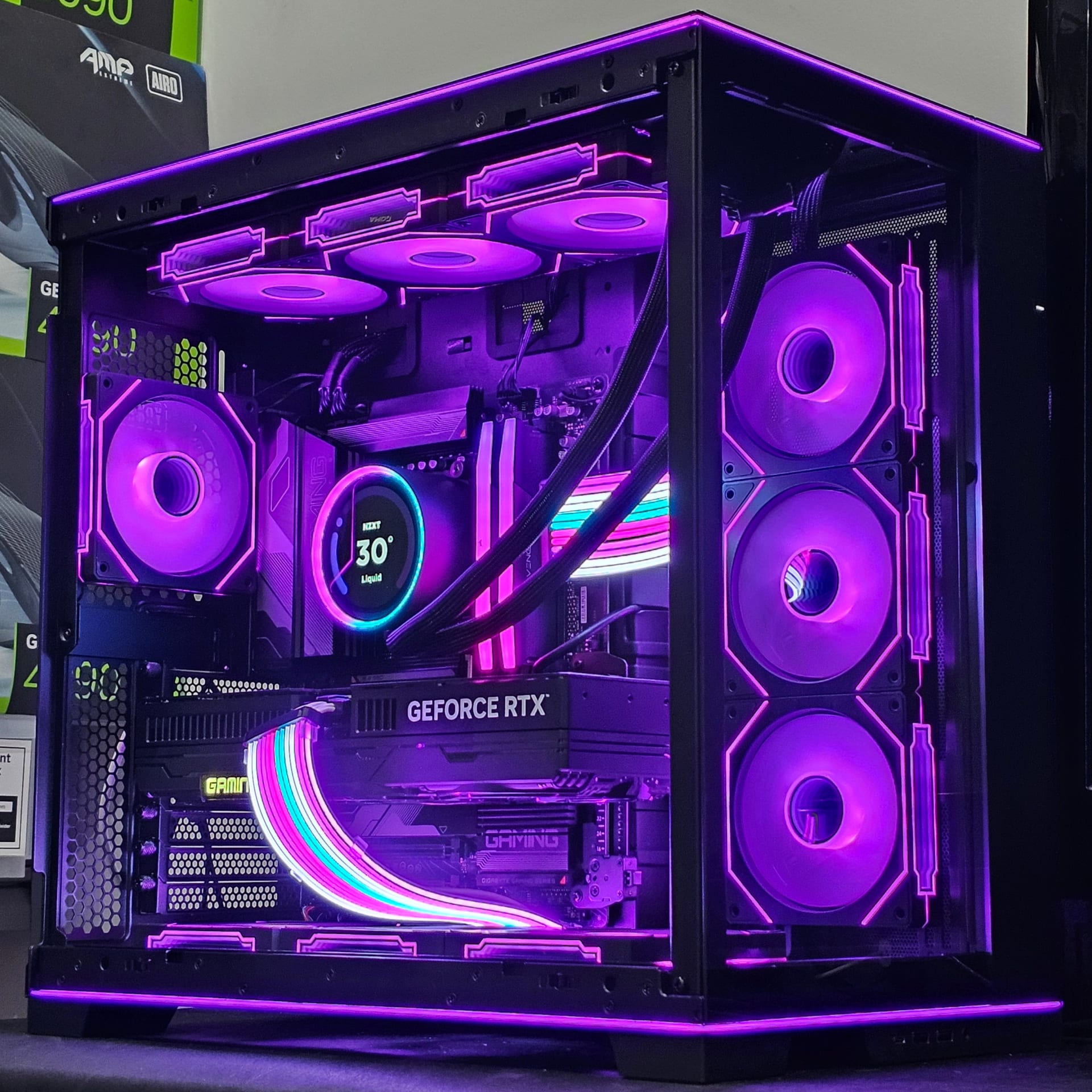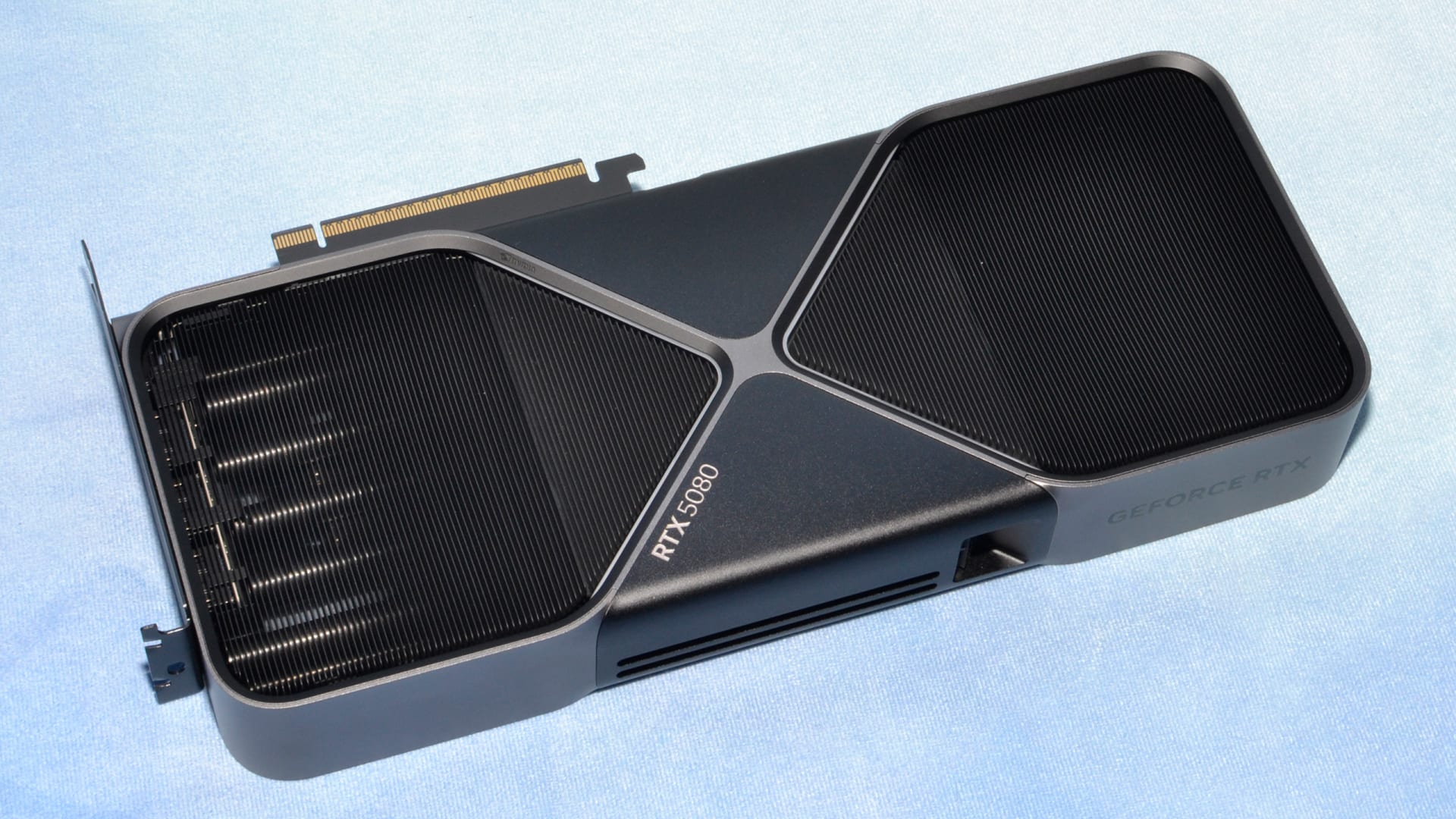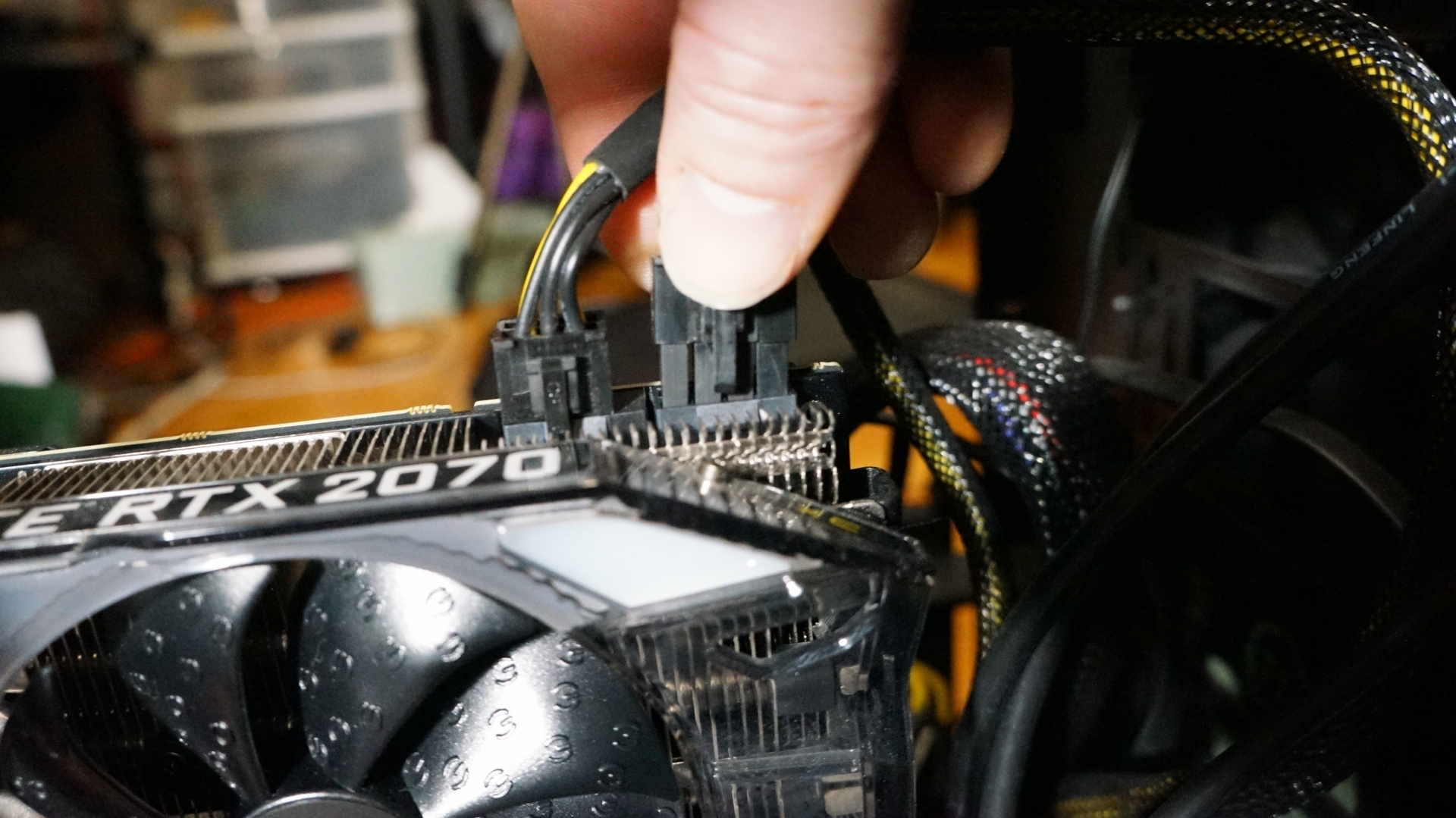
The graphics card is the right first upgrade most of the time, and "most of the time" is exactly why you should spend 15 minutes checking before you spend anything. The cases where a GPU is the wrong answer are not rare, and they are the ones where people waste the most money — a new card dropped into a system that was never GPU-limited returns almost nothing.
There is a diagnostic that settles it, it requires no purchases, and it takes about as long as reading this article. Watch GPU utilisation during gameplay: if it sits at 95–100%, the GPU is your limit. If it sits at 60%, something else is.
Note
Key Takeaways
- Check GPU utilisation first. 95–100% during gameplay means GPU-limited and a new card will help. Consistently below ~85% means something else is the bottleneck.
- The GPU is the right answer roughly 70% of the time, but a CPU-limited system gains almost nothing from one.
- RAM capacity is a cliff, not a slope. Running out causes stutter and hitching; having spare does nothing. 16 GB is the current floor, 32 GB the comfortable target.
- An SSD upgrade fixes load times and world-streaming stutter, not frame rate. If you are still on a hard drive, this is the highest-value change per pound spent.
- Check your power supply before buying a GPU, not after. An undersized or old unit turns an upgrade into a crash log.
- A CPU upgrade often means a new motherboard and RAM too. Price the platform, not the chip.
The 15-Minute Diagnostic
Open an overlay that shows GPU utilisation, CPU utilisation, RAM usage and VRAM usage, then play the game that is bothering you for ten minutes. Any of MSI Afterburner with RivaTuner, the AMD or NVIDIA driver overlay, or the Xbox Game Bar will do it.
You are looking for which resource sits pinned while the others have headroom.
| What you see | Your bottleneck | The upgrade |
|---|---|---|
| GPU at 95–100%, CPU below 70% | GPU | Graphics card |
| CPU at 90–100% on some cores, GPU below 80% | CPU | CPU (and likely platform) |
| RAM at or near capacity, hitching | System memory | More RAM |
| VRAM at capacity, sudden severe drops | Graphics memory | GPU with more VRAM |
| Nothing pinned, poor frame rate | Not a hardware limit | Settings, drivers or thermals |
That last row catches more people than it should. If nothing is saturated and performance is still bad, buying hardware will not fix it — start with how to fix stuttering in PC games instead.
Tip
Test at the resolution and settings you actually play at. A system that is CPU-limited at 1080p can be entirely GPU-limited at 1440p, because raising resolution adds GPU work without adding CPU work. Benchmarking at the wrong resolution is the most common way this diagnostic gets misread.
Watch the Lows, Not the Average
Average frame rate hides the problem you are actually feeling. A game averaging 90 FPS with dips to 30 feels far worse than one locked at 60, and only one of those numbers tells you so.
The metric that matters is 1% lows, and it is what most overlays label as such. Our explainer on what 1% lows measure in gaming covers how to read them and why they usually point at a different component than the average does.
Upgrade 1: The Graphics Card
If GPU utilisation is pinned at 95–100%, a faster card converts almost directly into frames, and nothing else on this list comes close.
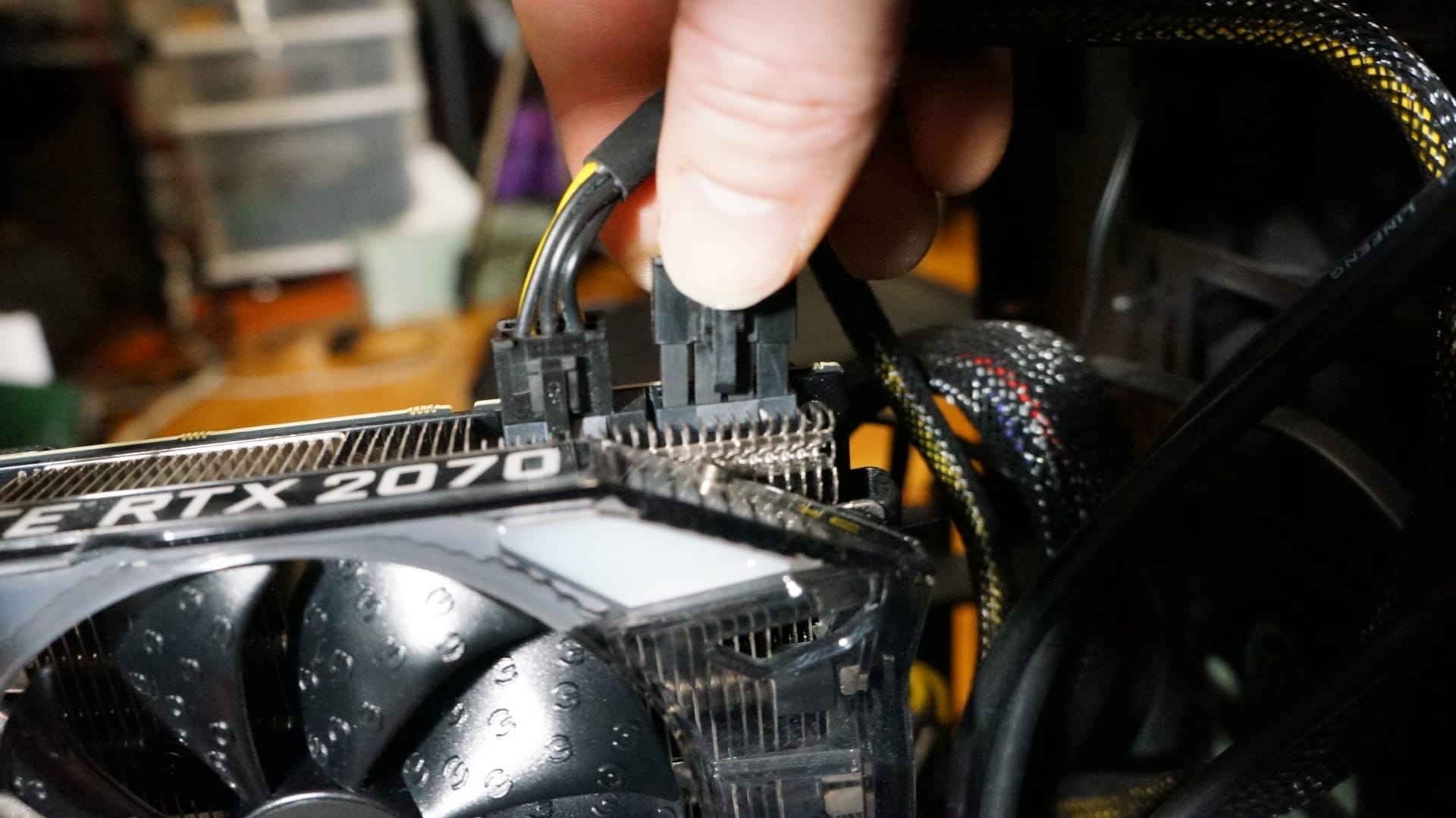
Three things to check before you buy:
Power supply headroom. A modern mid-range card wants meaningfully more than a five-year-old build was specified for, and transient power spikes trip protection on units that look adequate on paper. Our PSU wattage guide for gaming PCs covers how to size it properly, and if your system is already cutting out under load, why a PC shuts down while gaming is the first thing to read.
VRAM, not just the model number. Running out of graphics memory does not degrade performance gracefully — it collapses. A card with more VRAM and slightly lower raw speed is frequently the better buy at 1440p and above. How much VRAM you need for gaming covers the current thresholds.
Physical fit and PCIe generation. Measure your case. On PCIe generation, the practical impact is smaller than marketing implies — our PCIe 5 vs PCIe 4 gaming comparison covers where it does and does not matter.
For current options at sensible prices, the best budget GPU in 2026 is the place to start.
Upgrade 2: RAM
Memory is a cliff, not a slope: running out causes severe stutter, and having spare does nothing at all. That asymmetry is why "will more RAM help?" has such an unsatisfying answer — it depends entirely on which side of the cliff you are on.
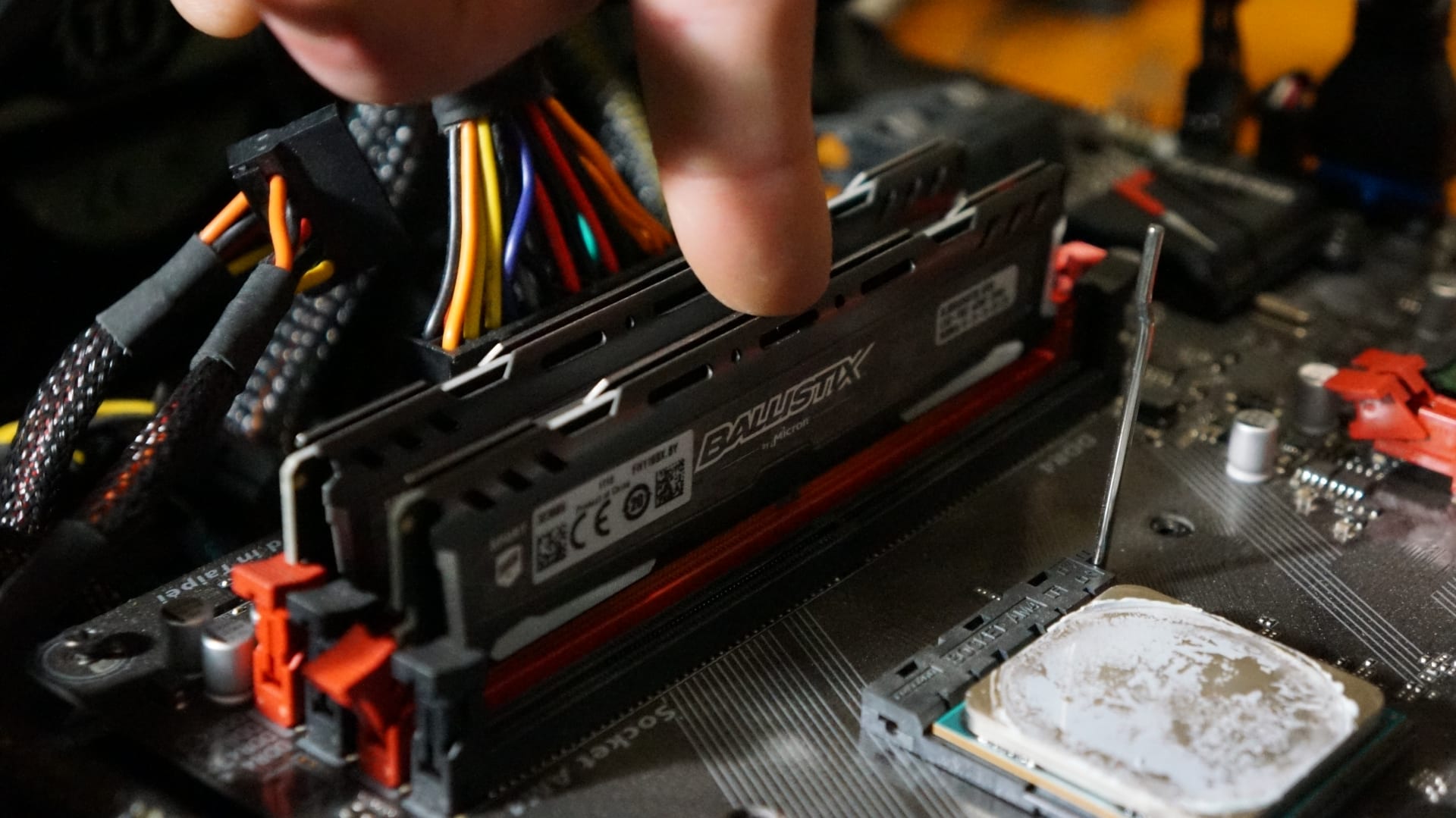
16 GB is the floor in 2026. Below that, modern games page to disk and produce hitching that looks exactly like a GPU problem. 32 GB is the comfortable target for anyone who plays with a browser, Discord and a launcher open — which is nearly everyone.
Beyond 32 GB, gains for gaming are negligible. Our breakdown of whether 32 GB of RAM is overkill for gaming covers where the real threshold sits.
Two details that matter more than capacity once you are past the cliff: run in dual channel — two matched sticks, in the correct slots per your motherboard manual — and enable the XMP or EXPO profile in BIOS, because memory runs at a conservative default speed until you do. That second step is free performance a surprising number of builds never claim.
Upgrade 3: Storage
An SSD upgrade transforms load times and world-streaming stutter, and does nothing whatsoever for frame rate. Knowing that in advance prevents disappointment.
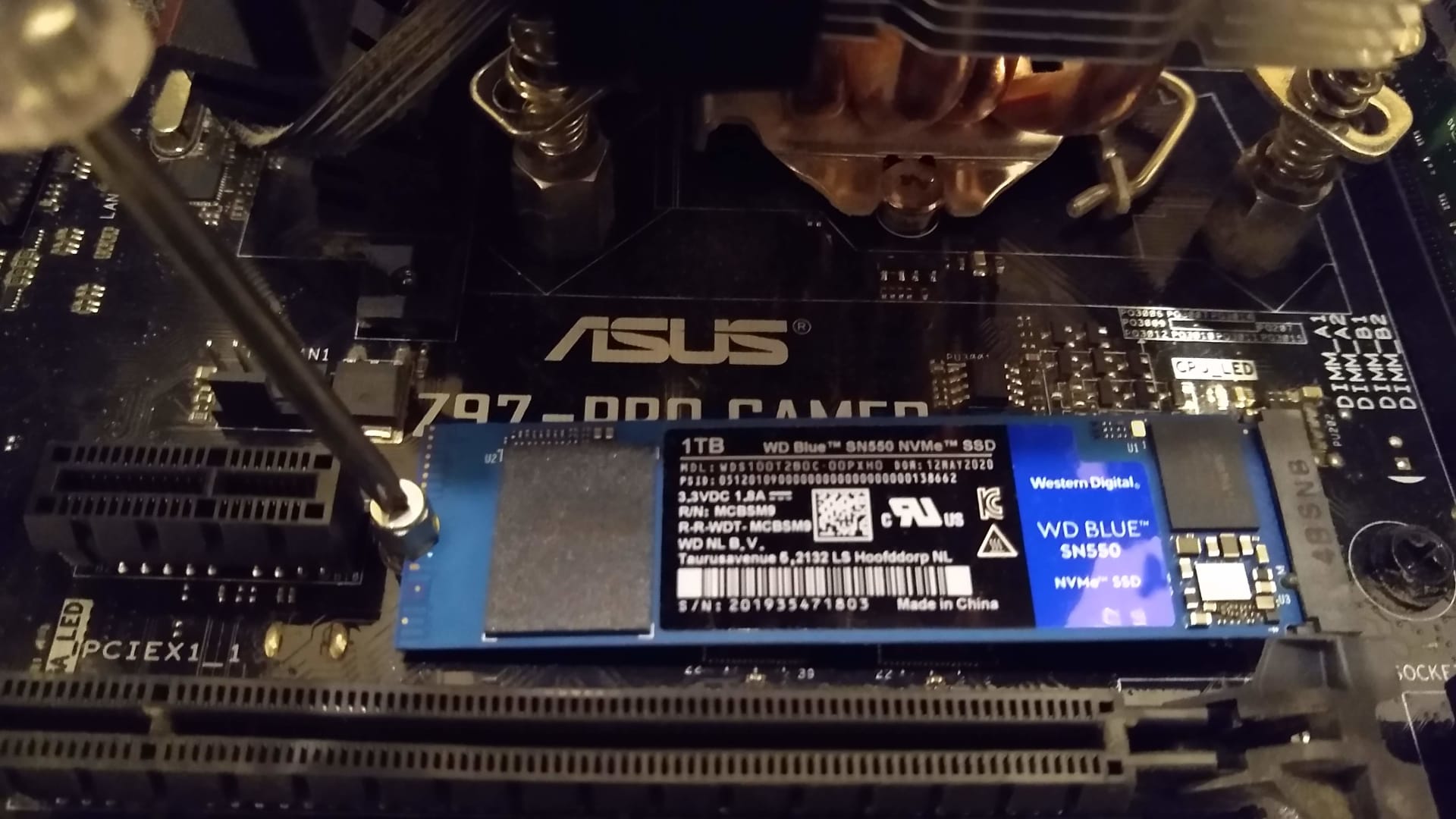
If you are still running games from a mechanical hard drive, this is the highest-value upgrade on the list per pound spent, and it is not close. Modern open-world games stream assets continuously during play; a hard drive cannot keep up, and the result is texture pop-in and traversal hitching that no amount of GPU will fix.
If you already have a SATA SSD, moving to NVMe is a real but much smaller improvement — noticeable in load screens, largely invisible in gameplay. Buy capacity over raw sequential speed. A 2 TB drive at moderate speed beats a 1 TB drive at headline speed for almost every real workload.
Upgrade 4: The CPU
A CPU upgrade is the most expensive one on this list because it is rarely just a CPU. New chips frequently need a new socket, which means a new motherboard, which often means new RAM as well.
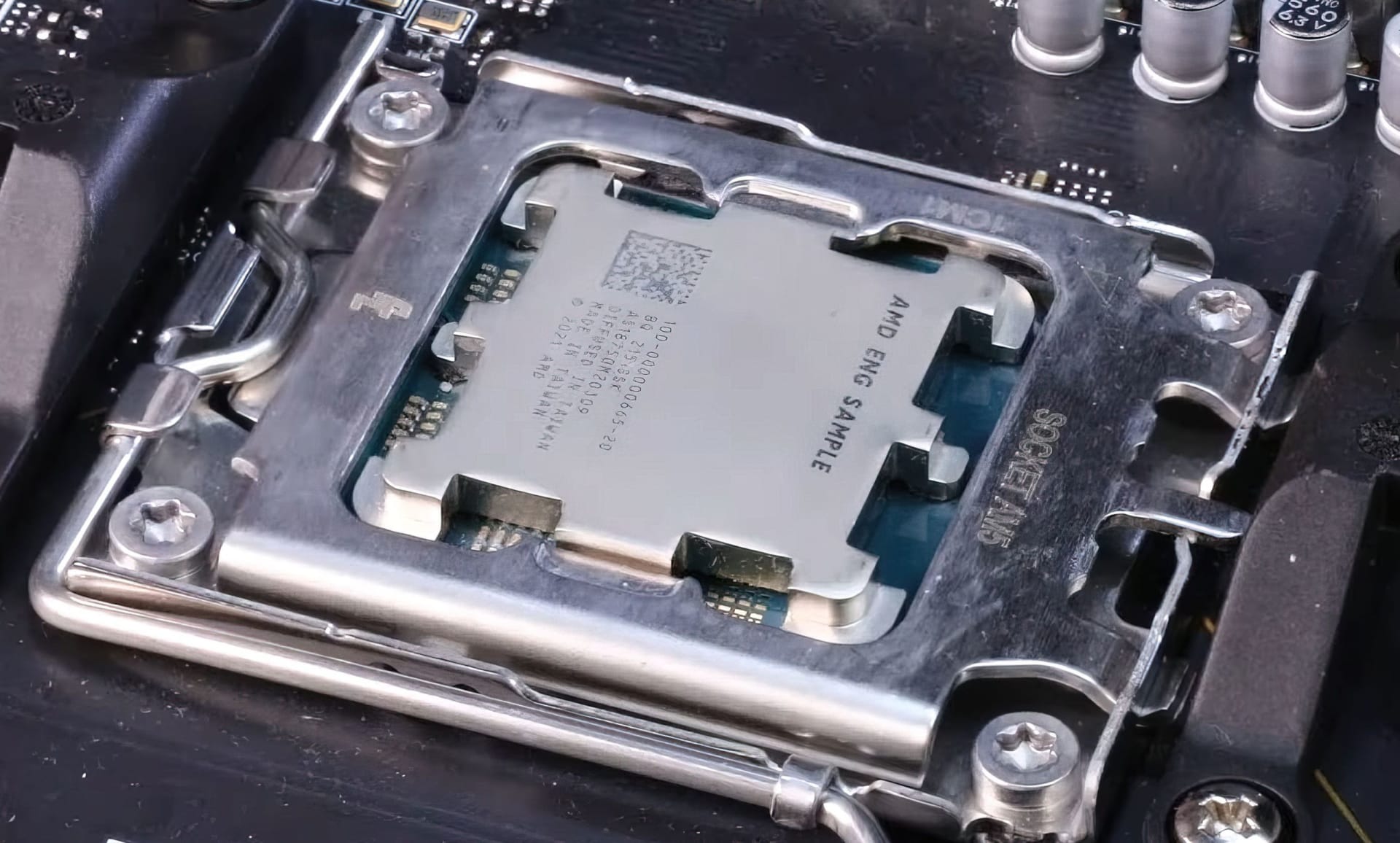
Price the whole platform before deciding, and check whether your existing motherboard supports a newer chip with a BIOS update first — that path is far cheaper when it exists.
GPU Utilisation Below 80%
Your graphics card is waiting for work. That is the clearest single indicator.
High FPS Drops in Crowds
Simulation-heavy moments — large battles, dense cities, big multiplayer lobbies — hit the CPU rather than the GPU.
Strategy and Simulation Games Struggle
These genres are CPU-bound by design. If they run badly while shooters run fine, that is your answer.
Frame Rate Barely Changes With Settings
If dropping from Ultra to Medium gains almost nothing, you are not GPU-limited.
More cores is not automatically better for gaming. Per-core performance and cache size matter more than core count above about eight cores — the reasoning is covered in our comparison of whether a Ryzen 5 can be faster than a Ryzen 7.
What to Leave Alone
Your monitor, unless it is genuinely holding you back. A 60 Hz panel does cap what any upgrade can show you, and moving to high refresh is transformative. But it is a display upgrade, not a performance upgrade, and it should be budgeted separately.
Cooling, unless you are thermally throttling. Check temperatures under load first. If you are not throttling, a better cooler buys quiet, not frames.
The motherboard on its own. A motherboard upgrade with the same CPU does essentially nothing for gaming. It only makes sense as part of a platform change.
"Gaming" peripherals as a performance fix. They can absolutely improve how a game feels to play, but they will not raise your frame rate, and they should not be competing with a GPU for the same budget.
Whole-System vs Piecemeal
If your build is more than about six years old, adding one modern part to it often disappoints. A current graphics card in an old system runs into CPU limits, PCIe limits and power supply limits at once, and you end up spending most of a new build's cost to reach a fraction of its performance.
Our guide to how long a gaming PC lasts covers where that line falls, and the average cost of a gaming PC helps price the alternative honestly. If a rebuild turns out to be the better answer, the budget gaming PC build under $1000 and the 1440p gaming PC build are the two starting points worth comparing.
Running costs are worth a thought too, since a higher-power GPU raises them for the life of the machine — what it costs to run a gaming PC in electricity puts real numbers on it.
Frequently Asked Questions
What should I upgrade first in my gaming PC?
Check GPU utilisation during gameplay before deciding. If it sits at 95–100%, upgrade the graphics card — that is the right answer roughly 70% of the time. If it sits below 80% while a CPU core is pinned, you are CPU-limited and a new GPU will barely help.
How do I know if my CPU or GPU is the bottleneck?
Run an overlay showing both utilisations and play for ten minutes at your normal resolution and settings. GPU pinned near 100% with CPU headroom means GPU-limited. GPU below 80% with one or more CPU cores near 100% means CPU-limited. Test at the resolution you actually play at, because raising resolution shifts load onto the GPU.
Will more RAM increase my FPS?
Only if you are currently running out. Memory behaves like a cliff rather than a slope — going from 8 GB to 16 GB on a modern game can eliminate severe stutter, while going from 32 GB to 64 GB does essentially nothing for gaming. Enabling your XMP or EXPO profile in BIOS is often a bigger gain than adding capacity.
Does upgrading to an SSD increase FPS?
No. An SSD dramatically improves load times and eliminates the texture pop-in and traversal stutter that mechanical drives cause in streaming open-world games, but average frame rate is unaffected. If you are still gaming from a hard drive it is still the best value upgrade available.
Do I need a new power supply when I upgrade my GPU?
Check before you buy the card, not after. Modern graphics cards draw transient power spikes well above their rated figures, which can trip protection on units that appear adequate on paper, and PSU capacity degrades with age. An undersized supply usually presents as the PC shutting down under load rather than as poor performance.
Is it better to upgrade or build a new PC?
If the system is more than about six years old, a full rebuild is usually the better value. Adding one modern component to an old platform runs into CPU, PCIe and power limits simultaneously, so you spend a large share of a new build's cost for a fraction of its performance.
The Bottom Line
The upgrade order is GPU, RAM, storage, CPU — but only after you have confirmed which one your system is actually waiting on. That confirmation costs fifteen minutes and is the difference between money well spent and a new card that changes nothing.
Watch GPU utilisation for ten minutes in the game that is bothering you. Pinned at 100% means buy a graphics card, and check your PSU before you do. Sitting at 60% means the answer is somewhere else, and buying a GPU is the most expensive way to find that out.
Component photography courtesy of the respective manufacturers and publications, used for editorial coverage.
Sources
- Intel, Intel Extreme Memory Profile (Intel XMP) RAM overclocking, retrieved 2026-08-09, https://www.intel.com/content/www/us/en/gaming/extreme-memory-profile-xmp.html
- AMD, AMD EXPO memory profiles overview, retrieved 2026-08-09, https://www.amd.com/en/products/processors/technologies/expo.html
- NVIDIA, FrameView performance and power benchmarking application, retrieved 2026-08-09, https://www.nvidia.com/en-us/geforce/technologies/frameview/
- Rock Paper Shotgun, How to install RAM in your PC, retrieved 2026-08-09, https://www.rockpapershotgun.com/how-to-install-ram
- Tom's Hardware, GPU news, reviews and buying guidance, retrieved 2026-08-09, https://www.tomshardware.com/pc-components/gpus