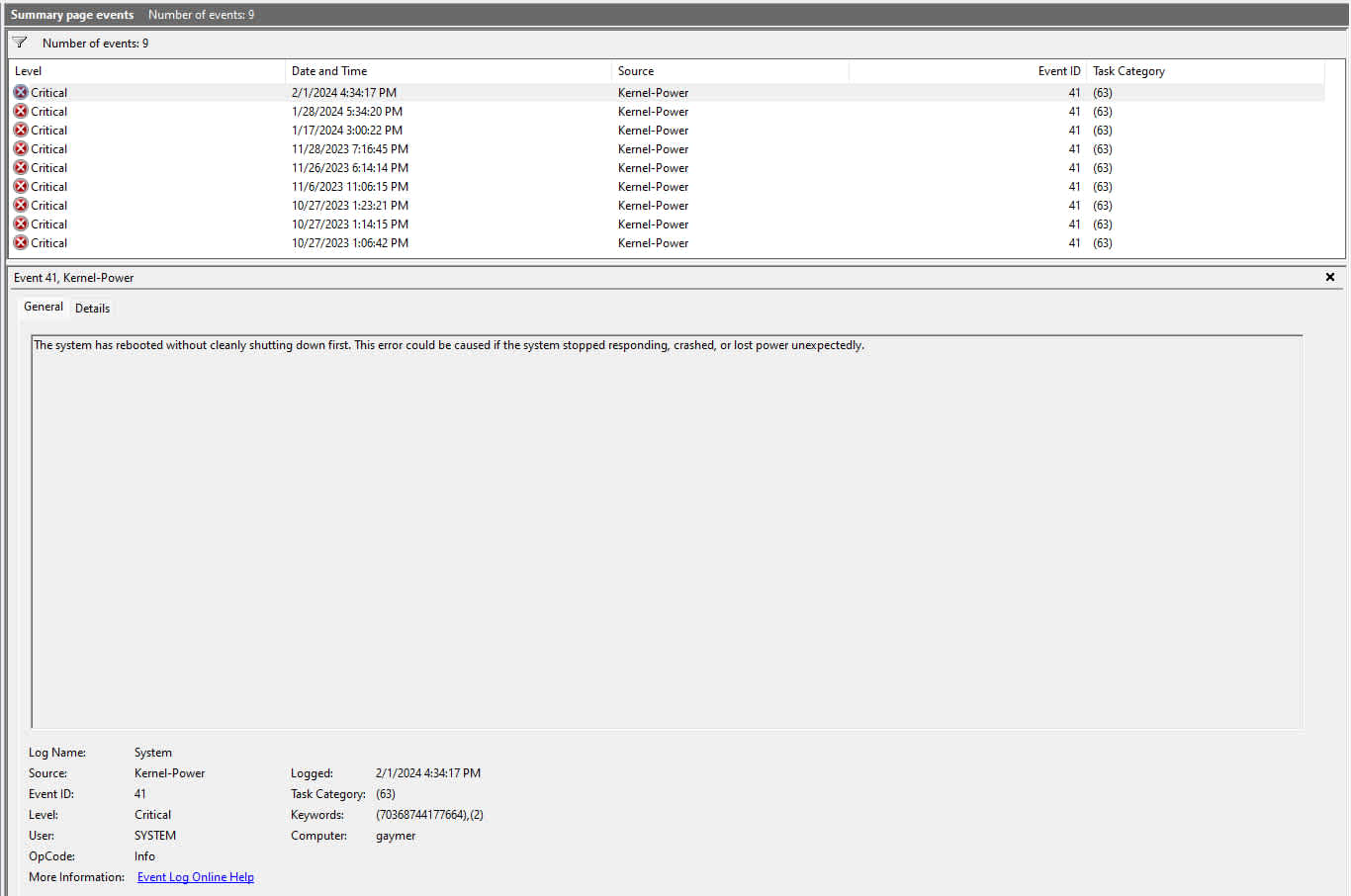
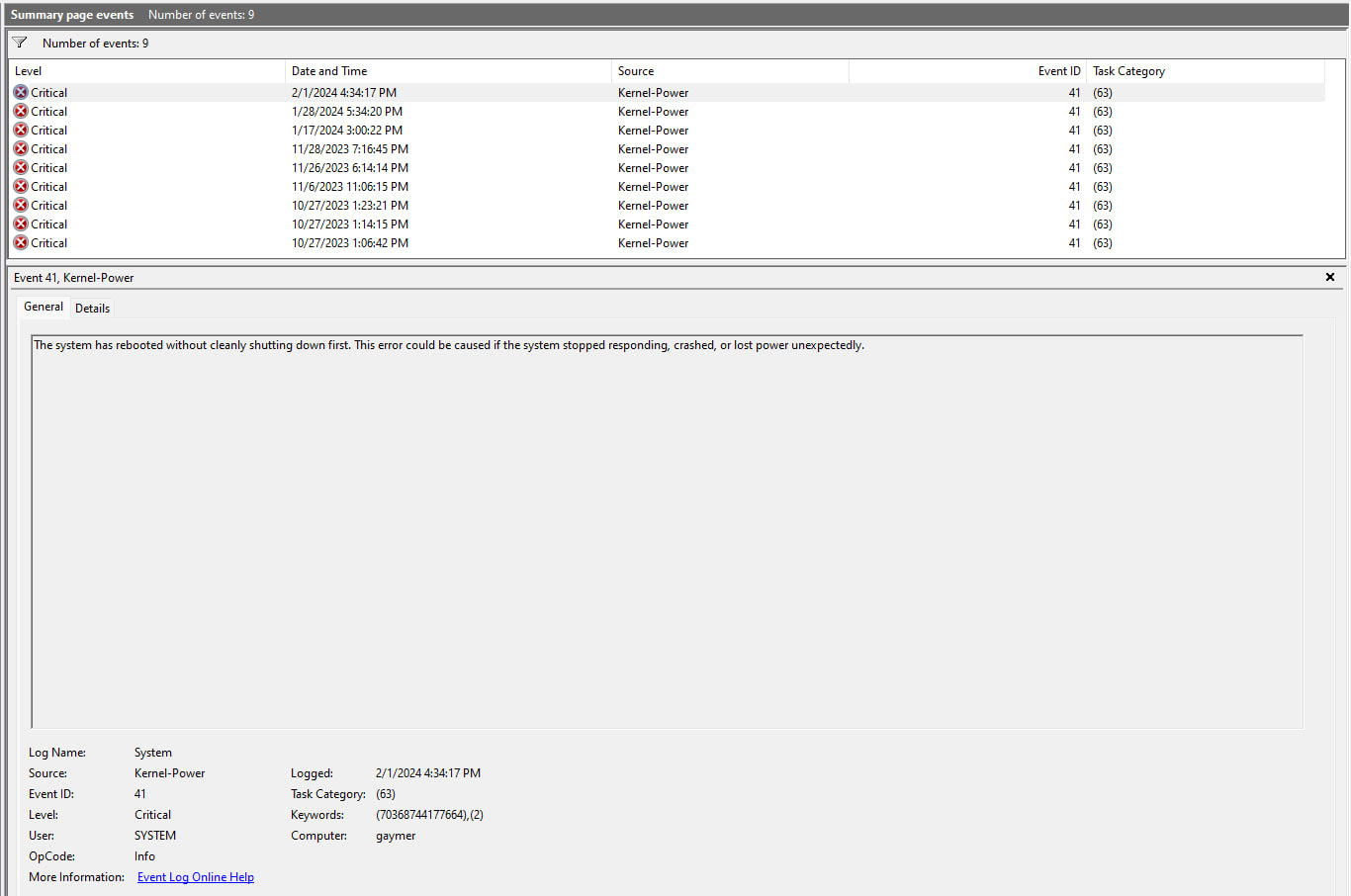
Kernel-Power Event 41 does not tell you why your PC died. It only tells you that it died without warning Windows first.
Windows writes this entry on the next boot, after the fact, whenever the previous session ended without a clean shutdown sequence. That is why searching the event ID returns hundreds of contradictory fixes: everyone is troubleshooting the same log line from a different underlying fault.
Quick answer: Open the Event 41 entry, switch to the Details tab, and read BugcheckCode. If it is 0, the machine genuinely lost power and the cause is hardware or electrical. If it is non-zero, you had a blue screen — troubleshoot that bugcheck code instead and ignore Event 41 entirely.
That single field splits the problem into two completely different investigations, and it is the step almost every guide skips.
Note
Key Takeaways
- Event 41 is logged retroactively on the next boot. Its timestamp is the reboot, not the crash.
- BugcheckCode 0 means true power loss — look at the PSU, wall power, and transient GPU spikes.
- BugcheckCode non-zero means it was a BSOD that never finished writing. Chase that code instead.
- Transient power spikes trip PSU protection even when average wattage looks fine. Modern GPUs can briefly draw around double their rated board power.
- Unstable XMP/EXPO is the single most common cause on machines that pass every stress test but die in real games.
What Event ID 41 Actually Means
Event ID 41, source Kernel-Power, task category 63, carries the text "The system has rebooted without cleanly shutting down first." Microsoft's own documentation is explicit that this is recorded when the system stops responding, crashes, or loses power unexpectedly.
The important consequence is that Event 41 is not an error report — it is a note that no error report was possible. Windows never got the chance to log anything else, so on the next boot it records the absence.
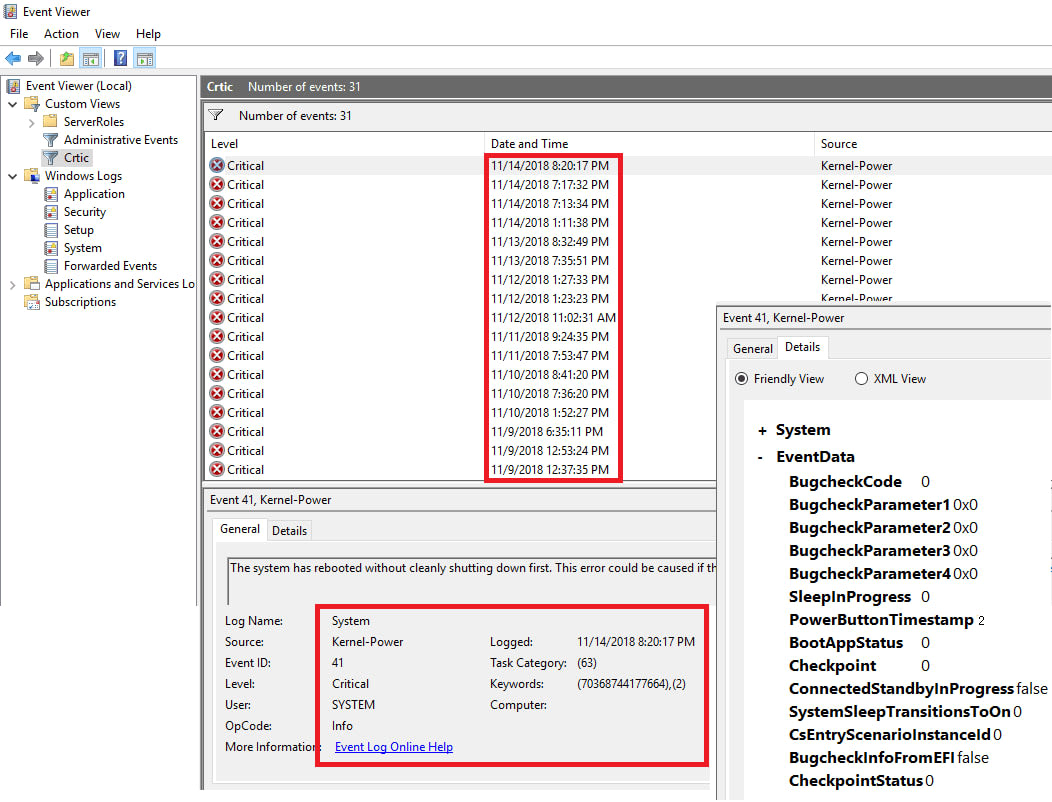
Where to find it
- Press Win + X and choose Event Viewer.
- Expand Windows Logs → System.
- Click Filter Current Log in the right-hand pane.
- Enter 41 in the Event IDs box and set the source to Kernel-Power.
- Select the entry matching your crash, then open the Details tab.
Read the times carefully. The Event 41 entry is stamped with the moment Windows came back, so the actual failure happened at the previous log activity — scroll up to the last event before the gap to find when things really stopped.
Read These Three Fields Before Changing Anything
The Details tab exposes the fields that turn a generic event into a diagnosis. Under EventData you get BugcheckCode, PowerButtonTimestamp, and SleepInProgress, and the combination narrows the cause dramatically.
BugcheckCode
This is the decisive field.
- BugcheckCode = 0 — no blue screen occurred. The system lost power or hard-locked. This is a hardware, thermal, or electrical problem.
- BugcheckCode = anything else — a bugcheck (BSOD) did occur, but the crash dump did not complete before the machine went down. Convert the decimal value to hexadecimal and troubleshoot that stop code. Event 41 is now irrelevant to you.
A great deal of wasted effort comes from people replacing a healthy power supply because they never checked this field, when the real fault was a driver bugcheck that failed to write its dump. If the crash produced an on-screen error naming a stalled engine thread rather than a clean reboot, that is a different failure again — hang detected on GameThread covers how Unreal Engine titles report GPU timeouts.
PowerButtonTimestamp
A non-zero value means the power button was physically held down. If nobody held the button, a non-zero value points at a faulty or shorted front-panel power switch — an uncommon but genuinely overlooked cause, and a trivially cheap fix.
A value of 0 means the machine went down without any button press.
SleepInProgress
If this is non-zero, the failure happened during a sleep or resume transition rather than under gaming load. That moves the investigation toward power-state and chipset driver problems, not power delivery.
Warning
Before trusting any of this, turn off Fast Startup (Control Panel → Power Options → Choose what the power buttons do → Turn on fast startup). Fast Startup performs a hybrid shutdown that can suppress or distort shutdown-related logging, and it makes intermittent Event 41 cases considerably harder to reproduce cleanly.
Cause 1: Transient Power Spikes, Not Average Wattage
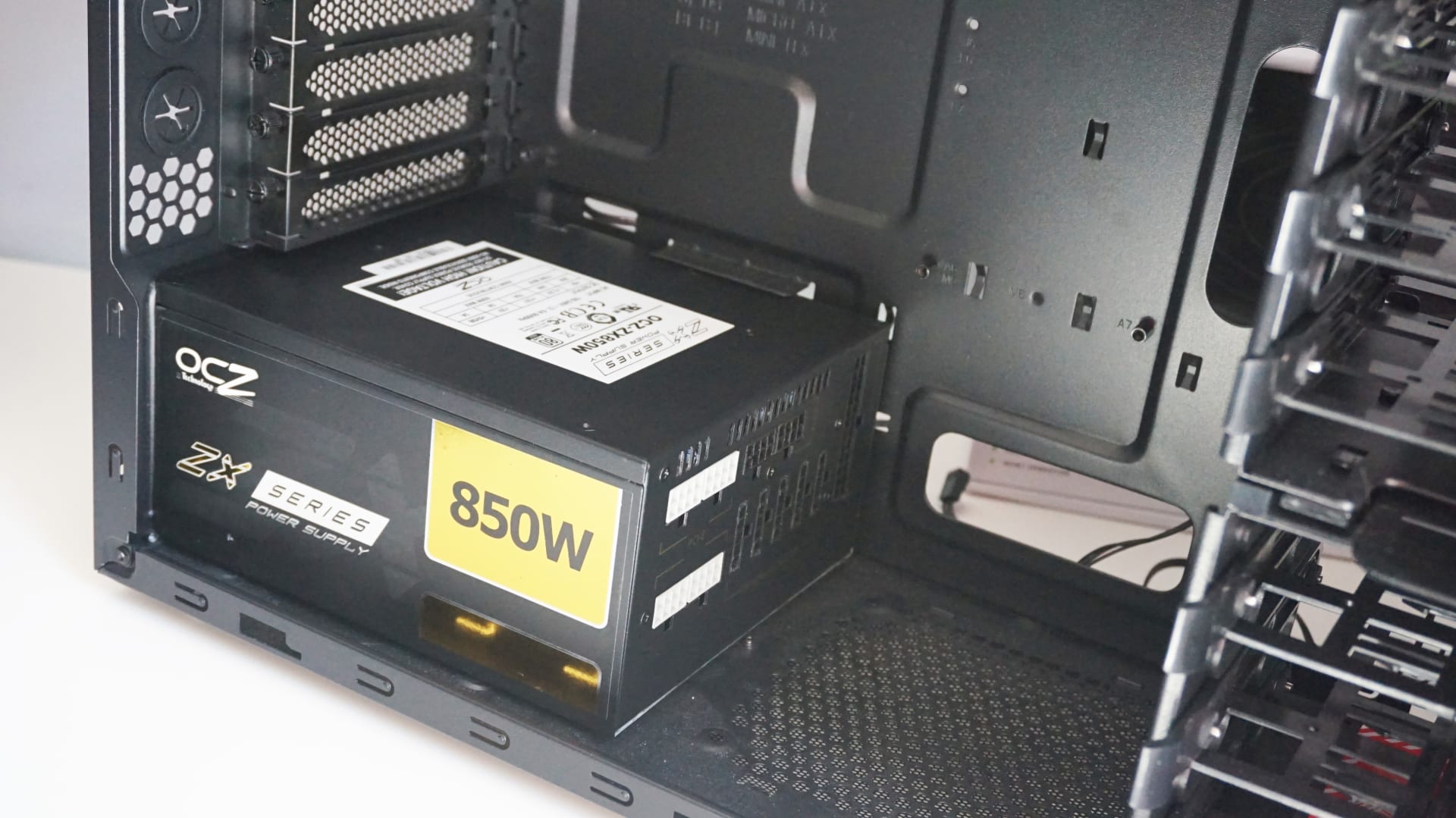
If BugcheckCode is 0 and the machine dies specifically under load, transient spikes are the first suspect — and they are the reason a PSU wattage calculator can tell you that you are fine while your PC keeps shutting off.
Modern GPUs do not draw power smoothly. They draw it in extremely short bursts that can reach roughly double the rated board power for periods measured in microseconds. Your PSU's average load might sit at a comfortable 60%, but a spike that brief can still trip over-current or over-power protection, and protection circuits cut the rail instantly. The result is a dead machine and an Event 41 with BugcheckCode 0.
Why this looks like a "random" crash
The spikes correlate with sudden GPU load changes — a shader compiling, a level loading, an alt-tab back into a game. That is why the crash feels random rather than tied to sustained heavy load, and why running a steady stress test for an hour often fails to reproduce it.
What actually fixes it
- Cap your frame rate. This is free, immediate, and remarkably effective, because it stops the GPU from repeatedly slamming between idle and full load. Our guide to G-Sync, V-Sync and frame cap settings covers where to set the limit.
- Undervolt the GPU. A modest undervolt cuts peak transients more than it cuts performance.
- Move to an ATX 3.0 or 3.1 supply. The specification requires the unit to tolerate large, brief excursions above rated output precisely because of this behaviour.
- Check headroom properly. Our PSU wattage guide for gaming PCs explains why the recommended figure includes margin for exactly this, not padding for its own sake.
Note the distinguishing symptom: a spike-related shutdown is usually instant and total, often with fans stopping dead. A thermal shutdown is typically preceded by throttling and rising fan noise. Transients are also what produce audible GPU coil whine under sudden load changes, so a card that whines loudly during loading screens is demonstrating exactly the behaviour that trips protection circuits.
Cause 2: Unstable Memory Overclock (XMP/EXPO)
This is the most under-diagnosed cause of Event 41 on otherwise healthy machines, and it is the one worth testing first because it costs nothing.
XMP and EXPO are factory overclocks. They are validated by the memory manufacturer, not guaranteed by your CPU's memory controller. A kit rated well above your platform's official JEDEC support may be perfectly stable in every benchmark and still fail under the irregular access patterns of an actual game.
How to test it in ten minutes
- Enter BIOS and set the memory profile to Disabled or Auto, dropping to JEDEC defaults.
- Play the game that reliably crashes, for longer than it usually survives.
- If the crashes stop, the profile was the cause.
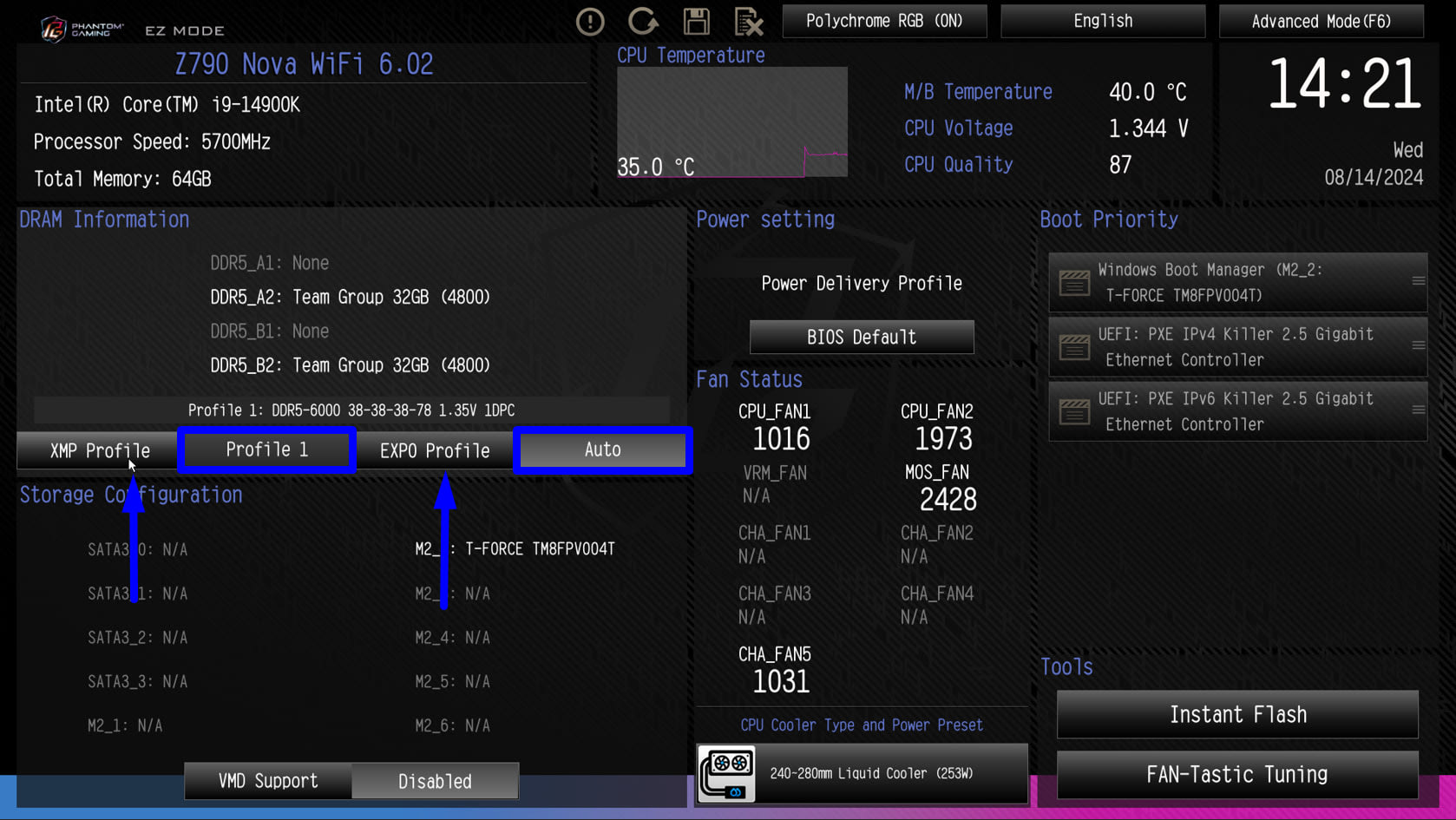
You do not have to live at JEDEC speeds afterwards. Re-enable the profile and raise SoC/VDD voltages slightly, or step the frequency down one bin, and most kits become stable. Four sticks of dual-rank memory are considerably harder on a memory controller than two, so a four-DIMM configuration deserves more scepticism.
If the machine survives games but shows other memory oddities, our guide on DDR5 not running at its rated speed covers the training and compatibility side of the same problem.
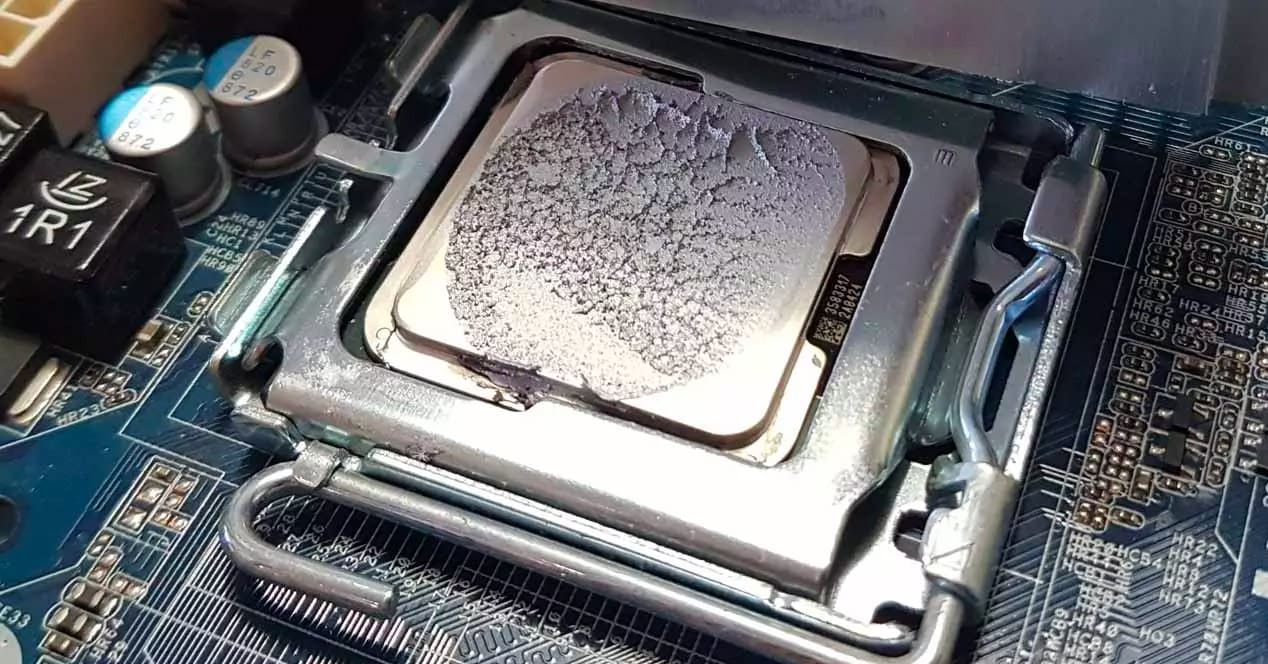
Cause 3: Heat, Dust and Thermal Cutoff
Thermal shutdown is a real cause but a less common one than its reputation suggests, because modern CPUs and GPUs throttle aggressively long before they cut out.
Treat heat as the cause only if you can evidence it. Log temperatures during the session that crashes rather than checking them afterwards — by the time you reboot and open a monitoring tool, everything has cooled to idle and tells you nothing.
Use HWiNFO64 with sensor logging to a file, then open the log after a crash and read the final recorded values.
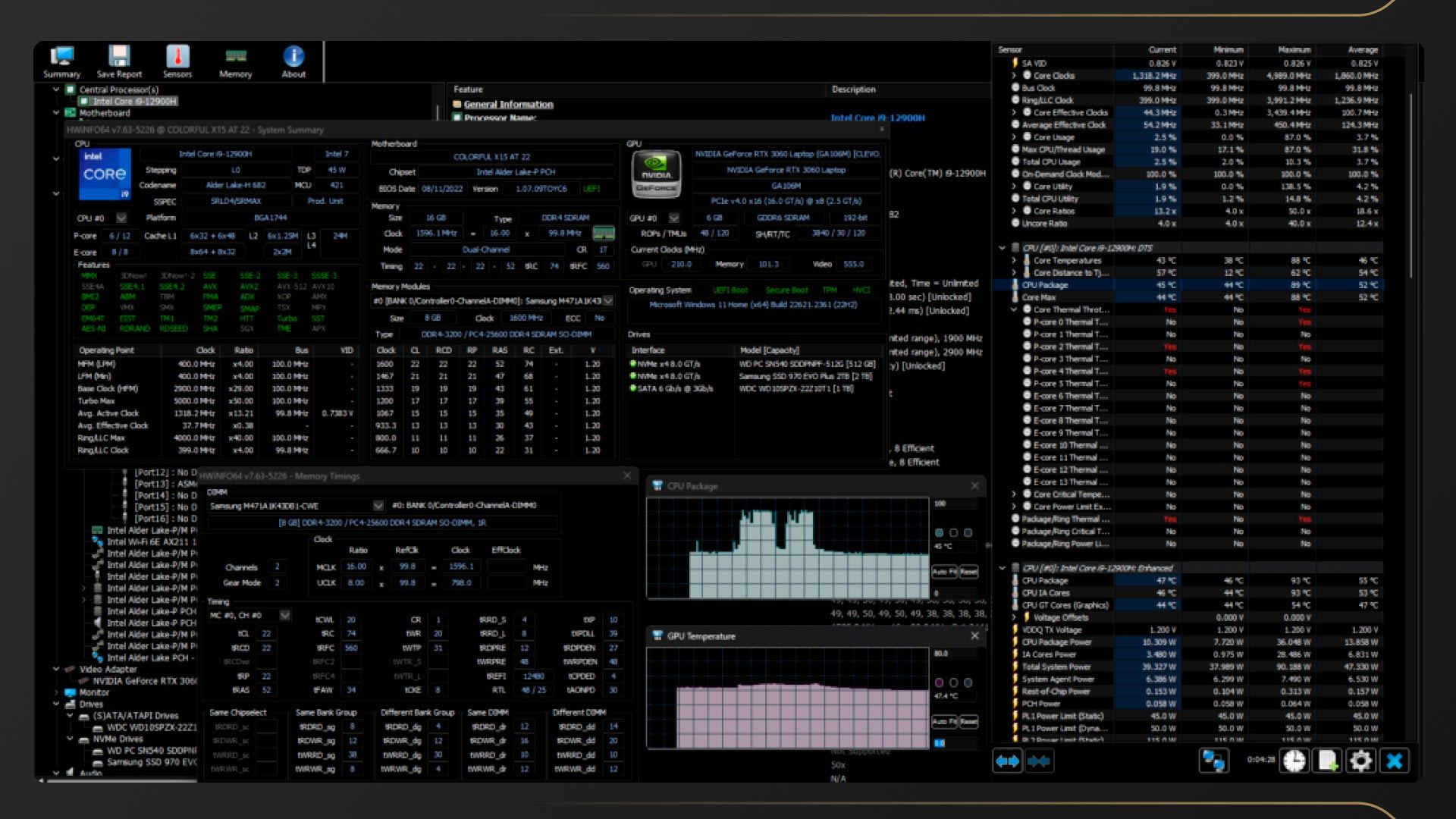
What the numbers mean:
- CPU sitting at its thermal limit then cutting out — cooler mounting, pump failure, or dried thermal paste.
- GPU hotspot far above its core temperature — a large delta suggests poor die contact or degraded thermal interface material.
- Everything comfortably cool at the moment of death — heat is not your problem. Go back to the PSU and memory sections.
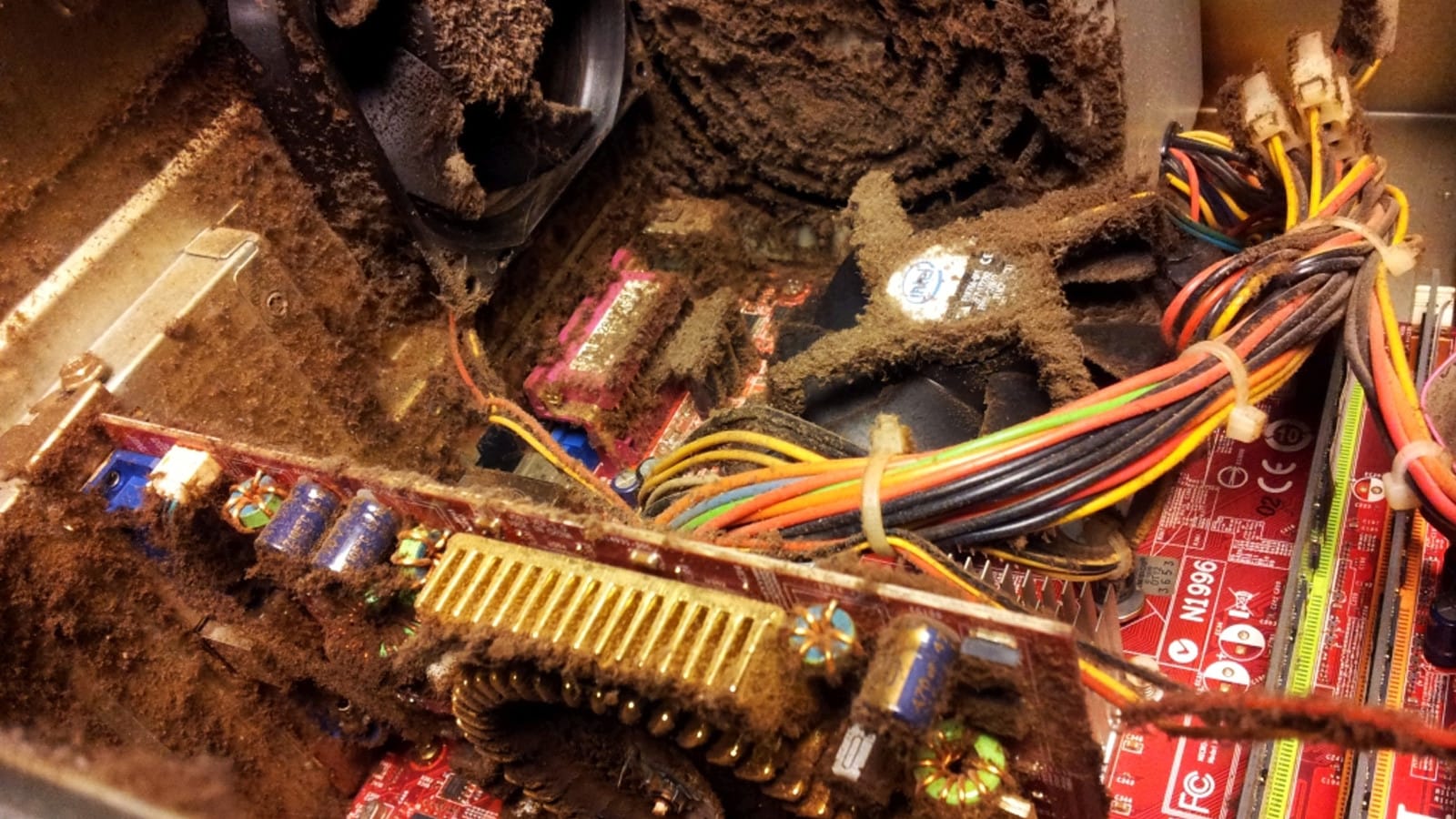
Dust is worth clearing regardless, because it changes the thermal baseline gradually enough that people do not notice until a machine that ran fine for two years starts cutting out.
Cause 4: Wall Power and the Circuit Itself
If BugcheckCode is 0 and the components check out, the fault may be upstream of the case entirely.
Test this by elimination. Move the PC to a different circuit — not just a different socket on the same wall, which is usually the same circuit. If a space heater, kettle or air conditioner on the same breaker correlates with the crashes, you have your answer.
Cheap surge protectors and daisy-chained extension leads are also worth removing from the equation during testing. A UPS with automatic voltage regulation resolves this class of problem permanently and confirms the diagnosis immediately.
A Diagnostic Order That Does Not Waste Money
| # | Step | Time | Rules out |
|---|---|---|---|
| 1 | Read BugcheckCode in Event 41 details | 2 min | Splits BSOD from true power loss |
| 2 | Disable Fast Startup | 2 min | Distorted and suppressed logging |
| 3 | Check for WHEA-Logger events 18 and 19 | 5 min | Confirms a real hardware error |
| 4 | Disable XMP/EXPO and retest | 10 min | Unstable memory overclock |
| 5 | Cap frame rate, then undervolt the GPU | 15 min | Transient power spikes |
| 6 | Log temperatures through a crash | 1 hr | Thermal shutdown |
| 7 | Move to a different electrical circuit | 15 min | Wall power and shared-breaker load |
| 8 | Swap in a known-good PSU | 30 min | A failing or under-specified unit |
Work down that list in order. The first three steps cost nothing and eliminate the majority of wrong turns, and swapping hardware sits deliberately at the bottom.
Frequently Asked Questions
Does Kernel-Power 41 always mean the power supply is failing?
No, and assuming so is the most expensive mistake in this whole diagnosis. Event 41 records only that Windows shut down uncleanly. It appears identically for unstable memory overclocks, thermal cutoffs, wall-power interruptions, held power buttons, and blue screens whose crash dump never completed. Read the BugcheckCode field before buying anything.
What is the difference between BugcheckCode 0 and a non-zero value?
Zero means no blue screen happened, so the machine lost power or hard-locked — a hardware or electrical fault. A non-zero value means a bugcheck did occur but the dump was not written, so the stop code itself is your real lead. Convert it to hexadecimal and troubleshoot that code; Event 41 adds nothing further in that case.
Why does my PC only crash in games and never in stress tests?
Because stress tests apply a steady load while games apply a wildly variable one. Transient GPU power spikes happen at sudden load changes — level loads, shader compilation, alt-tabbing — which a sustained benchmark never produces. Unstable memory profiles behave the same way, passing hours of synthetic testing then failing on a game's irregular memory access.
Should I turn off Fast Startup while troubleshooting this?
Yes. Fast Startup uses a hybrid shutdown that can suppress or distort shutdown-related logging, which makes intermittent Event 41 cases much harder to reproduce and interpret. Disable it for the duration of testing, and there is little reason to re-enable it on a system with an SSD.
Can a faulty power button cause Event 41?
Yes, and it shows up clearly. If the PowerButtonTimestamp field is non-zero and nobody physically held the button, the front-panel switch is likely shorting or sticking. Unplug the power switch header from the motherboard and start the system by briefly bridging the two pins; if the crashes stop, replace the switch.
The Bottom Line
Event 41 is a starting point, not a diagnosis. Read BugcheckCode first, because it determines whether you are investigating a power problem or a driver problem, and those two paths share nothing.
For the true power-loss branch, work in ascending order of cost: disable the memory profile, cap the frame rate, log temperatures, change circuits, and only then suspect the PSU. The most common outcome is an unstable XMP profile or a transient spike on a supply with too little headroom — neither of which requires the new components most people buy first.
If your machine shuts down without leaving any log entry at all, our guide to why a PC shuts down while gaming covers the hardware-side checks in more depth, and for crashes that happen on a consistent delay rather than at random, why games crash after 20 minutes walks through the thermal and memory patterns behind timed failures.
Screenshots courtesy of Microsoft and the respective software vendors, used for editorial coverage.
Sources
- Microsoft Learn, Advanced troubleshooting for Windows boot problems, retrieved 2026-08-18, https://learn.microsoft.com/en-us/troubleshoot/windows-client/performance/advanced-troubleshooting-for-windows-boot-problems
- Microsoft Learn, Bug Check Code Reference, retrieved 2026-08-18, https://learn.microsoft.com/en-us/windows-hardware/drivers/debugger/bug-check-code-reference2
- Microsoft Support, Windows Event Viewer and Event ID 41, retrieved 2026-08-18, https://support.microsoft.com/en-us/topic/kb2028504-troubleshooting-event-id-41-restart
- Intel, Desktop Boards — Troubleshooting Unexpected Shutdowns and Reboots, retrieved 2026-08-18, https://www.intel.com/content/www/us/en/support/articles/000005791/intel-nuc.html
- Tom's Hardware, ATX 3.0 explained: power excursions and GPU transient spikes, retrieved 2026-08-18, https://www.tomshardware.com/reviews/atx-30-power-supply-explained