A Switch 2 that loses battery while plugged in is usually charging correctly — just slower than the game is draining it. That is not a fault, it is a power budget problem, and it happens constantly with third-party USB-C chargers and phone bricks that were never rated for what a demanding handheld pulls.
The distinction that matters: does the battery icon show the charging bolt? If it does, power is arriving and the question is how much. If it does not, nothing is being delivered at all, and that is the fault worth troubleshooting.
Note
Key Takeaways
- Charging while playing a demanding game can still show a falling battery. The console draws more under load than a modest charger supplies.
- The official Nintendo AC adapter is the reference. Third-party chargers vary enormously in what they actually negotiate over USB Power Delivery.
- Lint in the USB-C port is the most common physical cause on a handheld that lives in a bag.
- A hard reset — hold power for 20 seconds, per Nintendo's own guidance — clears a stuck charge controller and is the single highest-value software step.
- A completely flat battery needs 15 to 30 minutes on the charger before it will show any sign of life. Do not conclude it is dead after two.
- Dock charging failures are usually the dock's power input, not the console — test handheld charging first to isolate.
First: Is It Charging At All?
Plug in the official adapter and look for the charging bolt on the battery icon in the top-right of the screen.
Bolt present, battery still falling → charging is working, but the supply is lower than the draw. Skip to the power budget section.
No bolt, no charging screen, no response → nothing is being delivered. Work through the port, cable and reset sections.
Bolt appears and disappears → intermittent contact, which is almost always debris in the port or a worn cable.
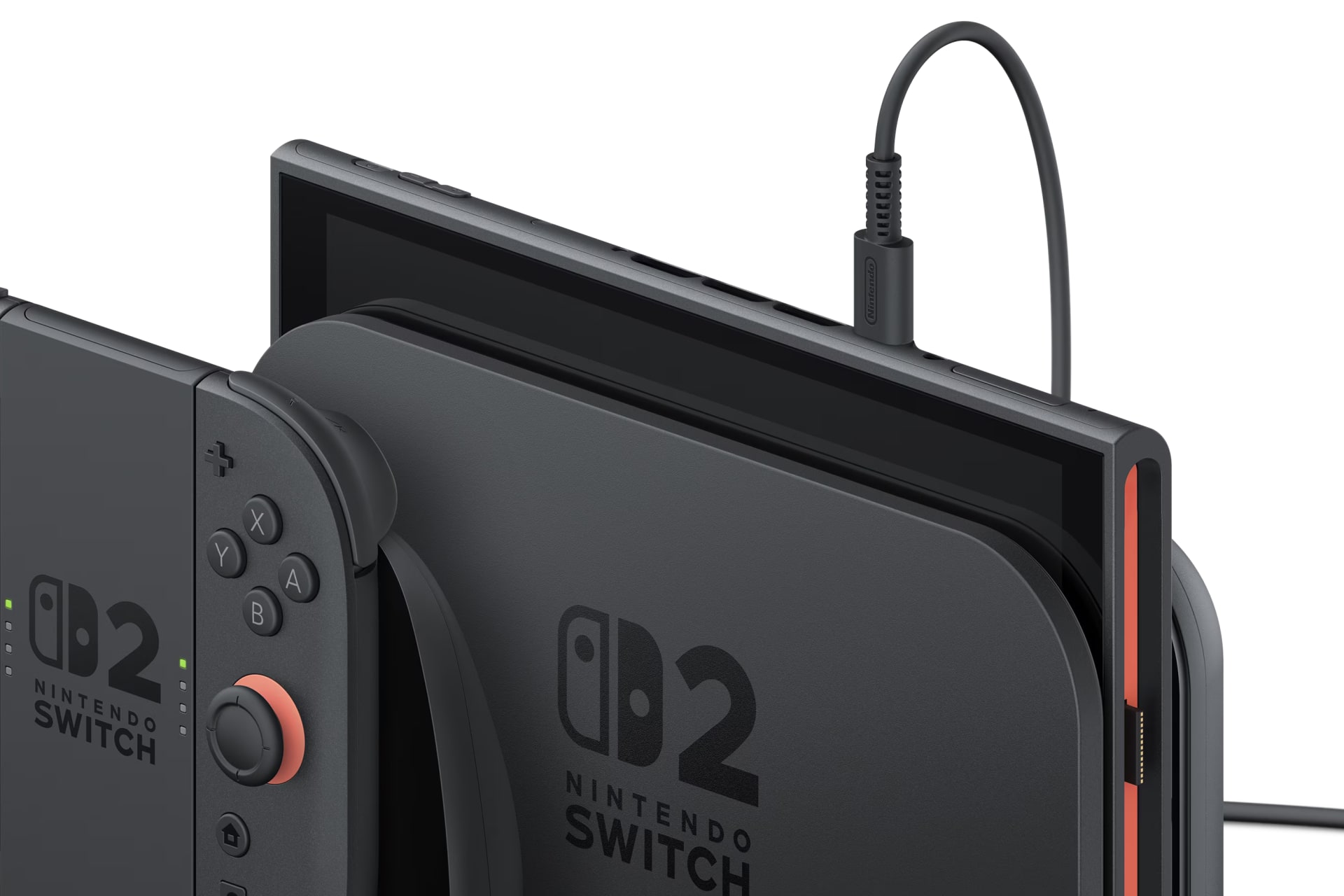
The Power Budget Problem
USB-C is not one thing. A cable and charger negotiate a voltage and current over USB Power Delivery, and the result ranges from trickle to substantial depending on what both ends support.
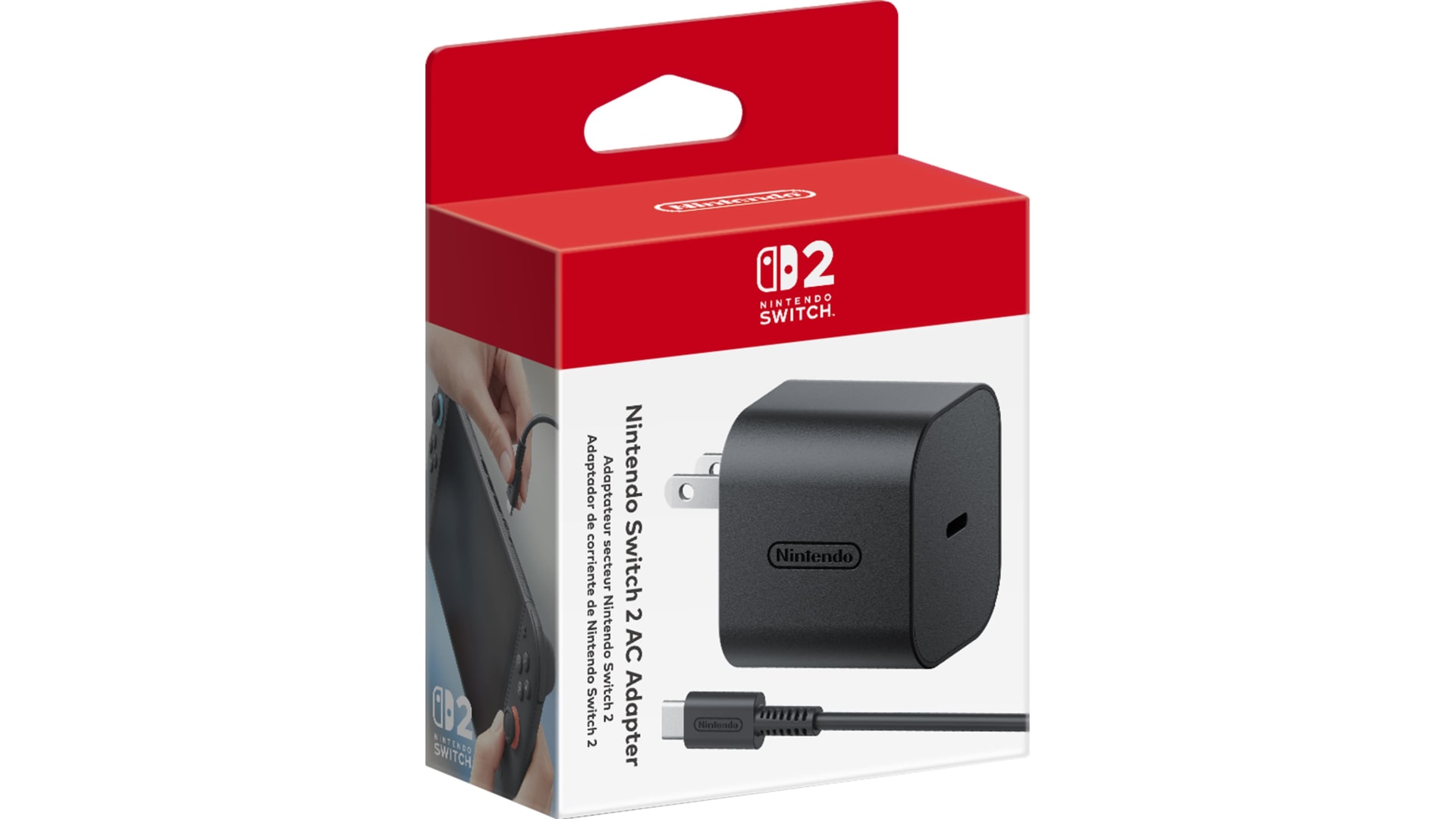
A phone charger that tops your handset up in an hour may negotiate a fraction of what the Switch 2 wants while it is running a demanding game with the screen at full brightness. The console accepts what it is offered, uses it, and makes up the shortfall from the battery — which is why the percentage falls while the bolt is showing.
Three practical consequences:
Test with the console asleep. Put it in sleep mode and leave it on the charger for 30 minutes. If it gains charge while asleep but loses it while playing, your charger is simply undersized and there is nothing wrong with the hardware.
Use the official adapter as your reference. It is specified for the console's full requirement including docked output. Any diagnosis done with a third-party brick is testing the brick as much as the console.
Suspect the cable as much as the charger. USB-C cables have their own current ratings, and a thin cable bundled with an accessory can throttle a perfectly capable charger.
Warning
Be cautious with unbranded third-party docks and chargers. There is a long history of poorly implemented USB Power Delivery in cheap Switch accessories damaging consoles by negotiating incorrectly. If you use a third-party dock, use one from a manufacturer with a reputation to protect.
Clean the USB-C Port
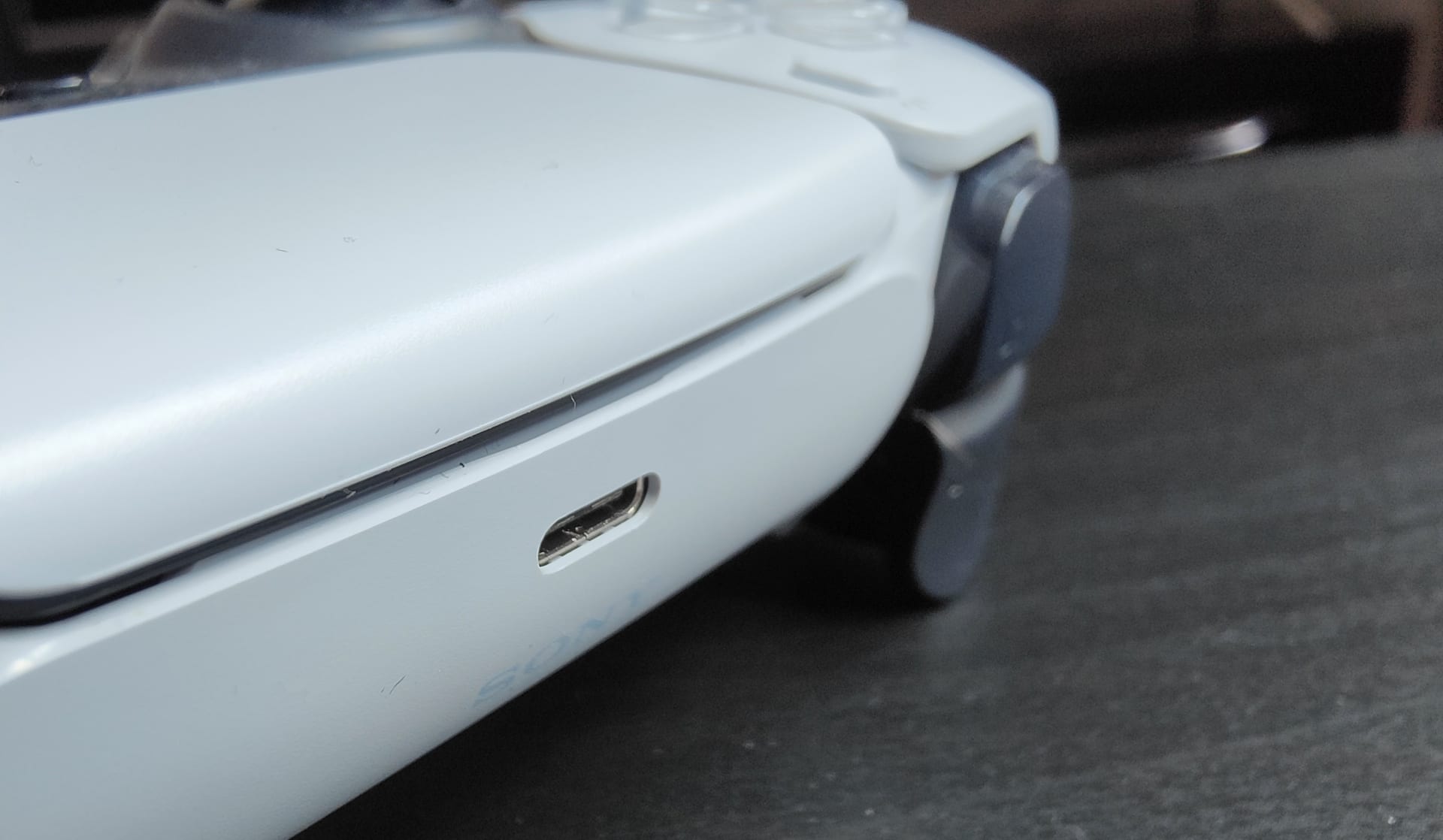
A handheld that travels in a bag or a pocket collects lint in its charging port, and compacted debris stops the connector seating fully.
Look into the port with a bright light. Compacted lint reads as a flat grey surface where you should see the connector tongue and the gap around it.
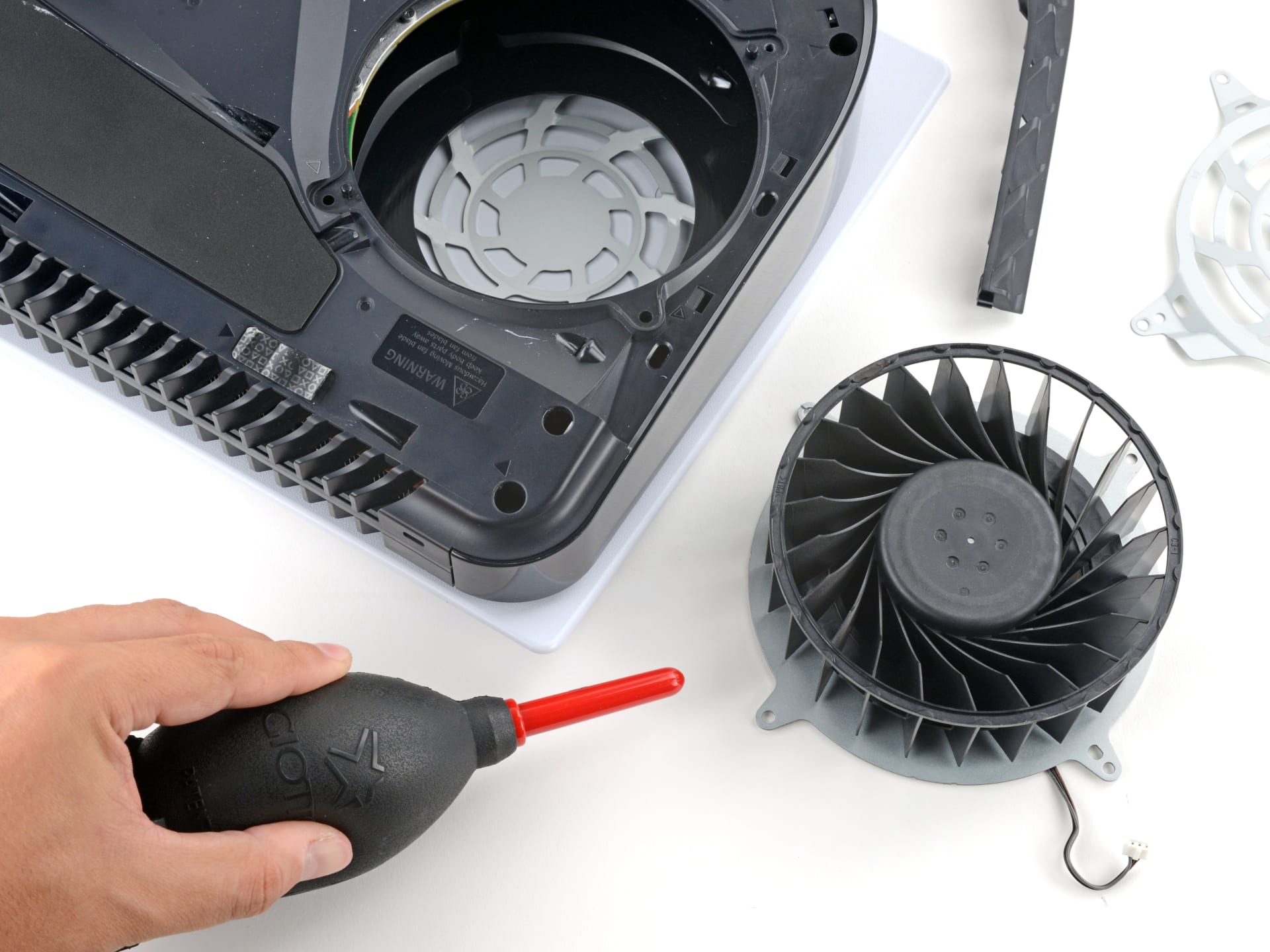
Clean it with a wooden or plastic toothpick, working from the sides toward the middle, then invert the console and tap gently so the debris falls out. Compressed air alone tends to pack it tighter rather than removing it.
Tip
Never use a metal pin or paperclip in a USB-C port. The connector has exposed contacts on both faces and bridging or bending one turns a five-minute clean into a board repair. A wooden toothpick has no chance of shorting anything.
The 20-Second Hard Reset
Hold the power button for 20 seconds. Release. Then press it once normally. Nintendo's own support documentation specifies 20 seconds for a forced shutdown on the Switch 2, so do not stop short at 10 or 15.
This forces a hardware-level restart that clears a hung charge controller, which is a real and common failure state — the console appears completely dead, does not respond to the charger, and shows no light or screen activity.
It is not the same as a normal restart and it does not touch your data. If the console has been unresponsive on the charger for hours, this is the step most likely to bring it back.
Give a Flat Battery Real Time
A fully depleted lithium battery goes into a protective state and needs a substantial trickle before the console will show any sign of life.
Leave it on the official charger for at least 30 minutes before deciding anything. Plenty of consoles diagnosed as dead were simply five minutes into a charge that needed twenty.
If nothing at all appears after 30 minutes with the official adapter in a known-good wall socket, then you have a genuine fault worth escalating.
When Only the Dock Fails
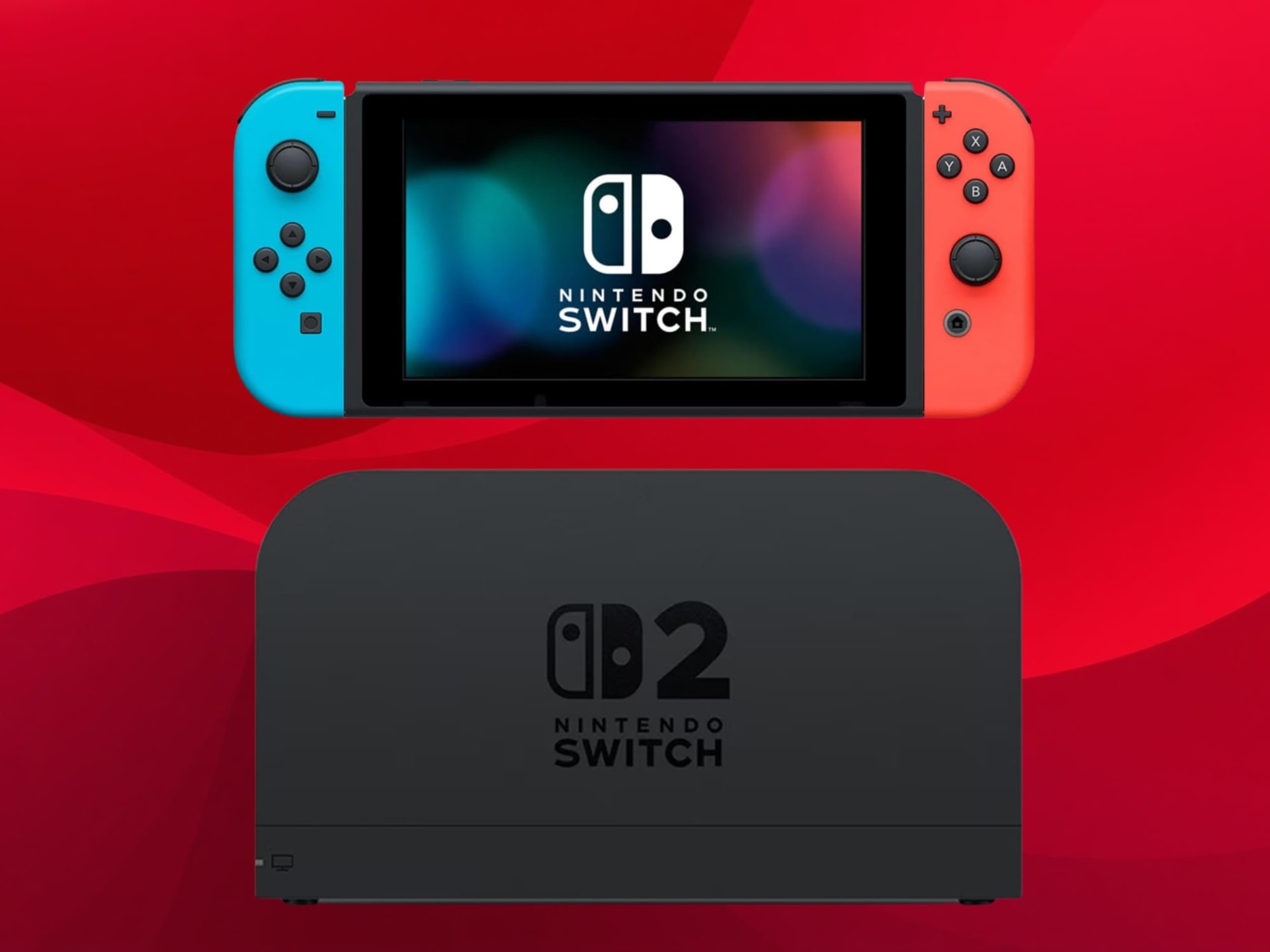
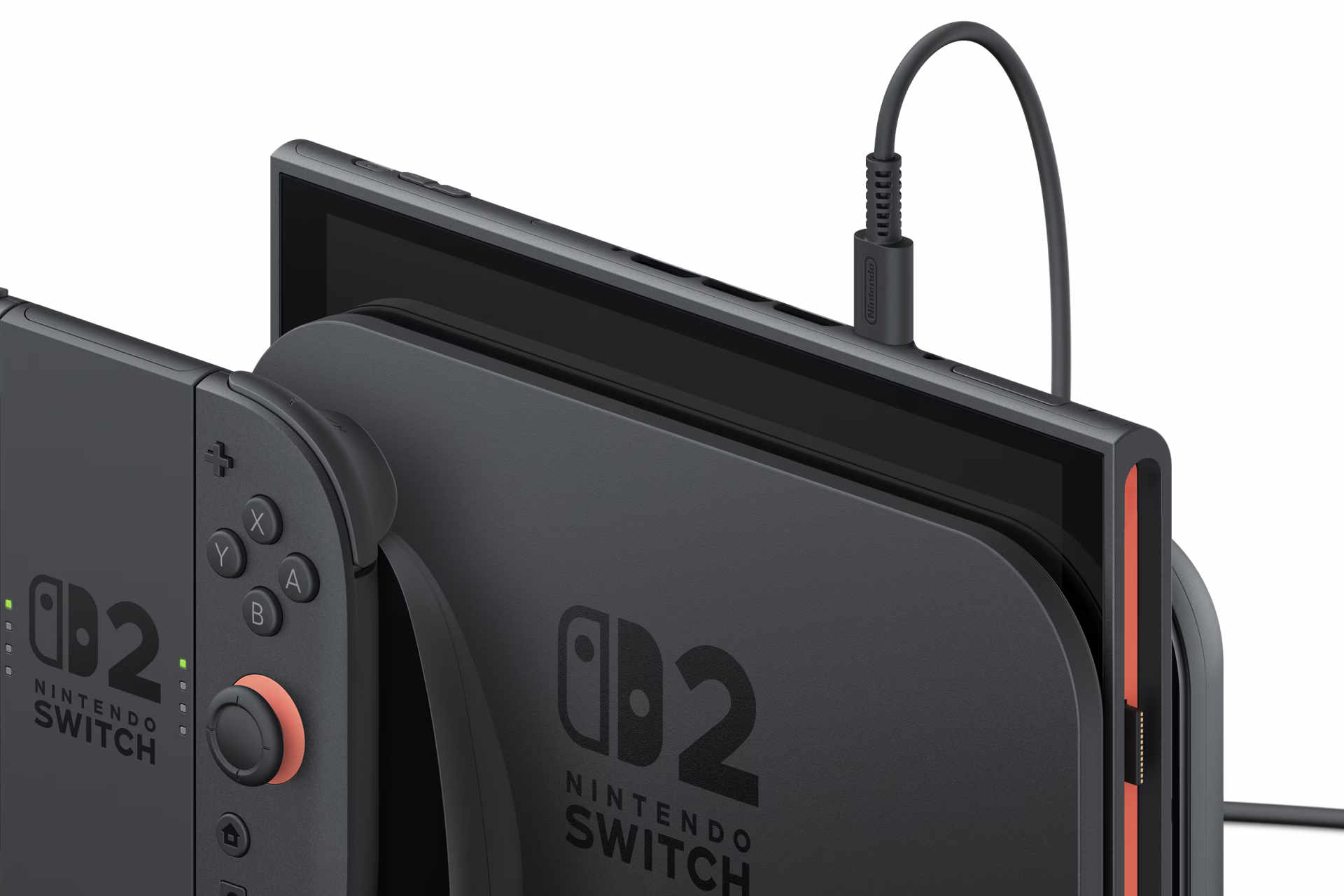
If the console charges perfectly in handheld mode but not in the dock, the console is fine and the dock is the problem.
Check the Dock's Own Power Input
The AC adapter must go into the dock's dedicated power port, not a spare USB port on the back. This is a genuinely common mistake.
Reseat the Console
The dock's connector needs the console pushed fully home. A case or screen protector with a thick lip can hold it a few millimetres short.
Test the Adapter Handheld
Plug the same adapter straight into the console. If it charges handheld but not through the dock, the dock or its cable is at fault.
Remove Anything Between
Powered hubs and third-party dock replacements are the usual culprits when charging works everywhere except the dock.
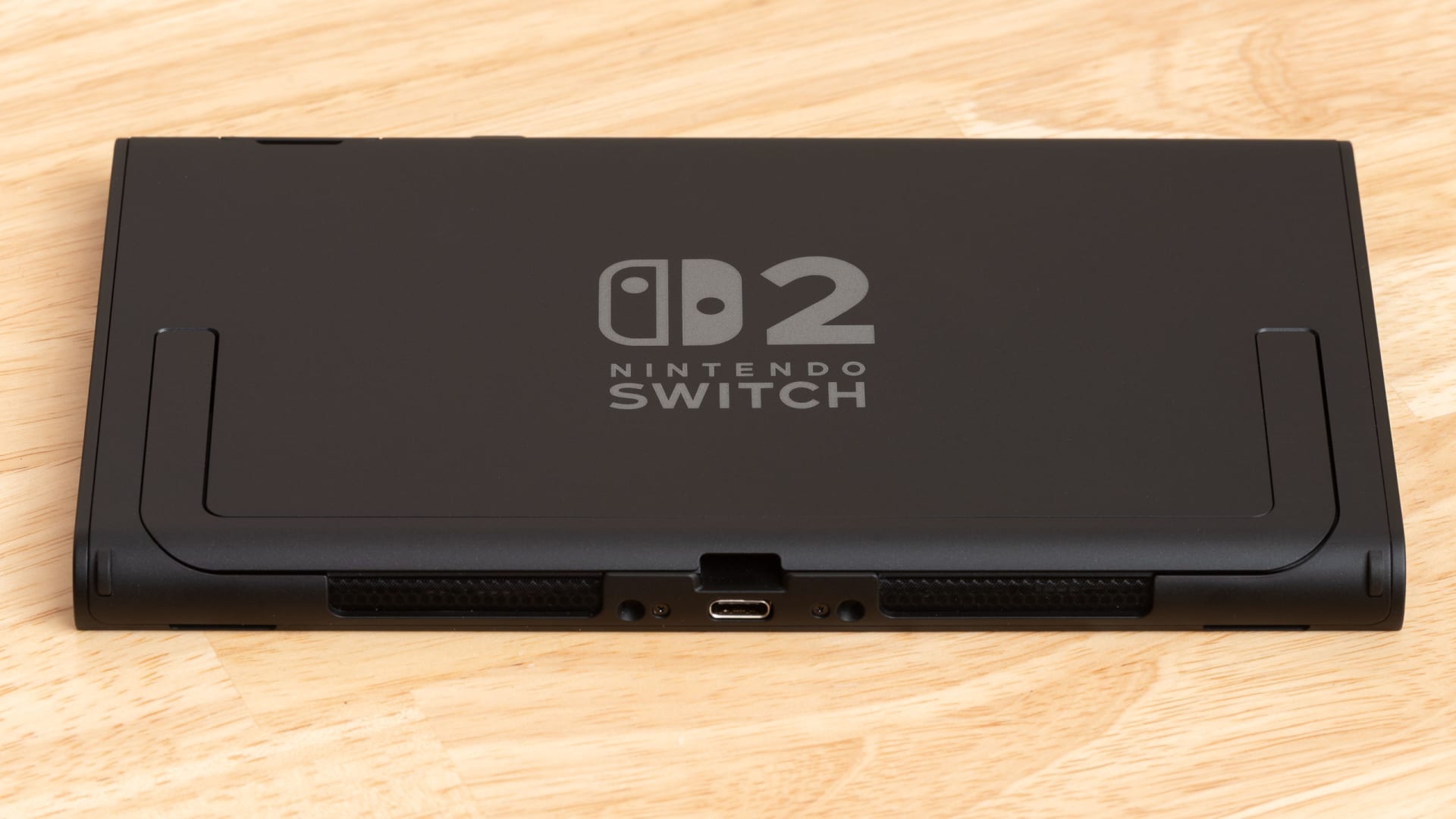
A bulky case is the single most common cause of a dock that stops working. The console needs to seat fully for the USB-C connector inside the dock to make contact, and a few millimetres of silicone is enough to prevent it.
Battery Health and Expectations
The Switch 2 battery is a lithium-ion cell and loses capacity over charge cycles like every other. A console two or three years into daily use will run noticeably shorter than it did new, and that is normal wear rather than a charging fault.
The distinguishing symptom is straightforward: a worn battery charges normally to 100% but runs down quickly. A charging fault means the console does not reach 100% or does not accept power reliably in the first place.
Enabling the battery-longevity option in system settings, which caps charge below 100% when docked for long periods, meaningfully slows that wear if the console lives in the dock.
A console that runs hot in the dock will also throttle and drain faster, so if the dock lives in a tight shelf it is worth reading console overheating alongside this. The other common Joy-Con complaint — sticks that move on their own — is unrelated to charging and is covered in Switch 2 Joy-Con drift.
The same USB-C port-debris problem affects every modern controller, and the cleaning method is identical to the one in PS5 controller not charging. If you are stocking up on games while you wait for a replacement charger, Elden Ring Tarnished Edition and The Duskbloods are the two Switch 2 headliners worth knowing about.
| Symptom | Most likely cause | First step |
|---|---|---|
| Bolt shows, battery still falls while playing | Charger under-supplying | Test asleep on official adapter |
| No bolt, no response at all | Debris, cable, or hung controller | Clean port, then 15-second reset |
| Bolt flickers on and off | Debris or worn cable | Clean port, swap cable |
| Nothing after 5 minutes on charger | Deeply discharged battery | Wait a full 30 minutes |
| Charges handheld, not in dock | Dock power input or seating | Check dock's own adapter port |
| Charges to 100%, dies fast | Battery wear | Enable charge limiting |
Frequently Asked Questions
Why does my Switch 2 lose battery while charging?
Because the charger is supplying less power than the console is drawing under load. A demanding game with the screen bright can exceed what a modest USB-C charger negotiates, so the console makes up the difference from the battery even though it is charging. Test with the console asleep to confirm.
Do I have to use the official Nintendo Switch 2 charger?
Not necessarily, but you should diagnose with it. USB-C chargers vary enormously in what they actually negotiate over Power Delivery, and the official adapter is specified for the console's full requirement. Be cautious with unbranded third-party docks, which have a history of implementing Power Delivery badly.
How do I hard reset a Nintendo Switch 2?
Hold the power button for 20 seconds, which is the duration Nintendo's own support documentation specifies for a forced shutdown on the Switch 2, release it, then press it once normally. This forces a hardware-level restart that clears a hung charge controller — the state where the console appears completely dead and does not respond to a charger. It does not affect your saved data.
How long should I leave a dead Switch 2 charging before worrying?
At least 30 minutes on the official adapter. A fully depleted lithium battery enters a protective state and needs a significant trickle before the console shows any sign of life. Many consoles reported as dead were simply a few minutes into a charge that needed far longer.
Why does my Switch 2 charge in handheld mode but not in the dock?
Usually because the AC adapter is plugged into a spare USB port on the dock rather than its dedicated power input, or because a case is preventing the console from seating fully on the dock's connector. Test the same adapter plugged directly into the console to confirm the console itself is fine.
Can a case stop the Switch 2 from charging in the dock?
Yes, and it is one of the most common causes. The dock's USB-C connector needs the console pushed fully home, and a case or screen protector with a thick lip can hold it a few millimetres short of contact. Remove the case and try again before troubleshooting anything else.
The Bottom Line
Check for the charging bolt first, because it splits the problem in two. Bolt showing with a falling battery is a charger that is too small, not a console that is broken — and the fix is the official adapter, not a repair.
If there is no response at all: clean the port with a wooden toothpick, hold power for 20 seconds, and then give it a genuine 30 minutes on the official charger before concluding anything.
And if only the dock fails, take the case off. It is a small thing that accounts for a large share of docks people were about to replace.
Console and accessory photography courtesy of Nintendo and the respective publications, used for editorial coverage.
Sources
- Nintendo Support, Nintendo Switch 2 Cannot Be Charged, retrieved 2026-08-09, https://en-americas-support.nintendo.com/app/answers/detail/a_id/68464
- Nintendo Support, Nintendo Switch 2 System Has No Power, a Blank Screen, or Won't Wake Up, retrieved 2026-08-09, https://en-americas-support.nintendo.com/app/answers/detail/a_id/68483
- Nintendo Support, USB Ports Not Working on the Nintendo Switch 2 Dock, retrieved 2026-08-09, https://en-americas-support.nintendo.com/app/answers/detail/a_id/68516
- Nintendo Support, Nintendo Switch 2: Power and Charging topic hub, retrieved 2026-08-09, https://en-americas-support.nintendo.com/app/topics/detail/p/1095/c/208
- USB Implementers Forum, USB Power Delivery specification overview, retrieved 2026-08-09, https://www.usb.org/usb-charger-pd